
The Spin Wheel is a gamified prize wheel. Visitors spin to win a coupon, discount, free shipping, or another prize, with odds you control. It comes in two layouts that share the exact same settings and features — pick the one that fits your placement.
The two layouts
- Spin Wheel (Stacked) — a tall, narrow card: logo, headline and text on top, the wheel in the middle, and the button below. Best for inline placement inside a page, sidebars, or narrower spaces.
- Spin Wheel (Side-by-Side / Full Screen) — a wide, two-column card: text on one side, the wheel on the other. It also supports a full-screen takeover where the entire page becomes the background (a solid color or your image) with the wheel and text centered. Best for hero sections, wide banners, and full-screen promos.
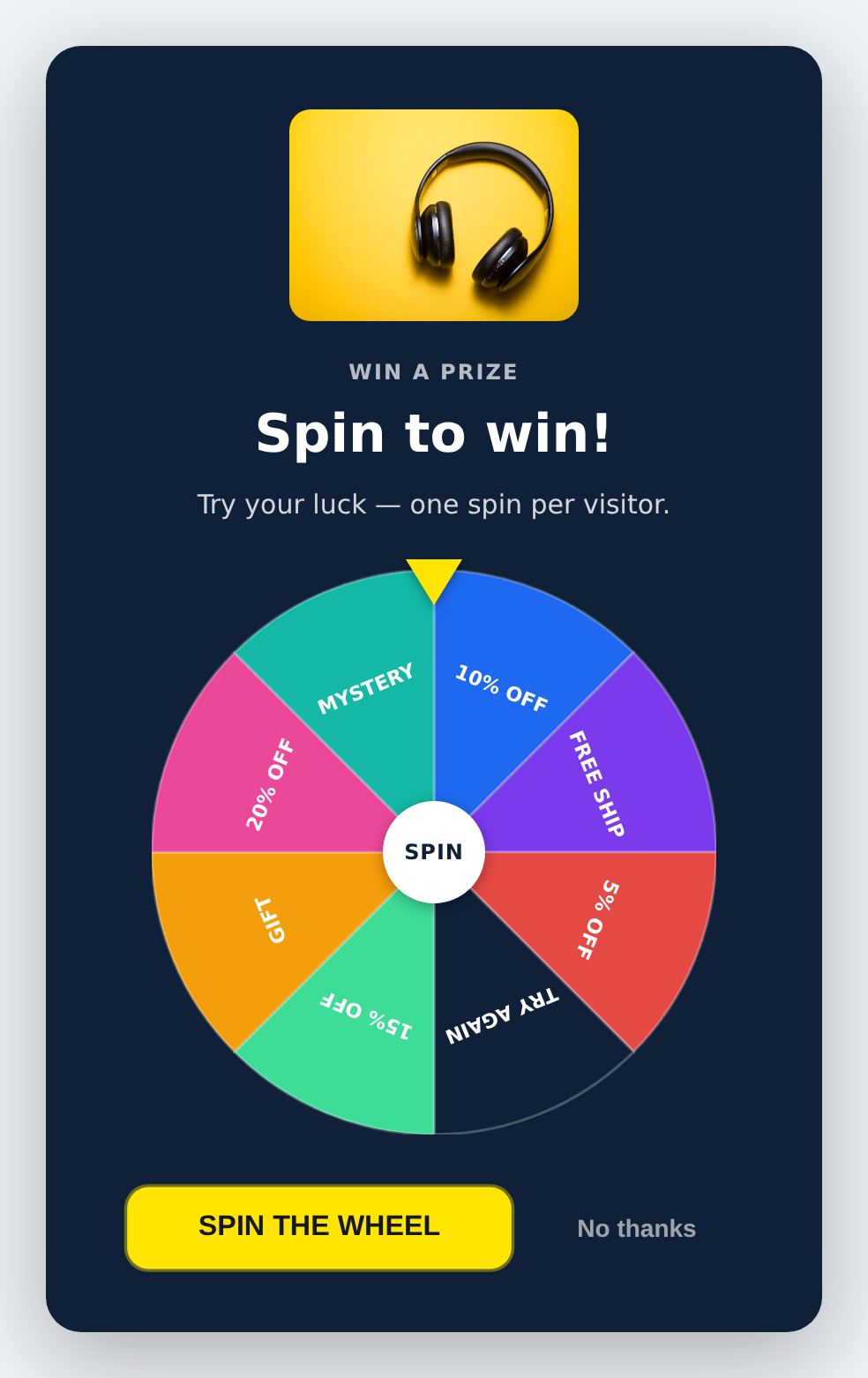
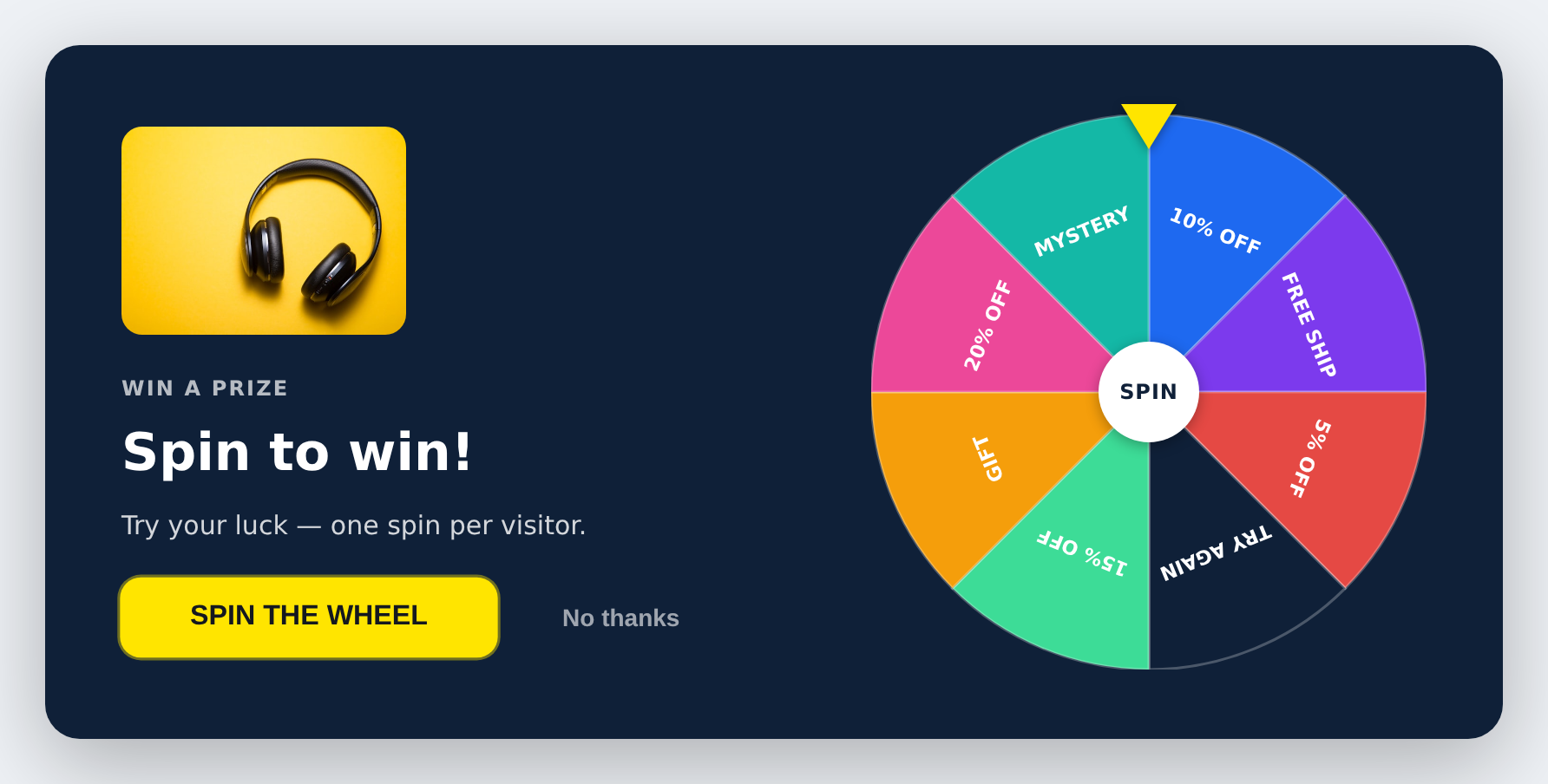
Everything below applies to both layouts unless noted.
How it works for the visitor
- The wheel appears with a pulsing Spin button.
- The visitor clicks Spin; the wheel spins and lands on a segment.
- If they win a prize (a segment with a coupon code), the code is revealed and they can click to copy it. Wins can celebrate with confetti or a glow.
- If they land on a losing segment (no coupon), they can spin again if you allow more than one spin.
- When the spins are used up, the wheel dims to a “spent” state so it’s clear they’re done.
Setting up the segments (the prizes)
The wheel has 4 to 8 segments. Segments 1–4 are always on. Segments 5–8 each have a Show Segment toggle so you can turn them on as needed.
Each segment has these settings:
- Label — the short text shown on the wheel slice (e.g. “10% OFF”).
- Win Chance — a weight that controls how likely this slice is. Higher = more likely. The weights are relative, so 30/20/30/20 means the first and third slices each come up about 30% of the time. Set a slice you rarely want to give (like a big prize) to a low number.
- Color — the slice color.
- Prize Message — what the visitor sees when they land there (e.g. “You won 10% off!”).
- Coupon Code — the code revealed on a win. Leave this blank to make the segment a “loss” (e.g. a “Try Again” slice). A blank code = no win, no celebration.
Win vs. loss is decided entirely by whether the segment has a coupon code. A slice with a code is a win; a slice without one is a loss.
How many times can they spin?
The Spins Allowed setting controls this with a single number:
- 1 = one spin only.
- 2, 3, … = up to that many spins, but the wheel stops as soon as they win. They only get to re-spin if they land on a losing slice and still have spins left.
Style and display
- Preset — dark, light, or brand color scheme.
- Display Mode — inline (embedded in the page), fullpage (a card centered on a dimmed overlay, like a modal), or fullscreen (the whole screen becomes the background with content centered — the takeover look). Fullscreen is the main reason to use the Side-by-Side template.
- Background Image (fullscreen) — optional. In fullscreen mode, pick an image from the media manager to fill the whole screen. Leave blank for a solid color from the preset.
- Size — compact, default, or spacious.
- Win Celebration — confetti, glow, or none. Only plays on a real win.
- Spin Duration — how long the spin animation lasts, in seconds.
- Tick Sound — an optional ticking sound during the spin.
- Auto-close After Win — seconds to wait before closing after a win. 0 keeps it open.
Image, text, and buttons
- Show Image — an optional logo or product image above the title (media-manager picker). Turn it off if you don’t want an image.
- Eyebrow, Title, Subtext — the headline copy.
- Spin Button Text — the label on the spin button.
- ‘No thanks’ Button — an optional secondary button that lets the visitor dismiss the wheel. Toggle it on or off and set its text.
- Button (after win) — an optional call-to-action button shown after a win (e.g. “Shop now”) with your own link.
- Wheel Center Text (when spent) — the short word shown in the middle of the wheel after the last spin (default “DONE”).
Saving the result to the visitor’s profile
Under Save Result to Profile you can store what each visitor won on their Personyze profile, so you can target them later (for example, remind winners who didn’t use their coupon).
- Prize Field — a profile field to store the winning label. Leave blank to skip.
- Coupon Field — an optional profile field to store the coupon code.
Not showing the wheel again after a win or loss
Under Hide After Win or Loss you can stop showing the wheel to a visitor once they’ve played, so they don’t see it every visit.
- Hide After Win (Yes/No) — once they win, stop showing the wheel.
- Hide After Loss (Yes/No) — once they lose, stop showing the wheel.
Important: these toggles decide whether to hide the wheel per outcome. How many sessions it stays hidden is set on the action itself, in the Placement / Trigger settings (Display Frequency) — not in this template. The toggle hides it for the rest of the current session plus whatever session count you set there. The visitor still sees their prize first; the wheel is only suppressed for future visits.
Closing the wheel
The Close section controls the X button: whether it shows, how it looks, and whether it’s always visible or only on hover.
A note about the editor preview
In fullpage and fullscreen modes, the wheel shows as a flat block inside the editor so it doesn’t cover the editing toolbar. The true full-page or full-screen overlay only appears on the live preview and on your live site — not inside the editor panel. This is expected.
Technical notes
- Placement and targeting (who sees it, where, and how often) are set on the action, not in the template. The template only controls the wheel’s look and behavior.
- Odds use the relative Win Chance weights; they don’t need to add up to 100.
- The “Hide After” feature uses Personyze’s built-in session suppression. It registers the suppression without closing the popup, so the visitor still sees their result. The number of sessions comes from the action’s Display Frequency setting.
- Both layouts share one engine — the wheel is drawn dynamically, odds are weighted, and the landing position always matches the revealed prize.
- Fullscreen background: in fullscreen mode the whole page becomes the background (preset color or your chosen image); there is no card box — the wheel and text sit directly on the background.
Further reading
- Spin-to-win prize wheels — the wheel mechanic in depth.
- Gamification marketing — the mechanics behind interactive templates and where they fit.
- Website popup templates — all 16 templates, and how to pick the right format.