Single Sign-On (SSO) lets your team sign in to Personyze through your organization’s own identity provider: Microsoft Entra ID (Azure AD), Okta, OneLogin, Auth0 or xecurify. Your provider becomes the source of truth: people sign in with their company account, your provider’s MFA applies, and someone you disable there can no longer sign in to Personyze.
When SSO makes sense
- Teams whose accounts are managed centrally by IT.
- Compliance-driven environments, where access must be granted and removed in one identity system.
- Organizations that require MFA everywhere: SSO inherits your provider’s MFA without separate setup in Personyze.
How SSO works in Personyze
Personyze connects to your provider with OpenID Connect (OIDC). It is not SAML: there is no certificate or metadata file to exchange. You register Personyze as an app at your provider, then give Personyze that app’s Client ID and your provider’s Issuer URL.
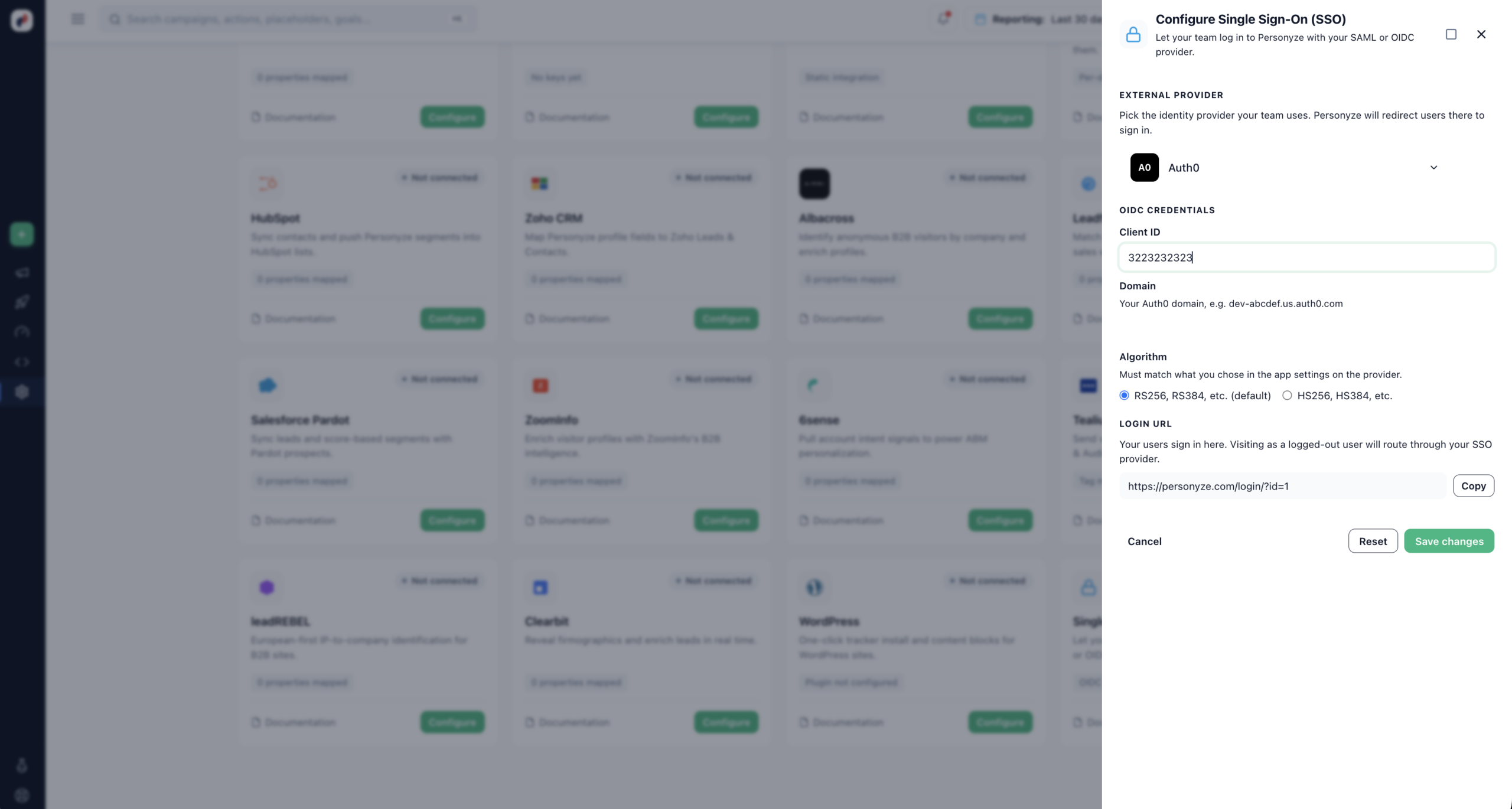
- A team member opens your account’s sign-in link, shown at the bottom of the Single Sign-On panel (
https://personyze.com/login/?id=<your account ID>). Or they click SSO on the Personyze login page and type their work email or company domain. - Personyze sends them to your provider to sign in.
- Your provider sends them back with a signed ID token. Personyze checks it and signs them in by the email address in it.
Who gets in: anyone your provider lets sign in through the app you registered gets full access to your Personyze account. Limit the app to the people who should have access (for Microsoft Entra ID, see step 3 below).
Setting it up
SSO is set per Personyze account, in Settings → Integrations → Single Sign-On. An account has one provider at a time.
- Users navigate to your Personyze login page and click Sign in with SSO.
- They’re redirected to your IdP for authentication.
- On success, the IdP returns a signed SAML assertion to Personyze.
- Personyze logs them in, creating the user account on first login if needed.
Managing SSO clients
SSO is configured per Personyze account in Admin Console → Settings → Integrations → Single Sign On. You can have multiple SSO clients configured if you support multiple IdPs (rare, but useful for parent/subsidiary organizations).
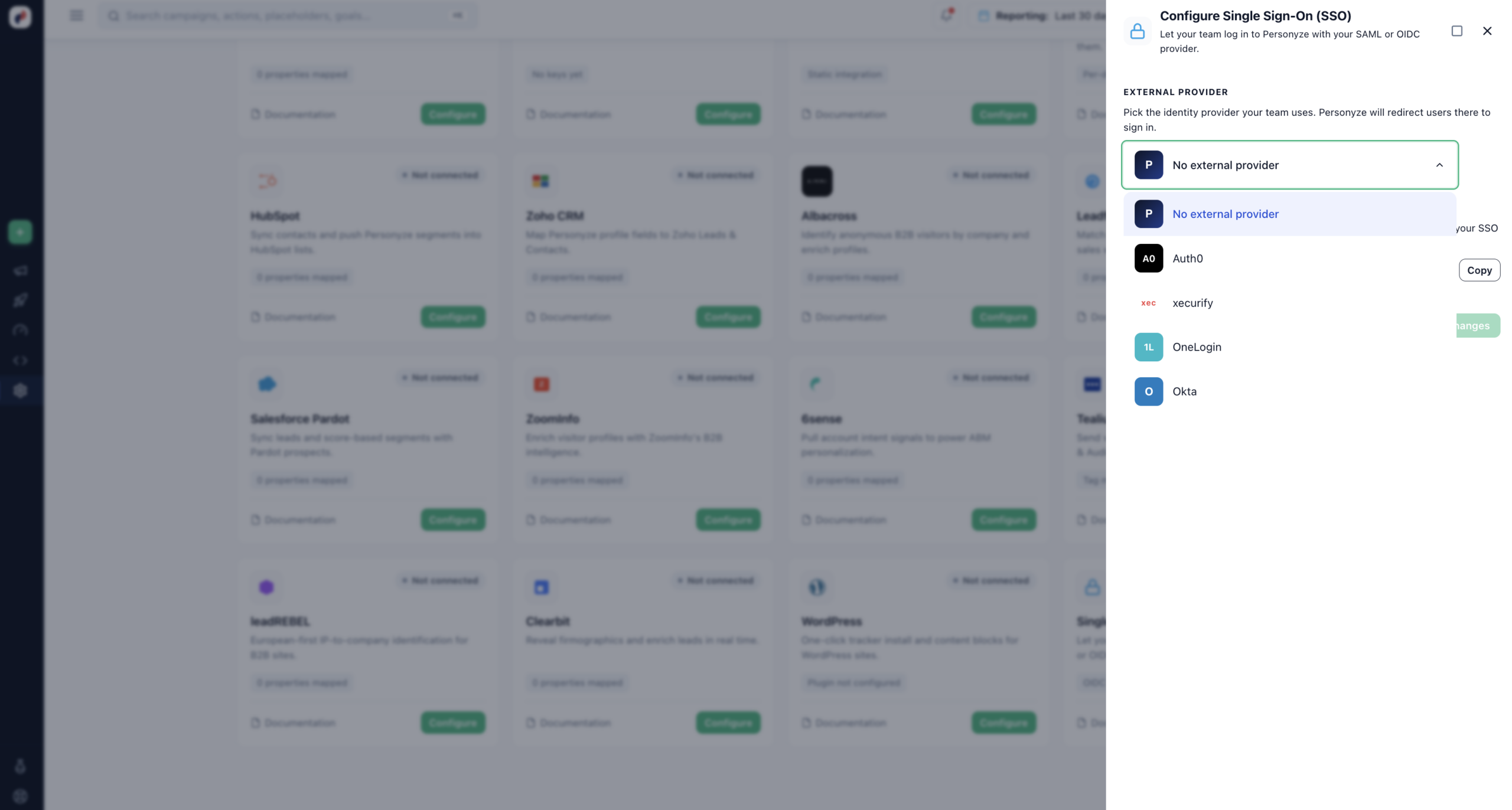
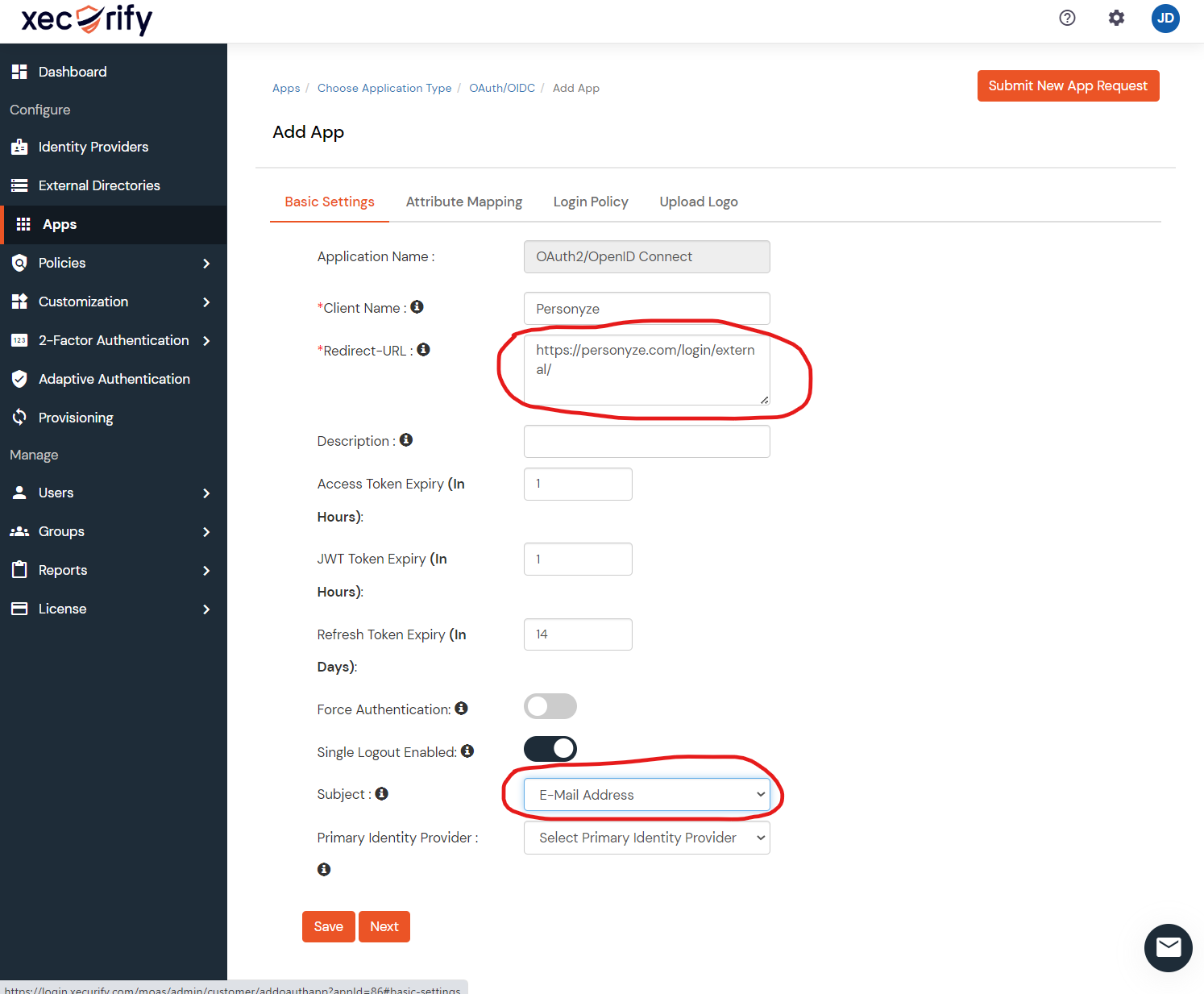
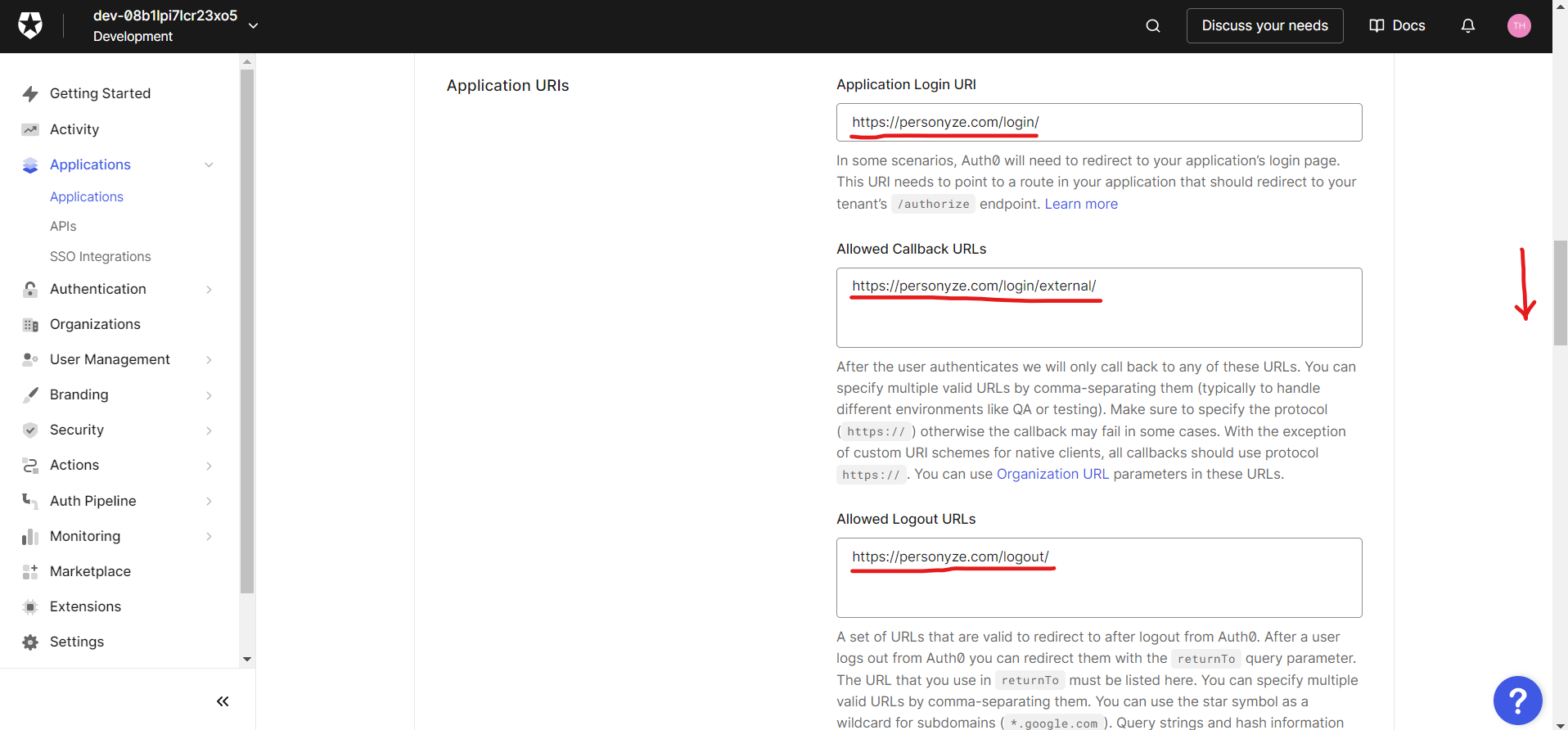
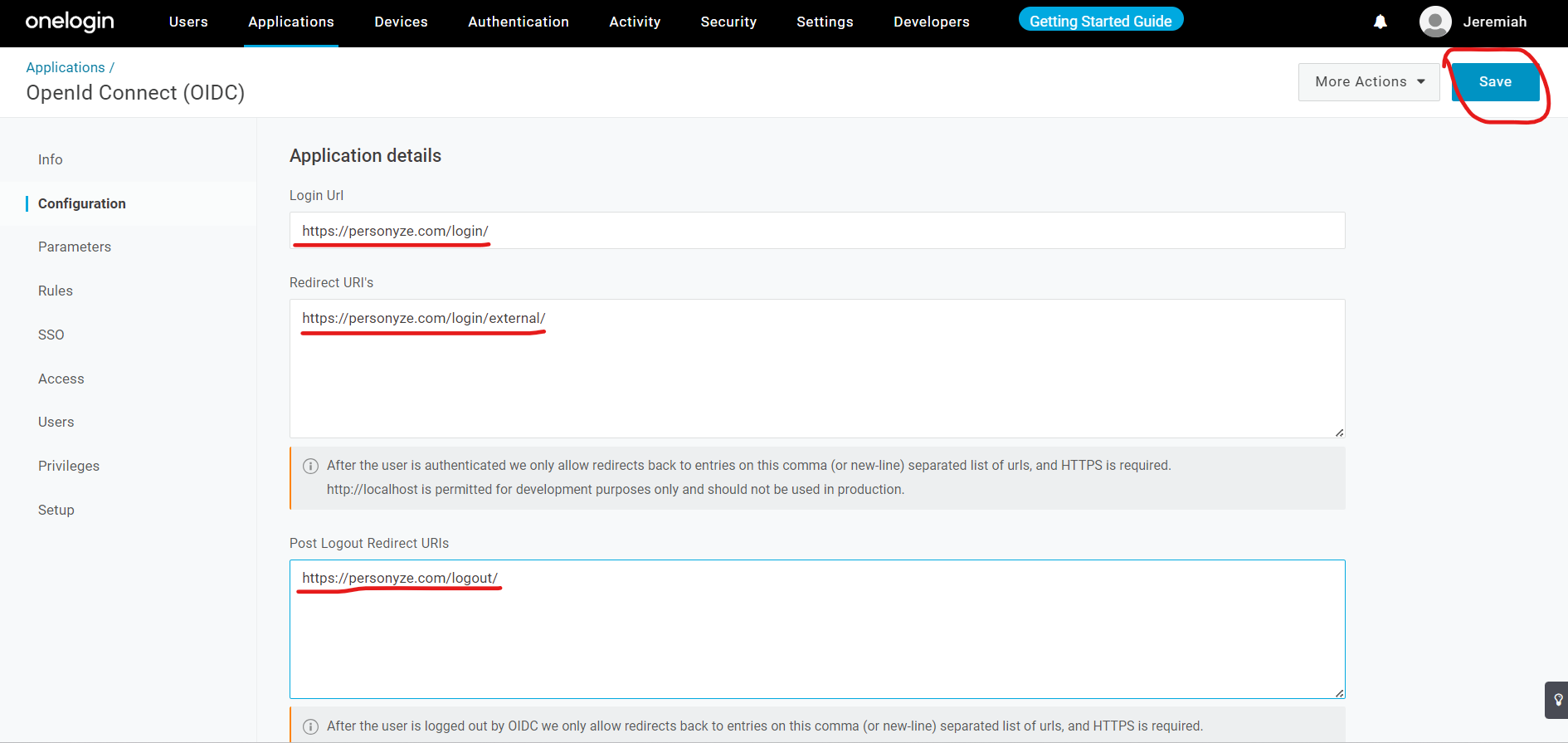
- Pick your provider. The panel shows two addresses to register at your provider, with Copy buttons: the sign-in redirect (
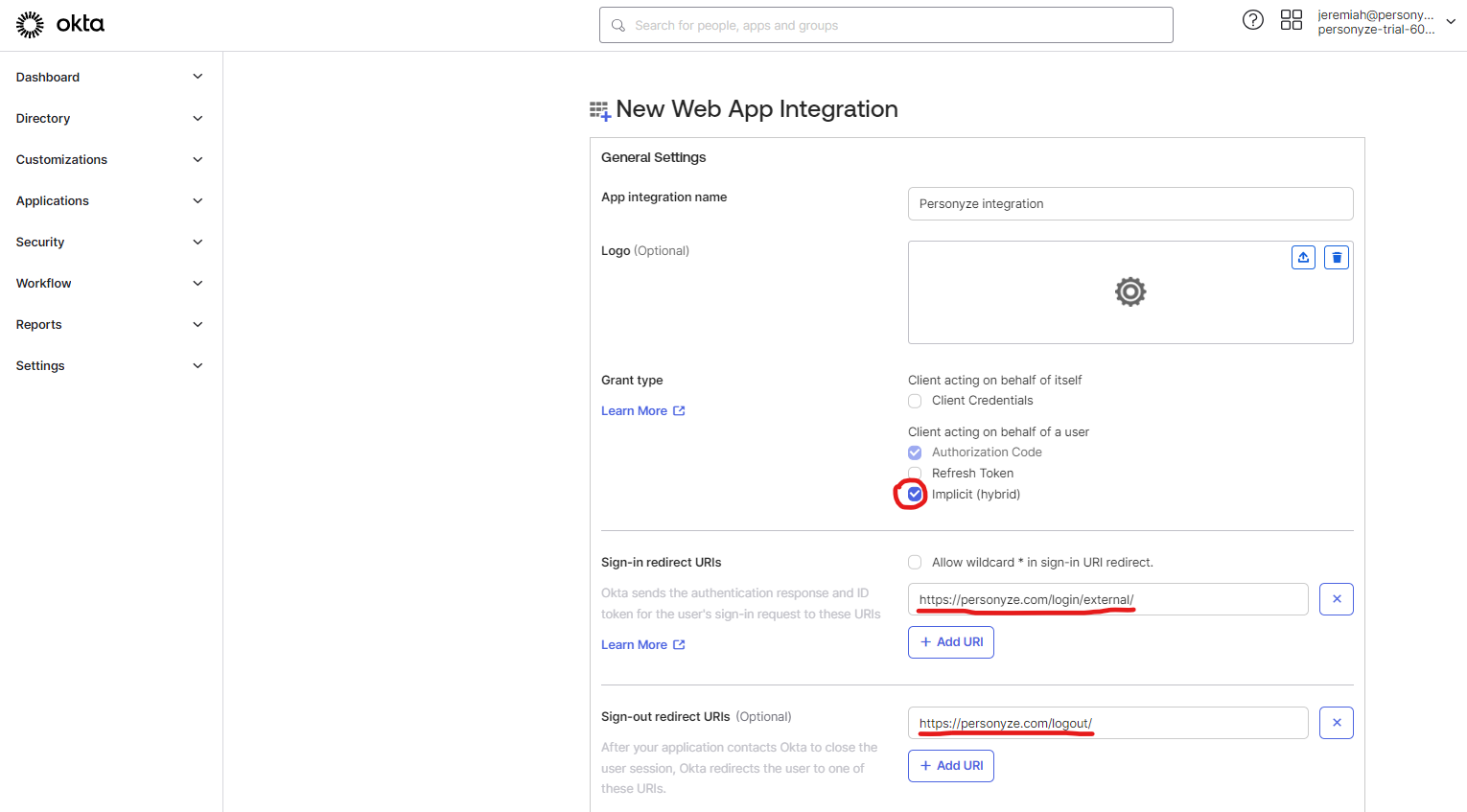
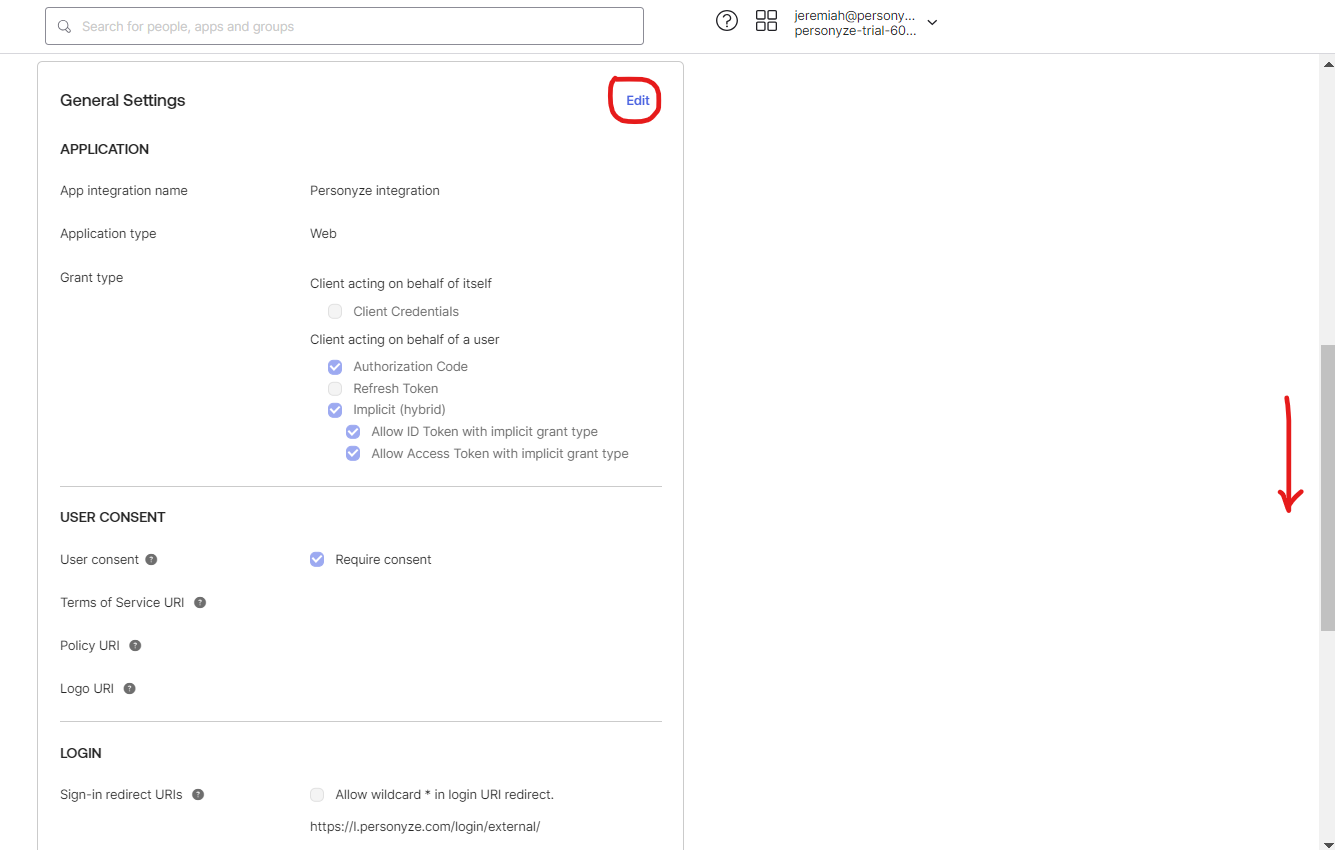
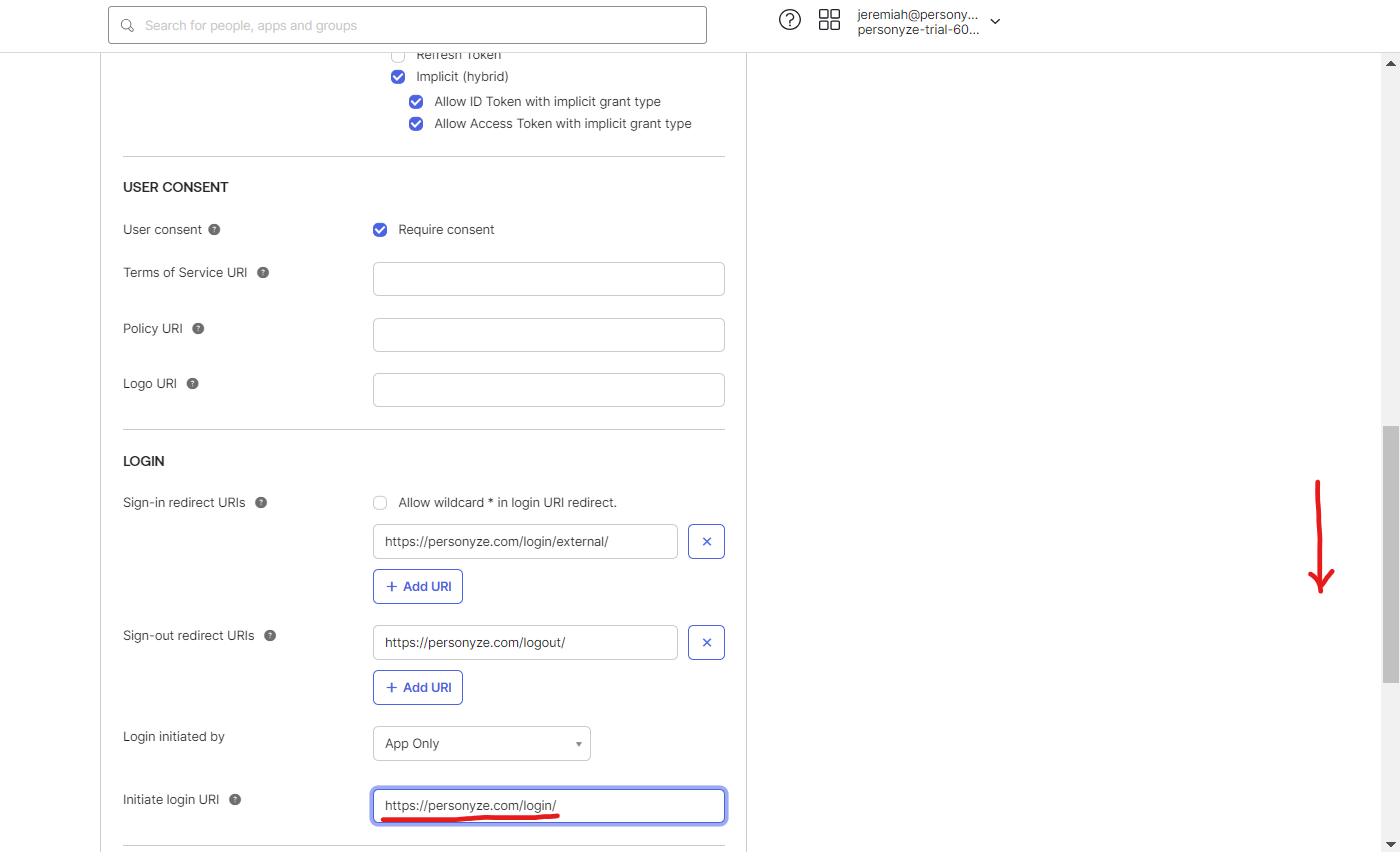
https://personyze.com/login/external/) and the sign-out redirect (https://personyze.com/logout/). If you use Personyze under your own domain, copy them from the panel; they follow the host you are on. - At your provider, create an OpenID Connect web app that may return an ID token directly (the implicit flow), and register both addresses.
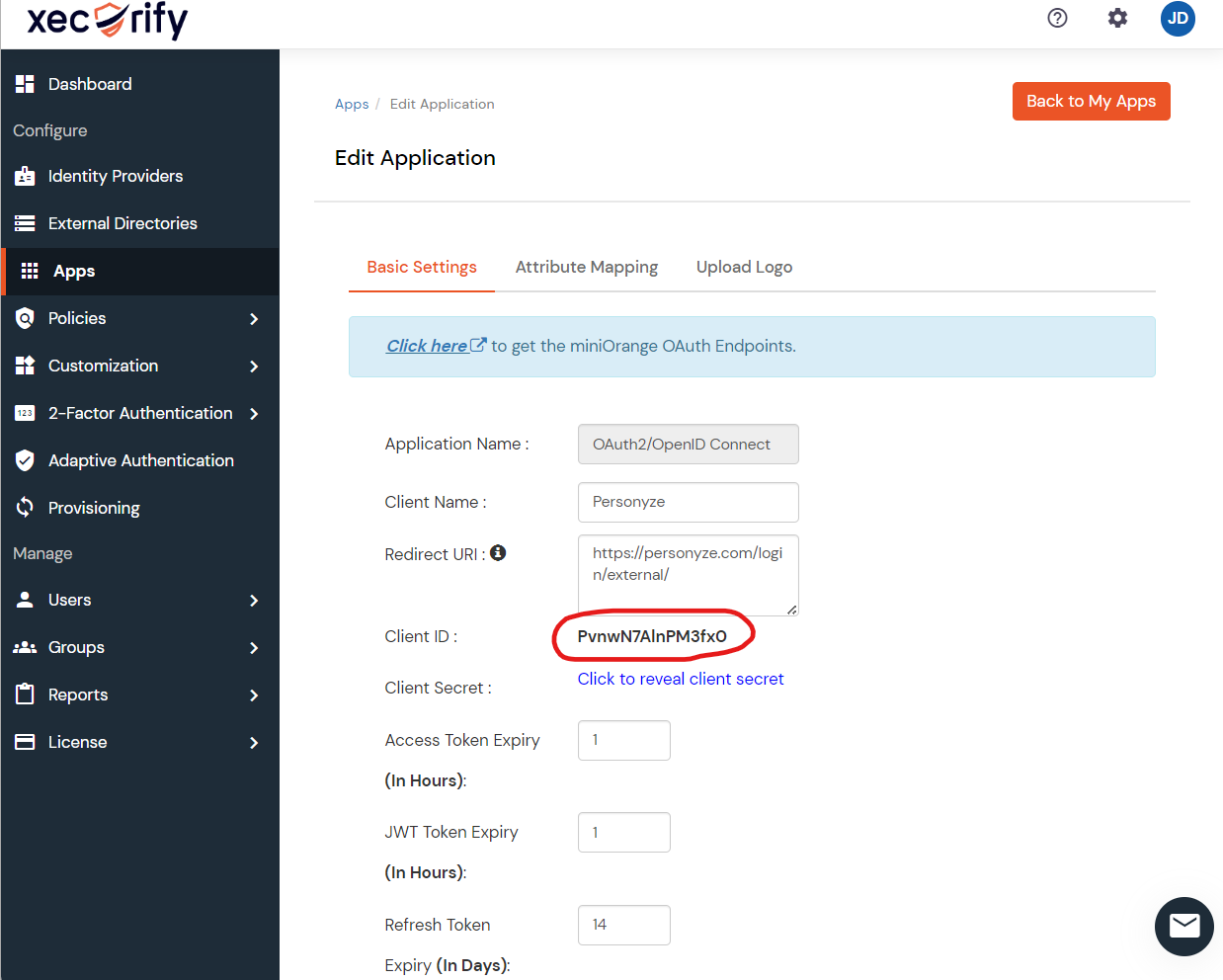
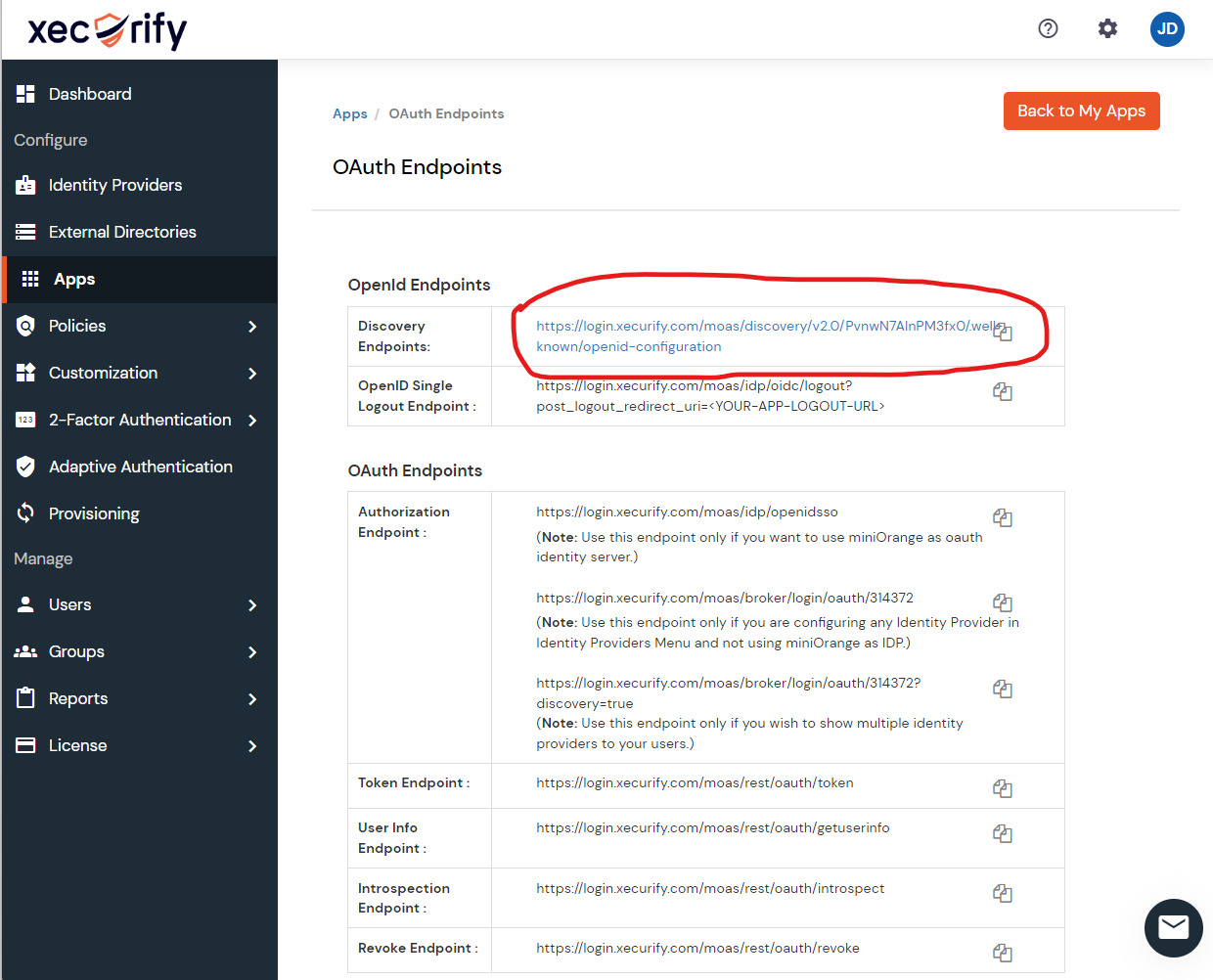
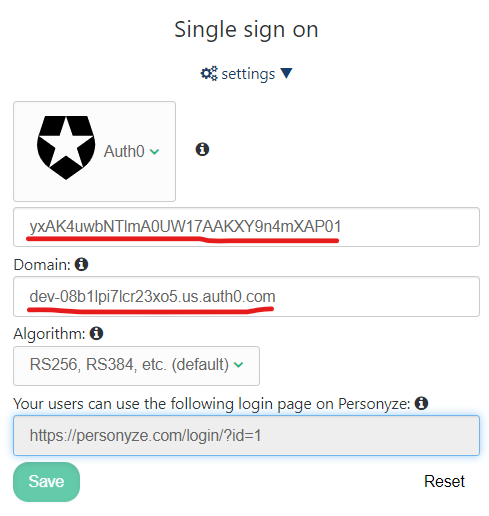
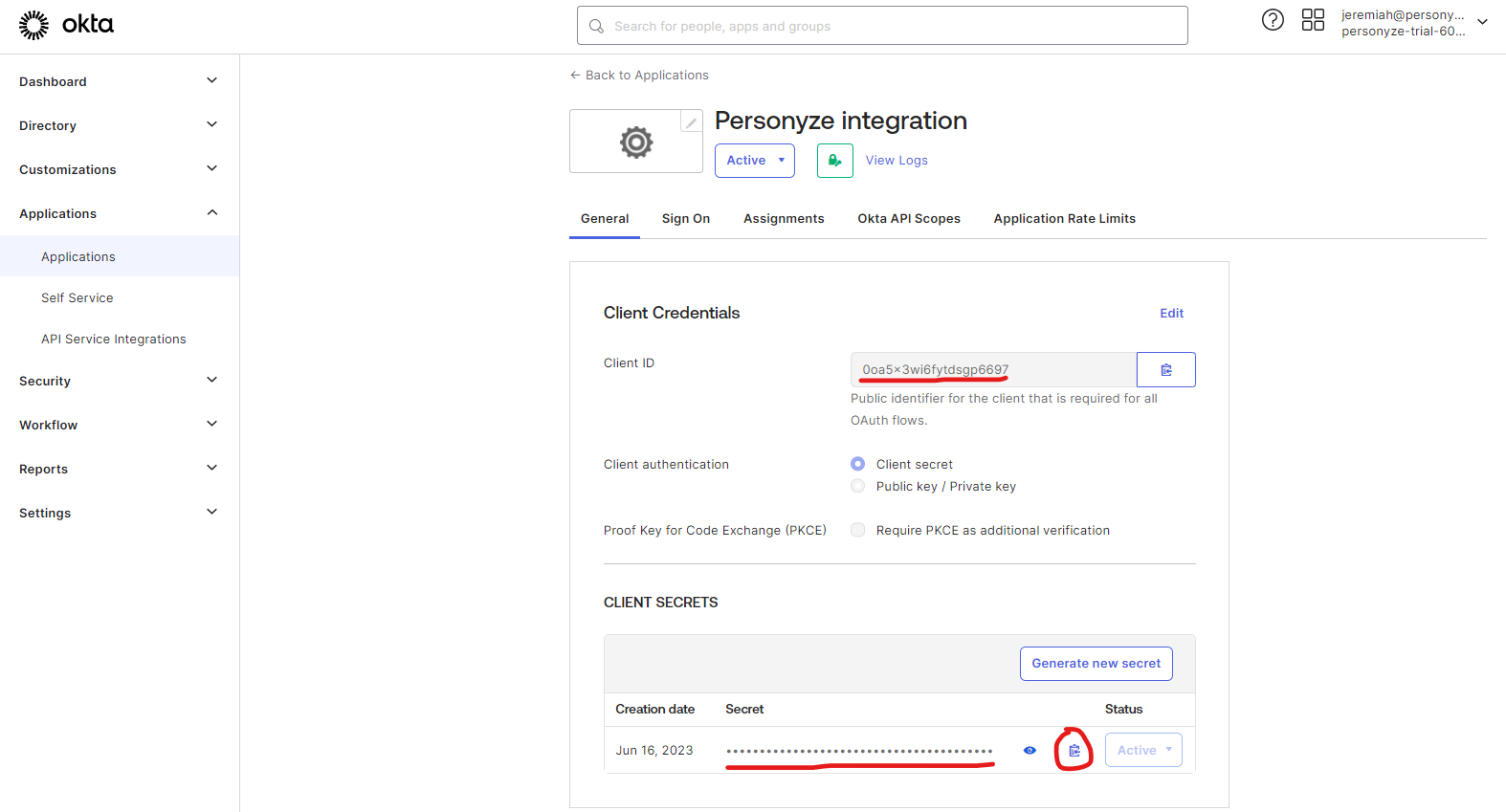
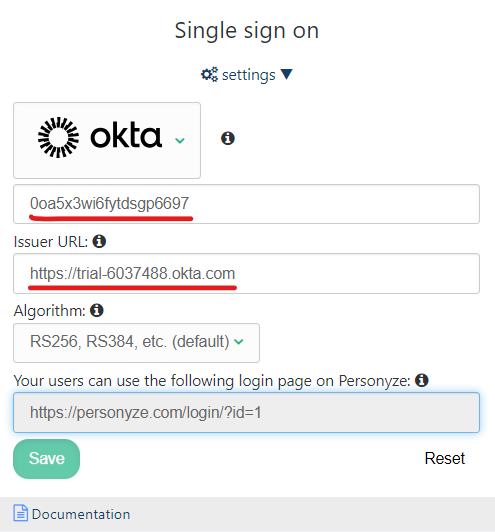
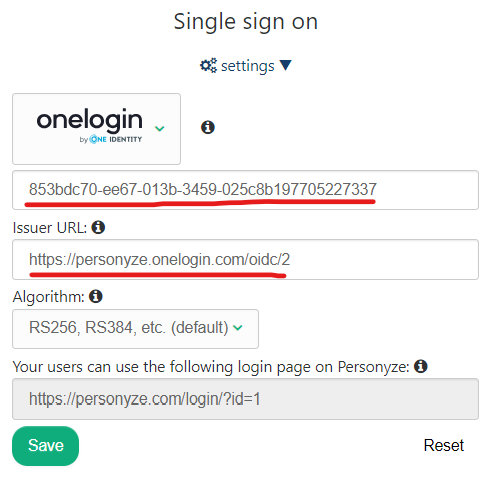
- Back in Personyze, enter the app’s Client ID and your provider’s Issuer URL (for Auth0, your Domain; for xecurify, the Discovery Endpoint), and save.
The signing algorithm stays RS256 for almost every provider, and no client secret is needed. Only a provider that signs tokens with a shared secret (HS256) needs the client secret field.
Microsoft Entra ID (Azure AD)
- In the Microsoft Entra admin center, go to App registrations → New registration. Name it “Personyze”, keep the single-tenant account type, choose Web under Redirect URI, and paste the first address from the Personyze panel (
https://personyze.com/login/external/). - In the app’s Authentication, add the second address (
https://personyze.com/logout/) as another Web redirect URI, and tick ID tokens under Implicit grant and hybrid flows. Save. - Recommended: in Enterprise applications, open the app → Properties, set Assignment required to Yes, and under Users and groups assign the people who should have access.
- In Personyze, open Settings → Integrations → Single Sign-On and pick Microsoft Entra ID:
- Client ID: the Application (client) ID, on the app registration’s Overview page.
- Issuer URL:
https://login.microsoftonline.com/<Directory (tenant) ID>/v2.0. The Directory (tenant) ID alone works too; Personyze completes the address.
Save.
Only people from your own directory can sign in. An issuer of common or organizations is refused, because it would let in people from outside your organization. You do not need to add an email claim: when the token has no email, Personyze uses the person’s sign-in name, as long as it is an email address.
Prefer not to register an app? Team members who are already users on your account can click the Microsoft button on the login page instead. It signs them in with their work account by its email address, without central SSO.
Other providers, step by step
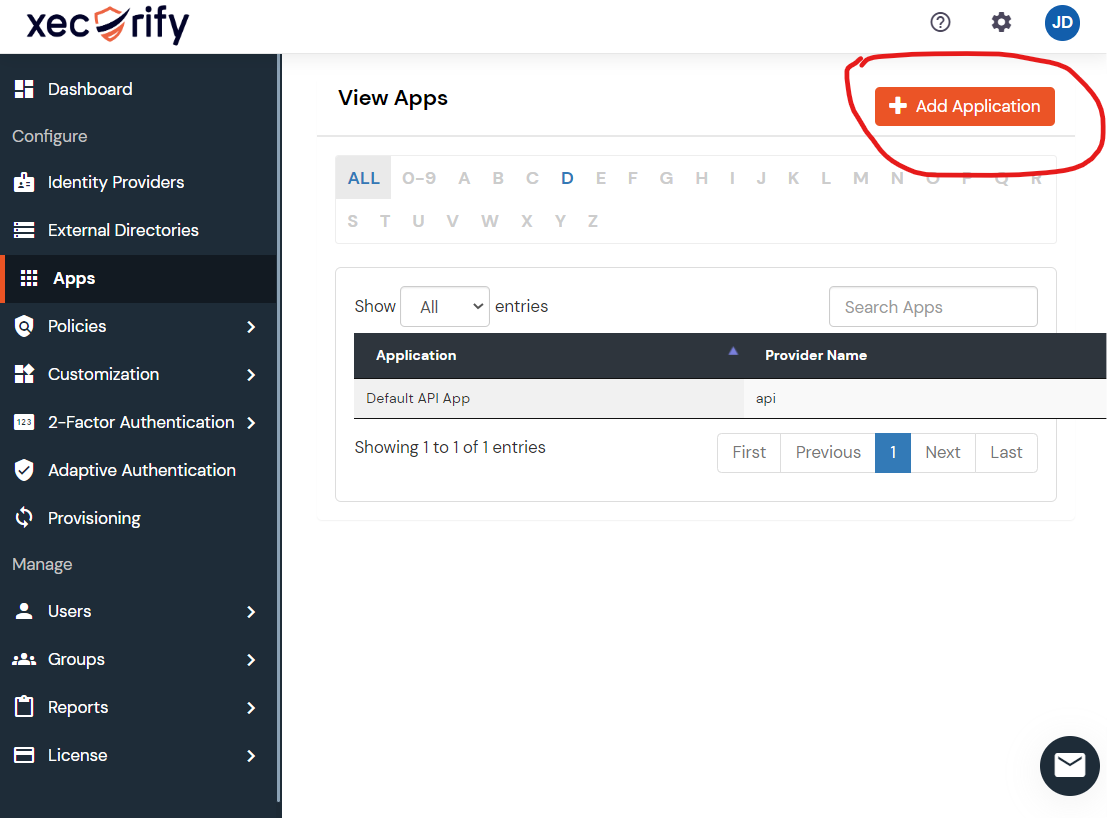
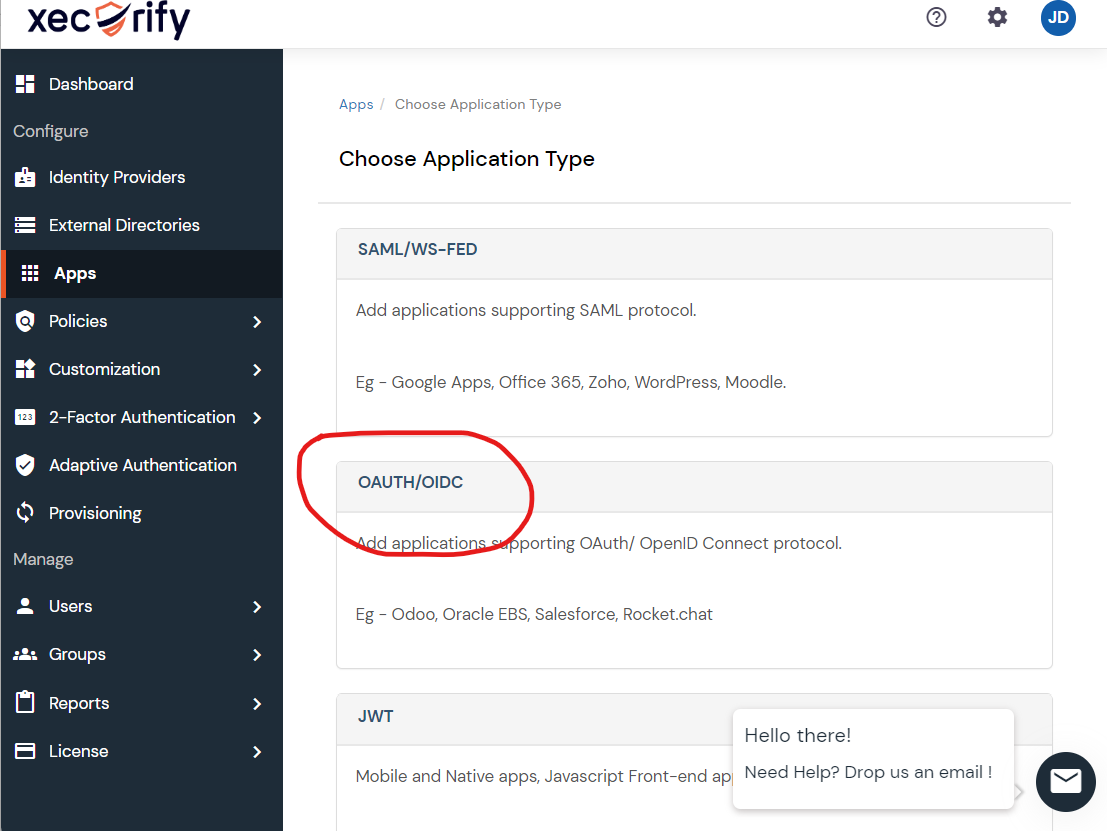
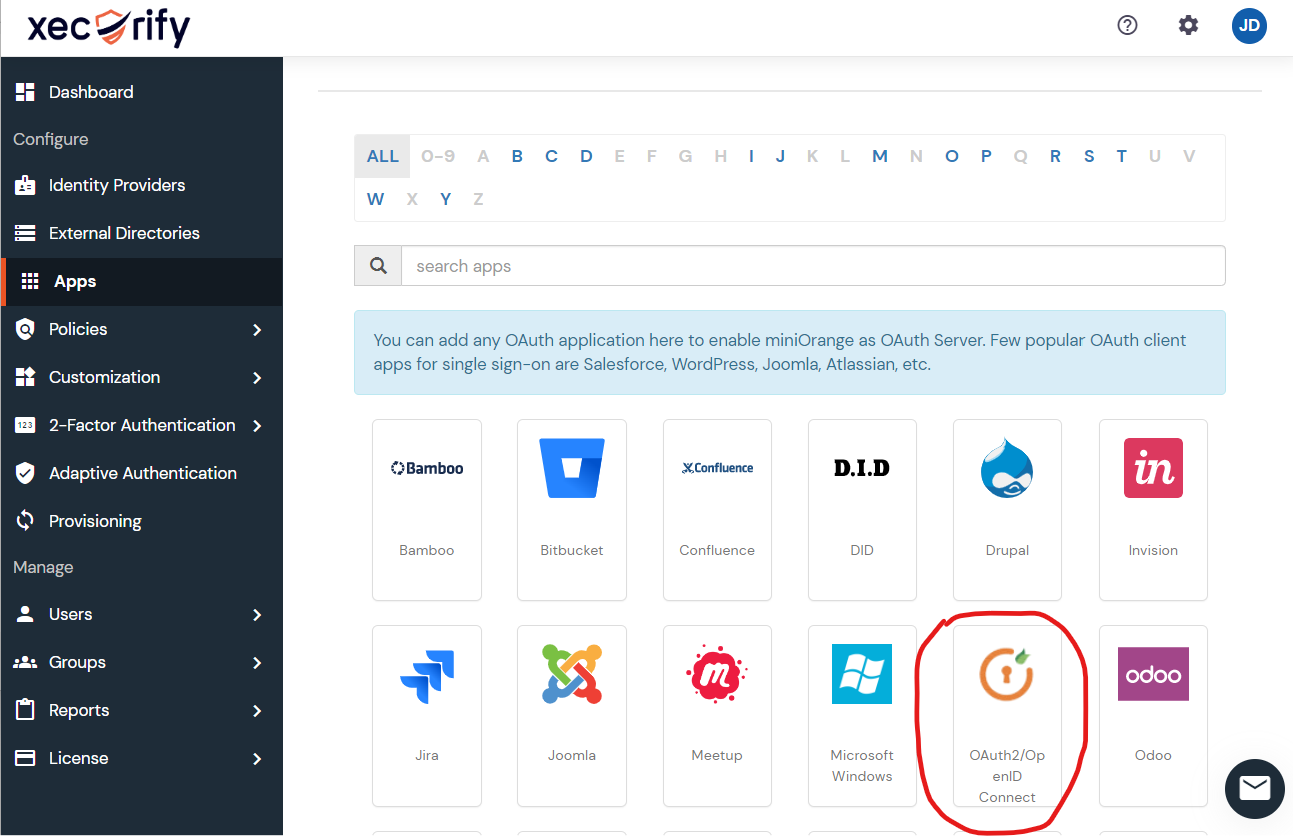
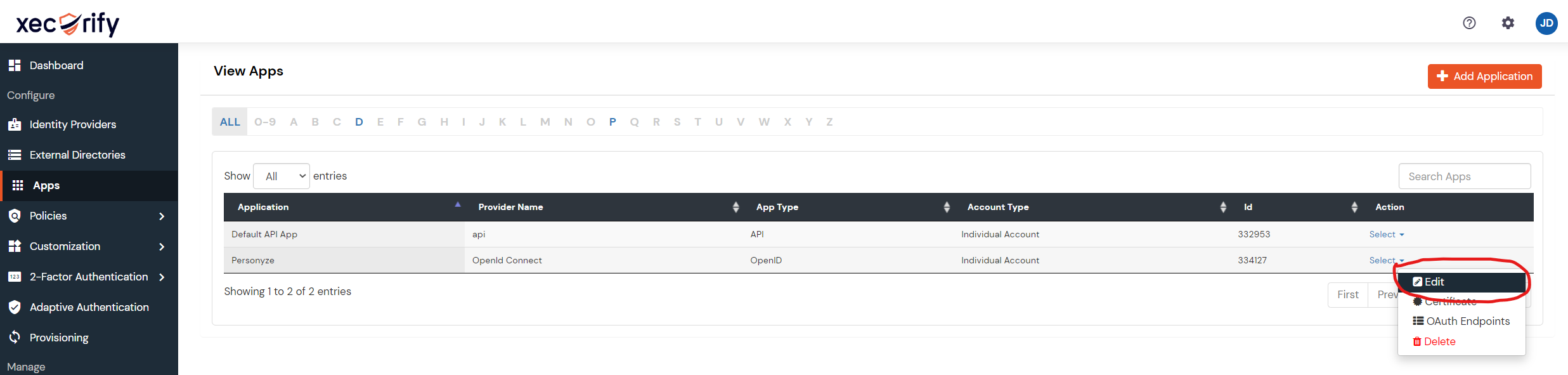
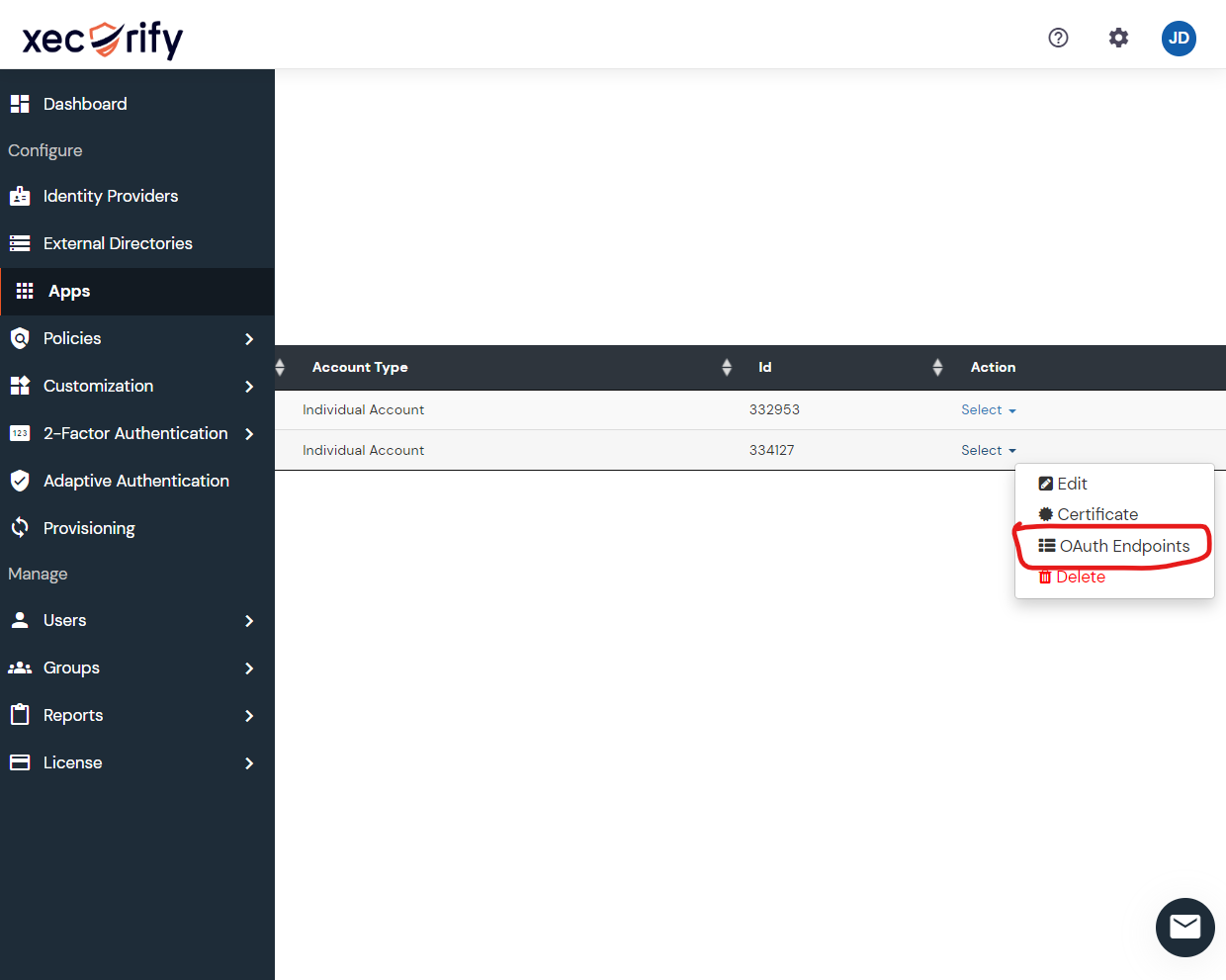
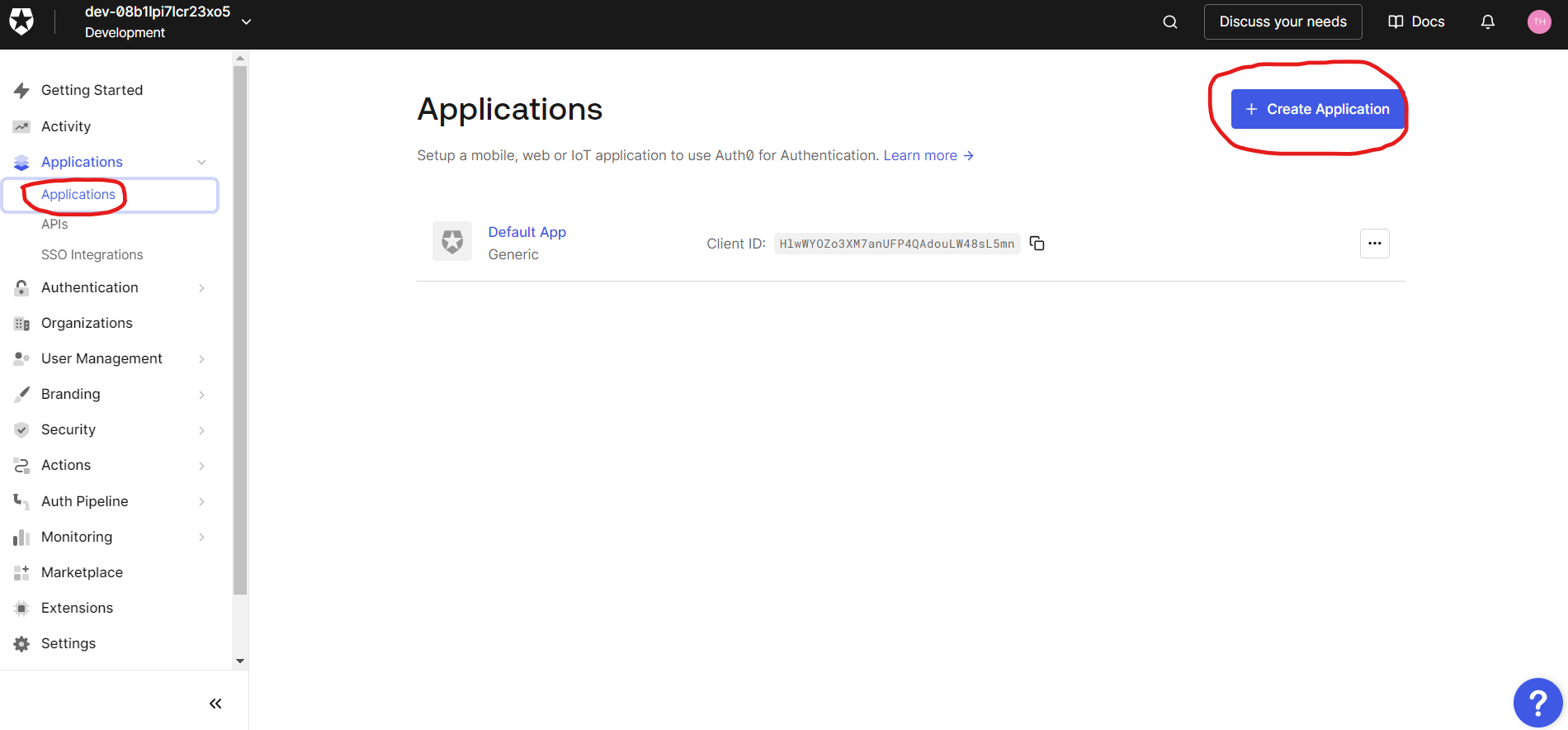
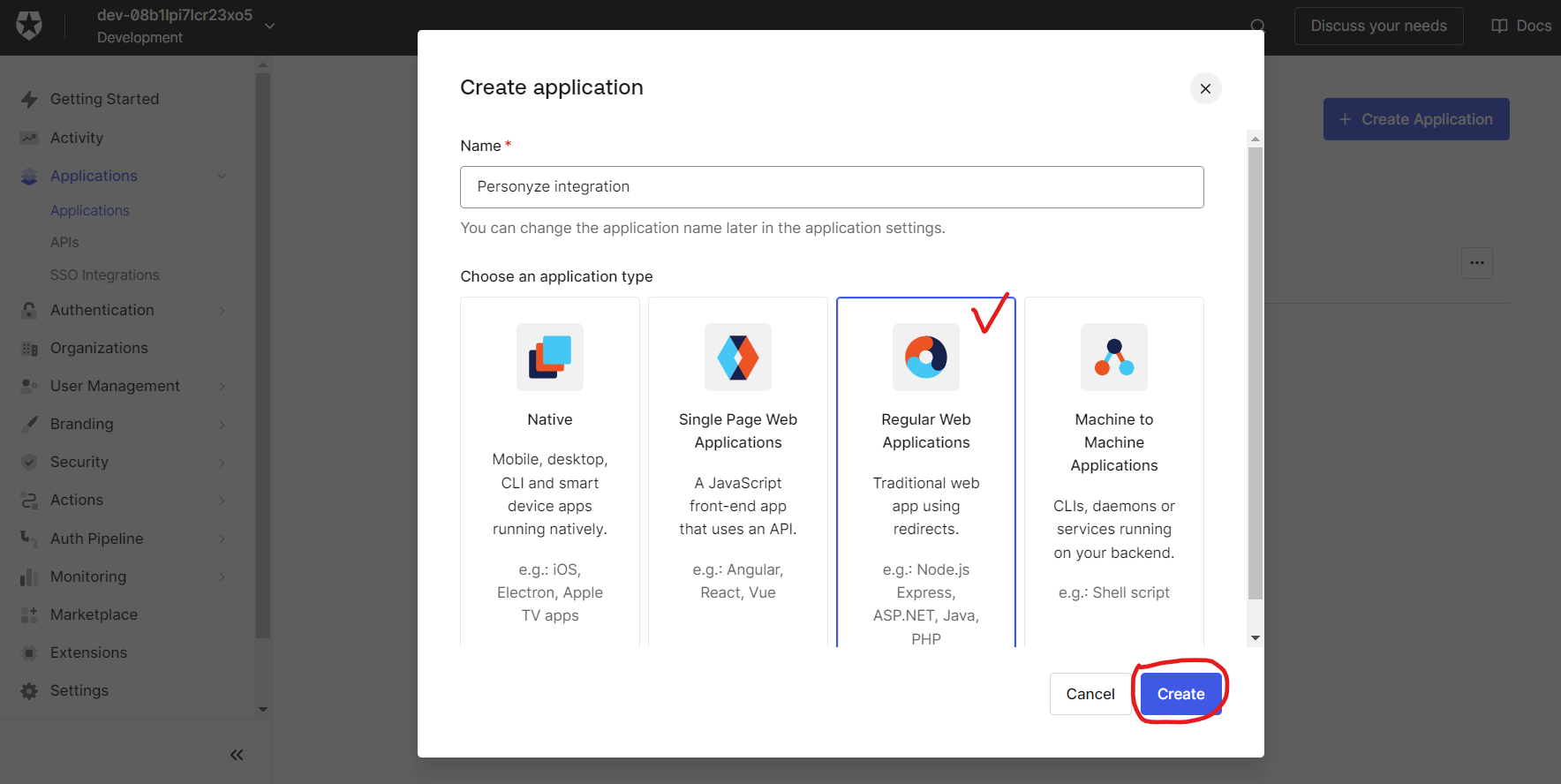
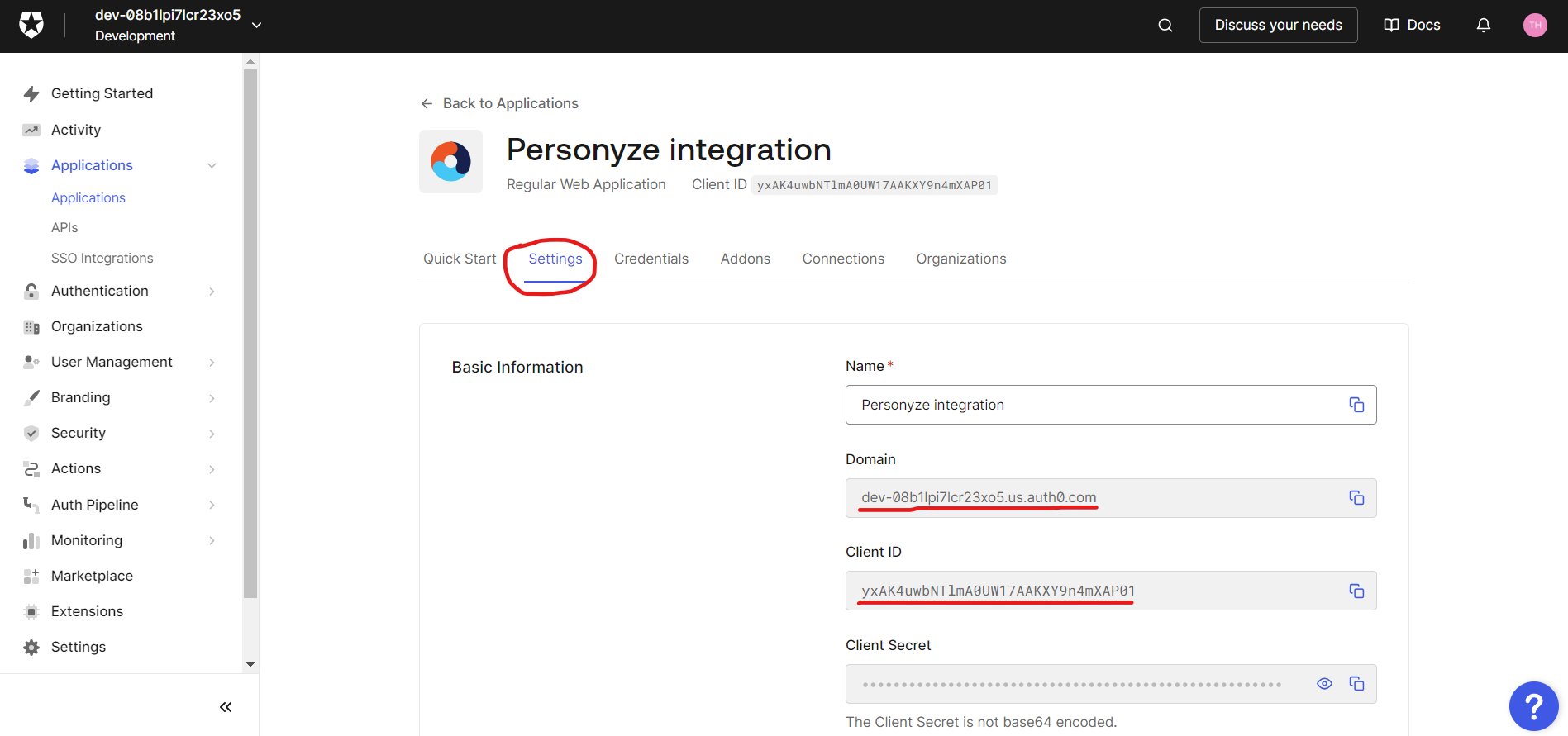
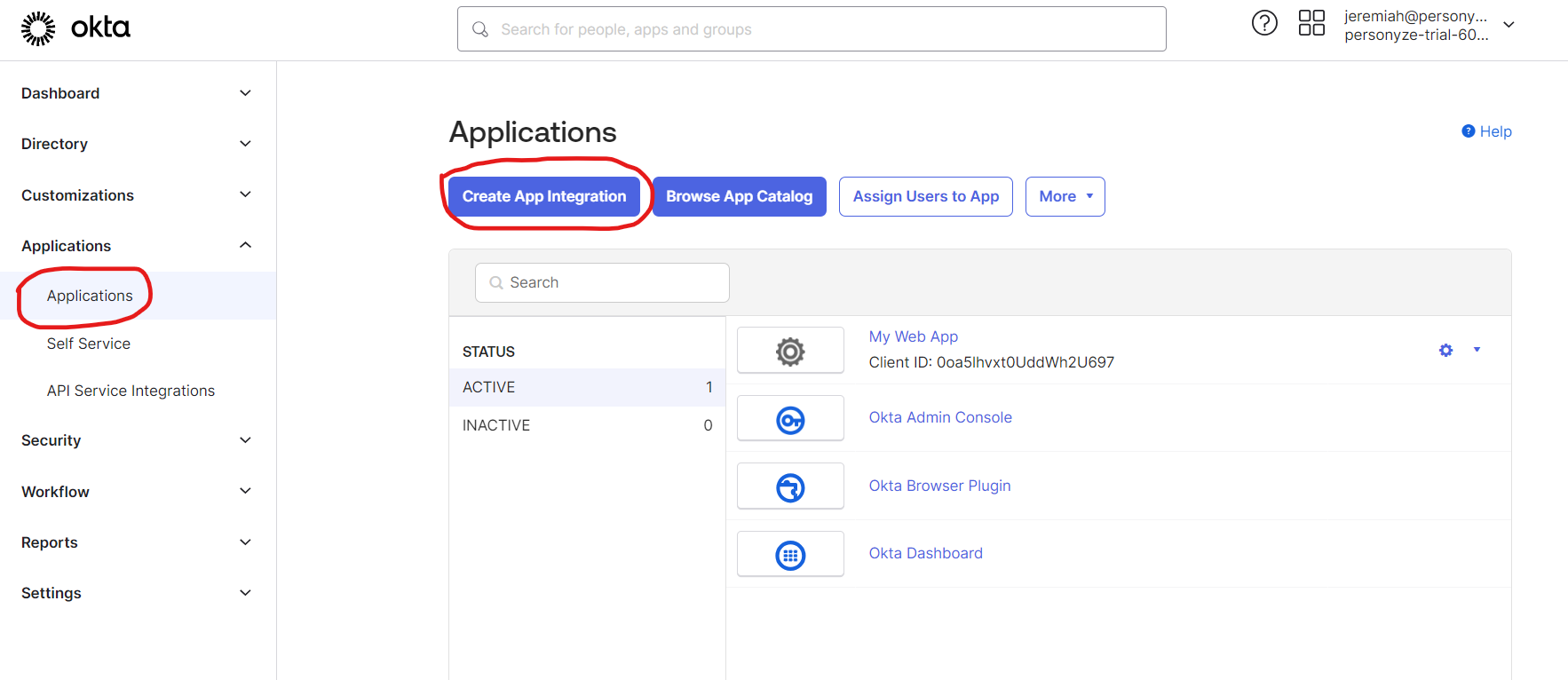
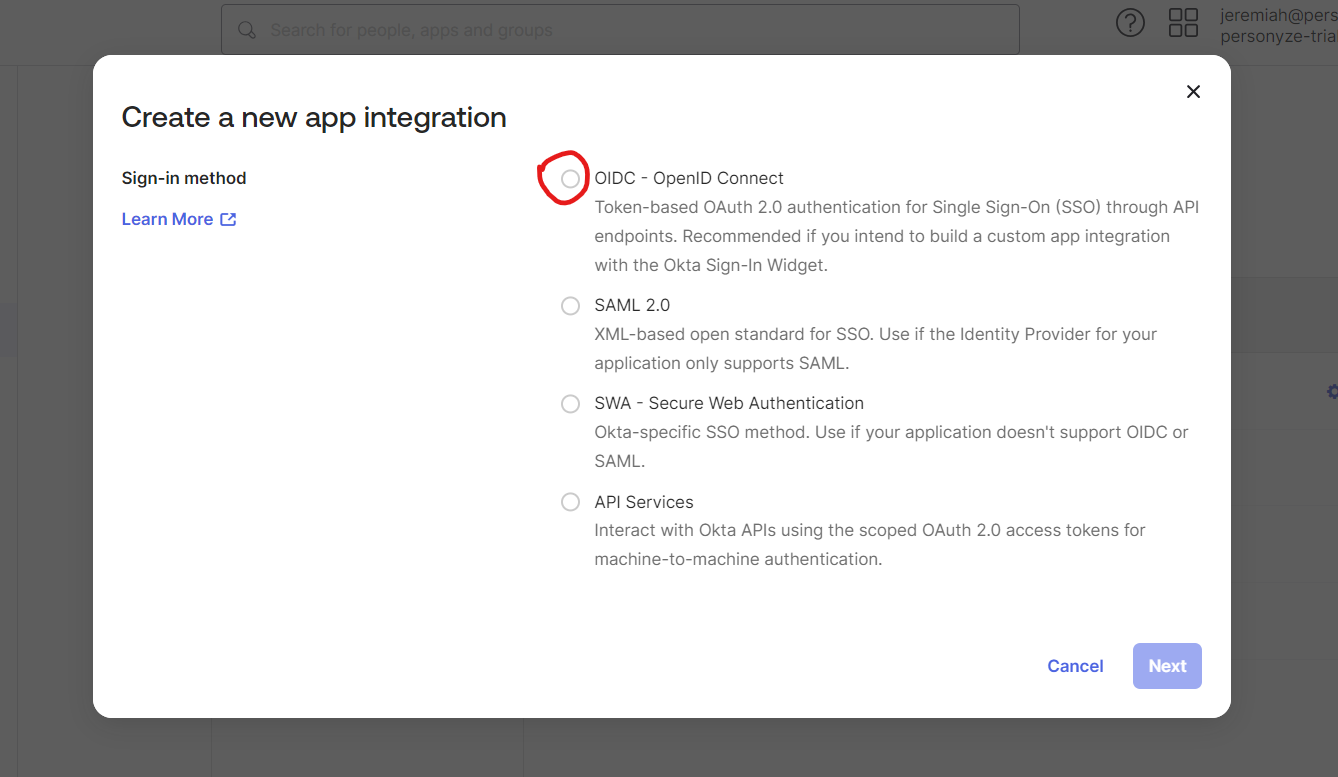
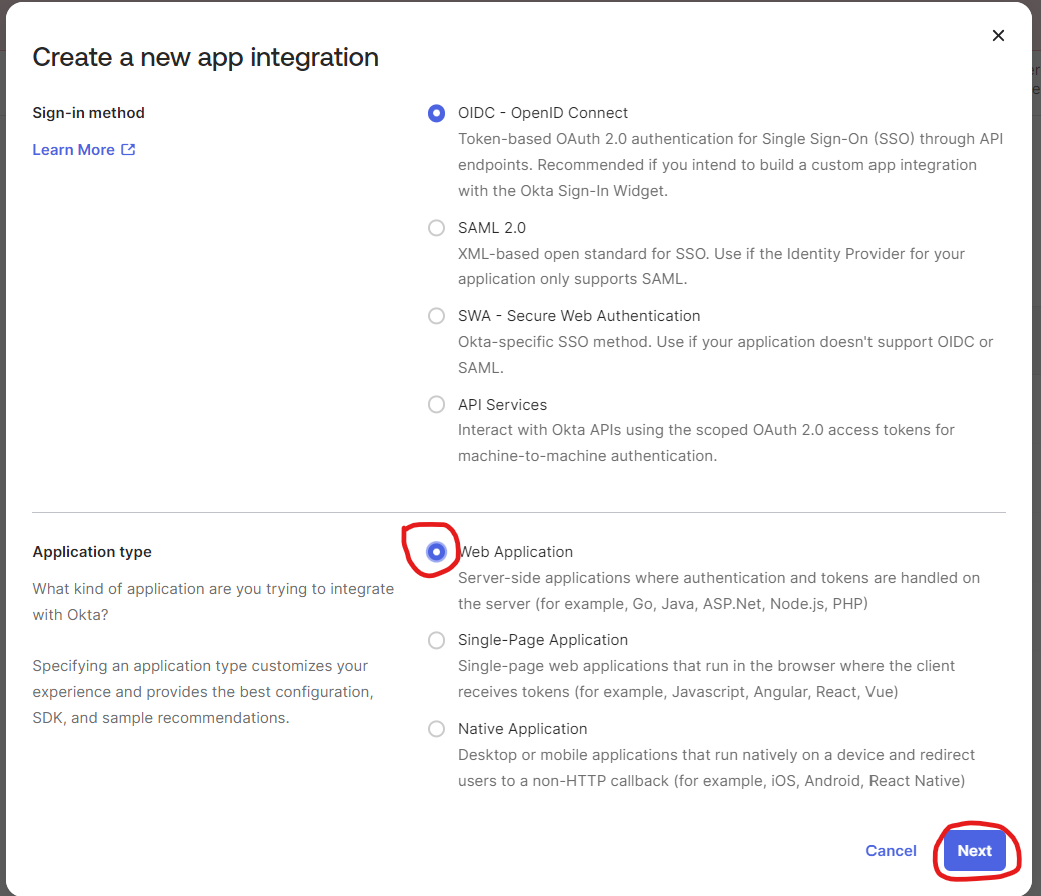
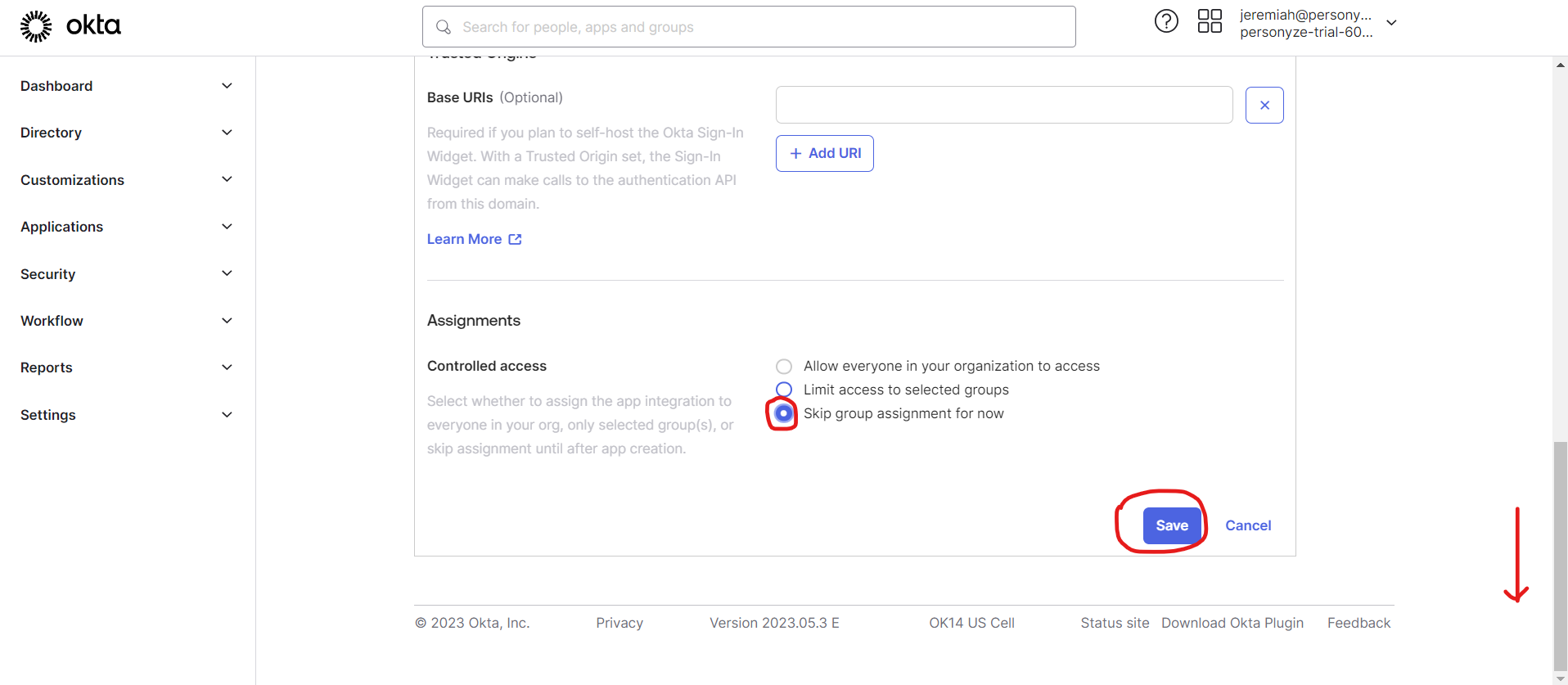
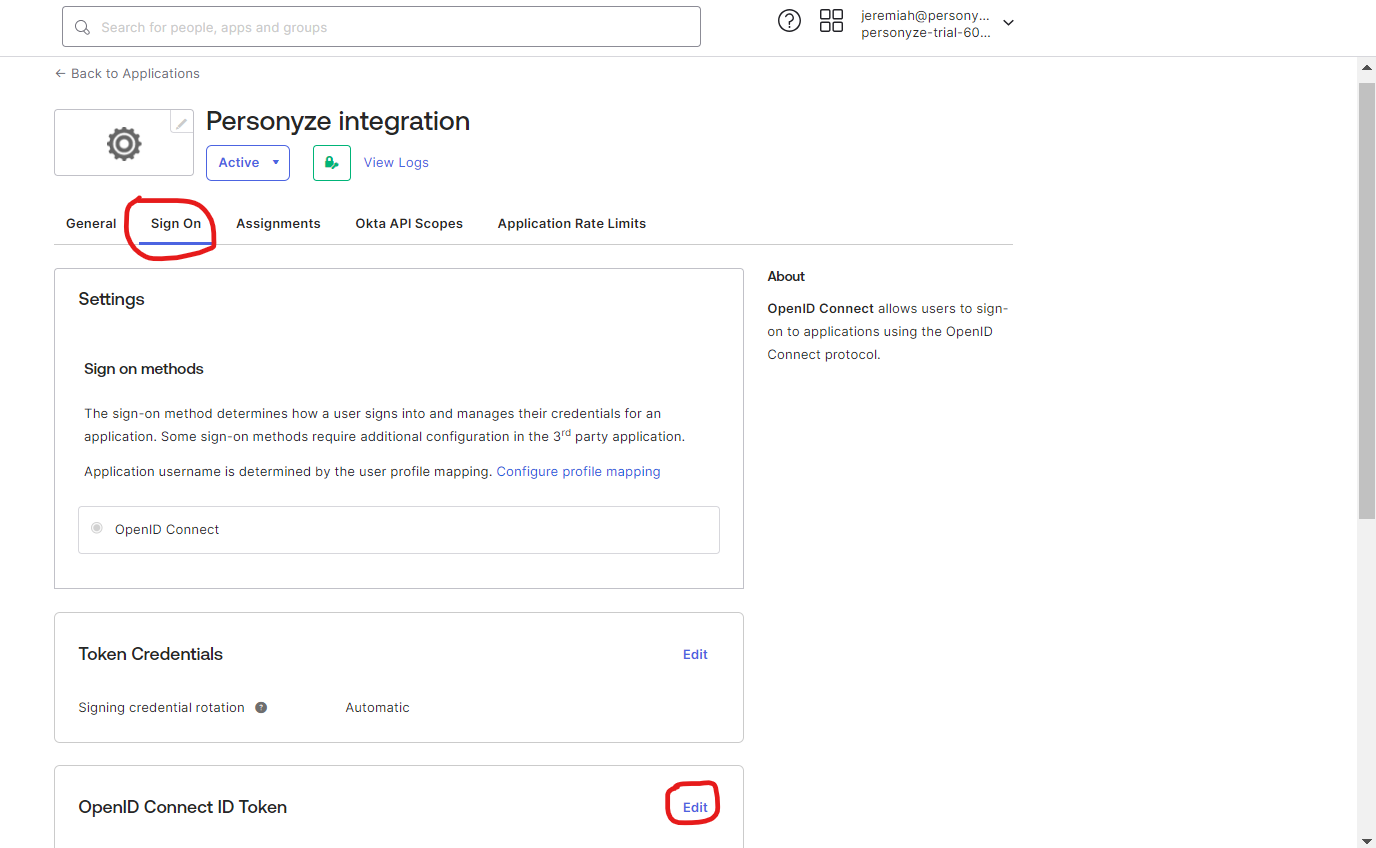
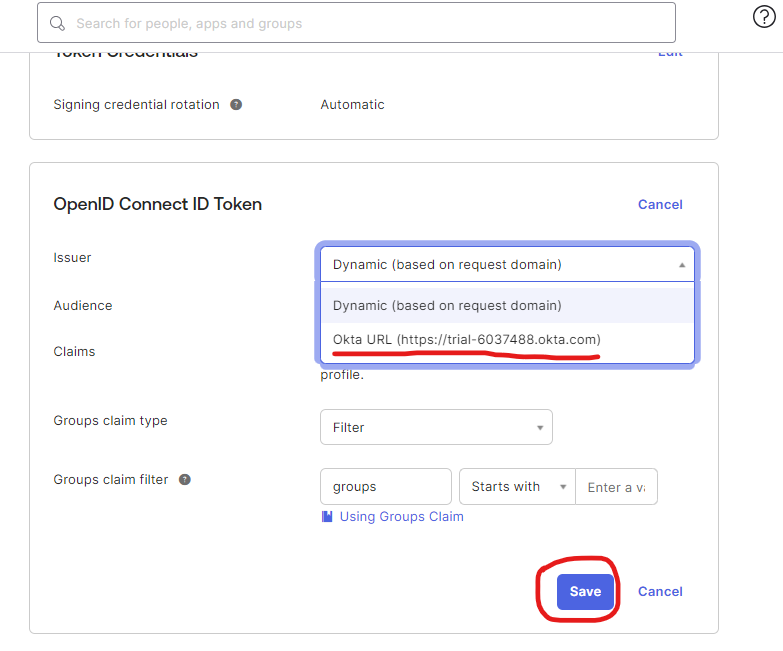
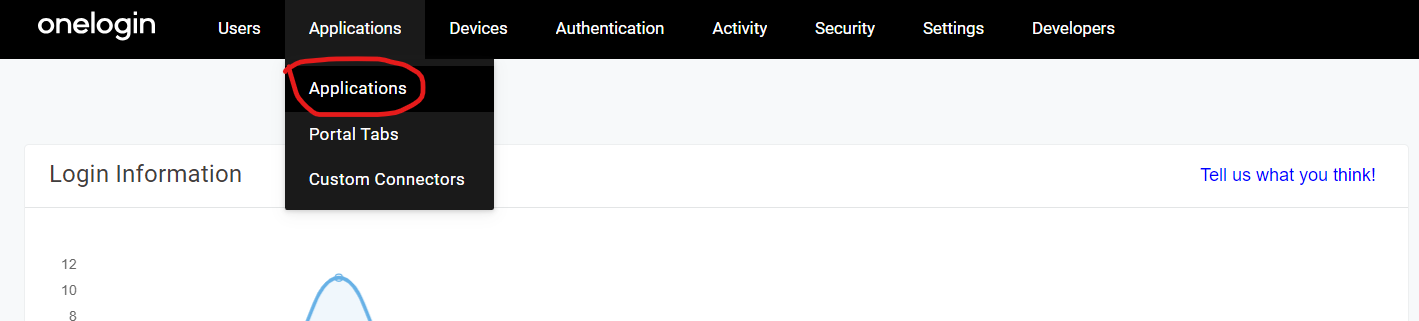
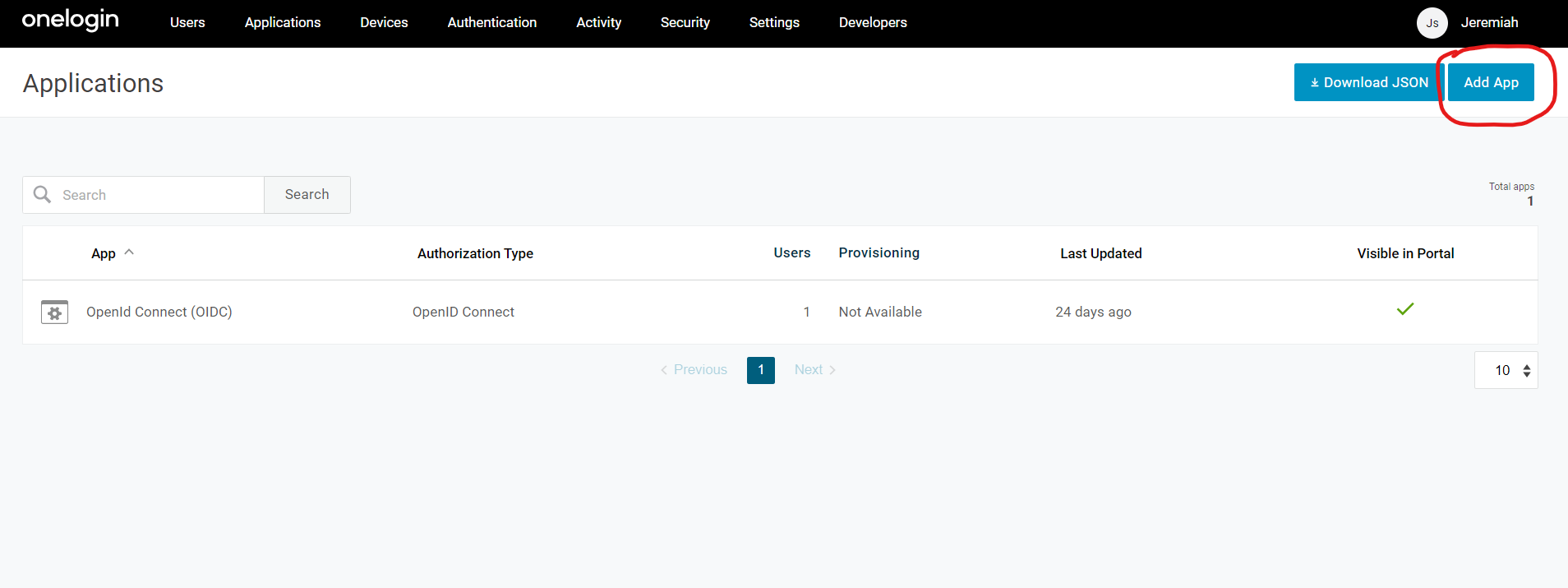
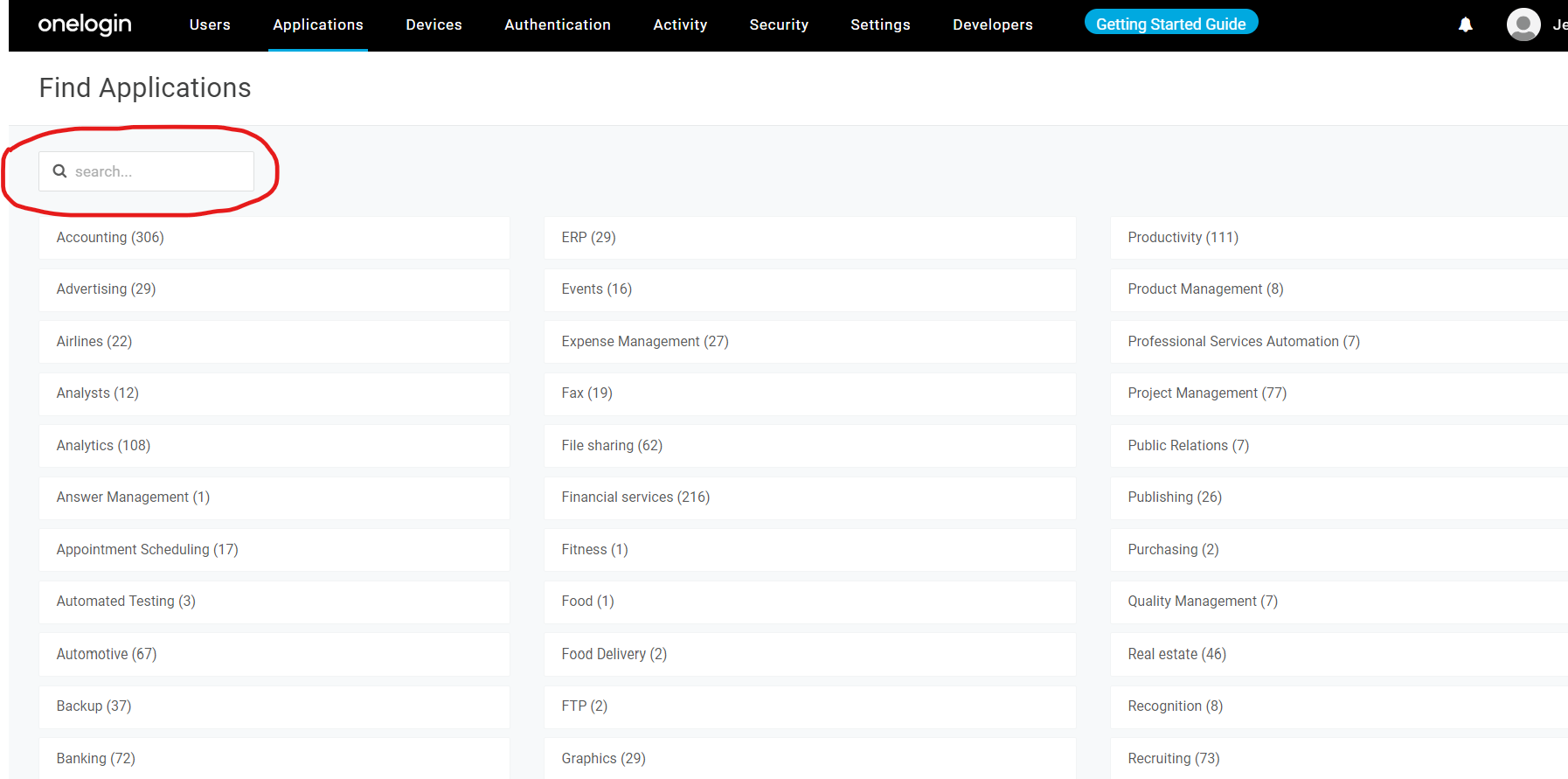
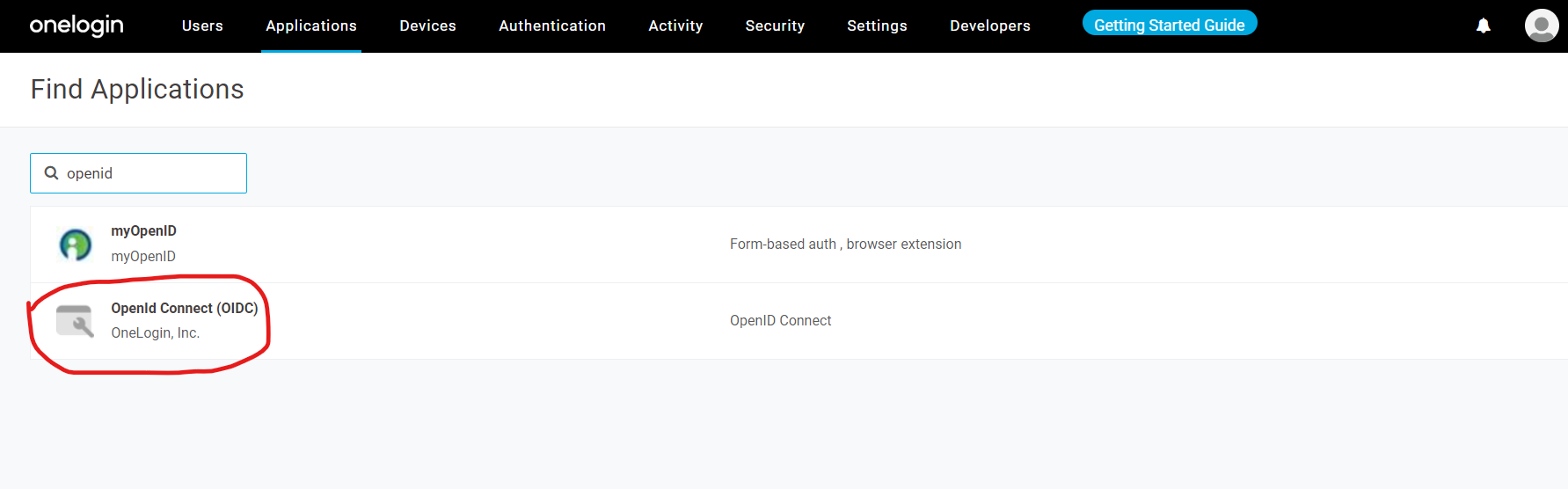
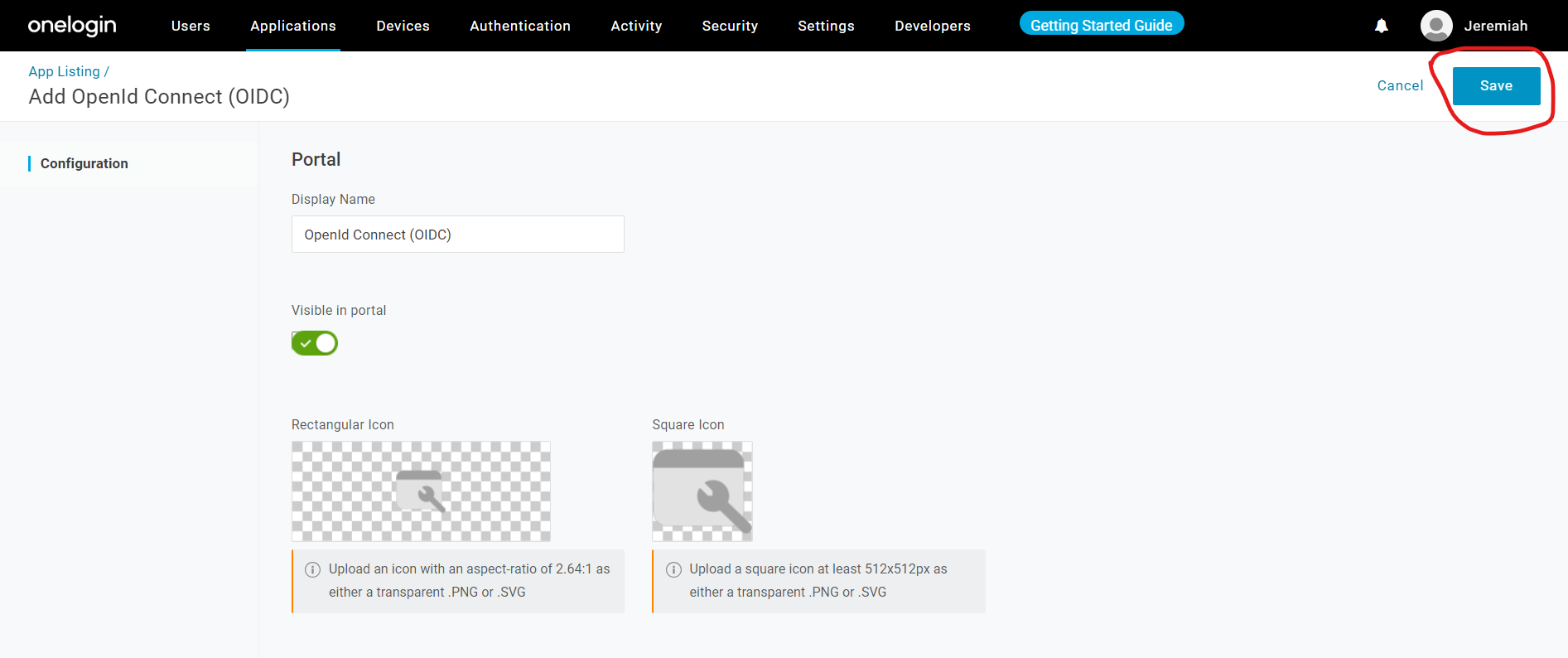
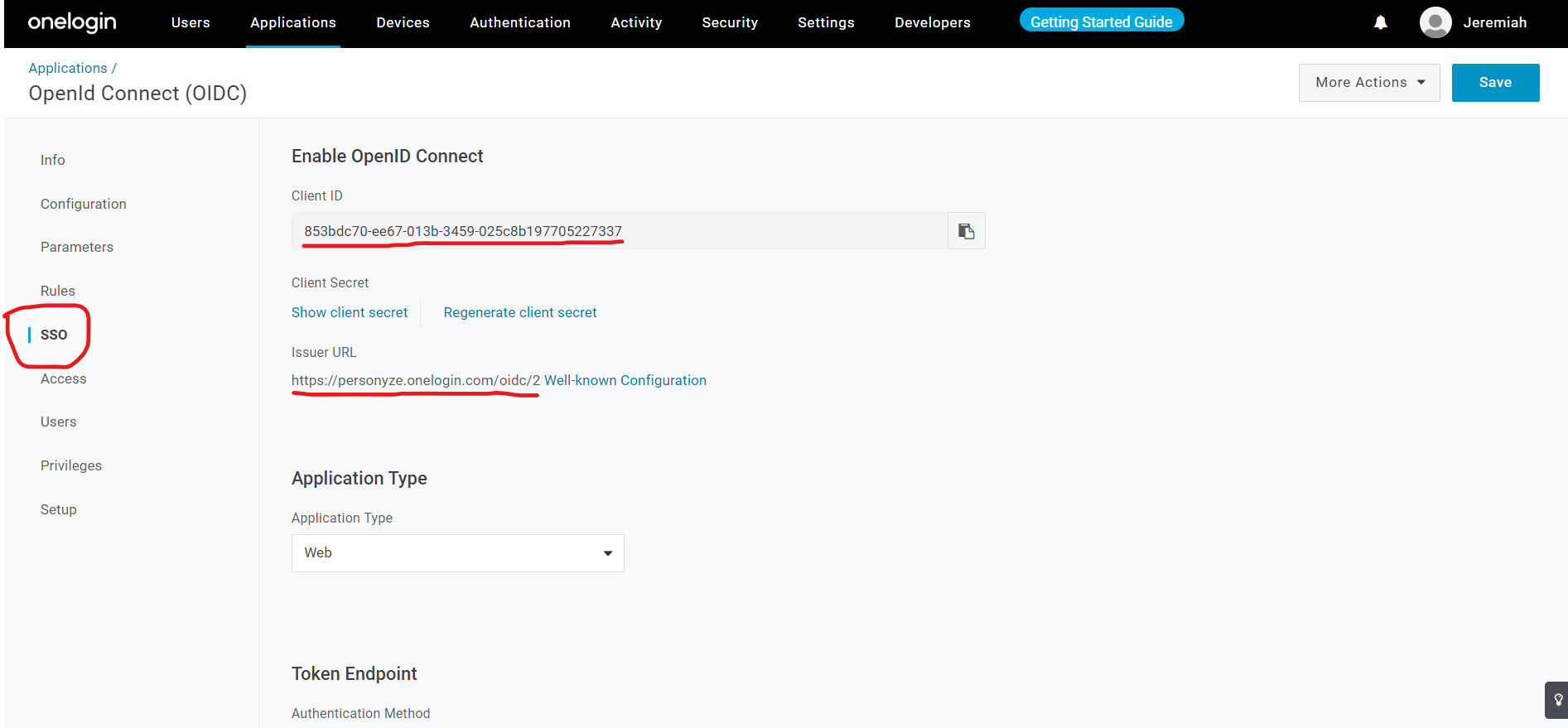
Screenshots for Auth0, Okta, OneLogin and xecurify are below. xecurify also covers any other OpenID Connect provider. In Okta, also tick Implicit (hybrid) under Grant type and Allow ID Token with implicit grant type.
Common issues
- “Schema not found at …” or “Cannot understand schema”. The Issuer URL (or Domain) does not lead to your provider’s OpenID configuration. Copy it again from your provider.
- Your provider reports a redirect URI mismatch (in Entra: AADSTS50011). The sign-in address must be registered exactly as shown in the Personyze panel, as a Web redirect URI.
- Entra reports that response_type “id_token” is not enabled (AADSTS700054). Tick ID tokens under Implicit grant and hybrid flows in the app’s Authentication.
- “Cannot login with this user”. Your provider sent no email address for this person. Make sure your provider releases the email (the
emailscope or claim). In Entra, the person’s sign-in name must be an email address. - “Invalid login request”. The Client ID in Personyze does not match the app at your provider, or (Entra) the person belongs to a different directory.
- “Login request not found. Maybe expired.” Too much time passed between leaving Personyze and coming back. Start again from the sign-in link.
Enabling SSO using Auth0
Enabling SSO using Okta
Enabling SSO using Onelogin
Enabling SSO using Xecurify