
The QA Simulator lets you preview and test a campaign on the real page it targets, as any visitor — before it ever reaches live traffic. You open the page the campaign runs on, impersonate different visitors, and watch which audiences match and which actions fire, all in a safe sandbox that doesn’t affect real users.
Opening the simulator
From a campaign, go to the QA step and start the simulator. Personyze asks for the URL of the page you want to preview on — your pricing page, a product page, the homepage — and opens that real page with the campaign injected, exactly as a matching visitor would see it.
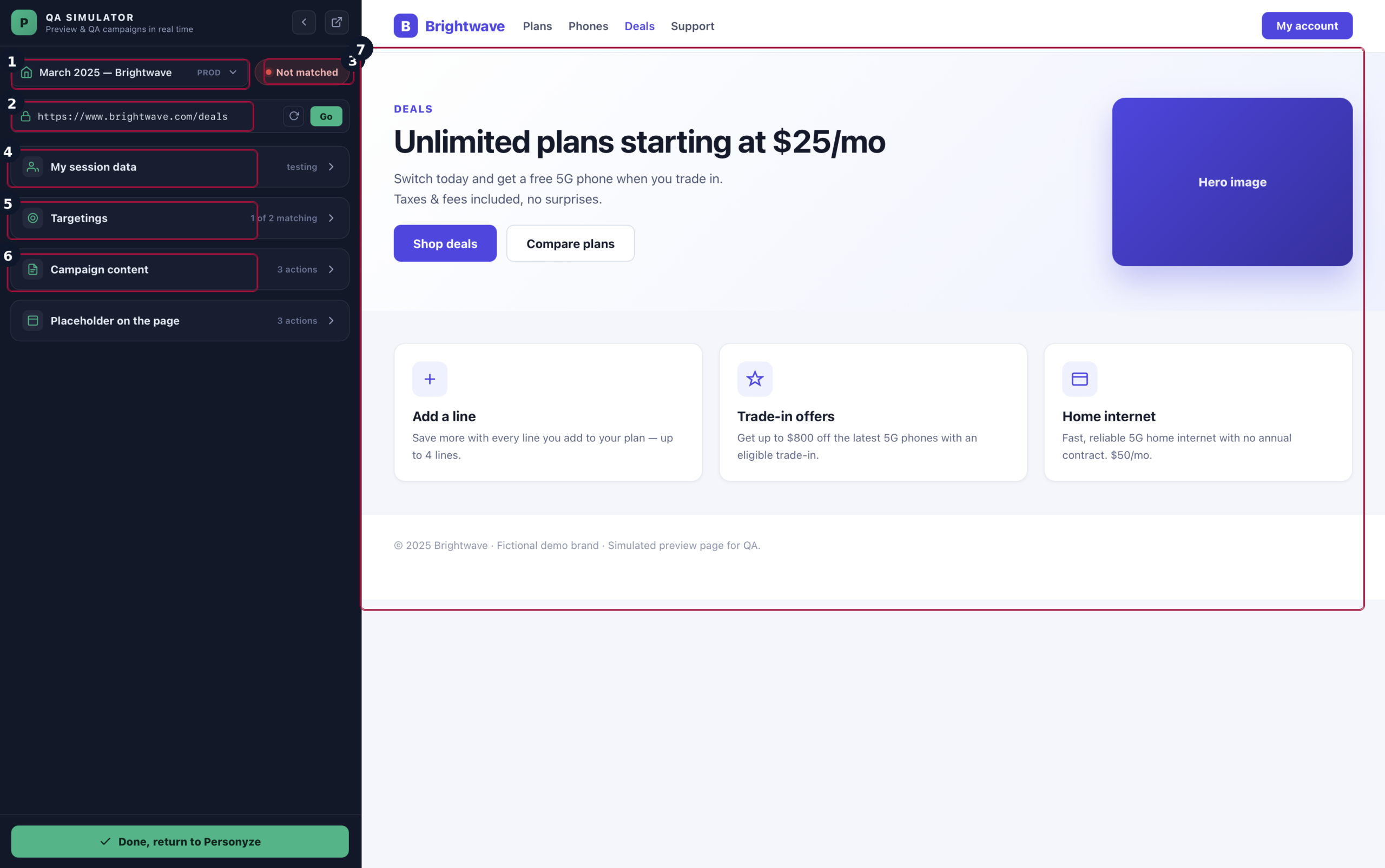
Impersonate a visitor
The real power of the simulator is that you’re not stuck being yourself. The My session data panel lets you become any visitor and see which audiences you’d fall into.
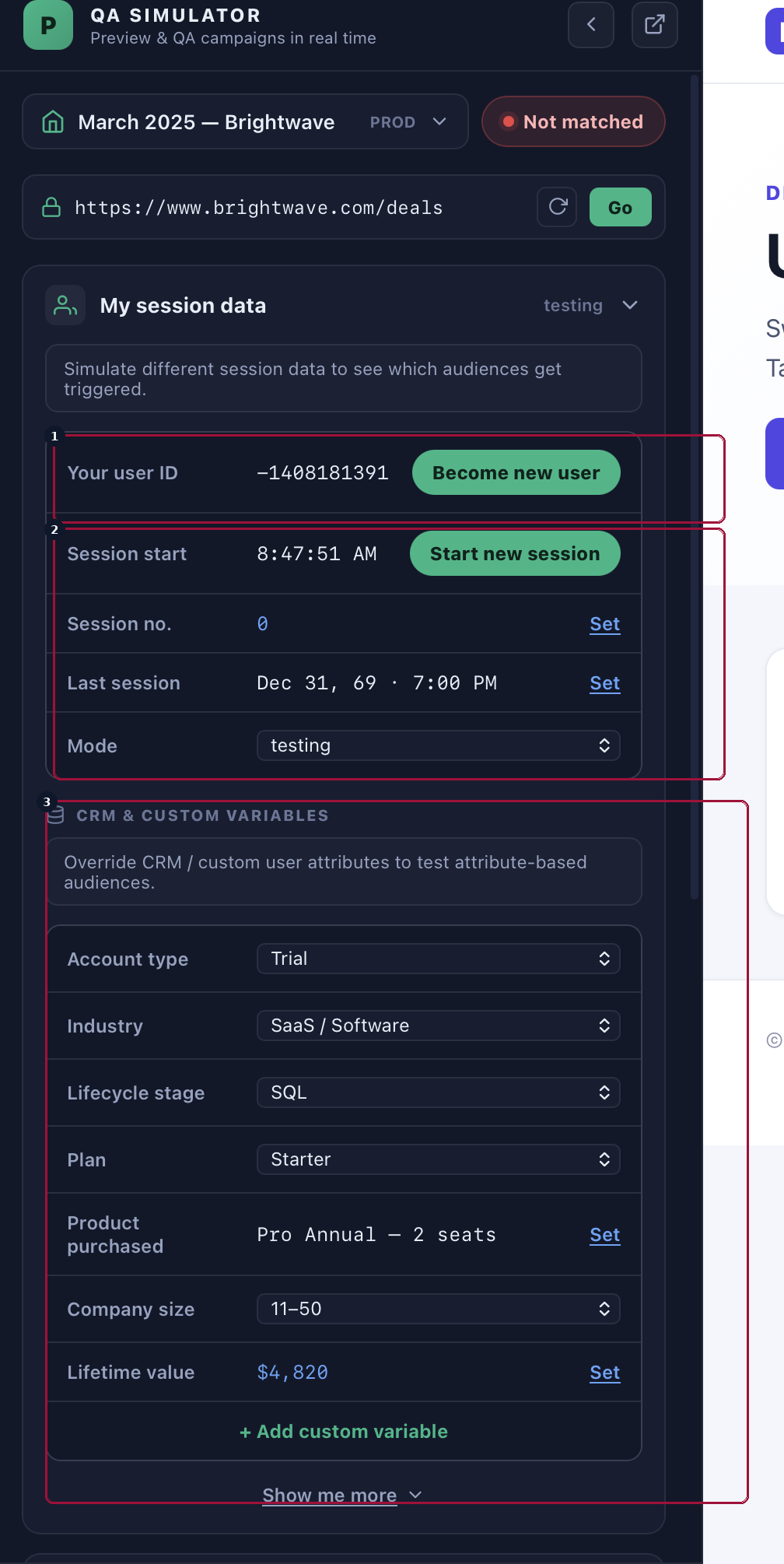
The panel gives you full control of identity and history: Become new user wipes the current profile so you can test the first-time experience; Start new session resets the session clock; and you can set the session number and last-session date to test rules like “returning visitor on their 3rd session.” The mode selector (testing vs. production) controls whether your simulated activity is treated as test data. Below that, the CRM & custom variables block lets you override attributes — account type, industry, lifecycle stage, plan, company size, lifetime value, and any custom field — to test attribute-based audiences without touching your real CRM.
Change any of these and the simulator re-evaluates instantly, so you can confirm a campaign shows for the right people and — just as important — stays hidden for everyone else.
See exactly why a visitor matches (or doesn’t)
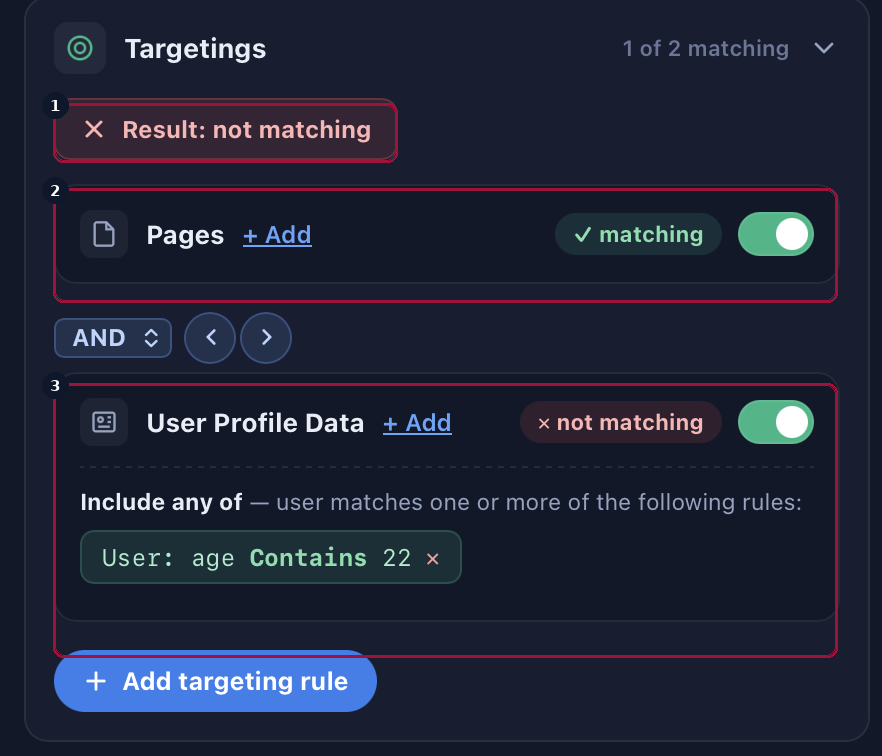
The Targetings panel breaks the campaign’s audience rules down condition by condition for the current simulated visitor, so a “not matched” result is never a mystery — you can see the exact rule that failed.
Check the content that runs
The Campaign content panel lists every action in the campaign and whether it executed for this visitor, so you can confirm the right content fired in the right place — and spot anything disabled or blocked.
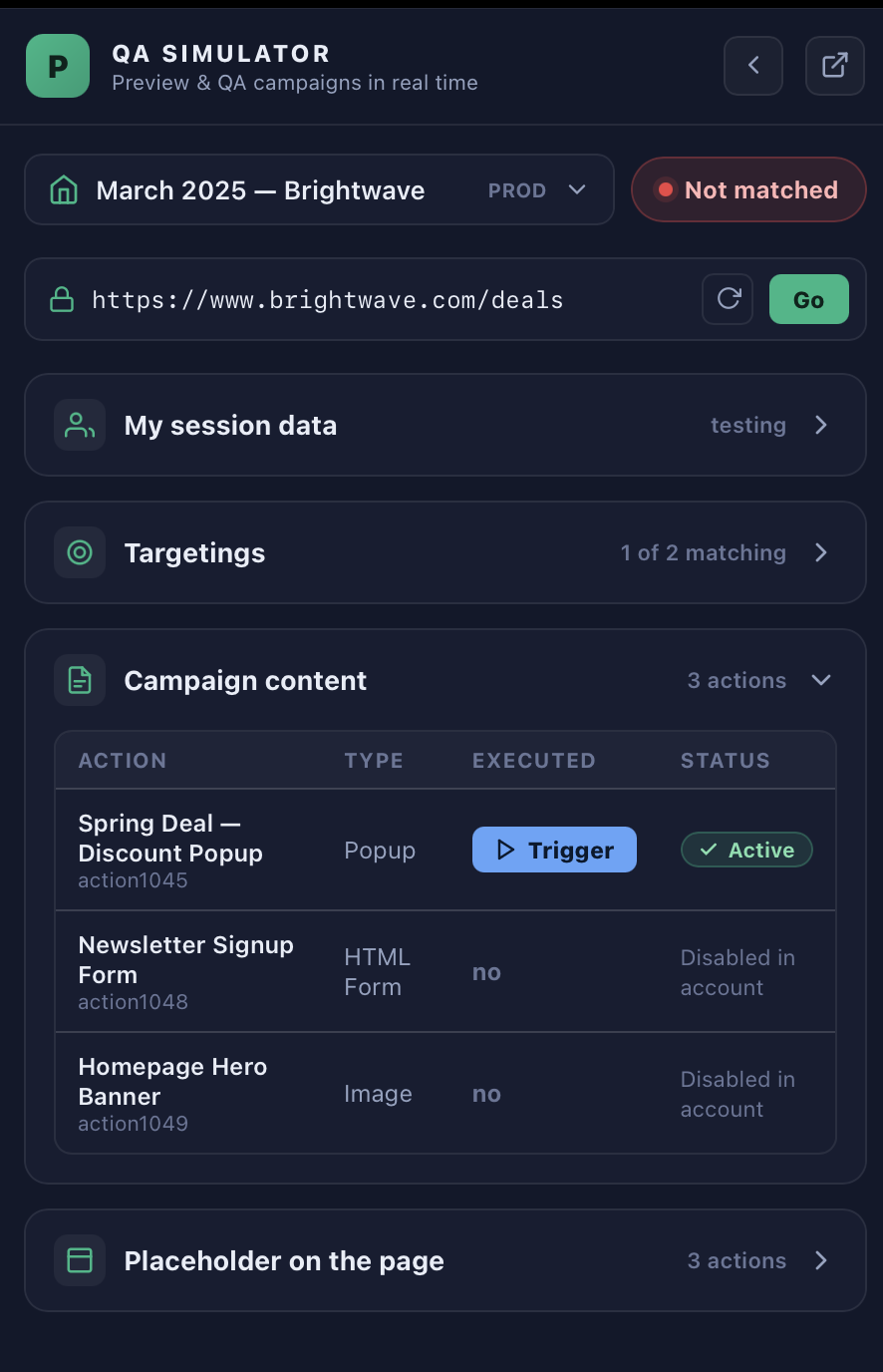
Each action shows its type (popup, HTML, image, form…) and an Executed state, and you can trigger an action manually to preview it on the spot even if its normal trigger hasn’t fired yet. A separate Placeholder on the page panel lists in-page placeholders the campaign targets (inline slots where content is injected into the page rather than shown as an overlay), so you can confirm those resolved too.
What to check before you launch
- Right audience — impersonate the visitors you expect to match, and a few you don’t, and confirm the match badge behaves.
- Right placement — the action lands where you intended on the real page structure, not an abstract preview, so you catch selector and placement issues.
- Personalization resolves — tokens like first name, city, or a searched keyword fill in from the simulated profile.
- No collisions — if another campaign competes for the same visitor, confirm the intended one wins.
QA in Test mode first, fix anything the simulator surfaces, then switch the campaign to Live.
Related
- Targeting and Personalization — the full campaign lifecycle.
- Targeting Rules in Personyze — every audience rule type.