
Personyze has its own analytics module, but reporting events to Google Analytics is often more convenient since GA is the standard your team likely already uses. Personyze integrates with both Google Analytics 4 and the older Universal Analytics, sending campaign matches and action events automatically once configured.
Setting up GA4
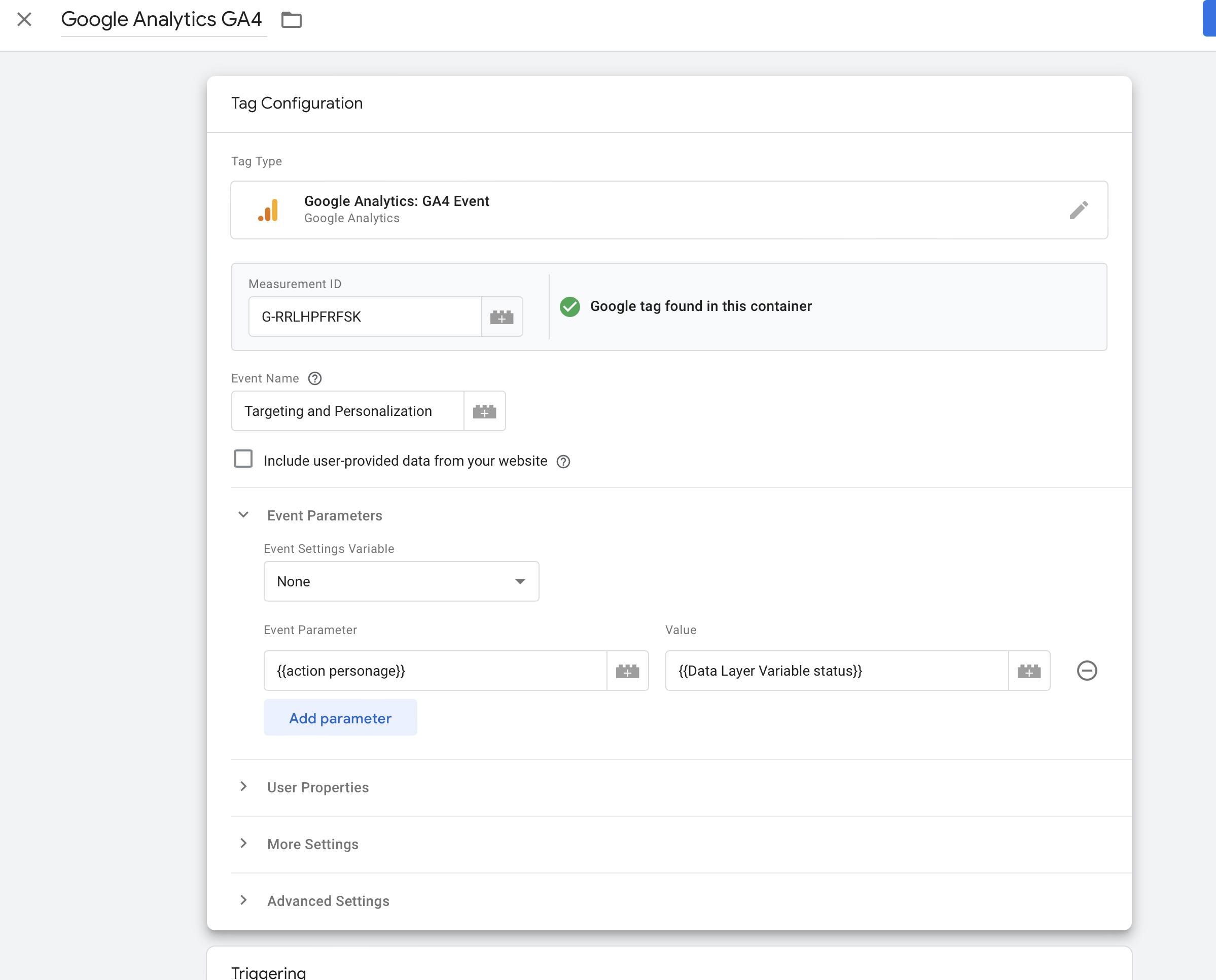
Personyze reports to GA4 through Google Tag Manager. Once GTM is on your site, add a single tag for Personyze events:
- In Google Tag Manager, click New Tag.
- Choose tag type Google Analytics: GA4 Event.
- Configure the trigger to fire on a custom event reporting from Personyze.
- Save and publish the GTM container.
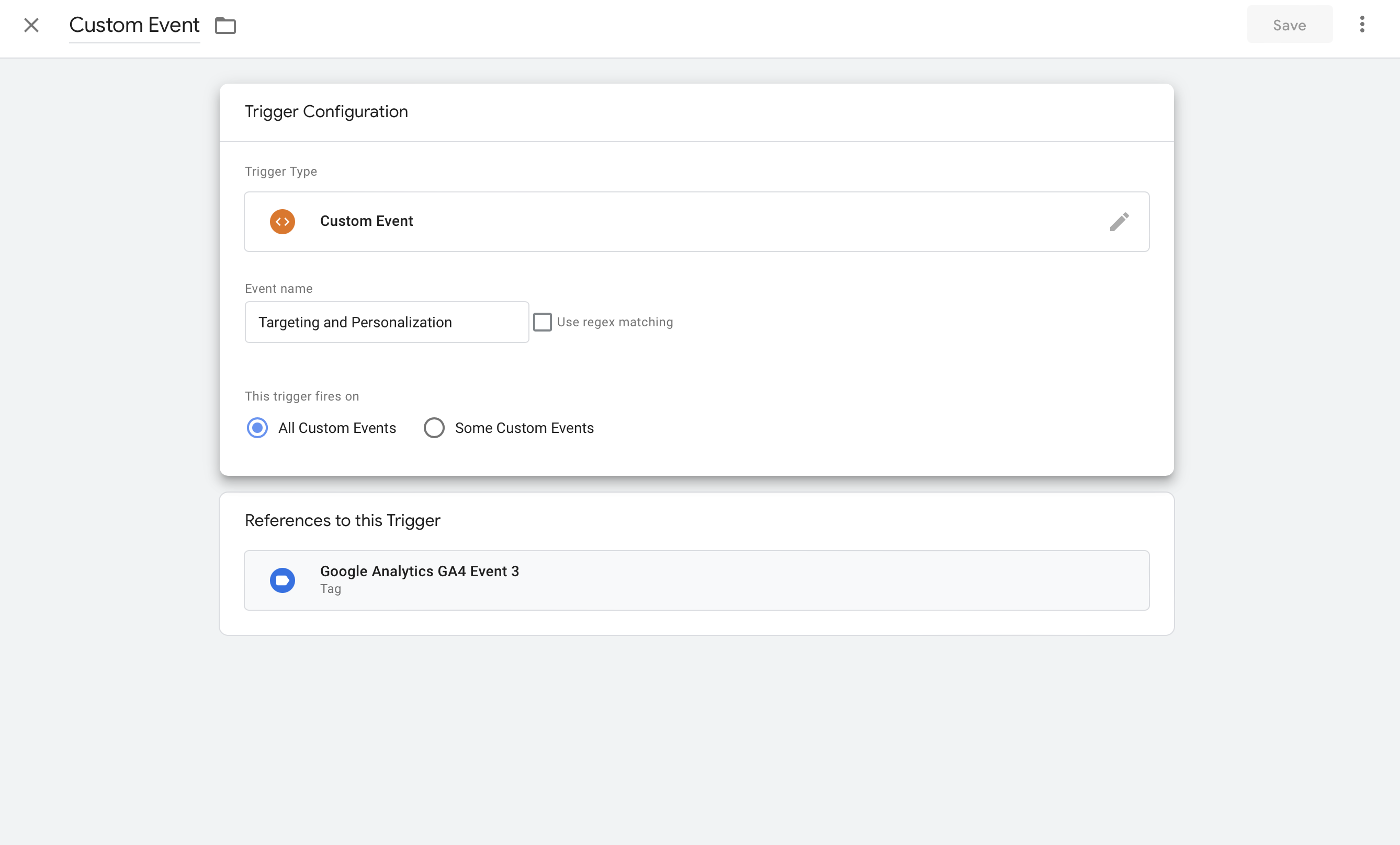
The trigger setup should fire whenever a custom event reports from Personyze:
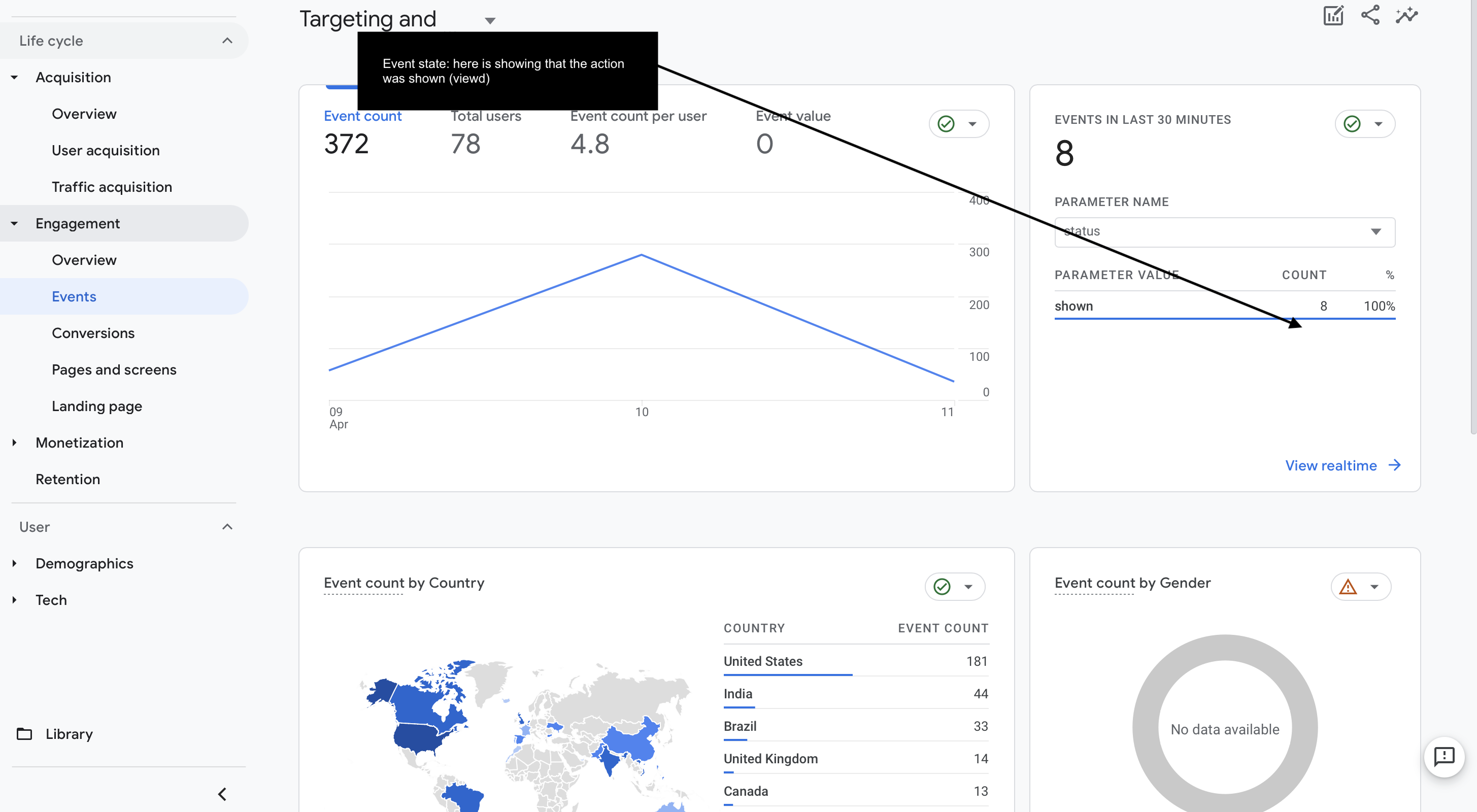
Within minutes of saving and publishing the GTM container, action events should start appearing in your GA4 dashboard.
Universal Analytics (legacy)
For sites still on Universal Analytics, Personyze integrates automatically once it detects a UA tag on the page — no GTM configuration required. Every reported event surfaces in GA with three pieces of data:
- Category — “Campaign Name” or “Action Name (personalization widget)” plus the source domain.
- Action — the action name as you set it in Personyze (auto-generated by default).
- Label — the event status:
shownfor audiences, or one of the action statuses listed below.
Event statuses
Action events report a status under event_value (GA4) or as a label suffix (UA). The full list:
- Yes — action was shown or executed successfully
- No — action was not shown
- Error — something prevented the action from executing
- Extra — action was shown and clicked
- Goal — a defined goal was reached
Viewing campaign performance in GA
Use Google Analytics’ Segments feature to filter your reports by Personyze events:
- Create a new GA Segment.
- Add a rule that filters for the specific event type and event name Personyze reports (the campaign or action name as configured in Personyze).
- Save the segment.
You’ll now see all GA reports filtered to visitors who matched that campaign or interacted with that action — making it easy to compare on-site behavior between Personyze-personalized and non-personalized traffic.

Controlling which events report
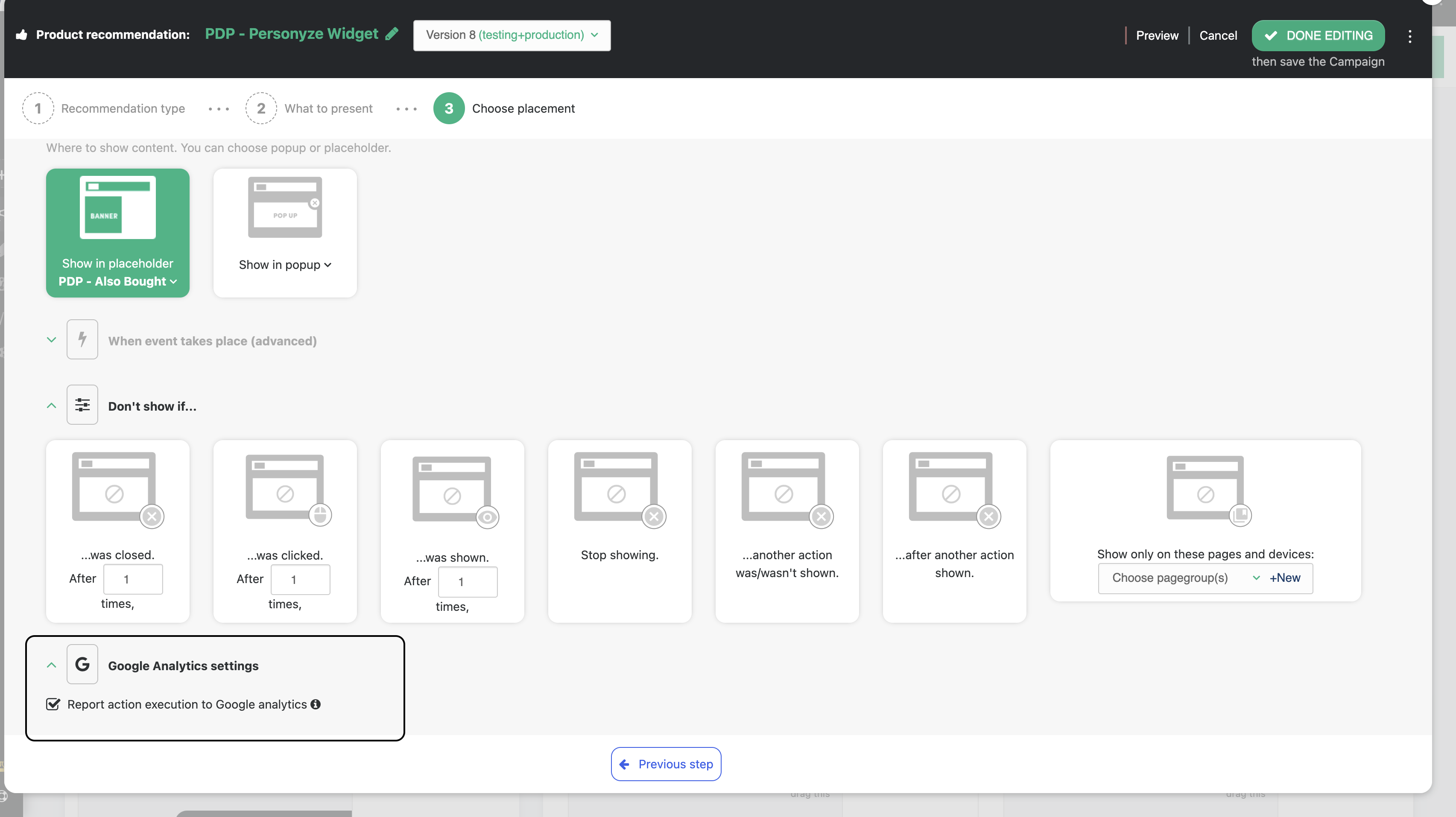
By default, every Action and every Audience reports to Google Analytics. You can limit this from the Google Analytics Integration widget on your Personyze dashboard.
Limit to specific events
- Click All next to the event type you want to customize (Actions or Audiences).
- Uncheck the items you don’t want reported.
Disable integration entirely
- Click All for both Actions and Audiences.
- Click Check and save none.
- Uncheck Default for new items so future actions don’t auto-enable reporting.
Re-enable for everything
- Click All for both Actions and Audiences.
- Click Check and save all.
Manually toggle a single item
In any individual Audience or Action’s customization area, look for the Report to Google Analytics checkbox. Toggling it controls reporting for just that item.
Pre-built report templates
Beyond raw event reporting, Personyze ships pre-built GA report templates in the Google Analytics Solutions Gallery. These structure the data for common Personyze use cases (campaign performance, action engagement, segment comparisons) so you don’t have to build the views from scratch.
- Click the Google Analytics Template Reports button in your Personyze dashboard.
- The Solutions Gallery opens — choose a template and click Import.
- The template appears in your GA reports library, pre-configured against the events Personyze sends.
Advanced use cases
Because Personyze has access to richer visitor data than GA does, you can use it to enrich your analytics with segments GA can’t track on its own. A few examples:
- Report when a visitor reduces items in their cart after seeing the shipping cost — useful for shipping price-sensitivity analysis.
- Report when CRM data shows a visitor’s subscription is expiring and they started but abandoned the renewal flow.
- Report visitor gender (from Facebook Connect or form submissions) so you can break GA reports down by gender even though GA doesn’t natively know it.