
A Review Form lets visitors write a review on your own site. Each one lands on the Reviews page — waiting for your approval unless you choose to publish at once — and can also go to you by email, to your other tools, and to a review platform.
Adding it
Add action → Reviews → Review Form. The designs:
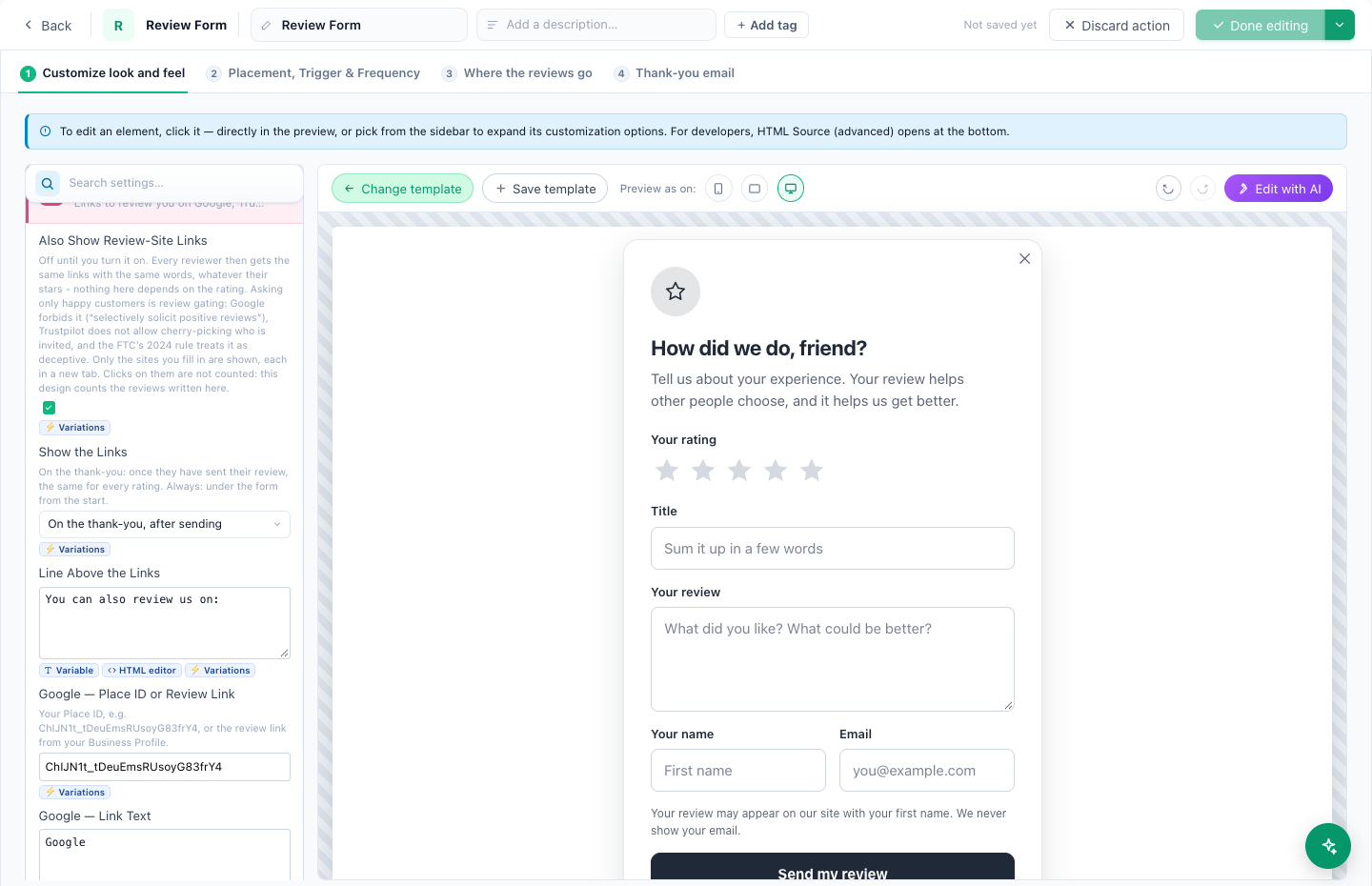
- Rate and Review — stars, a title, the text, name and email.
- Review Your Purchase on Your Site — the last product the visitor bought, pictured. Nothing is shown to a visitor with no purchase.
- Quick Star Rating — stars first, a comment if they like.
- Rate This Page — stars and a comment about the page they are reading.
The steps: Customize look and feel, Placement, Trigger & Frequency, Where the reviews go, and Thank-you email.
How reviews are kept
- What a review is about follows the design: your business, the product bought (marked verified buyer when there is a purchase), or the page.
- One review per visitor per product (or page): sending again edits the first.
- New reviews wait for your approval. Tick Publish at once to skip that.
- The send button is disabled while sending, so a double click sends once.
Two design settings worth knowing
- Share on Review Sites — links to Google, Trustpilot, G2, Capterra, Facebook or another site, shown on the thank-you after sending. The same links for every reviewer, whatever they rated.
- Ask for Consent to Be Invited by a Review Platform — off by default. Adds an unticked checkbox; Trusted Shops invitations need it.
Where the reviews go
This step starts with Save as a review. Add more with + Add a destination:
- Email me — up to 5 addresses; reply-to is the reviewer.
- A webhook, Zapier, Slack, HubSpot or Klaviyo.
- Count it as a goal.
- Save to the visitor’s profile — Submitted a review, Review rating and Last review date, so campaigns can target by them.
- Your connected review platforms — see Sending reviews to platforms.
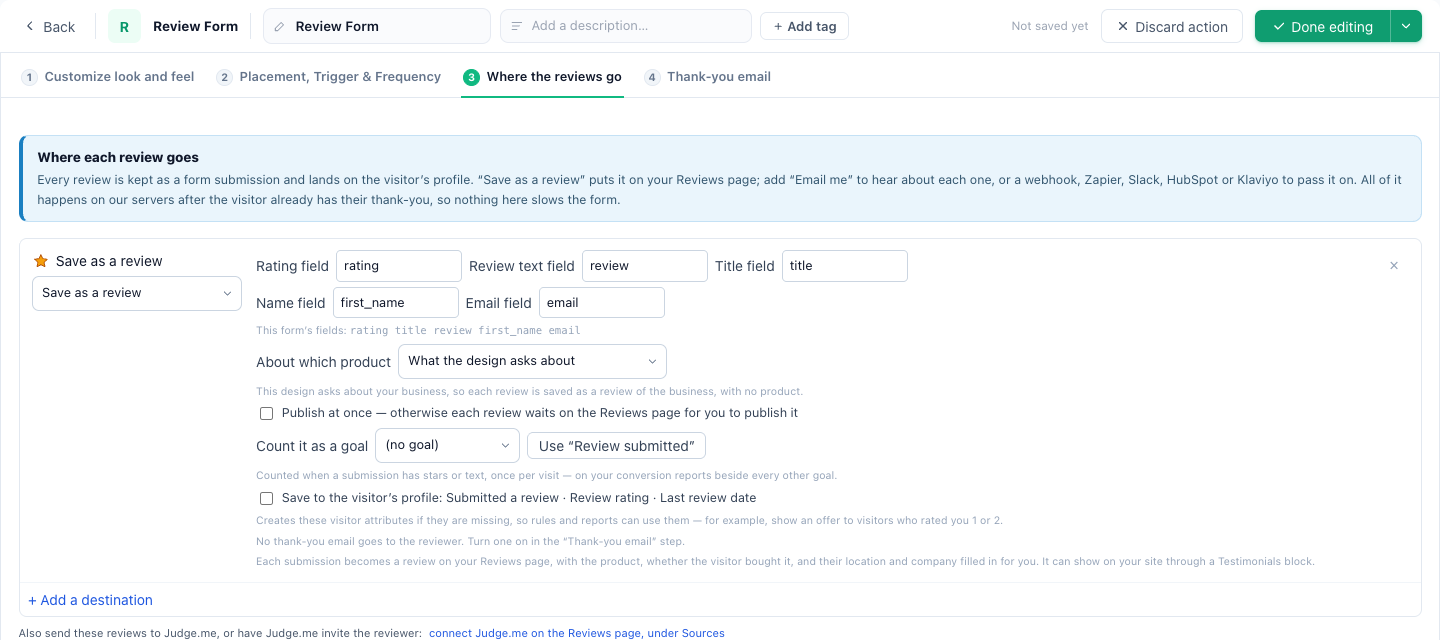
All of it runs after the visitor already has their thank-you, so a slow destination never keeps them waiting.
Thank-you email
Off by default. See The thank-you email.
Related
- Show Reviews
- Sending reviews to platforms, and platform invitations
- Ask for a Platform Review — send visitors to review you elsewhere
- Troubleshooting — a review that is not on the site