
A Surveys campaign asks a few questions — a poll, an exit survey, a post-purchase survey — and shows you what visitors said. With a Survey Results widget, you can show your visitors too.
Watch the 2:28 walkthrough: building a five-question customer survey, what a visitor sees, the Survey dashboard, and publishing the results under the home page hero.
The campaign
New campaign → Surveys. The steps: Content, Target, QA, Automation and Performance.
The Survey action
Add action → Feedback & surveys → Survey. The designs: Quick Poll, Customer Survey, Exit Survey and Post-Purchase Survey. The steps: Questions, look and feel, Placement, Trigger & Frequency, Where the answers go, and Thank-you email.
Building the questions
Add, edit, reorder, copy and remove questions right in the first step. For each one choose the kind — one choice, several choices, rating 1–5, scale 0–10, short answer or long answer — its choices, and whether it is Required. Then the words that end the survey.
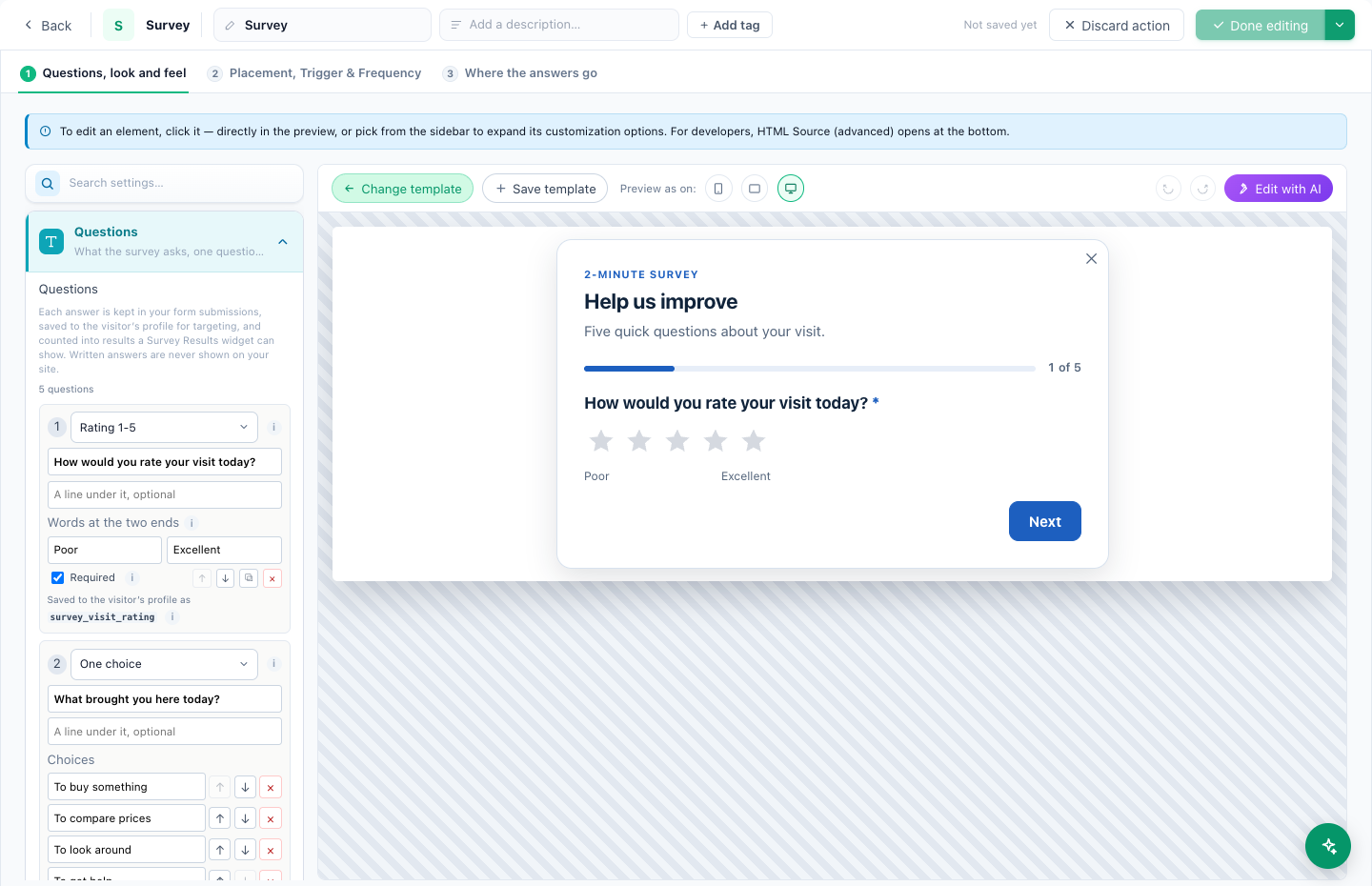
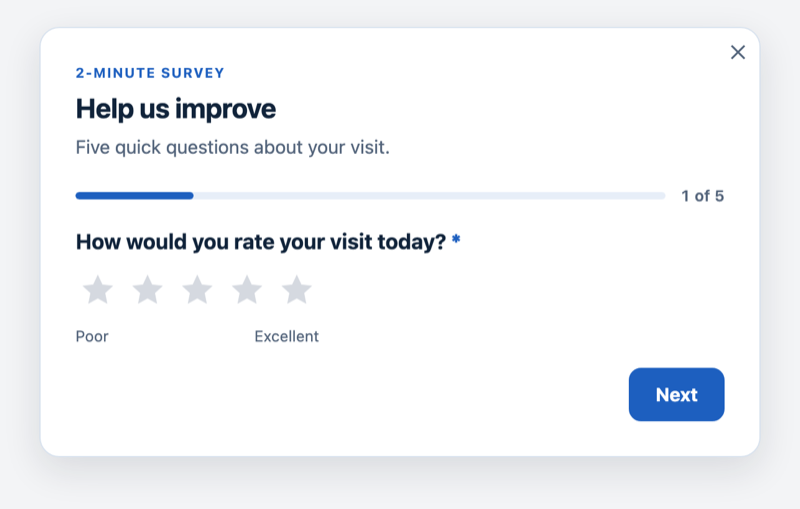
Show one question per screen with a progress bar, or all of them on one card.
Where the answers go
- Every answer is kept as a form submission, and you can pass it on — by email, to a webhook, Zapier, Slack, HubSpot or Klaviyo.
- Each answer, except long answers, is saved on the visitor’s profile as a field named after the question (
survey_<key>), so campaigns can target by it. The same question text in two surveys shares one field; changing a question’s kind after answers exist gives it a new field. - A 0–10 question in a survey does not fill the NPS profile fields — only Feedback questions do.
- Only the survey’s own choices are recorded; anything else a browser sends is ignored.
Survey Results: share them
Add action → Feedback & surveys → Survey Results publishes results as Poll Results (bars and percentages) or a Stat Highlight (“82% of customers chose…”). Choose the survey and which of its questions are public.
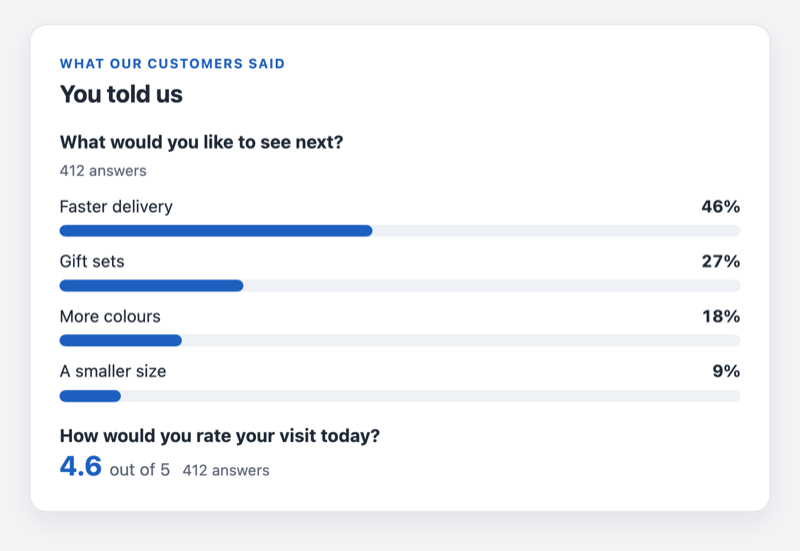
- Totals only. Written answers are never shown.
- Nothing is shown below the Minimum Answers — 20 by default.
The Surveys report
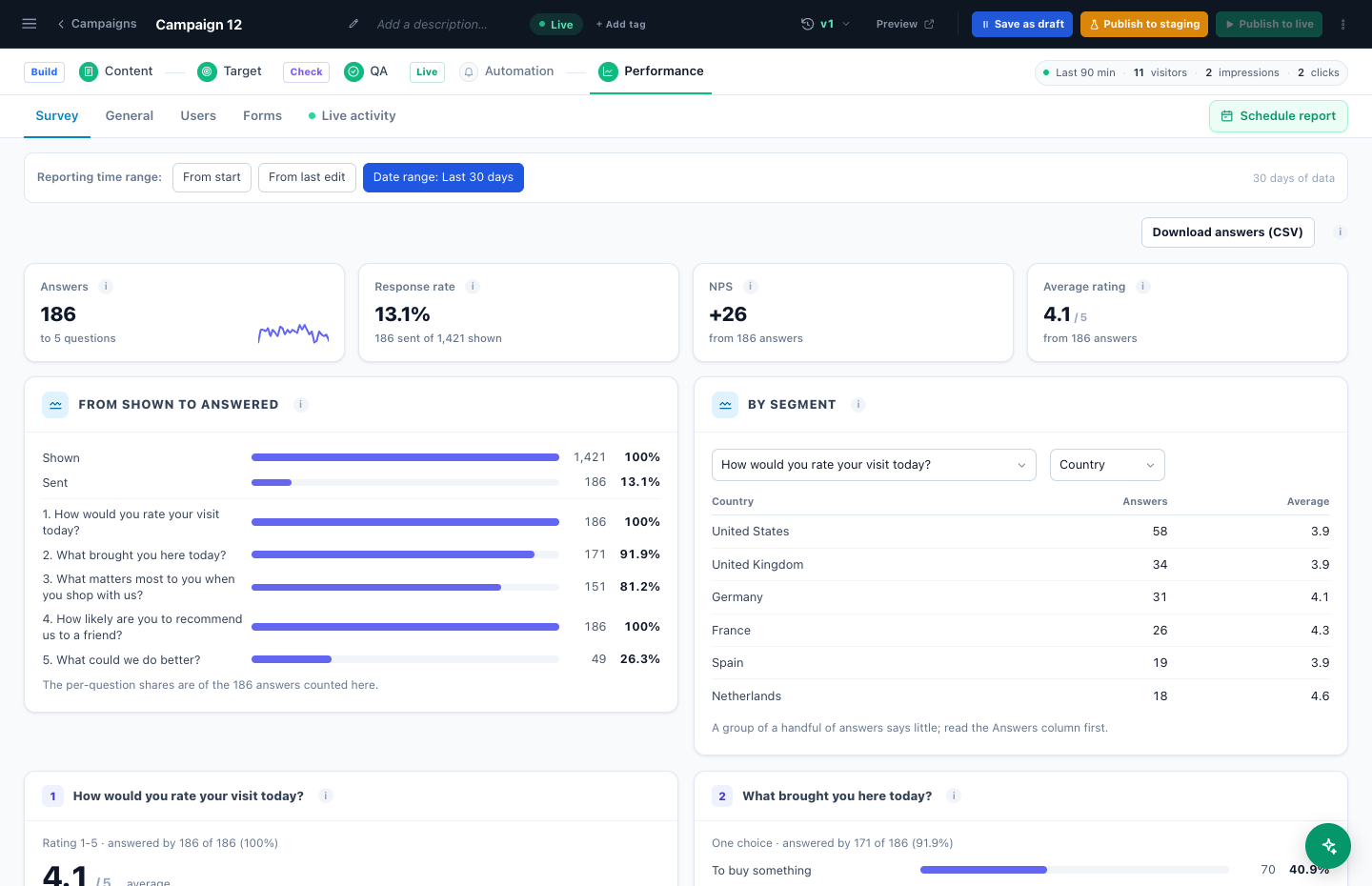
Performance → Surveys: respondents (each visitor counted once, with their latest answers), the response rate, NPS and averages for scale questions, a funnel from shown to sent to each question answered, the results of every question, results by segment (country, device, traffic source, page), the latest written answers, and a CSV export. Each tile shows the change against the previous period.
Related
- Feedback & NPS — one question, and the NPS
- The thank-you email
- Reports
- Troubleshooting — Survey Results shows nothing