
Customer Logos is a “trusted by” strip that puts the companies most like the visitor first: a bank sees your banking customers, a retailer sees retailers. A logo is one more kind of entry on the Reviews page, not a separate library — and it never appears in a review widget, a review count, an average rating or a review report.
The Customer logos tab
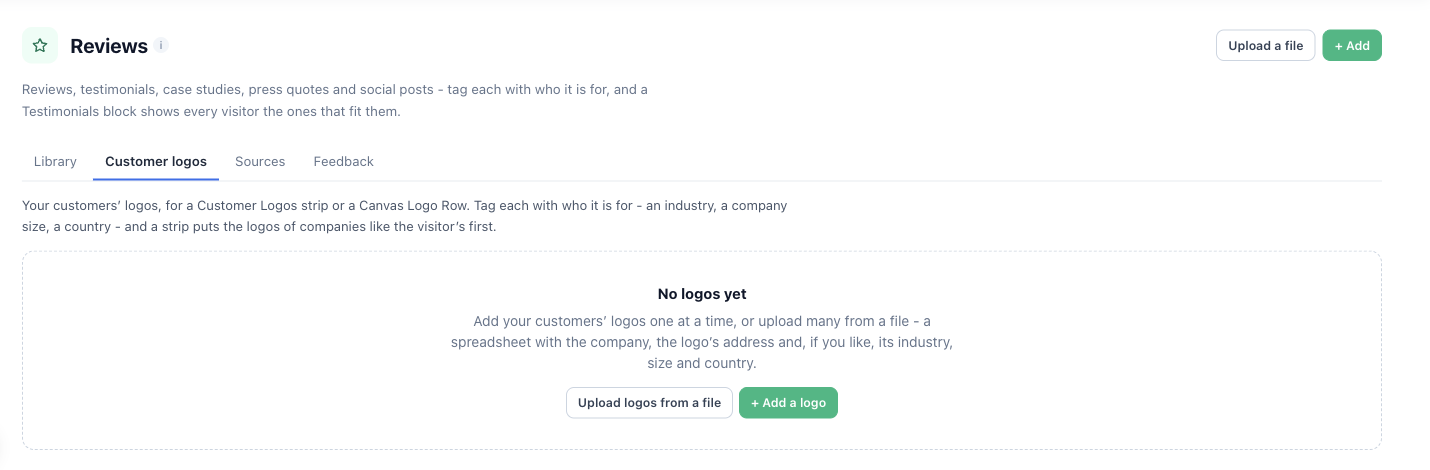
On the Reviews page, open Customer logos.
+ Add a logo
- Logo — upload it or pick one uploaded before. A transparent PNG or an SVG sits best on any background. The preview shows it In colour and Muted, as many strips show it.
- Company name — not shown on the strip. It is what a screen reader says for the logo, and how a company with two logos (an entry and a case study) shows only once.
- Link (optional) — where a click on the logo goes, such as their site or your case study about them. It opens in a new tab.
- On your site (published or not) and Featured (first in a strip ordered Featured first).
- Who it is for — industry, company size, country (two-letter codes such as US or GB, several separated by commas), state or region, city, website, page path, and Your own fields. Empty means anyone.
Upload logos from a file
A spreadsheet with the company, the logo’s address and, if you like, its industry, size and country. Headers are recognised in several languages. Several lines for one company (“Acme, Retail” and “Acme, Finance”) become one logo shown to both industries. A file read on a schedule works as it does for reviews: its logos are hidden rather than deleted, because the next read would bring them back.
Managing logos
Search, filter by Status (All, On your site, Not on your site), and act on selected logos: publish, hide, or set a field — Replace, Add to what they have, or Clear.
The Customer Logos action
Add action → Reviews (or Change page content or look) → Customer Logos. The designs:
- Logo Strip — muted until hovered.
- Auto-scrolling Logo Slider — pauses on hover, and stays still for visitors who turned off motion in their system settings.
- Logo Grid.
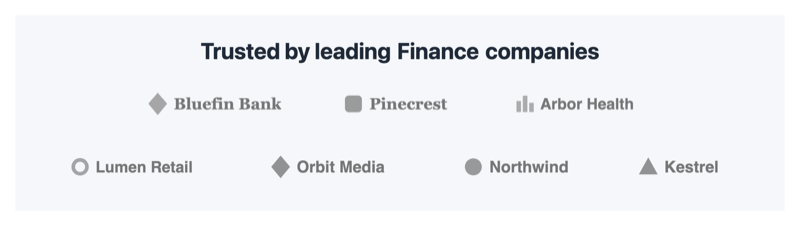
- Trusted by Companies Like Yours — its heading names the visitor’s industry (“Trusted by leading Retail companies”) only when it is known, and otherwise shows its usual heading.
Which logos
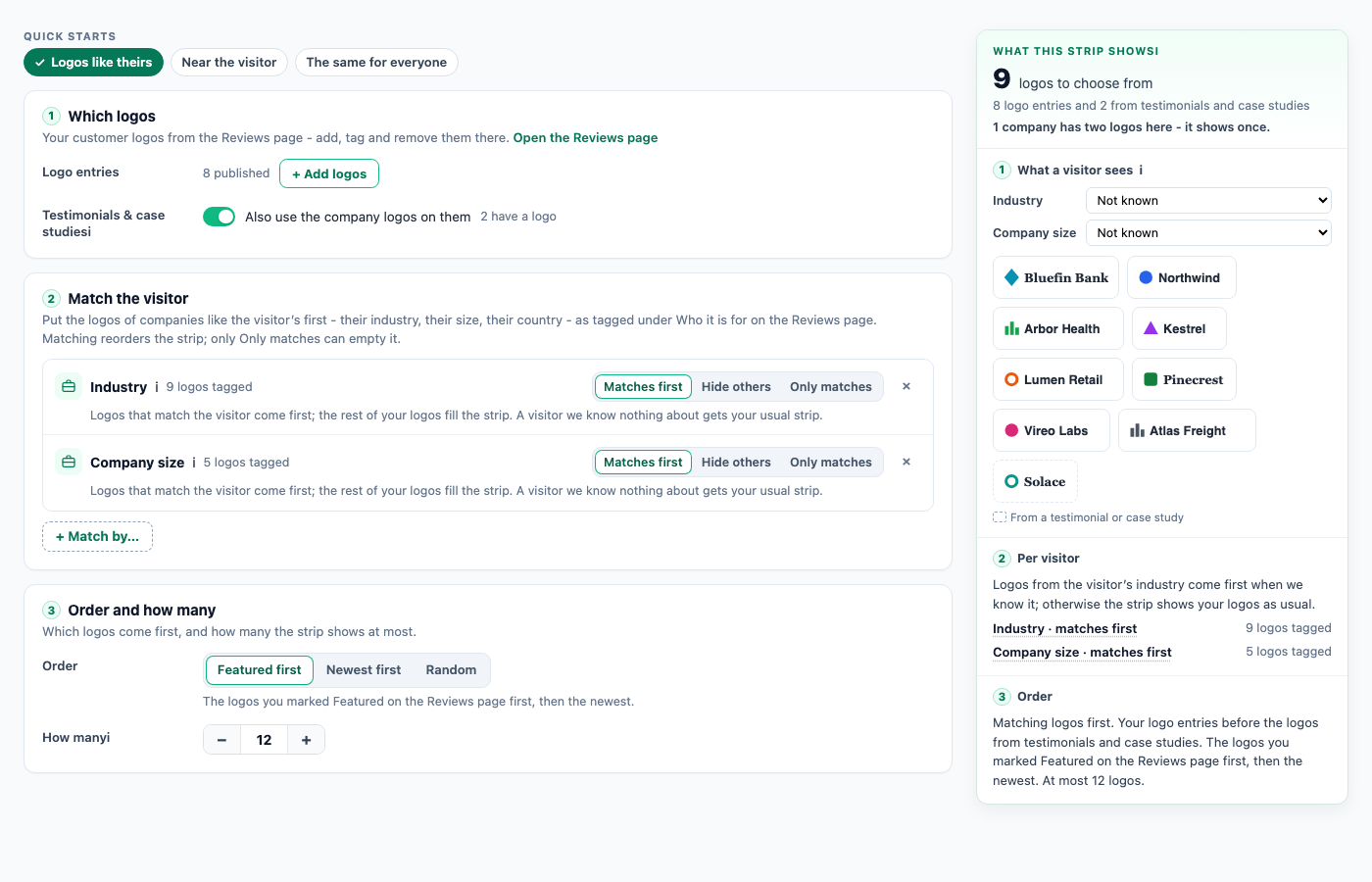
- Logo entries — the logos from the Customer logos tab, always used.
- Testimonials & case studies — Also use the company logos on them. A company that also has a logo entry shows once.
- Quick starts: Logos like theirs (the default in every design: the visitor’s industry first, then companies their size), Near the visitor (their country first, then their state or region), and The same for everyone.
- + Match by… — industry, company size, country, state or region, city, website, page path, your own fields. Each with the same three strengths as Show Reviews: Matches first, Hide others, Only matches. Matching only reorders the strip; only Only matches can leave a visitor with no strip. A match on a field no logo is tagged with says “none tagged — no effect yet”.
- Order and how many — Featured first, Newest first or Random (a different mix on every page view), and How many, at most 24. A company with two logos shows once, so a strip can show a few fewer. Some designs set how many they show themselves.
The panel beside the settings, What this strip shows, counts the logos that qualify. What a visitor sees lets you pick a visitor — an industry, a size, a country — and shows their strip in order. Not known is what most visitors are, and they get the usual strip.
In the Canvas: Logo Row
The Canvas Builder’s Logo Row element has Logos come from: Logos I add here, or The Reviews page. From the Reviews page it has the same choices: Also the company logos on testimonials and case studies, How many, Order, and a match per field — Ignore, Matching logos first, Hide logos tagged for others or Only matching logos.
Related
- The Reviews page
- Show Reviews — the same matching, for reviews
- Canvas Builder
- Troubleshooting — a strip that shows the same logos to everyone