
Connect Personyze to Oracle Eloqua to personalize your website with your Eloqua contact data, and to send Personyze leads and audiences back to Eloqua.
Both directions Eloqua contact fields — company, title, industry, lead score — arrive on your visitors for targeting and content. Personyze form leads and user lists go into Eloqua contacts and shared lists.
What syncs, in each direction
From Eloqua into Personyze
- When a visitor Personyze can identify by email arrives on your site, Personyze looks up their Eloqua contact. Visitors are identified from a form they filled in, a login, or an email parameter in a link.
- You choose which contact fields to put on the visitor: standard fields such as email, first and last name, company, title, country, city and industry, or any custom field, including a lead score or rating.
- Those fields become visitor attributes. Target campaigns on them in the targeting rules, see them on the visitor’s profile, and print them in content — “Welcome back, {first name} from {company}” — as dynamic variables.
From Personyze into Eloqua
- Form leads. A Personyze Lead Capture Form can send every submission to Eloqua. Personyze creates the contact, or updates it if it already exists, by the email address. It fills name, company, title, phone and country, plus any form field named after one of your Eloqua fields, and can also add the contact to a shared list.
- User lists. Add the people in a Personyze user list (an audience) to an Eloqua shared list. Contacts Eloqua does not have yet are created. Nobody is removed from the Eloqua list.
Before you start: an Eloqua API user
Use a dedicated Eloqua user for Personyze, not a person’s own login. It keeps working when someone leaves or changes their password.
- In Eloqua, go to Settings → Users and create a user, for example
personyze.api. - Add it to these security groups:
- API Users, which carries the Consume API permission. Without that permission the API cannot be used at all.
- Advanced Users – Marketing.
Or use a group of your own that has Consume API and read and write access to contacts and shared lists.
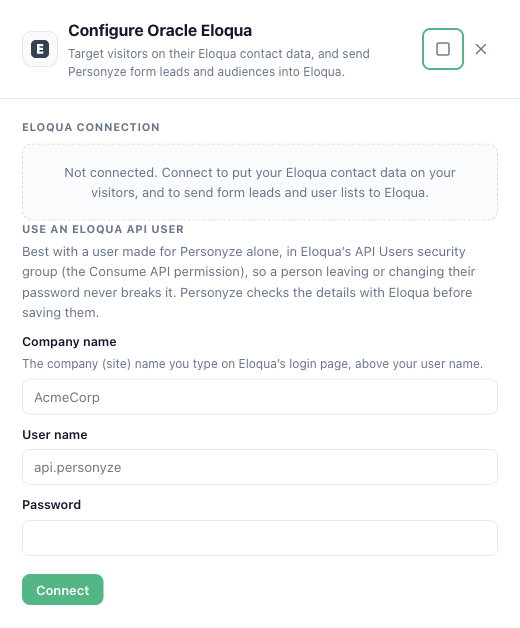
- Note three things: your company name (the “Company” you type on Eloqua’s login page, above your user name), the user name, and the password. Keep the password safe.
Setup
- In Personyze, go to Settings → Integrations → Oracle Eloqua.
- Enter the Company name, the User name and the Password, then click Connect. Personyze checks them with Eloqua before saving; after that, the password is never shown again.
- Under Property mapping, choose the Eloqua fields to put on your visitors. Recommended setup maps the most useful ones in one click: email, name, company, title, country, city, and industry and lead score when your Eloqua has them.
- Optional — form leads. Open a Lead Capture Form, go to its Where the data goes step, and add Oracle Eloqua. To also add each lead to a shared list, enter the list’s ID under Also add to shared list (ID, optional) — it is in the list’s URL in Eloqua. Forms without an email field are skipped.
- Optional — user lists. In the same Eloqua drawer, open Send a user list to Eloqua, pick a Personyze user list and an Eloqua shared list, and click Send to Eloqua.
Good to know
- Matching is by email. Personyze matches visitors to Eloqua contacts by email address. When it does not know a visitor’s email, it can still match them if both of these are true: your site uses Eloqua’s first-party tracking cookie, and Eloqua has already linked that browser to a contact — for example after the visitor clicked an Eloqua email.
- Light on your Eloqua API allowance. Personyze asks Eloqua about a visitor at most once per visit, plus once more if their email changes during the visit. It never asks on every page view.
- Large lists. Up to 50 people are sent one contact at a time. Larger lists go through Eloqua’s Bulk API: Eloqua adds them in the background, usually within minutes, and Check progress follows it. One send takes up to 100,000 people with an email address; people without one are left out.
- If Eloqua rejects the password — changed or expired — Personyze stops using it at once, so the Eloqua user is not locked out, and the Eloqua drawer says so. Enter the password again to reconnect.
- Testing a form. Send test on a form checks the Eloqua connection and the shared list. It does not create a test contact in your Eloqua.
- Disconnecting. Click Disconnect in the Eloqua drawer. Personyze then stops reading Eloqua contacts and stops sending leads.
Limits
- Changes you make in Eloqua reach Personyze on the visitor’s next visit, not instantly.
- Sending a user list adds people but does not remove them. To keep an Eloqua list in step, clear it in Eloqua before you send again.
- A form field goes to a custom Eloqua field only when it is named after that field — by the Eloqua field’s display name or its internal name, such as
C_Industry1.
Related
- Integrations — every other connection.
- Targeting rules — targeting on the Eloqua fields.
- Troubleshooting: an integration stopped syncing