
Connect Salesforce to Personyze to personalize your website with your CRM data, and to send your website’s leads, audiences and visitor behavior back to Salesforce.
What it does
From Salesforce into Personyze
- Known visitors. When a visitor Personyze knows by email arrives — they filled in a form, logged in, or came from an email link that carries their address — Personyze looks them up in Salesforce once per visit: their Contact first, and their Lead if there is no Contact. The fields you choose — title, lead status, rating, owner, the Account’s industry and type, the open deal’s stage, any custom field — become visitor attributes. Target campaigns on them with targeting rules, and print them in your content as dynamic variables.
- Anonymous visitors, by company. When a company-enrichment integration (ZoomInfo, Clearbit, Leadfeeder, Albacross, 6sense, Snitcher) tells Personyze which company a visitor works for, Personyze finds the Salesforce Account whose website is that company’s domain. The Account’s fields and its latest open Opportunity reach the visitor even though nobody has identified them yet — so a target account’s visitors can see content made for them from their first page view.
- Campaigns as audiences. Pick a Salesforce Campaign and its members become a Personyze audience list, kept in step with the Campaign every hour. Use it in any campaign.
From Personyze into Salesforce
- Form leads. A Lead Capture Form (or a meeting booking) can send each submission to Salesforce: the Contact or Lead with that email is updated, or a new Lead is created, and it can be added to a Campaign.
- Visitor profile sync. Personyze writes the visitor attributes you choose — the audiences they are in, their top interests, number of visits, last visit, enrichment data — to their Contact or Lead after each visit. It can also log each visit as a completed Task on the record.
- User lists into Campaigns. Add the people in a Personyze user list to a Salesforce Campaign.
What you need
- A Salesforce edition with API access: Enterprise, Unlimited, Performance or Developer edition. Professional Edition needs Salesforce’s API add-on.
- A Salesforce administrator to create an External Client App in your org — about ten minutes.
- A Run As user for Personyze. A dedicated integration user is best, so that nothing breaks when someone leaves or changes a password. It needs the API Enabled permission, read access to Contacts, Leads, Accounts, Opportunities and Campaigns, and edit access to whatever Personyze should write: Leads, Contacts, Campaign members, Tasks, and the fields you sync to.
Step 1: Create the External Client App in Salesforce
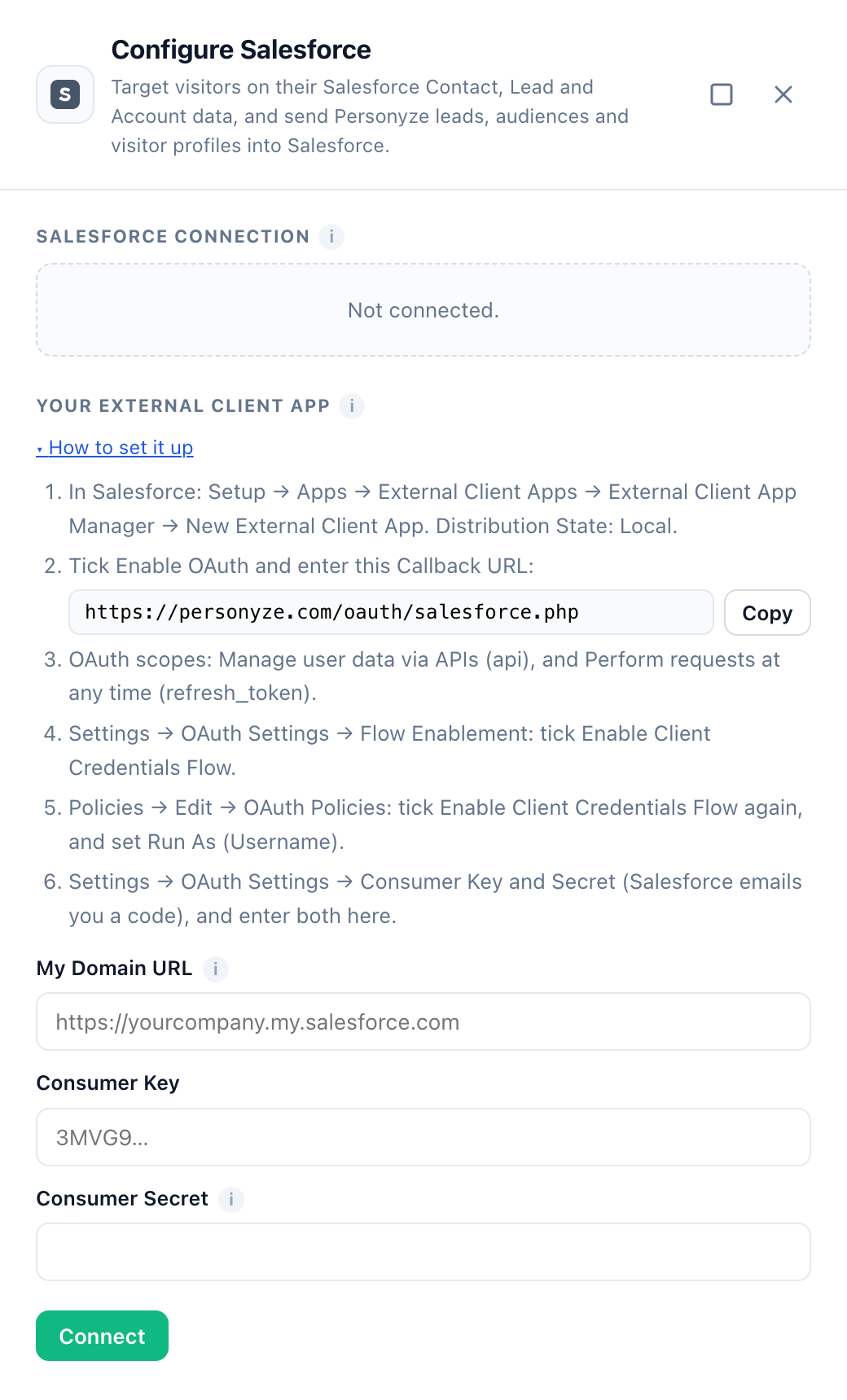
- In Salesforce, open Setup → Apps → External Client Apps → External Client App Manager and click New External Client App.
- Give it a name (for example “Personyze”) and a contact email, and set Distribution State to Local.
- Under API (Enable OAuth Settings), tick Enable OAuth.
- Callback URL: enter the one shown in Personyze’s Salesforce drawer under How to set it up —
https://personyze.com/oauth/salesforce.php, or your own Personyze address if you use a white-label domain. Personyze’s connection never sends anyone to it, but Salesforce requires one. - OAuth Scopes: add Manage user data via APIs (api) and Perform requests at any time (refresh_token, offline_access).
- Callback URL: enter the one shown in Personyze’s Salesforce drawer under How to set it up —
- In Flow Enablement, tick Enable Client Credentials Flow and confirm the dialog. Save the app.
- Open the app’s Policies tab, click Edit, and under OAuth Policies tick Enable Client Credentials Flow again. This is where the Run As (Username) field appears: choose your integration user. Save.
- Open the app’s Settings tab → OAuth Settings → Consumer Key and Secret. Salesforce emails you a verification code first. The page shows the Consumer Key and the Consumer Secret — you enter both in Personyze in step 2. Keep the secret safe.
A new app can take a few minutes before Salesforce accepts its credentials.
Step 2: Connect Salesforce in Personyze
- In Personyze, go to Settings → Integrations → Salesforce.
- Enter:
- My Domain URL — in Salesforce, Setup → My Domain → Current My Domain URL, for example
https://yourcompany.my.salesforce.com. The address in your browser’s address bar while you work in Salesforce (https://yourcompany.lightning.force.com/...) works too. - Consumer Key and Consumer Secret from step 1.
- My Domain URL — in Salesforce, Setup → My Domain → Current My Domain URL, for example
- Click Connect. Personyze checks the details with Salesforce before saving them. The drawer then shows “Connected to <your org>” and “As <user>, through your External Client App”.
The Consumer Secret is never shown again. To change the app or the user later, edit the fields and click Check and save; leave the secret empty to keep the one already saved.
Sandboxes. A sandbox has its own My Domain, ending in sandbox.my.salesforce.com (for example https://yourcompany--uat.sandbox.my.salesforce.com). Create the External Client App in the sandbox and connect with the sandbox’s My Domain. One Personyze account connects to one Salesforce org at a time.
Step 3: Choose what arrives on the visitor
In the drawer, Property mapping lists the Salesforce fields Personyze puts on the visitor. Recommended setup adds a good starting set in one click:
| Salesforce field | Personyze visitor attribute |
|---|---|
Person.Type (Contact or Lead) |
Salesforce record |
Person.Title |
Job title |
Account.Name |
Company |
Account.Industry |
Industry |
Account.Type |
Account type |
Account.NumberOfEmployees |
Company size |
Opportunity.StageName |
Opportunity stage |
Add new property offers every field of your org, custom fields included, read from Salesforce. Each is written as the record it comes from, a dot, and the field’s API name:
Contact.<field>— the visitor’s Contact.Lead.<field>— their Lead, when no Contact has the address. A converted Lead is never used.Person.<field>— whichever of the two was found, for fields both have:Person.Title,Person.LeadSource,Person.Owner.Name.Person.Typesays “Contact” or “Lead”.Account.<field>— the Contact’s Account, or, for a Lead or an anonymous visitor, the Account matched by company domain:Account.Industry,Account.Type,Account.Owner.Name,Account.Tier__c.Opportunity.<field>— that Account’s most recently updated open Opportunity:Opportunity.StageName,Opportunity.Amount,Opportunity.CloseDate.
Relationship fields work too, such as Account.Owner.Name or Contact.Account.Parent.Name.
How anonymous visitors are matched to Accounts
- The company domain comes from a company-enrichment integration. Map its domain to the Company domain attribute (its Recommended setup does this) — or, for Snitcher, its website attribute.
- Personyze then looks for Accounts whose Account domain field contains the domain. By default that is Website; if your org keeps domains in a field of its own, choose it in the drawer under Anonymous visitors.
- Website values are matched the way people type them:
http://www.acme.com/en-us/,www.acme.comandacme.comall matchacme.com, and so does a subdomain such asshop.acme.com. Look-alikes such asnotacme.comoracme.com.aunever match. - A visitor Salesforce does not know by email but who used a work address (not Gmail, Outlook, Yahoo and other free mailboxes) is matched by their address’s domain the same way.
To build campaigns on this, see targeting visitors from specific companies.
When Salesforce is asked
- Once per visit per visitor, on the first page view, and again when the visitor’s email becomes known during the visit — never on every page view.
- Answers are remembered for ten minutes, so a company’s visitors arriving together cost one lookup.
- Personyze pauses its lookups when your org has used 90% of its daily API allowance, so that your other integrations never run out because of the website.
Form leads
- Open a Lead Capture Form and go to Where the data goes.
- Add Salesforce.
- Optionally:
- Also add to Campaign (ID, optional) — the Campaign’s 15 or 18-character ID, from its address in Salesforce (for example
701...). - Field mapping — form fields Personyze cannot match by name, as
form_field=SalesforceFieldseparated by commas, for examplebudget=Budget__c, how_heard=LeadSource.
- Also add to Campaign (ID, optional) — the Campaign’s 15 or 18-character ID, from its address in Salesforce (for example
What happens on each submission:
- The Contact with the submitted email is updated. If there is none, the Lead with that email is updated. If there is neither, a new Lead is created.
- First and last name, company, title, phone, mobile, address, country, website, industry and message map by themselves. A form field named exactly like a Salesforce field (for example
IndustryorBudget__c) fills that field. - Empty form fields never erase what Salesforce already has.
- Salesforce requires a Last Name and a Company on every Lead. When the form has no last name, the part of the email before the @ is used. When it has no company, the company that enrichment found for the visitor is used, and otherwise the Company for a new Lead you set in the drawer (“[not provided]” by default).
- If a Salesforce duplicate rule blocks the new Lead, the record it matched is updated instead.
- Send test in the form editor checks the connection and the Campaign but creates nothing, so no test Lead lands with your sales team.
More about forms and where their data goes: Lead Form action and capturing leads and routing them to your CRM.
Visitor profile sync
Send what Personyze knows about identified visitors to their Salesforce records, automatically.
- In Salesforce, create a field for each value you want, on both Contact and Lead — for example a Text Area field
Personyze_Audiences__c— and give the Run As user edit access to them. - In the drawer, under Profile sync to Salesforce, turn on Keep Salesforce records up to date.
- Map each visitor attribute to a Salesforce field. Besides every visitor attribute of your account, you can map:
- Audiences the visitor is in
- Top interests
- Number of visits
- Last visit time
- Pages viewed in the last visit
- Goals reached in the last visit
- Personyze visitor ID
- Optionally turn on:
- Log each visit as a Task — a completed Task on the Contact or Lead for each visit, with the pages viewed, time spent, goals reached, audiences and interests.
- Create Leads for new visitors — off by default: only people already in Salesforce are updated. When on, an identified visitor Salesforce does not have becomes a new Lead.
- Click Save.
How it works:
- A visitor’s record is written after their visit ends, at most once per visit, and only when a mapped value changed.
- Values are fitted to each field: dates and date-times, numbers, checkboxes, and several values (such as audiences) joined with
;for a multi-select picklist or with commas for text. - Records are updated in batches of up to 200, every 15 minutes, so the sync uses little of your API allowance.
- A field that exists only on Lead (or only on Contact) is written only there.
- When you turn the sync on, it starts with the visitors of the last day.
- The drawer shows when the sync last ran and what it did.
Salesforce Campaigns as audiences
- In the drawer, under Salesforce Campaigns as audiences, click Add a Campaign and choose one.
- Click Sync. An audience list named “Salesforce: <Campaign name>” appears under Audience lists, tagged Salesforce.
- People are matched by email. Campaign members Personyze has never seen are added too, so they are recognized the first time they arrive.
- The list follows the Campaign every hour: new members join, removed members leave. Sync now updates it at once.
- Stop syncing keeps the audience list with the people it has.
Use the list like any other audience — see Audiences & Targeting.
Send a user list to a Campaign
Under Send a user list to a Campaign, choose a Personyze user list and a Salesforce Campaign, and click Send to Salesforce.
- People are matched to Contacts and Leads by email and added as Campaign members. Nobody is removed from the Campaign.
- People Salesforce does not have are skipped, unless you turn on Also create Leads for people Salesforce does not have.
- People without an email address are left out. Up to 10,000 people are sent at a time.
Disconnecting
In the drawer, click the delete icon next to “Connected to <your org>”. Personyze stops reading Salesforce data onto visitors and stops sending anything to Salesforce. The External Client App stays in your org; to remove it, delete it in the External Client App Manager. Your synced audience lists stay in Personyze.
Troubleshooting
When Personyze cannot connect, the drawer shows Salesforce’s reason in plain words. Each one below names its fix.
The Consumer Key or Secret is not accepted
Personyze says: “Salesforce did not accept the Consumer Key and Consumer Secret. Enter both again from the app’s “Consumer Key and Secret” page. A new app can take a few minutes before Salesforce accepts it.”
The key or the secret is wrong, or the app is only minutes old. Enter both again from the app’s Consumer Key and Secret page (step 1.6), or wait a few minutes and try again.
No Run As user
Personyze says: “Salesforce says the app has no Run As user. In the External Client App, open Policies → Edit → OAuth Policies, tick Enable Client Credentials Flow and choose the Run As (Username).”
The Client Credentials flow is on in Settings but not in Policies, or no Run As user is chosen. See step 1.5.
The Client Credentials flow is not enabled
Personyze says: “Salesforce says the Client Credentials flow is not enabled for this app. In the External Client App, open Settings → OAuth Settings → Flow Enablement and tick Enable Client Credentials Flow – and then also in Policies → OAuth Policies.”
Switch it on in both places — steps 1.4 and 1.5.
login.salesforce.com instead of your My Domain
Personyze says: “Salesforce answers this only at your My Domain URL (like https://yourcompany.my.salesforce.com), not at login.salesforce.com.”
Enter your My Domain URL, not login.salesforce.com or test.salesforce.com.
The address is not a My Domain
Personyze says: “Enter your My Domain URL, like https://yourcompany.my.salesforce.com – Salesforce shows it in Setup → My Domain.”
The address you entered is not a My Domain URL. Salesforce shows yours in Setup → My Domain → Current My Domain URL.
The Run As user may not use the app
Personyze says: “Salesforce says the Run As user may not use this app. In the app’s policies, allow the user’s profile or permission set.”
The app’s policies limit which users may use it. Allow the Run As user’s profile or permission set.
The Run As user is inactive
Personyze says: “Salesforce says the Run As user is inactive.”
Choose an active user as Run As, or reactivate the user.
Your edition has no API access
Personyze says: “Your Salesforce edition does not include API access. Salesforce offers it in Enterprise, Unlimited, Performance and Developer editions, and in Professional Edition with the API add-on.”
Ask Salesforce about the API add-on for Professional Edition.
API access is off for the Run As user
Personyze says: “Salesforce says API access is turned off for the Run As user. Give its profile or permission set the “API Enabled” permission.”
Add the API Enabled permission to the Run As user’s profile, or to a permission set assigned to it. The same fix applies to “Salesforce issued a session and then refused it. Check that the Run As user has the “API Enabled” permission.”
The Run As user cannot read Contacts or Leads
Personyze says: “Salesforce lets the Run As user read neither Contacts nor Leads. Give its profile or permission set read access to both.”
The Run As user needs read access to Contacts and Leads for the field lists and the lookups.
The daily API allowance is used up
Personyze says: “Your Salesforce org has used its API allowance for the last 24 hours. Personyze pauses its Salesforce requests and tries again later.”
Your org’s daily API limit is used up (Setup → Company Information shows it). Personyze pauses its visitor lookups for an hour and continues by itself; the profile sync tries again on its next run.
A Campaign cannot be found
Personyze says: “There is no Campaign <ID> in Salesforce, or the Run As user cannot see it.”
Check the Campaign ID, and that the Run As user can read Campaigns — and that Campaign in particular, if your org restricts Campaign access.
The drawer says Personyze stopped using the connection
When Salesforce refuses the app’s credentials — for example after the Client Credentials flow was switched off or the Run As user was deactivated — Personyze stops using them at once, so that the refusal is not repeated for every visitor, and the drawer shows Salesforce’s reason. Fix the app in Salesforce, then click Check and save in the drawer.
A mapped field stays empty
Open your site with the debug console (testing mode — see Testing & QA). Each visit that asks Salesforce logs one line:
Salesforce sync (<email>) ok— found, values set.Salesforce sync (<email>) no data— no Contact, Lead or Account matched, or the fields are empty in Salesforce.Salesforce sync (company <domain>) ...— an anonymous visitor matched by company domain.Salesforce sync (...) failed: <reason>— Salesforce’s reason.
A field name the org does not have (for example a deleted custom field) is skipped, and the other fields still arrive. Remember that Salesforce is asked once per visit: start a new visit (a new browser session) after changing a mapping.
A form submission did not reach Salesforce
The form editor’s Send test shows the outcome of each destination. “no email field in the submission” means the form has no email field — Salesforce Contacts and Leads are found by email. Salesforce’s own refusals (a validation rule, a required field) are shown in its words.
The profile sync does not update a field
Check that the field exists on Contact and/or Lead, is not read-only, and that the Run As user has edit access to it. The drawer’s “Last run” line counts the records Salesforce refused and shows the first reason.
Related
- Integrations — every other connection.
- Targeting rules — targeting on the Salesforce fields.
- Dynamic variables — printing them in your content.
- Target visitors from specific companies (ABM)
- Oracle Eloqua and HubSpot — the other CRM and marketing-automation connections.
- Troubleshooting: an integration stopped syncing