
A Promotions campaign puts your promotions on the site and lets an algorithm choose which one each visitor sees: the outerwear promotion on outerwear pages, a coupon for a VIP, a free-shipping bar for everyone else. It picks from your Promotions list. Start one with New campaign → Promotions.
Watch the 2:40 walkthrough: the campaign step by step, one category banner that shows the outerwear promotion on outerwear pages and the footwear one on footwear pages, then the Overview and the Report.
The steps
| Step | What you do there |
|---|---|
| Your promotions | The Promotions list itself — the same one as in the left menu. See Promotions — One List for Every Offer. |
| Calendar | When each promotion runs, by page category, five weeks at a time. |
| Content | The widgets: Image Banners, Text Promotions or Coupons — how each chooses, how it looks and where it goes. |
| Target | Optional: on which pages and to which visitors the widgets appear at all. |
| QA, Automation, Performance | As in every campaign; Performance has a Promotions tab, the Report for this campaign’s widgets. |
The calendar
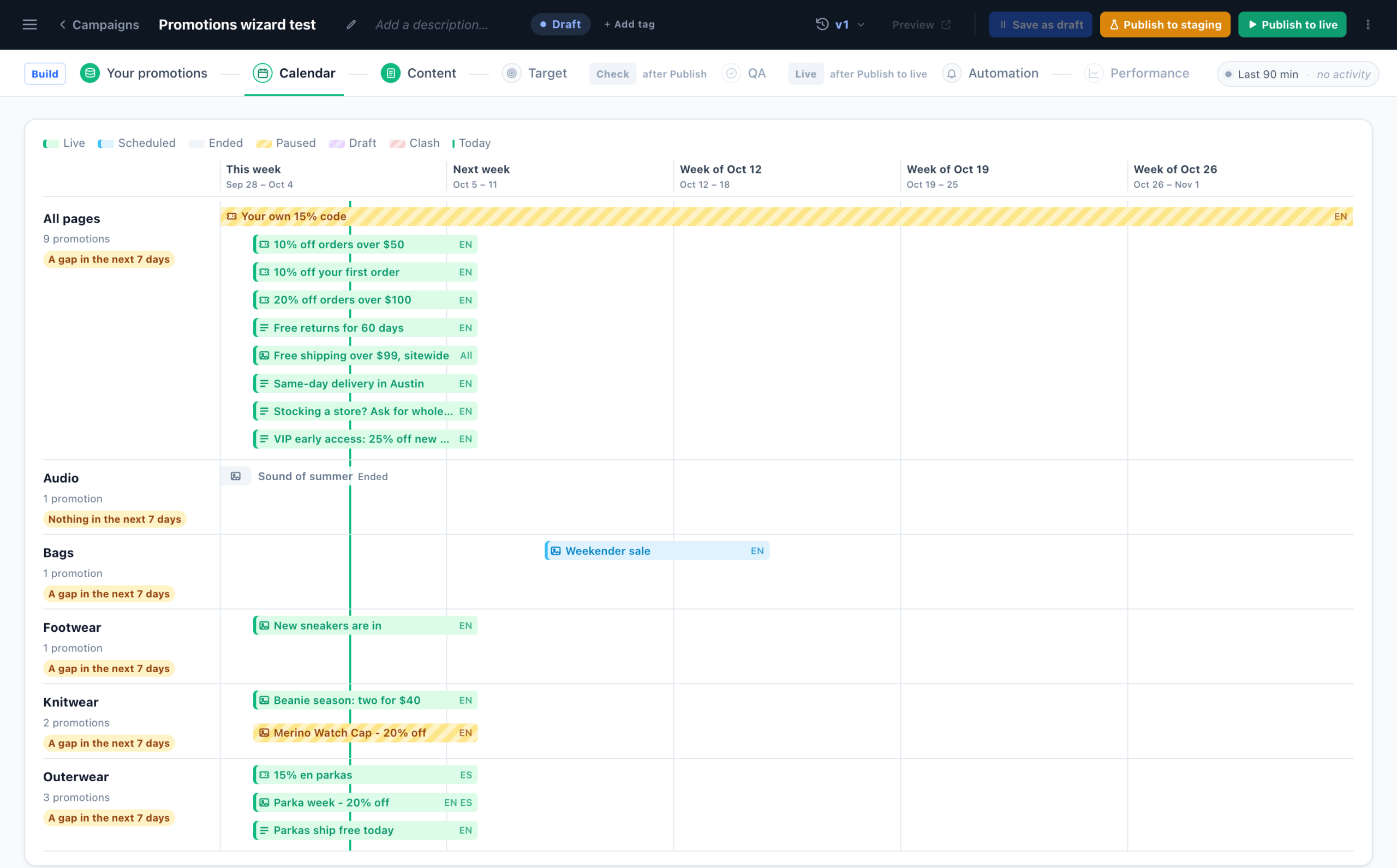
A lane per page category, plus All pages for promotions with no category, and a bar per promotion from its start to its end in your time zone, coloured by status (Live, Scheduled, Ended, Paused, Draft). A lane is flagged Nothing in the next 7 days or A gap in the next 7 days — the categories that need next week’s promotions — and a red week (Clash) has two promotions of one kind on one lane at once, of which the widget shows only one. Click a bar to edit the promotion. The same calendar is Promotions → Calendar in the left menu.
The widgets
In Content, Add action → Promotions and pick Image Banners, Text Promotions or Coupons, then a design. Each widget shows only rows of its own kind. It has three steps: Select Promotion Algorithm, Customize Look & Feel and Placement, Trigger & Frequency.
How a visitor is matched to a promotion
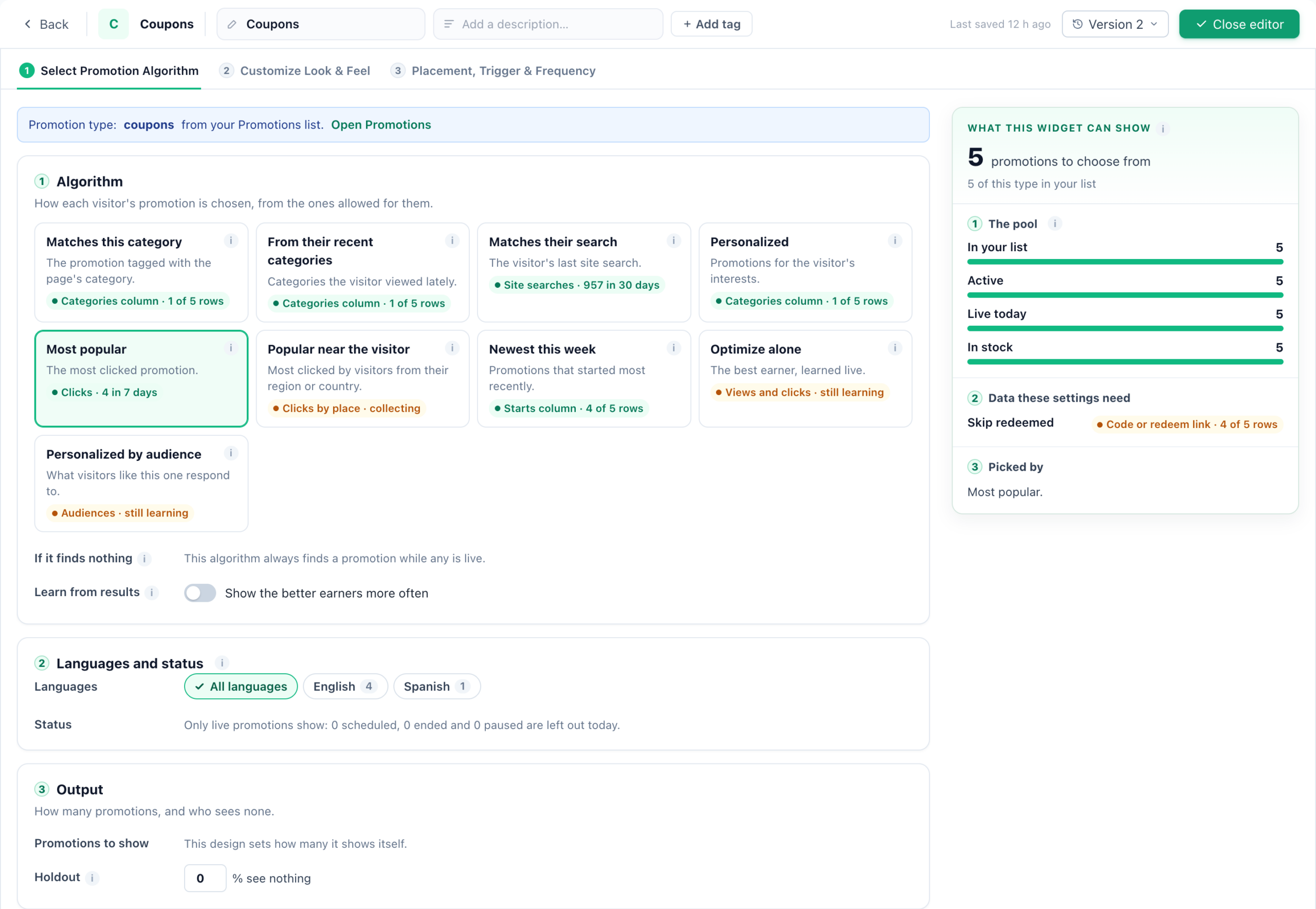
- Only the rows that fit this visitor, here. Live (active and between its dates), for this page’s category or for all pages, in a language they read, allowed by its Who sees it rules, in stock, and with a code left in its pool. A visitor’s browser language picks the row; rows marked “all” show in every language, and English stands in when a promotion has no row in theirs.
- Ranked by the algorithm you choose (below).
- If it finds nothing, the next algorithm you list runs, then a site-wide promotion — a row with no category. An algorithm that only orders (Most popular, Newest this week, Optimize alone) always finds one.
| Algorithm | Shows |
|---|---|
| Matches this category | The promotion tagged with the category of the page being browsed. Pages with no category get the fallback. |
| From their recent categories | Promotions for the categories the visitor browsed in the last 30 days. |
| Matches their search | The promotion that fits the visitor’s last site search. Needs your site search reported to Personyze. |
| Personalized | Promotions for the visitor’s category and interest history. |
| Most popular | The most clicked in the last 7 days. |
| Popular near the visitor | The most clicked by visitors from the same region, else country. |
| Newest this week | The promotions that started most recently. |
| Optimize alone | The best earner, learned live; a share is kept for the rest. |
| Personalized by audience | What visitors like this one respond to, by device, traffic source and new or returning. |
Learn from results (Show the better earners more often) adds learning to any algorithm: among the promotions it allows, the better earners are shown more often. Earning means clicks, purchases, redemptions or goals per view.
What this widget can show, on the right, counts the promotions this widget can choose from, step by step, and what each category page will show — with nothing for a category, its pages get the site-wide fallback. It is worked out before any single page or visitor; for one real visitor, see Why this banner.
The rest of the step:
- Languages and status — narrow the widget to some languages, for a widget that serves one market.
- Output — Promotions to show (one for a banner spot, several for a slider) and Holdout: a share of visitors who see no promotion from this widget, so the report can measure the lift.
- Skip promotions the visitor already… viewed, clicked, redeemed or reached the goal; and Fatigue protection, which rests a promotion a visitor keeps ignoring.
- Restrict and fine-tune — Pause when out of stock, Boost overstocked products, Use the Priority column, Give new promotions a share while the widget learns, and Push sale promotions when orders drop.
Look and placement
Customize Look & Feel holds the design’s own controls — size, corners, text over the picture, and badges such as Most popular, Trending, New or Ends soon, each shown only when it is true. Preview it as a real visitor on one of their pages: Why this banner (Why this coupon, Why this promotion) names the promotion they get and the first reason each other one was left out.
Placement, Trigger & Frequency puts the widget in a spot on the page, a popup or a bar — in the video, the category banner slot. What the visitor actually gets sums up every setting in plain words before you finish. See the Popup & Banner Action Guide for placement and triggers.
Target, QA and publishing
Target is optional here (“Where the promotions appear”): its targeting rules decide on which pages and to which visitors the widgets appear, never which promotion they show. Save, publish to staging, and check the pages in QA — on the store in the video, the outerwear page shows the outerwear promotion and the footwear page the footwear one. Then publish to live.
The dashboards
Overview
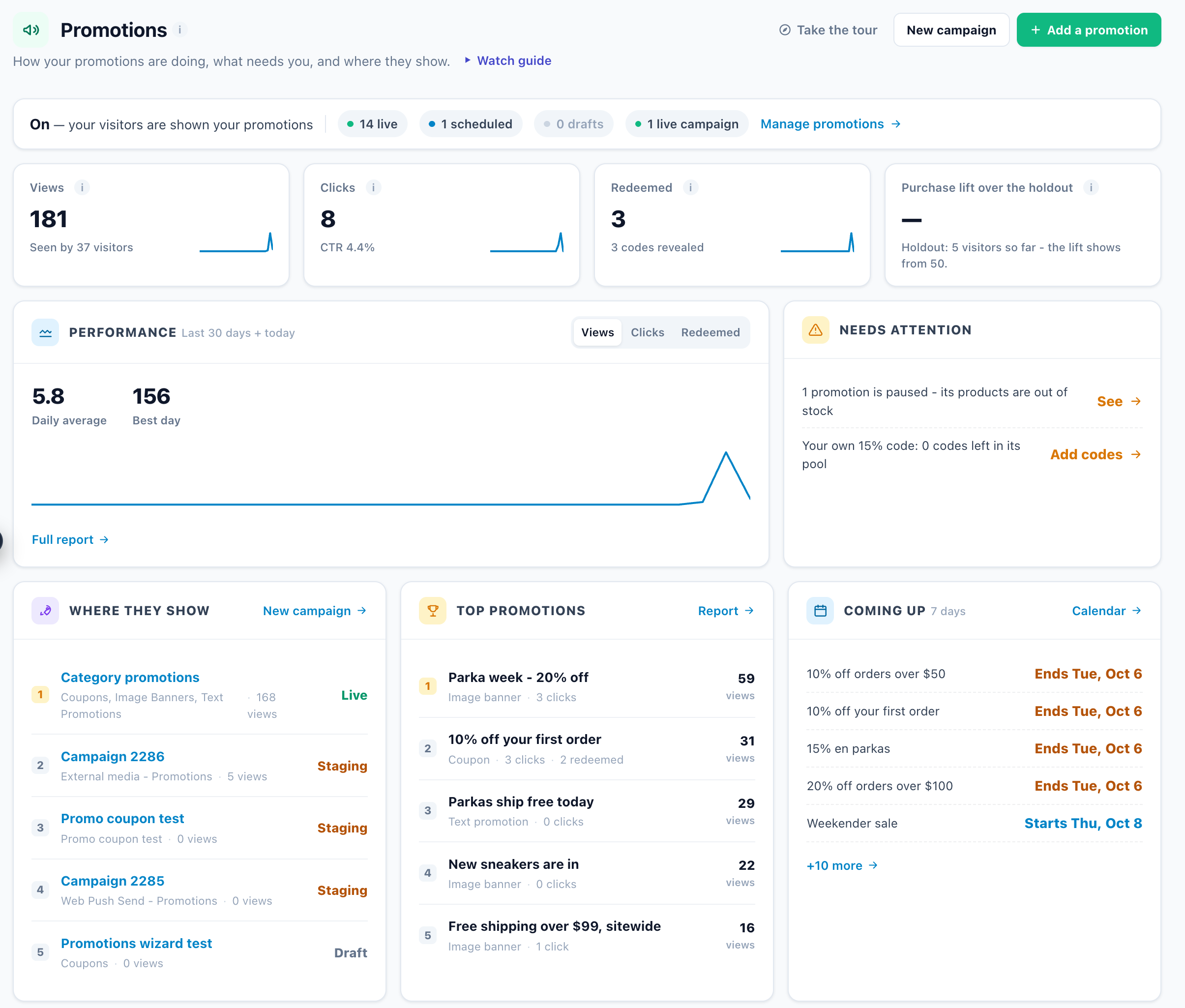
Promotions → Overview: whether your promotions are on (On — your visitors are shown your promotions, or Not on your site yet), how many are live, scheduled and in drafts, and how many campaigns show them.
| Tile or card | What it means |
|---|---|
| Views | Promotions shown to visitors in the range, and how many visitors saw one. |
| Clicks | Clicks on a promotion in the range, with the CTR. |
| Redeemed | Codes the store reported used in the range, and how many codes were revealed. |
| Purchase lift over the holdout | Visitors who saw a promotion and bought within 7 days, against visitors a widget held out. Shown once 50 visitors are held out. |
| Needs attention | No campaign showing your promotions, nothing live, drafts waiting, promotions paused for stock, pools running out, live promotions ending within 3 days. |
| Where they show, Top promotions, Coming up | The campaigns showing them and their views; the most viewed promotions; what starts or ends in the next 7 days. |
| Codes and your store | Whether Shopify is connected, and Used codes for codes used elsewhere. |
Report
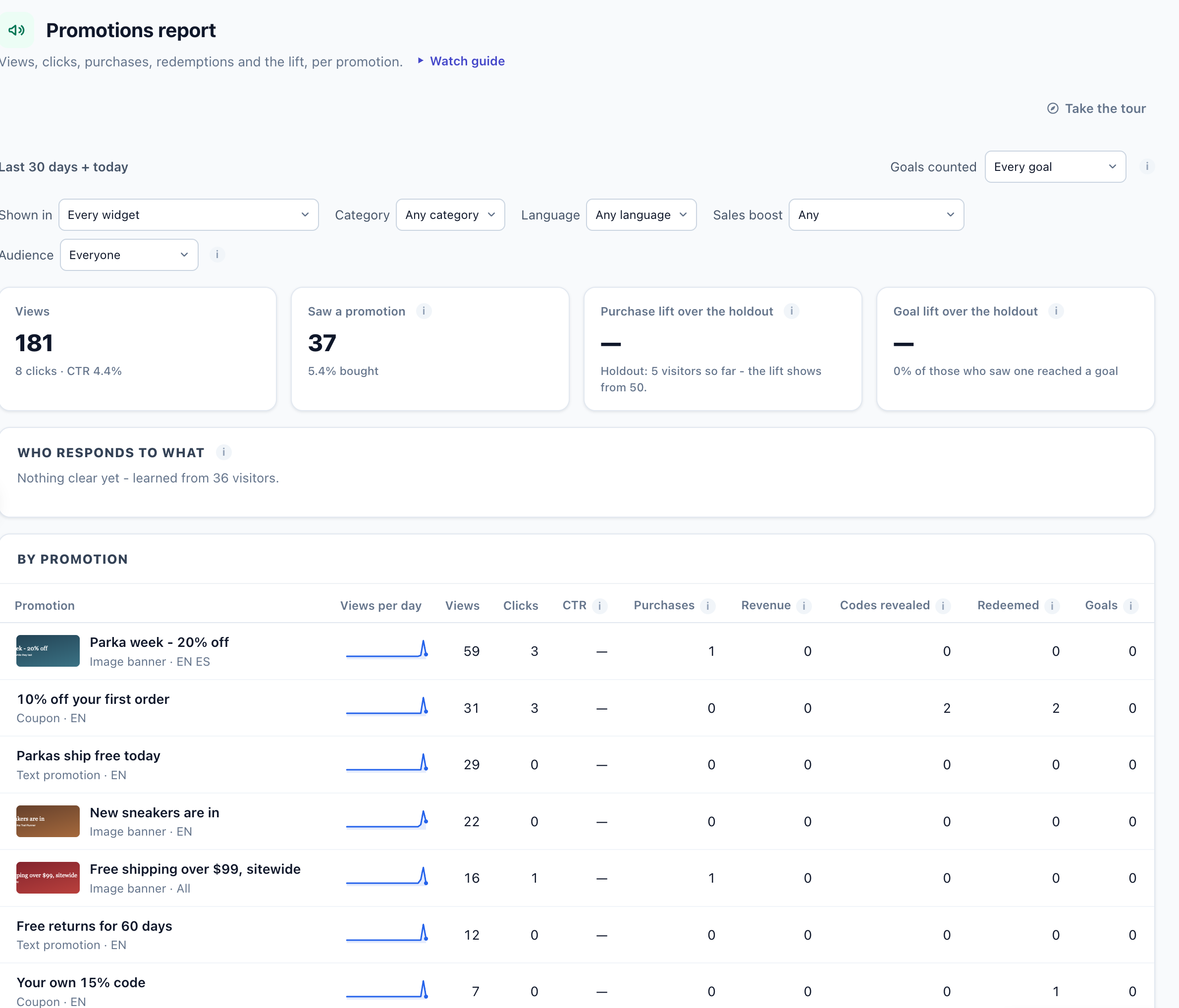
Promotions → Report breaks it down per promotion; a campaign’s Performance → Promotions tab is the same report for that campaign’s widgets. Filter by Shown in (widget), Category, Language, Sales boost and Audience, and choose the Goals counted.
| Number | What it counts |
|---|---|
| Views, Clicks, CTR | Times a promotion was on the page, clicks on it, and clicks per view (shown from 100 views). |
| Saw a promotion | Visitors who saw or clicked one in the range, and the share of them who bought within 7 days. |
| Purchases, Revenue | A purchase within 7 days of seeing or clicking the promotion, counted on the day of the purchase, and what it was worth. |
| Codes revealed | A coupon code copied, or shown on request — once per visitor and day. |
| Redeemed | The store reported the promotion’s code used. |
| Goals | A counted goal, credited to the last promotion the visitor clicked or saw within 7 days. |
| Purchase lift and Goal lift over the holdout | The share who bought, or reached a goal, after seeing a promotion, against the visitors a widget held out. |
An order is credited to every promotion the shopper saw, so purchases and revenue do not add up across rows. Who responds to what lists kinds of promotions a group of visitors clicks more than everyone else, with Restrict to this audience and Create a promotion for them. How views, clicks and purchases are counted across Personyze: Performance Metrics.
Related
- Promotions — One List for Every Offer — adding promotions, who sees them, uploads and code pools
- Popup & Banner Action Guide
- Targeting Rules
- Auto-Apply Coupon Code at Checkout
- Shopify Integration → With the Promotions add-on
- Performance Metrics