
Zoom integration gives every meeting booked through Personyze its own Zoom meeting, created in the
host’s own Zoom account, with the join link sent to the visitor.
What it does
Personyze Meetings lets visitors book a time with your team from your website — a booking page, a pop-up, or the
AI assistant. With Zoom connected for a host:
- Every booking with that host creates a scheduled Zoom meeting in the host’s own Zoom account, in the host’s time zone. The host finds it in Zoom like any other meeting.
- The visitor gets the Zoom join link in the booking confirmation email (“Join here”), in the calendar invite, and as a Join the meeting button on their booking page.
- When the visitor cancels or reschedules, Personyze deletes that Zoom meeting, so the old link stops working. A reschedule gets a new meeting and a new link.
What you need
- A Zoom account for each host who should get Zoom meetings (any Zoom plan; a free Zoom account limits meetings to Zoom’s own free-plan length).
- Personyze Meetings, with the host added under Meetings → Hosts.
- A meeting type set to Zoom: in Meetings → Meeting types, open the type and choose Zoom under Where.
Add the app: connect a host’s Zoom
Each host connects their own Zoom account. It takes a minute, once per host.
- In Personyze, go to Meetings → Hosts.
- In the host’s row, click Connect Zoom.
- Zoom opens and asks the host to sign in (if they are not already) and to allow Personyze. Sign in with the Zoom account the host uses for their meetings — a personal Zoom account instead of the company one is the most common mistake.
- Click Allow. Zoom sends you back to the Hosts page, which says Zoom connected., and the host’s Zoom cell reads connected.
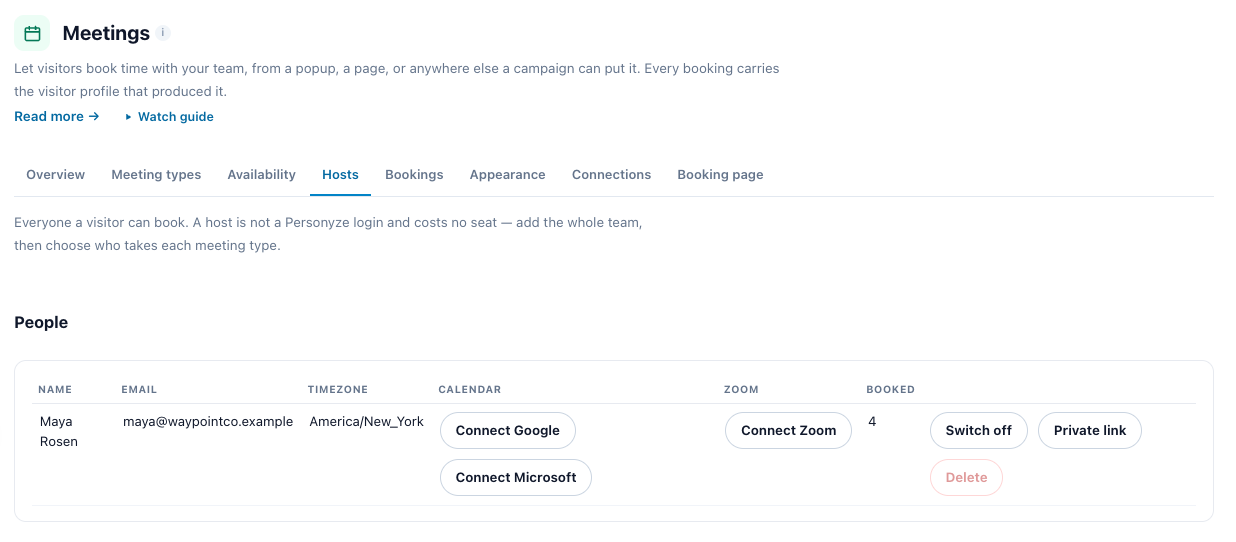
The host does not need a Personyze login to be connected: whoever manages Meetings in Personyze can click Connect Zoom and let the host sign in to Zoom on that screen.
What Personyze asks Zoom for, and why
On Zoom’s screen the host allows three permissions. Personyze uses each only for this:
| Permission | Used for |
|---|---|
Create a meeting for a user (meeting:write:meeting) |
Creating the Zoom meeting for each booking with this host |
Delete a meeting (meeting:delete:meeting) |
Deleting that meeting when the booking is cancelled or moved. Personyze only ever deletes meetings it created |
View a user (user:read:user) |
Reading the host’s own Zoom email (shown in Personyze, so you can see which Zoom account is connected) and Zoom user ID (so the connection can be deleted when the host removes the app in Zoom) |
Personyze does not read the host’s recordings, chats, contacts, or any meetings it did not create.
Use it
Nothing more to do. From now on every booking with a connected host, for a meeting type set to Zoom, gets its Zoom meeting automatically:
- Booked — the meeting is created in the host’s Zoom, scheduled for the booked time and length, and the visitor receives the link. The meeting is set so the visitor can join before the host, without a waiting room, with computer audio and phone dial-in both available.
- Cancelled — the Zoom meeting is deleted.
- Rescheduled — the old meeting is deleted and a new one is created; the visitor receives the new link.
If the host also has a calendar connected, the Zoom link is put in the calendar event too, so the host can join from their calendar.
Remove the app: disconnect a host’s Zoom
Either of these disconnects a host:
- In Personyze: Meetings → Hosts, the host’s Zoom cell, Disconnect. Personyze also tells Zoom to withdraw its access.
- In Zoom: the host signs in at marketplace.zoom.us, opens Manage → Added Apps, and removes Personyze.
After disconnecting:
- New bookings with that host no longer get a Zoom meeting.
- Meetings already booked keep their Zoom meetings and links — they stay in the host’s Zoom.
- Personyze can no longer delete those meetings if such a booking is later cancelled — delete it in Zoom yourself.
What happens to the host’s data
What Personyze stores for a connected host:
- The access granted by Zoom (OAuth tokens) — stored encrypted.
- The host’s Zoom email address and Zoom user ID.
- For each booking: the Zoom meeting’s ID and join link, kept with the booking.
When the host disconnects in Personyze, or removes Personyze in Zoom, Personyze deletes the tokens, the email and the Zoom user ID straight away. The meeting ID and link stay on bookings already made, as part of your booking records.
See the Personyze Privacy Policy for how personal data is handled and how to exercise data rights.
Good to know
- One Zoom account for the whole company instead? If you would rather no host had to connect anything, create a Server-to-Server OAuth app in your company’s Zoom account and enter its credentials under Meetings → Connections. Every host then gets Zoom meetings at once, made in their own Zoom user, and the Hosts page shows Zoom as on for everyone.
- Zoom does not block busy times. Connect a calendar too, or a host connected only to Zoom can be booked over other appointments.
- Data residency: if your Zoom account keeps data in a specific region, Personyze sends its requests to that region’s Zoom servers.
Troubleshooting
“Connect Zoom” shows a message instead of Zoom’s screen.
If it says no Zoom app is set up, contact Personyze support. If it says Zoom is already set up for the account, a Server-to-Server app is in place under Meetings → Connections and hosts need not connect anything.
The connection is refused, naming a missing permission.
Click Connect Zoom again and allow every permission on Zoom’s screen.
The host’s Zoom cell shows Connect Zoom again, or says “needs attention”.
Zoom no longer accepts the connection — usually because the host removed Personyze in Zoom. Click Connect Zoom (or Reconnect) and allow Personyze again.
A booking has no Zoom link.
Check that the meeting type’s Where is Zoom and that the host’s Zoom cell reads connected. If Zoom refused to create the meeting, the booking shows No joining link under Meetings → Bookings — point at it to see Zoom’s reason.
Related
- Book a meeting — the booker itself: hosts, meeting types, availability and the booking page.