
The User Base step is the first step of an email campaign. It answers one question — who can this campaign reach, and where do those people come from — and changes nothing about the campaign. Every source on it belongs to the whole account, so every email campaign shows the same people; the Target step then narrows them down to who should receive this one.
How many you can reach: the three tiles
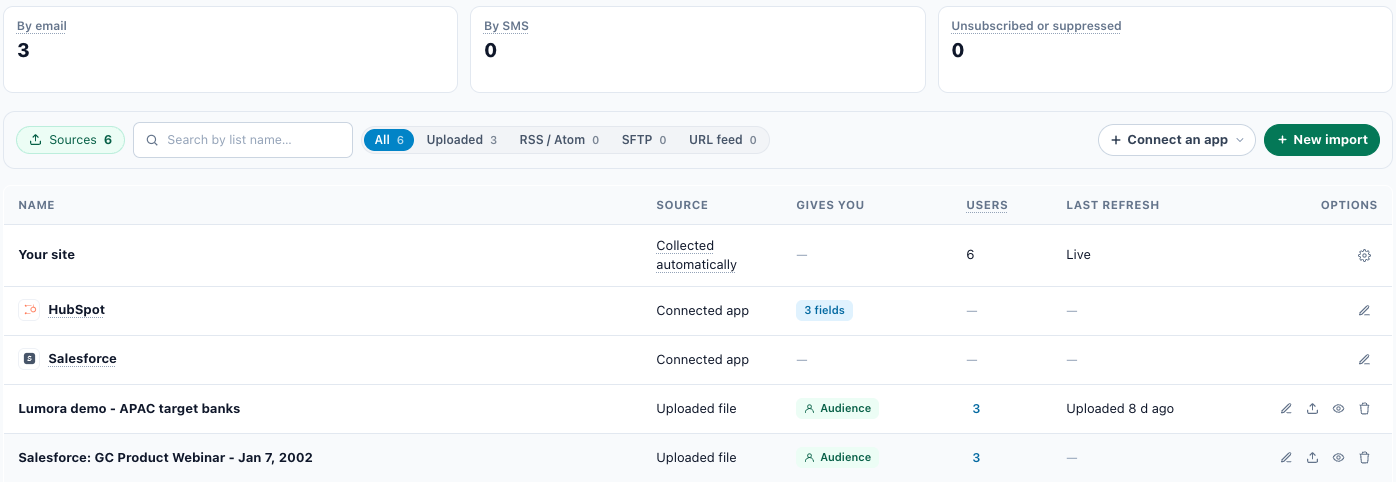
| Tile | What it counts |
|---|---|
| By email | “People with an email address who have not unsubscribed or been suppressed – who this campaign can email.” |
| By SMS | “People with a phone number – who a text message can go to.” When some numbers have replied STOP, a second line reads n opted out of texts. They are not taken off the tile: an opt-out belongs to a phone number, not to a person. |
| Unsubscribed or suppressed | “Unsubscribed, bounced or marked your email as spam – no email goes to them.” Above 0, click it to open the Unsubscribe page on its Suppressed addresses tab. |
The Suppressed addresses list holds bounced addresses, spam complaints, addresses you added, and unsubscribes reported by your own SendGrid or Mailgun. People who unsubscribed through the Personyze unsubscribe link are counted in the tile but not listed there: their visitor profile stops every marketing email to them. See The suppression list.
While counting, a tile shows a grey bar. A count that cannot be read shows “—”, never 0.
“Nobody to reach yet”
When nobody in the account has an email address or a phone number, a yellow note replaces the tiles: Nobody to reach yet. “People arrive as they sign up or fill a form on your site, or when you import a list or connect an app.” Each of those is a row of the table below.
Where they come from: the table of sources
One table lists every source of people, in the columns of Settings › Imported user data. Your site comes first, then each connected app, then your imported lists.
| Column | Your site | A connected app | An imported list |
|---|---|---|---|
| Source | Collected automatically | Connected app | Uploaded file, RSS / Atom, SFTP or URL feed |
| Gives you | — | n fields for HubSpot’s mapped fields, otherwise — | An Audience chip (“The people in this import are an audience you can target.”), plus n fields when the import fills profile fields |
| Users | Known people — an email address or a CRM ID — who have visited your site | Customers synced, for a store; otherwise — | The members. Click the number to see them. |
| Last refresh | Live | When a store’s customer sync last ran | Uploaded and how long ago, for a one-off upload; a time, for a feed; a red Never synced for a feed that never ran |
| Options | A gear, Where emails are captured | A pencil, Manage | The list’s menu (below) |
Your site
Always the first row. Its Source tip counts the places on your pages that capture an email address or a CRM ID — sign-ups, logins, forms. With none, it reads “Nothing on your pages captures an email address or a CRM ID yet – a sign-up, a login or a form that does is how people arrive here.” The gear, Where emails are captured, opens Visitor Attributes on its identity section.
Connected apps
Only apps that are connected are rows: Shopify, Magento, WooCommerce, BigCommerce, HubSpot, Salesforce, Oracle Eloqua, and the API (shown as API & Zapier). Email platforms such as Klaviyo and Mailchimp are not listed: people go out to them, not in.
- The app’s name has a tip saying what it brings — for a store, how many customers were synced and when; for Salesforce, “Contact, Lead and Account data reaches each person it recognises.”; for HubSpot, how many contact properties are copied onto each person it recognises.
- Manage opens the app’s own settings drawer without leaving the campaign. The counts are read again when it closes.
Each app has its own page: Shopify, Magento, HubSpot, Salesforce, Oracle Eloqua, Zapier and the REST API.
Imported lists
The same lists as on Settings › Imported user data. A list whose last import failed shows the error in red under its name. Its menu:
- Edit list
- Upload a file into this list
- View users in this list
- Re-import now (feeds only)
- Delete list. The confirmation warns: “Lists belong to the whole account, not to one campaign: deleting it removes it from the site and from every campaign that uses it.”
With no lists, the table shows No lists yet. under the site and app rows. How a list is fed and kept up to date is in Uploading feeds and data files and User profile data setup; targeting by a list is in CRM / user-list targeting.
Search, connect and import
Above the table, from left to right:
- Sources — how many rows there are: the lists, and the site and app rows.
- A search box, Search by list name…. It filters the lists, and the site and app rows by name.
- Tabs with counts: All, Uploaded, RSS / Atom, SFTP, URL feed. The site and app rows show only on All.
- + Connect an app — a menu of the main apps that are not connected yet: Shopify, Magento, HubSpot, Salesforce and API & Zapier. Each item’s tip is the app’s description, and each opens the app’s Configure drawer over the campaign. WooCommerce, BigCommerce and Oracle Eloqua are not offered here: connect them on Settings › Connected apps, and they appear as rows. Once every main app is connected, the button is gone.
- New import — opens the New user list dialog: a file, a feed URL or an SFTP drop.
When a file is waiting in your account’s SFTP drop, a card above the table says so and offers to map it.
Settings › Connected apps
Every app is connected and managed on Settings › Connected apps: “The apps that bring data into Personyze and take it out – your CRM, your store, analytics and ads – and every app you can connect.” With any app connected, it opens on the connected ones; All lists every app. See Integrations.
The same page holds Email delivery (SMTP), where you add your own SMTP provider so your email goes out under your own sending reputation — see Set up email sending.
Related
- Choosing who receives an email — the Target step narrows the user base
- Email campaigns — the overview and the seven steps
- Set up email sending — senders, your domain, Email delivery
- Your unsubscribe page and the suppression list
- Visitor Attributes — where emails are captured on your site
- Troubleshooting email campaigns