
Every recommendation widget picks its products or articles with an algorithm — Best Sellers, Personalized, Similar items and the rest. Match the visitor then decides their order for each person: the items that fit this visitor come first. That can be the brands, sizes, categories or authors in their own history, their gender, the prices they look at, where they are, their language, or one of their visitor fields.
It is an ordered list of conditions you build. The algorithm still decides which items are in the running; Match the visitor only changes who sees what first.
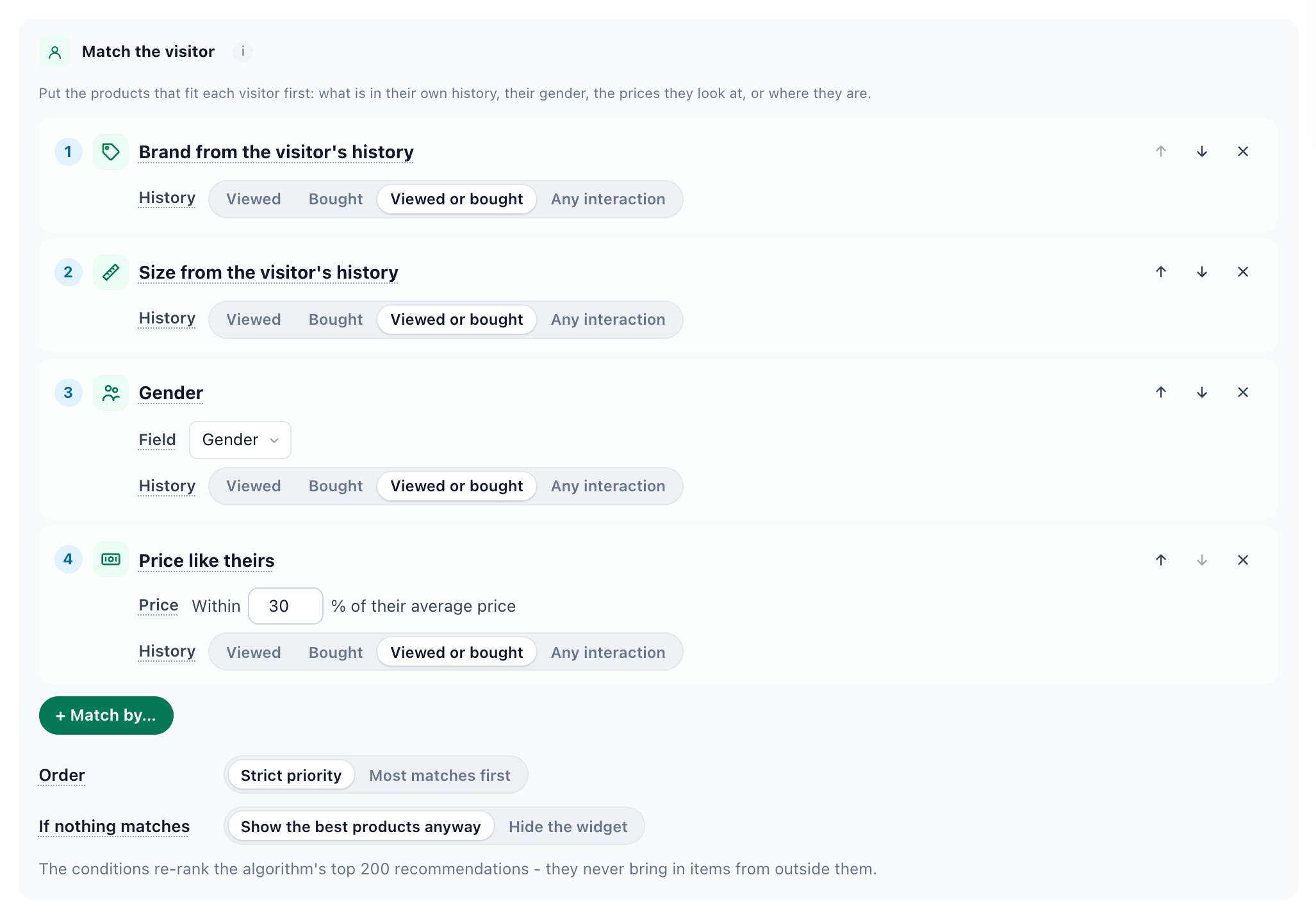
Where it is
Campaign › Content › the widget’s editor › step 1 Select Recommendation Algorithm › Match the visitor, full width under the algorithm cards and above Custom filter rules.
It is in every recommendation widget:
- on-site product and content widgets;
- recommendations in emails;
- the Canvas Builder’s recommendation block;
- the JSON feeds — Products Recommendations – JSON, Content Recommendations – JSON, External JSON API – Products and External JSON API – Articles. A JSON widget made before picks up its conditions when it is saved again.
Category and interest widgets have no such section: a category has no brand or author of its own. See Category & Interest Recommenders.
How it works
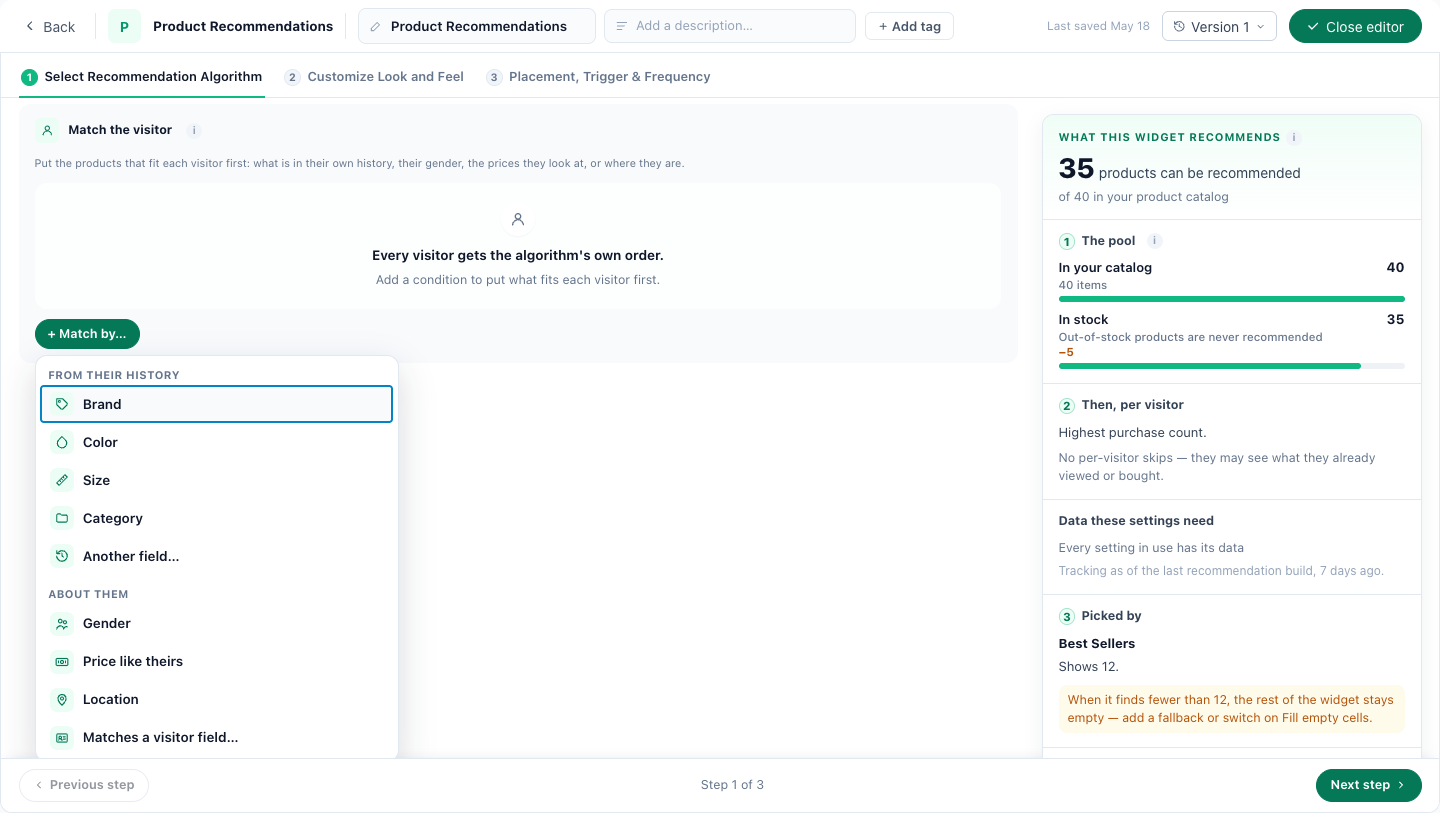
- + Match by… adds a condition, from two groups: From their history and About them. Each row moves up and down, and × removes it.
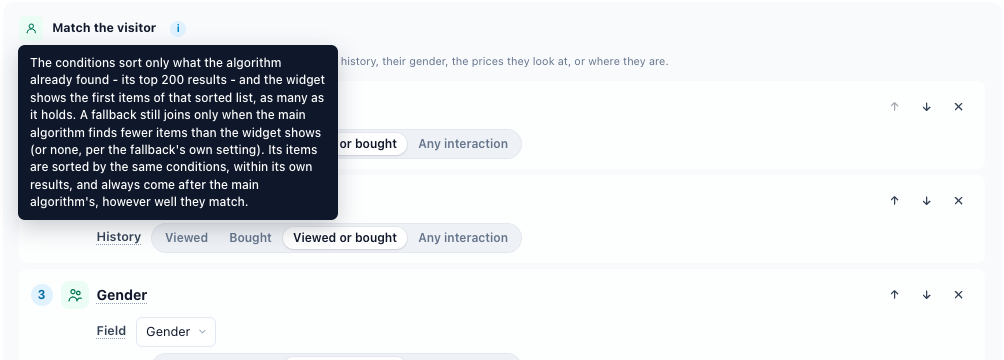
- The conditions only re-order what the algorithm found. They re-rank the algorithm’s top 200 recommendations, and the widget shows the first items of that sorted list, as many as it holds. They never bring in an item from anywhere else.
- Fallbacks still join only when the main algorithm finds fewer items than the widget shows (or finds none, if the fallback is set to Only when there’s nothing else to show). Their items are sorted by the same conditions, within their own results, and always come after the main algorithm’s items, however well they match. See fallbacks.
- Items added by Fill empty cells are not sorted.
- An empty value never matches. A product with no brand never matches Brand from the visitor’s history.
Order
One setting for the whole list. Ties keep the algorithm’s own order either way.
| Order | How it ranks |
|---|---|
| Strict priority (the default) | Condition 1 decides first; condition 2 decides only among items equal on condition 1, and so on. The rows are numbered. Example, Brand then Color: a product of their brand in another color comes before a product of another brand in their color. |
| Most matches first | The more conditions an item matches, the earlier it comes — which ones does not matter. Example, Brand and Color: a product matching both comes first, then the products matching either one. |
If nothing matches
What the widget does for a visitor when none of its recommendations matches any condition.
| Choice | What happens |
|---|---|
| Show the best products anyway (the default; Show the best articles anyway on a content widget) | The conditions only change the order: items that match nothing still fill the widget, after the ones that do. Fallbacks, Fill empty cells and Reserve a slot for new items work as they would without conditions. |
| Hide the widget | Only items matching at least one condition are shown: the main algorithm’s first, then — when those are fewer than the widget shows — a fallback’s matching items. Fill empty cells and the slot for new items are switched off (greyed out). When nothing matches anywhere, the widget shows nothing. |
The conditions
From their history
The visitor’s history is the items they interacted with — their latest 20 or so. Each history condition has a History choice, which picks the items to compare with:
| Products | Articles | Compares with |
|---|---|---|
| Viewed | Read | Items they looked at |
| Bought | Reached goal | Items they bought, or that led to a goal |
| Viewed or bought (the default) | Read or reached goal (the default) | Either |
| Any interaction | Any interaction | Products: viewed, added to cart, wishlisted or bought. Articles: read, commented on, liked or reached goal |
| Condition | Puts first |
|---|---|
| Brand, Color, Size (products) | Products of a brand, color or size found in the visitor’s history. |
| Topic, Author (articles) | Articles on a topic, or by an author, found in the visitor’s history. |
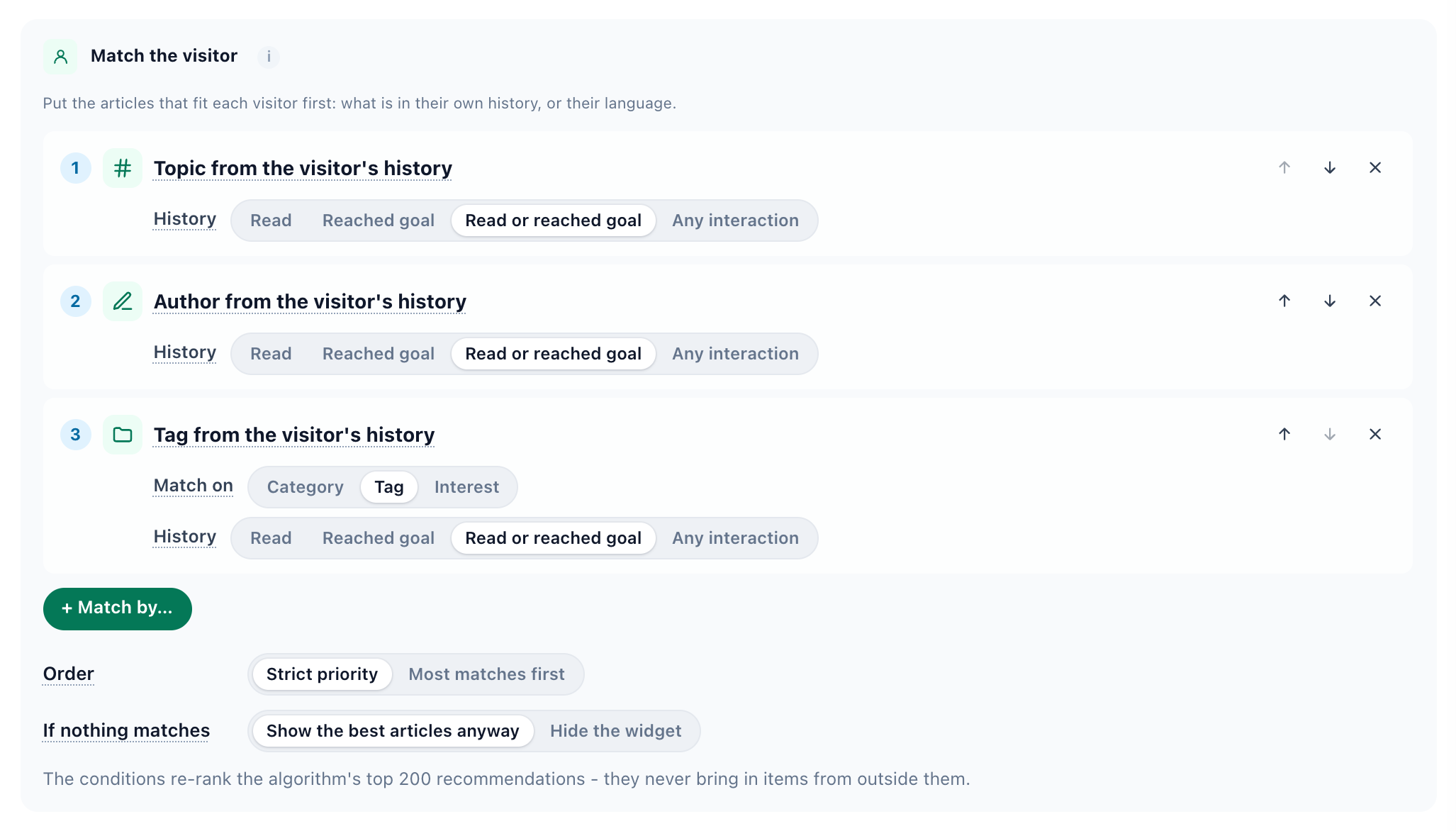
| Category | Items sharing a category with something in their history. Match on chooses Category, Tag or Interest, and the row’s name follows it (Tag from the visitor’s history). Use the one your catalog uses — some content catalogs file their taxonomy as interests. |
| Another field… | The same check on any other catalog field, custom fields included, under the names your account gave them — Manufacturer, Band, Material. |
About them
| Condition | Puts first |
|---|---|
| Gender (products) | Products for the visitor’s gender. Unisex products, and products with no gender, match every visitor whose gender is known. The visitor’s gender is their profile’s when known, otherwise the gender most of the products in their history carry; a visitor whose gender cannot be told matches nothing, so their order is unchanged. Field is the catalog field that holds the product’s gender — it starts on the field your account titled Gender (many feeds keep it in a custom field). Values such as male/female, men/women and unisex are understood. |
| Price like theirs (products) | Products within ±X% (30 by default) of the average price of the products in their history, after discount. 30% around an average of 100 takes 70 to 130. A visitor with no priced history matches nothing. |
| Location (products) | Products within N km (50 by default) of the visitor. Each product needs its latitude and longitude in the catalog. A visitor located only by country never matches — a country’s centre is not where they are. |
| Language (articles) | Articles in the visitor’s browser language. Field is the catalog field holding a language code such as en, fr or en-US; until your article catalog has one, the row says so. On-site only: a widget in an email never matches on language. |
| Matches a visitor field… (products and articles) | An item field equal to one of the visitor’s own fields: a profile field such as Industry or Current city, or one of your visitor attributes. For example, a Favorite band attribute against the product’s Band field, or for B2B content the article’s Industry against the visitor’s company industry. Text fields only; an empty value on either side never matches. |
A condition that still needs a field — Another field…, Language, Matches a visitor field… — shows an amber note (“Pick a field – until then this condition is not saved.”) and is not saved until you pick one.
Recipes
| Site | Conditions | Settings |
|---|---|---|
| Fashion | Size from the visitor’s history, then Gender | Strict priority, Show the best products anyway |
| Electronics | Brand from the visitor’s history, then Price like theirs at 25% | Strict priority |
| Local or multi-store | Location within 25 km | Hide the widget (needs coordinates in the feed) |
| Publisher or blog | Author, then Topic — or Category matched on Tag | Strict priority |
| B2B content | Matches a visitor field: the article’s Industry against the visitor’s Industry | Show the best articles anyway |
Limits
- It re-orders the algorithm’s own top 200; it never adds items the algorithm did not pick.
- Age is not offered: no catalog fills an age range, and visitors rarely have a birthday.
- Language needs a language field in the article catalog.
- An existing JSON feed widget picks up its conditions when it is saved again.
For template authors
A hand-written template can use the same conditions in a ${foreach} head: match by goes after where / group by and before order by, on each branch.
${foreach recom_products as p where ... match by 'only', p->brand:in_visitor_history('viewed,goal'), p->size:in_visitor_history('viewed,goal') order by p->recom_score desc limit 8}- Flags:
'most'is Most matches first,'only'is Hide the widget. - Functions:
in_visitor_history,visitor_gender,near_visitor_price('30'),within_km('50')(onp->geolocation),visitor_language(),in_visitor_interests('tag')(onp->id) andequals_visitor('industry'). - A condition written into a template by hand shows in the editor as a row of its own: “A condition written into the template by hand. It is kept as it is.”
Related
- Recommendation Algorithms — what each one picks, and More in stock first
- Setting filters on recommendations — what an algorithm may return at all
- Setting recommendation fallbacks
- Tuning the Engine — the account-wide weights under every widget
- Recommendations — Start Here