
Visitor Attributes is where you decide what Personyze remembers about every visitor — search queries, cart totals, account tier, last category browsed, anything you want to use for personalization, segmentation, or recommendations. Open it at Settings → Visitor Attributes.
Watch the 1-minute version: the three kinds of data Personyze keeps about a visitor, and capturing one of them from a query parameter.
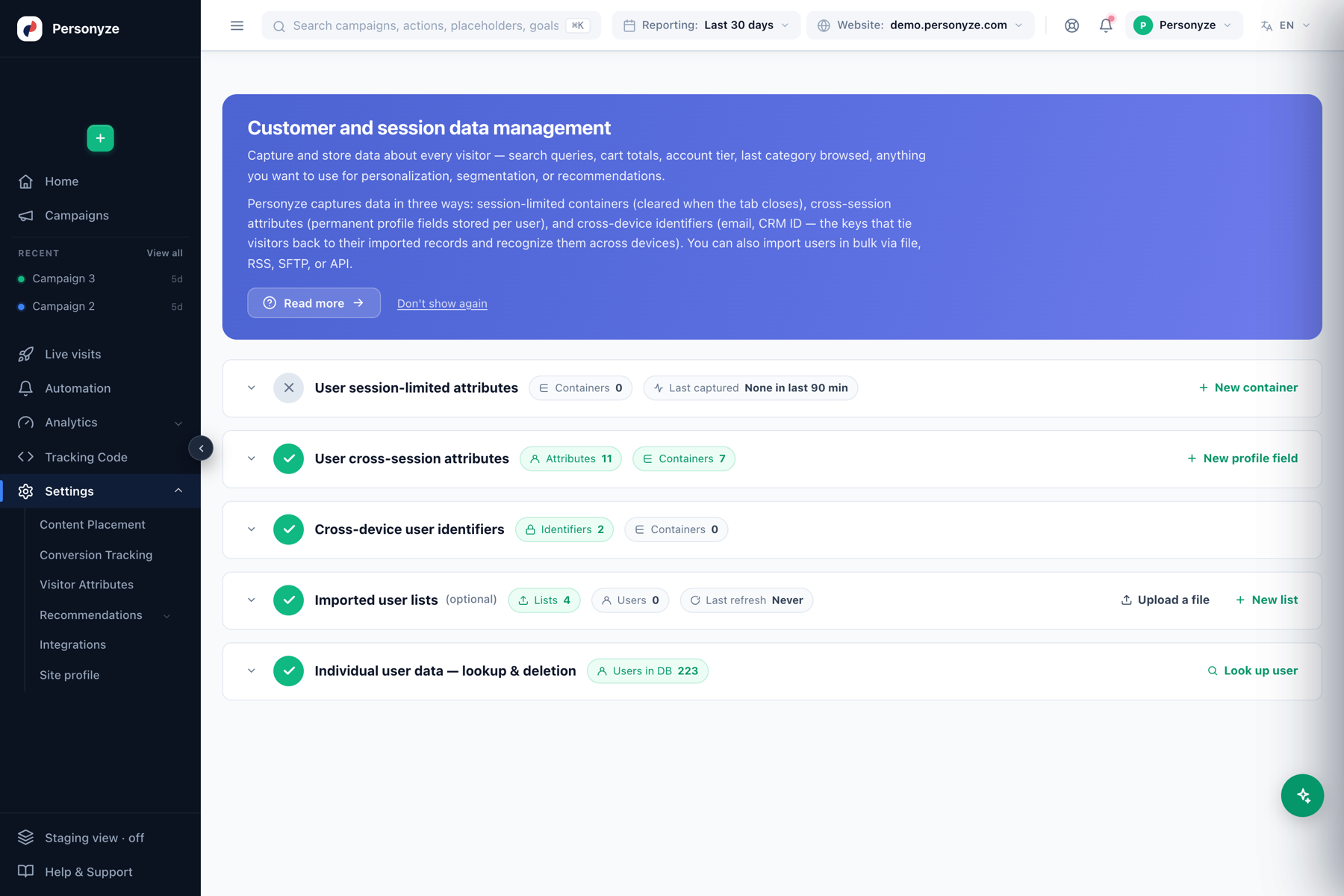
Three ways Personyze captures data
- Session-limited attributes — temporary values that live only until the tab closes. Good for in-the-moment context like the current search term or the page a visitor arrived on. Captured through containers (see below).
- Cross-session attributes — permanent fields stored on the visitor’s profile and remembered across visits: loyalty tier, lifetime value, preferred category. These are the fields you segment and personalize on.
- Cross-device identifiers — the keys (email, CRM ID) that tie an anonymous browser back to a known person and recognize them across phone, laptop, and tablet.
The five areas on this page
- User session-limited attributes — containers whose values reset each session. Add one with + New container.
- User cross-session attributes — permanent profile fields and the containers that fill them. The header shows how many attributes and containers you have.
- Cross-device user identifiers — the identifier fields (such as email and CRM ID) used to merge profiles across devices.
- Imported user lists — bulk-loaded audiences from a file, RSS, SFTP, or API. Shows list count, user count, and last refresh. Use Upload a file or + New list.
- Individual user data — lookup & deletion — search any single profile by ID, email, or CRM ID; view or delete it (useful for GDPR data-subject requests).
Add a permanent profile field
Under User cross-session attributes, click + New profile field:
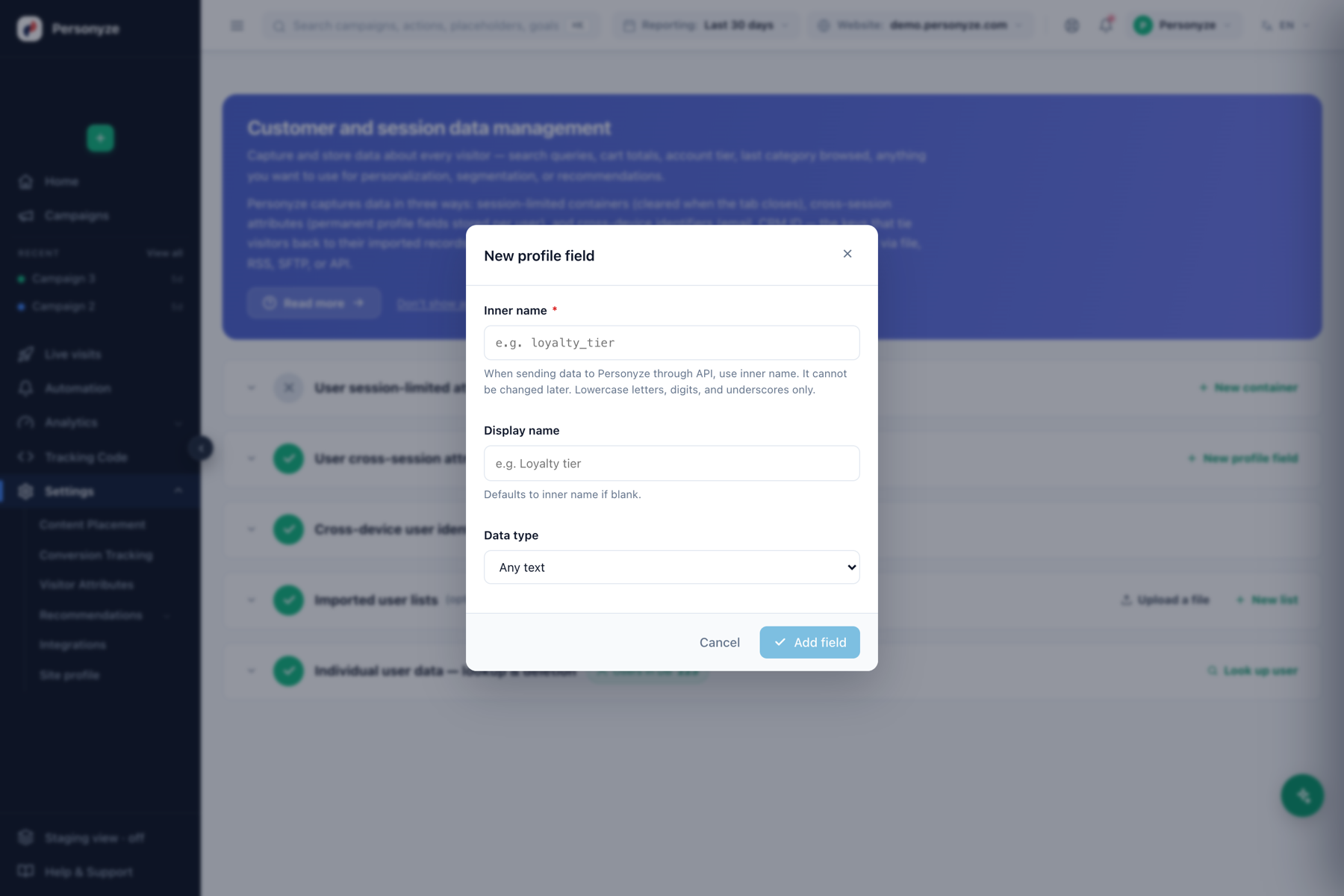
- Inner name — the key you send through the API. Lowercase letters, digits, and underscores only (for example
loyalty_tier). It cannot be changed after creation, so choose carefully. - Display name — the friendly label shown in the panel (for example Loyalty tier). Defaults to the inner name if left blank.
- Data type — Any text, number, date, and so on. The type controls how the field can be filtered in audience rules and recommendations.
How the data gets filled
Profile fields and session attributes are populated by containers — small rules that grab a value from the page, a cookie, storage, or a JavaScript variable and write it to the attribute. For the full guide to creating containers and grabbing data from your site, see Grab Data from Your Site — Session, Profile & Identity. You can also set attributes directly through the API or import them in bulk via the user lists area.
What you can do with attributes
- Segment — build audiences like “VIP tier and hasn’t purchased in 60 days.”
- Personalize — merge an attribute straight into action content (greet by first name, show the last category browsed).
- Recommend — feed attributes into the recommendation engine for smarter, per-visitor results.
Privacy
The individual-user lookup lets you export or delete a single profile on request. For visitor opt-out and consent handling, see GDPR Compliance & Opt-Out.