
Locations is your list of physical stores and branches — each with its address, its place on the map, its opening hours in its own time zone, and tags. The Show Store widget shows each visitor the location nearest them, and Coupon Near You shows the offer that is valid there. Open it from the left menu: Promotions → Locations. Locations are part of the Promotions add-on (see Promotions).
The list
Above the table: Add location, Upload file, Download template, and the three settings for the whole list. Each row shows the location with its address, its City, where its Coordinates came from, its hours Today, Open now, its Tags and its Status. Columns adds any other field; Export writes the list as a sheet that uploads back unchanged.
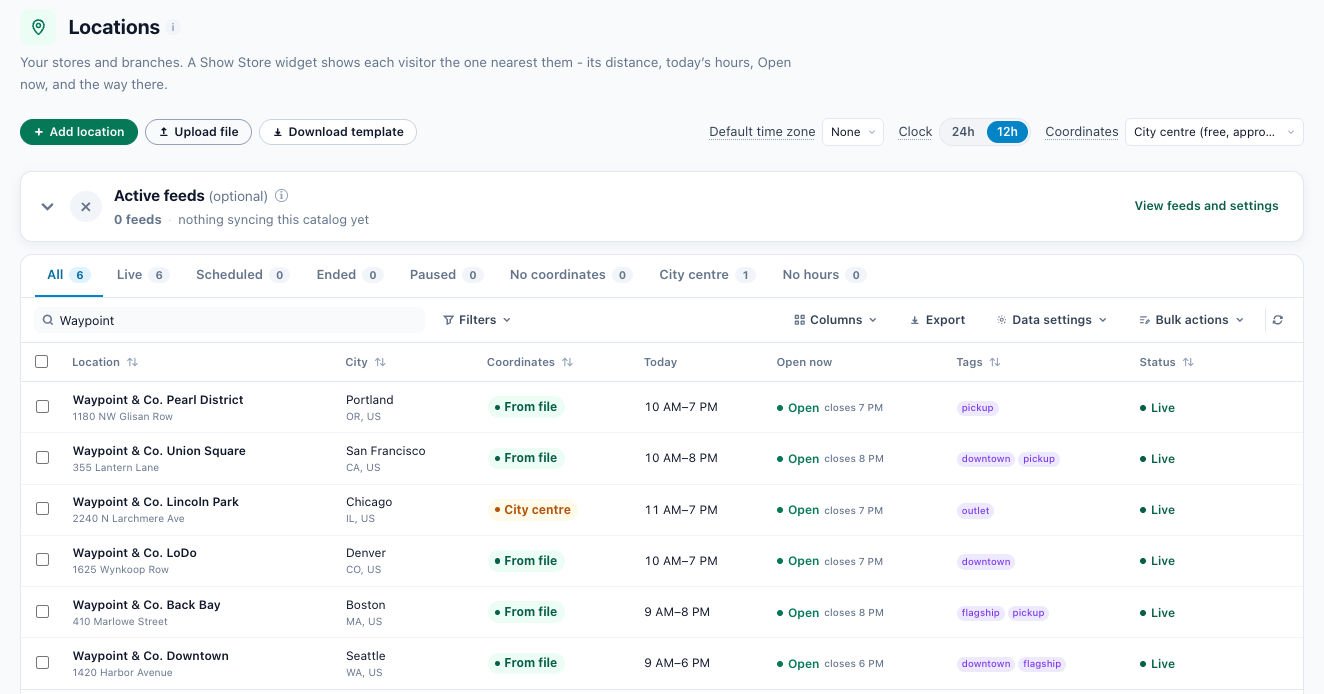
| Tab | Shows |
|---|---|
| All | Every location. |
| Live, Scheduled, Ended | Active, and between its Show from and Show until; before its start; after its end. |
| Paused | Active set to Paused: no widget picks it. |
| No coordinates | Not on the map yet: visitors get no distance to it, and it is picked only by region or country. |
| City centre | Placed at its city’s centre — a few km off, so distances to it are rough. |
| No hours | No opening hours: the designs leave out its open line. |
The Coordinates chip says where a location’s place came from: From file (your sheet, the API or typed in), City centre, Google (Google Maps, from the address) or Missing. Open now reads Open with the closing time (amber in its last hour), Closed with when it opens, or Not known without hours or a time zone; point at it to see which time zone its hours are read in.
Adding a location
Add location opens the editor; Edit on a row opens it for that location. Save location saves it.
| Step | What you set |
|---|---|
| Location | Store name (required), Description, Phone (with the country code: the designs make it a tap-to-call link), Active (Live or Paused), Store page, Photo and Thumbnail, and Tags. |
| Address & map | Address, Address line 2, City, State / region, Postal code, Country; Latitude and Longitude, with Check on map; and an optional Directions link — without one, Directions opens Google Maps directions to the location. |
| Hours | The weekly hours, the Time zone and Special days — see Opening hours. |
| More | Internal ID (the Store code of your sheets; made from the name when empty), Priority, Show from and Show until (in UTC: a location opening soon, or closing for good) and your own fields. |
A location needs an address or its coordinates; without either, no visitor gets a distance to it. Latitude and longitude go together — both or neither. Saved with an address and no coordinates, it is placed on the map within a few minutes, by the Coordinates setting. A location’s coordinates found from its address are found again when you change the address; coordinates you typed stay.
Uploading a sheet
Upload file takes a CSV, TSV or Excel (XLSX) file, or a feed address to read again on a schedule — a published Google Sheet’s CSV link is one (see Uploading Feeds & Data Files). Map its columns: Google Business Profile’s headers and the usual names (State, Zip, Lat, Website, Labels…) map by themselves, and Name is the one column every sheet needs.
Then check it before anything is saved — a dry run: Quick check reads a sample of the rows, Check every row the whole file. Both list each refused row and why: no name, coordinates that are not a place, a country or a time zone that does not exist, hours that cannot be read, a link that is not a web address. The rest of the sheet goes in.
| Column | What it holds |
|---|---|
| Store code | Your own ID for the location: a later sheet with the same code updates that location. Without one, a code is made from the name and postal code, so the same file uploaded again updates the same rows. |
| Name, Description | The name the designs show (required), and a line about it. |
| Address line 1, Address line 2, City, Region, Postal code, Country | Where it is. Country as a two-letter code such as US or DE, or its name. A state written out (Texas) is kept as its code. |
| Latitude, Longitude | Decimal degrees, as a pair: one without the other is refused. A sheet that has a Latitude column and no Longitude column is refused as a whole. Without them a row is placed from its address. |
| Phone, Store page, Directions link | Its phone, its page on your site, and where Directions takes the visitor. |
| Photo, Thumbnail | Image addresses. |
| Time zone | Such as America/Chicago. Empty: see Which time zone. |
| Tags | Separated by commas: outlet, pickup. |
| Monday hours … Sunday hours | A column per day: 9-21, 9am-9pm, 09:00-13:00, 14:00-18:00, Closed or 24 hours. Empty: not given. |
| Hours | Or the whole week in one cell: Mon-Fri 9-21; Sat 10-18; Sun closed. |
| Special hours | Dates that differ: 2026-12-25: closed; 2026-12-31: 10:00-15:00. |
| Starts, Ends | No widget picks the location before its start, or from its end. In the editor they are Show from and Show until. |
| Priority | When two locations are as near — or the visitor’s position is not known — the higher number goes first. |
| Active | yes or no. Empty is yes. |
A sheet with only some of the columns
A sheet does not have to carry the whole list. One with Store code, Name and Special hours updates the holiday hours of those locations and leaves everything else as it is: only the columns a sheet maps are replaced, and a sheet with no address and no coordinates leaves every stored address and place on the map where it was.
Opening hours
The editor’s Hours step sets the week. On top, Opening hours or Not known — with hours not known, the designs leave out the open line for this location, never showing Closed.
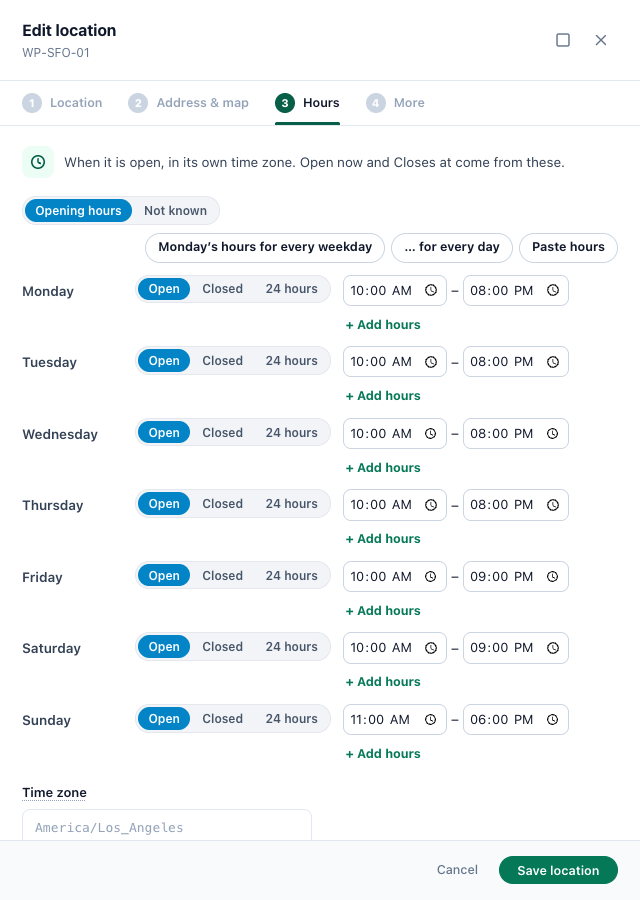
- Each day is Open, Closed or 24 hours. An open day has as many openings as you need — + Add hours gives a lunch break two. An opening that ends after midnight is marked next day.
- Monday’s hours for every weekday and … for every day copy Monday. Paste hours takes a line such as
Mon-Fri 9-21; Sat 10-18; Sun closed; Use these hours fills the week from it. - Special days — a date’s hours instead of its weekday’s: closed for a holiday, shorter on Christmas Eve. + Add a special day. Past dates do nothing.
The widgets’ Open now, Closes at and Opens at come from these hours, read in the location’s own time zone. Personyze works them out again every 10 minutes, so a change to the hours reaches your site within about 10 minutes.
Which time zone
- The location’s own Time zone, when it has one.
- Else its place: its country, when the country has one clock (Germany, Israel, Japan); its state or province in a country of several — the US, Canada, Australia, Mexico, Brazil.
- Else the Default time zone of the settings.
Hours with no time zone to read them in are refused, by the upload and by the editor: Open now in the wrong time zone would be worse than none.
Settings
Three choices for the whole list, in the page’s header. Each is saved as you choose it.
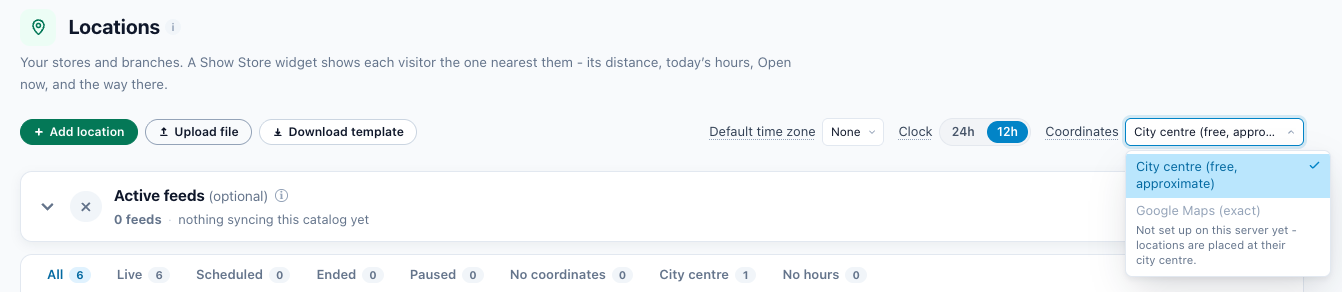
| Setting | What it does |
|---|---|
| Default time zone | The time zone of the hours of every location that has none of its own and whose country or state does not tell. |
| Clock | 24h or 12h: how your designs and this list write a time — 21:00 or 9 PM. |
| Coordinates | How a location with an address and no coordinates is placed on the map. City centre (free, approximate) — a few km off: fine to find the nearest store in another city, rough between two stores in one. Google Maps (exact) finds the address itself. Until Google Maps is set up for your account it is greyed out (Not set up on this server yet), and locations are placed at their city centre. |
Tags
Tags group your locations — downtown, outlet, pickup, a brand such as toyota — for three things: the Show Store widget’s Tags filter, its Match the visitor (a store tagged with the product’s brand or category, or with the visitor’s value of a field), and a promotion’s Valid at locations tagged.
- In the editor, type a tag and press Enter, or several separated by commas. In a sheet, separate them with commas. Case does not matter when a tag is matched to a product or a visitor field.
- A tag with a quote, a backslash or
${in it cannot be picked in the Show Store step; the step names those tags so you can rename them here.
Related
- Show Store — the widget that shows each visitor their nearest location
- Coupon Near You — promotions valid at your locations, and the offer at the nearest one
- Promotions — One List for Every Offer
- Promotions Campaign — the widgets and their algorithms
- Uploading Feeds & Data Files — feeds read on a schedule