
The Show Store widget shows each visitor the store nearest them — how far it is, whether it is open, today’s hours, its phone, and the way there. It picks from your Locations list, and it can put first the stores that have the product the visitor is looking at. It is part of the Promotions add-on.
Adding the widget
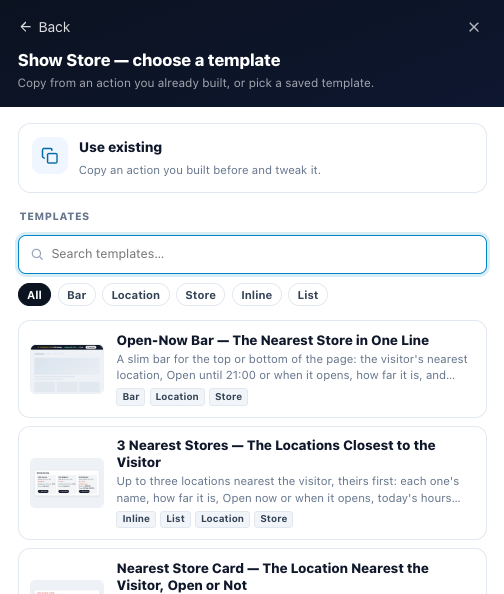
In a Targeting & Personalization campaign (see Targeting and Personalization) or an A/B test, go to Content, then Add action → Promotions → Show Store, and pick one of the three designs. It has three steps: Which store, Customize look and feel and Placement, Trigger & Frequency.
To put the nearest store inside a Canvas design — a popup, an inline block or a hosted landing page — use the Canvas’s Nearest Store element; see AI Promotion and Nearest Store.
Which store
The Which store step decides which location each visitor gets. On its right, Which store they see counts your live locations and warns about what a visitor would feel — locations without coordinates, placed at a city centre, without opening hours or without a time zone. Under What a visitor sees, pick where a sample visitor is — in one of your locations’ cities, far from all of them, or not known — to see the location they get, how far it is, its open line and why. Order sums up your settings in a sentence.
| Section | Settings |
|---|---|
| 1 Which locations | Tags — only the locations with any of the tags you pick; none picked, every location. Open now only — leaves out the locations that are closed at that moment and the ones whose hours are not known; nobody gets a card while every location is closed. |
| 2 The nearest one | Up to — how far a location may be and still count as near: 100 km at first, up to 2,000 km or 1,250 mi. Further than that — The nearest anyway, Your default location, or No card (the widget does not show). Default location — also shown to visitors whose position and region are not known. Open ones first — an open location before a closed one within the distance. |
| 3 Match the visitor | The product they look at, and a visitor field — see below. |
| 4 How many | 1 to 6, the nearest first. Most designs show one; 3 Nearest Stores starts at three. |
When their position is not known
Some visitors’ IP address tells no place. They get a location in their region, else in their country, else your Default location when you set one, else by your Priority column. A location without coordinates is in the same position: it has no distance, so it is picked only by region or country.
Match the visitor
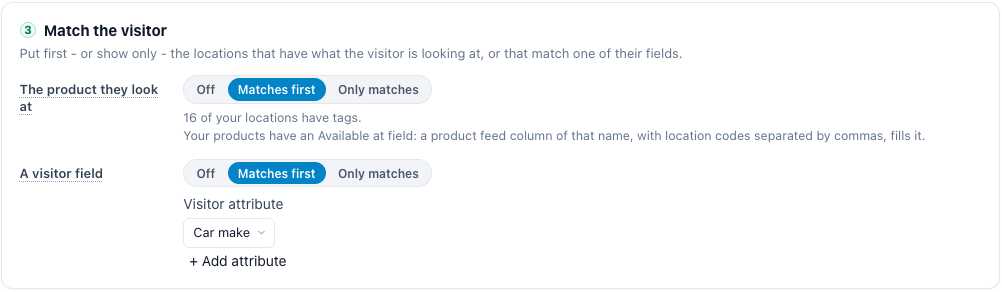
Section 3 puts first — or shows only — the locations that have what the visitor is looking at, or that match one of their fields. Each match is Off, Matches first (within reach, the matching locations come first; then the nearest) or Only matches (only the matching locations; a visitor with no match gets no card).
| Match | A location matches when |
|---|---|
| The product they look at | One of its tags is the product’s brand or one of its categories — a dealer tagged toyota has every Toyota — or the product’s Available at lists the location’s Store code. The product is the one on the page, else the one they viewed last, else the one in their cart. |
| A visitor field | One of its tags is the visitor’s value of the field you pick — a store tagged toyota for a visitor whose car make is Toyota. Case does not matter. |
Available at is a field of your products. If your products do not have it yet, Add the field adds it; then a column named Available at in your product feed fills it, with Store codes separated by commas (see Uploading Feeds & Data Files).
The designs
| Design | What it shows |
|---|---|
| Nearest Store Card | One location: its photo, name and address, how far it is, Open now or when it opens, today’s hours, its phone, and Directions and Store page buttons. The photo beside the words or above them. |
| 3 Nearest Stores | Up to three locations, nearest first, as cards side by side or rows of one list: each one’s name, address, distance, open line, today’s hours and Directions. |
| Open-Now Bar | One slim line for the top or bottom of the page: the nearest location, Open until 21:00 or when it opens, how far, and Directions. It does not show at all when no location is known for the visitor. |
Every part can be switched off under What It Shows in Customize look and feel. The words appear in the visitor’s language unless you type your own under Words.
What the visitor sees
| Part | Shows |
|---|---|
| The line above the name | Your nearest store — or Available at on a location that has the product they look at. |
| Distance | From the visitor, in km — or in miles where people read miles, such as the US and the UK. Not shown when their position is not known. |
| Open line | Open now and Closes at 21:00; Closes soon in the hour before it closes; Open 24 hours; Closed and Opens at 9:00, Opens tomorrow at 9:00 or the day it opens. Not shown when its hours are not known. |
| Today | Today’s hours. |
| Phone | A tap-to-call link. |
| Directions, Store page | Google Maps directions to the location, or its own Directions link; its page on your site, when it has one. |
Times follow the Clock setting of Locations: 21:00 or 9 PM.
Preview as a visitor: Why this store
In Customize look and feel, Preview as above the preview picks a real person (see Preview as a Visitor). The preview then shows the store they would get, and Why this store under it says why:
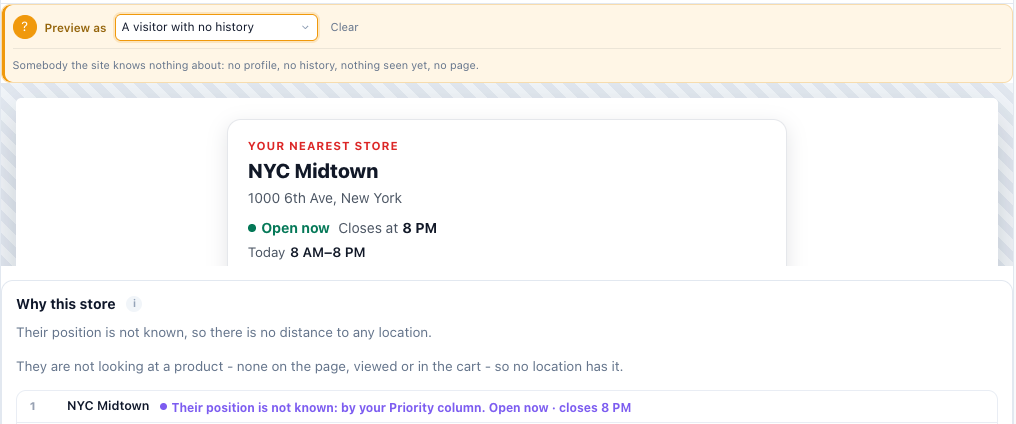
- where their position came from — their city, from their IP address, so every distance is approximate; or that it is not known;
- the product they are looking at, when a product match is on;
- the location shown and the reason — the nearest within your distance, the only one, the one that has their product or matches their field, your default location — with how far it is and whether it is open;
- the next locations in the order, marked Not shown.
When no location fits your settings for them, it says so: the widget does not show to that person.
Related
- Locations — your stores, their hours, tags and settings
- Coupon Near You — the offer valid at the visitor’s nearest location
- Preview as a Visitor — previewing any campaign as one person
- Popup & Banner Action Guide — placement and triggers
- Promotions — One List for Every Offer