
One campaign can speak every language your site does. The Languages card in an action’s editor gives its words a version per language — Dutch on pages whose address starts with /nl/, German for visitors whose browser is set to German — and each visitor gets the words in their language. Everything still counts in the one campaign: its impressions, clicks, answers and bookings, whatever the language.
Where the card is
Languages is the first card or section of these editors, folded until you open it:
| Editor | What a language holds |
|---|---|
| The design editor — popups, banners, inline content, recommendation widgets, reviews and the other designs (see the Popup & Banner guide) | Every text a visitor reads, with Text direction where the design has one. Designs that show your products or content add Prices and Catalog data. |
| AI Chat | Its 17 texts: the opening message and the question it answers, the suggested questions, the button, the card, the home screen, the header, the message box, the send button and the small print. |
| AI Product Finder and AI Content Finder | Their 16 texts: the title and rotating titles, the invitation, the box and its chips, the results heading, each pick’s button, the next steps and the small print. |
| AI Search | Inside the box, Button and Note underneath. |
| Book a meeting | The heading, and the launcher’s label, card title and card note. |
| Survey | Each question’s words and choices, the words at the two ends of a scale, the thank-you and button words, and the texts on the card. |
| Replace text | For each rule, the words to find as that language’s page says them, and what goes in their place. |
| Multi-Recommendation Widget | Each tab’s name, and the message of an empty tab. |
Emails, Web Push, the Get Code for Emails designs and the Canvas Builder have no Languages card.
Adding a language
+ Add a language opens Add a language. Choose the Language (39 are offered, with a search), then Show it to visitors when:
| Rule | Who gets the language |
|---|---|
| the page’s address starts with /nl | Visitors on pages whose address starts with /nl/. The usual choice for a site with a folder per language. |
| their browser’s language is Dutch | Visitors whose browser is set to that language, on any page. |
| a rule of my own | Visitors who match a targeting rule you write. Not offered in the design editor: there, a rule of your own is an ordinary ⚡ Variation on the setting. |
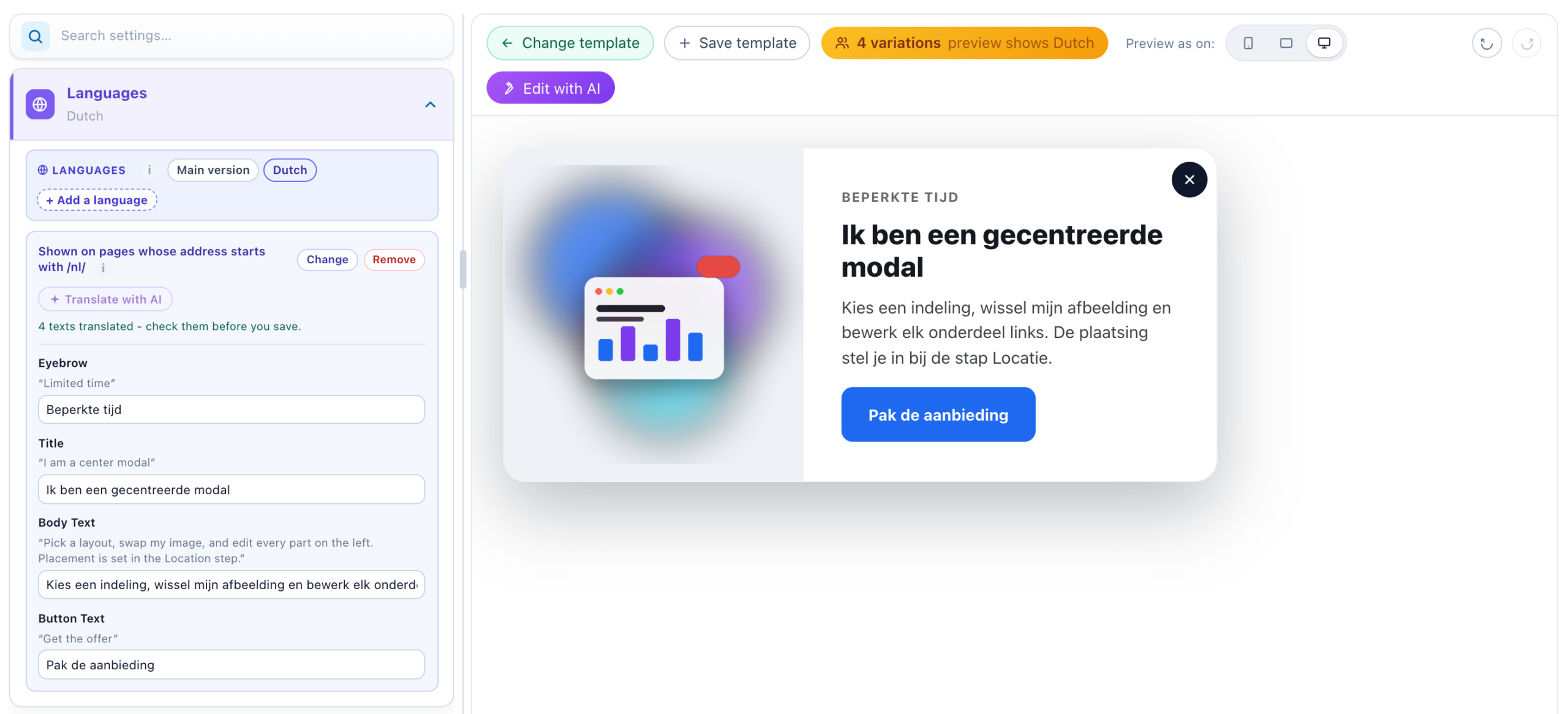
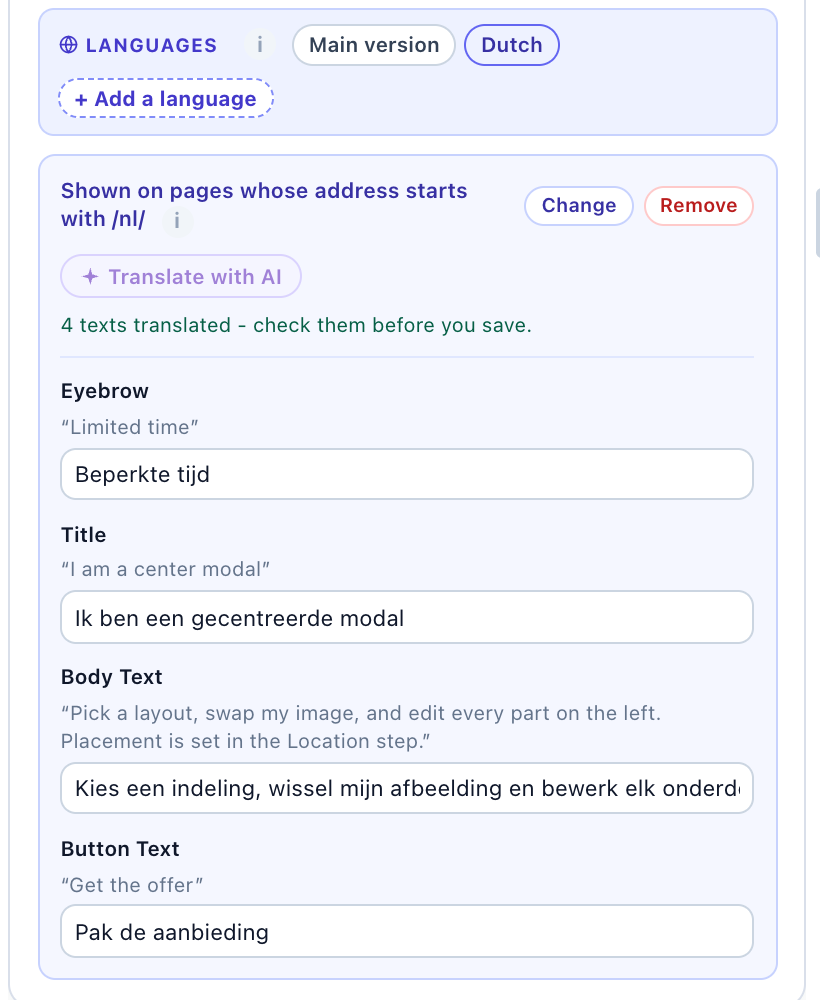
- Each language becomes a tab beside Main version. Its line says when it shows — Shown on pages whose address starts with /nl/ — with Change and Remove. Remove asks first, because its translations go with it.
- Two languages cannot share one rule.
- Arabic, Hebrew, Persian and Urdu start with Text direction set to Right to left.
- A visitor who matches no language gets the main version.
Translating the words
Open a language’s tab. Each text is listed with its main words over its box; type that language’s words in the box. A list — suggested questions, chips, rotating titles — takes one line each.
- A box left empty shows the main words (“Not translated yet – shows the main words”). The tab counts the texts a language still lacks.
- The preview draws the open language, and a setting’s variations badge says so: preview shows Dutch.
- Only wording is listed — not numbers, symbols, links or catalog fields.
- In the design editor, a language is kept from its first translated text; until then it changes nothing. Colours and uploaded pictures stay the main version’s: to give one its own per language, use ⚡ Variations on that setting.
- Survey: the questions, their kinds, the choices and their order, the rules and Required are set in the main version, and every language follows them. A language translates the words. The answers of every language are counted together, under the main version’s words.
- Replace text: each rule has its own Find – as the Dutch page says it and its own replacement, because on a Dutch page the words to find are Dutch too. A field left empty uses the main words.
Prices and catalog data
On a design that shows products or content, a language’s tab continues after its texts:
| Part | What it sets for that language |
|---|---|
| Prices | The currency symbol before or after the price, and the price format, each with a value of its own (“Same as the main version” when left empty). Prices are not converted. |
| Catalog data | Which column of your catalog each field comes from — a title_nl column for the title, or a price column in that language’s currency. Left as it is, a field shows the main version’s column; Use the main version’s column puts it back. |
Translate with AI
Every language’s tab has Translate with AI. One click fills every box left empty in that language; read and change each one before you save. It reports what it did, for example “3 texts translated – check them before you save.”
- A box you typed in is never sent. When nothing is left, the button is off: “Everything in this language is translated already.”
- Your personalization stays intact: every
${…}visitor value and HTML tag comes back as it was, and a list keeps its lines. - It writes in your site’s tone, and addresses the visitor the way the widget’s own words do in that language — Sie in German, vous in French.
- Not sent: prices and catalog columns, and in Replace text the words to find — a guess that is not word for word what the page says would replace nothing. Only the replacements are translated.
- A language shown by an address that is not a language’s name (
/nederlands/) needs its language chosen under Change first, so the AI knows what to write. - It uses the account’s AI credits. When they run out, the message offers Add AI credits.
Visitors get the saved words, exactly as if you had typed them.
The widgets’ own words
AI Chat, the AI finders, AI Search and Book a meeting also write words of their own — Send, Start over, Here are your picks, the dates and times, Confirm booking, the Name and Email boxes. When a language of the placement matches, those come in that language too. They are built in for Spanish, French, German, Dutch, Portuguese, Italian, Polish, Japanese, Arabic and Greek; Arabic reads right to left.
- For a language without built-in words, the chat’s and the finders’ tab lists the widget’s own texts too, so you can give them words; until you do, they show in English.
- Book a meeting’s calendar follows the page’s language even when the booker has no languages of its own.
- Without a matching language, the chat’s own words follow The chat’s own words in its settings, and a finder’s follow Its own words on its Languages card: English — on every page or The page’s language (a finder can also follow the assistant).
- Your own words are never translated by themselves — that is what a language’s tab is for. The chat’s and the finders’ answers are always in the visitor’s language.
Other conditions
A language is a variation chosen by address or browser. To vary words by anything else — a country, a returning visitor, a CRM field — use ⚡ Variations on the setting, or write the condition in the template: see Content variations by condition.
Related
- Popup & Banner Action Guide — the design editor, where most Languages cards are
- Content Variations by Condition — language and other conditions written by hand
- AI Chat: Appearance, Placements & Attachments
- AI Finders: Words for Each Visitor, the Look, and Closing
- Book a Meeting
- Surveys
- Template Language — the
${case}a translation is stored as