
Connect your BigCommerce store to Personyze with an API account of your own, and keep Personyze in step with it: your products in the catalog that recommendations draw from, your orders as purchase history on each buyer’s profile, and your customers’ BigCommerce data on their visitor profiles. Your coupons can also make unique codes on a promotion of your store.
What it does
Three syncs, each switched on separately:
- Products into your catalog. Every product visible on your storefront, every 6 hours: name, description, picture, price and sale price, brand, categories, and stock with the unit count when you track inventory. Recommendations, product widgets and catalog-based targeting use them right away. A product that leaves your store goes out of stock in the catalog.
- Orders into purchase history. Each order’s products become purchases on the buyer’s visitor profile, matched by their email — a profile is created for a buyer Personyze has not seen yet — at the order’s own date. The first pass reads a year of orders; after that, new orders arrive every 15 minutes.
- Customers onto visitor profiles. Each customer’s name, customer group and the date they became a customer, on their profile, matched by email, every hour.
And with the Marketing scope, coupon codes: a coupon linked to the store makes its codes on a BigCommerce promotion.
What you need
- A BigCommerce store, and a user of its control panel who can create API accounts (Settings → Store-level API accounts) — usually the store owner.
Step 1: Create the API account in BigCommerce
- In your BigCommerce control panel, go to Settings → Store-level API accounts → Create API account, and choose the token type V2/V3 API token. Name it (for example “Personyze”).
- Set the OAuth scopes:
- Products, Orders, Customers and Information & settings — read-only;
- Marketing — modify, if your coupons should make their codes in the store.
Leave out a scope you do not want synced; Information & settings is always needed.
- Click Save. BigCommerce shows the Access token and the API path once — keep them until step 2.
Step 2: Connect it in Personyze
- In Personyze, go to Settings → Integrations and open BigCommerce — or What do you want to do? → Sync my store → BigCommerce.
- Enter:
- API path — it names your store, like
https://api.bigcommerce.com/stores/abc123/v3/. The store hash alone (abc123) works too. - Access token from step 1.
- API path — it names your store, like
- Click Connect.
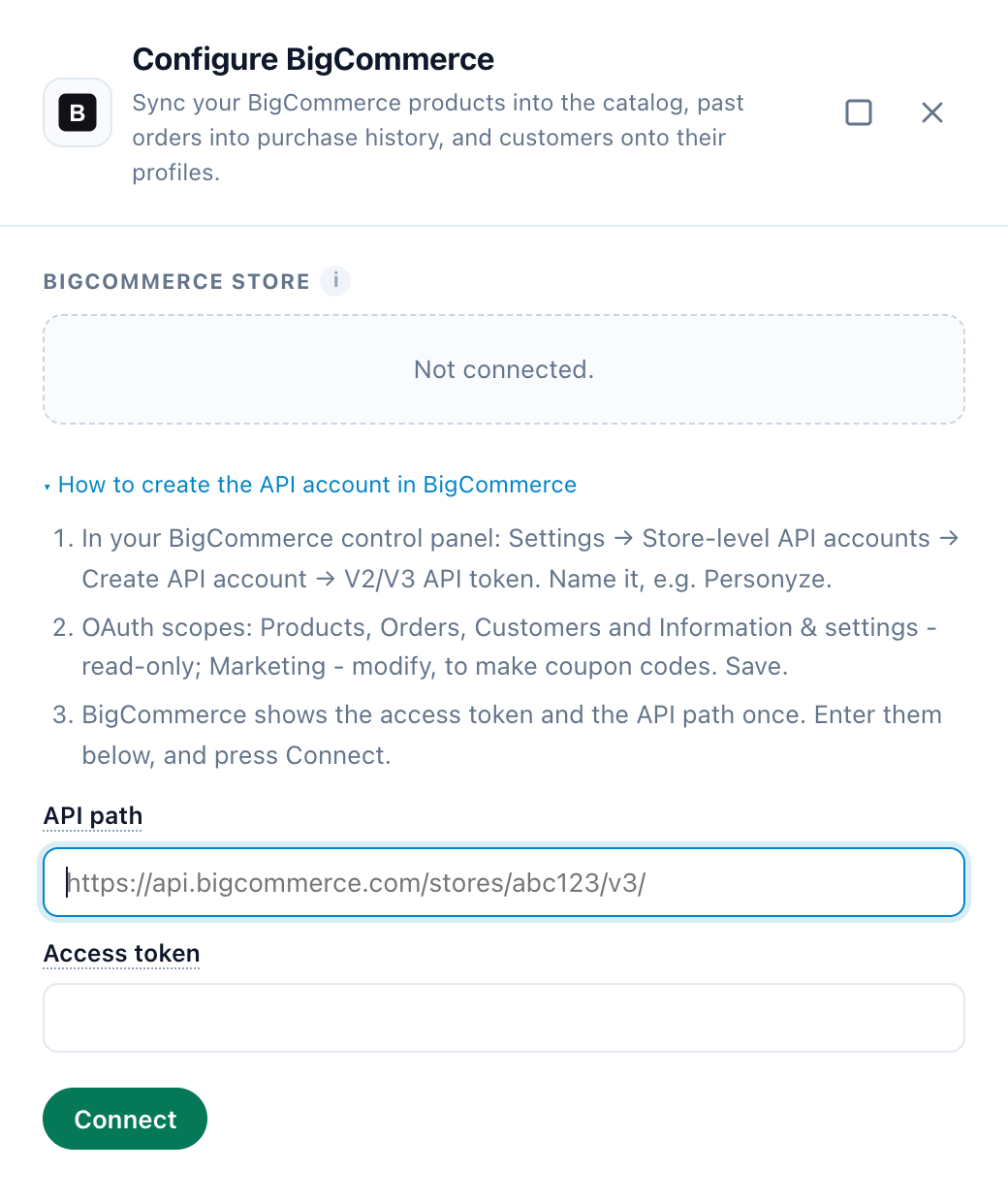
Personyze checks the token with your store before saving it — a token that does not work is never stored — and reads the API account’s scopes to find out what it may do. The token is kept encrypted and never shown again: from then on its field reads “(unchanged)”. The drawer then reads Connected to your store’s name, with its storefront address.
To change something later, edit the fields and click Check and save. For the same API path you can leave the token empty to keep the saved one.
Step 3: Switch on what to sync
Under What it syncs, switch on each sync you want: Products into your catalog, Orders into purchase history and Customers onto visitor profiles. Each row shows the scope it needs — Products, Orders or Customers — in green when the API account has it, and in red, with “Not in the API account’s scopes”, when it does not (see Troubleshooting).
A sync you switch on reads “Starting within 5 minutes”. After a pass, each row says what it did, for example “120 products · Oct 2”, “340 purchases since Oct 2” or “85 profiles · Oct 2”. Sync now runs a sync on the next pass, within 5 minutes, without waiting for its schedule.
How the data is used
Products
Each product is one catalog item, identified by its BigCommerce product ID; its link is your storefront’s address and the product’s URL.
- Which products: the ones visible on your storefront. A product’s variants are not products of their own: they give it its stock.
- Prices: when a sale price is set and lower than the price, the price is the regular one and the sale price the sale.
- Stock follows your inventory tracking: not tracked — always in stock, with no count; tracked by product — its inventory level; tracked by variant — the variants’ levels added up. A product whose availability is disabled cannot be bought, and is out of stock.
- Brand and categories by name. No tags: BigCommerce’s search keywords are not synced.
- Up to 50,000 products are synced: a larger store has its first 50,000 in the catalog.
Purchases
An order’s purchases are its products, with the quantity less what was refunded and the line’s total before tax, less the discounts applied to it. The parts of a bundle are left out, as lines of their own. Orders that never were a sale bring no purchases: incomplete (a checkout left), declined, cancelled and fully refunded orders, and orders without an email address.
Customers
Each customer’s name goes on their profile, with three visitor attributes you can target: BigCommerce customer group, BigCommerce customer since and BigCommerce customer ID. For example: show trade pricing to visitors whose BigCommerce customer group is Wholesale. A customer without an email address is left out.
Marketing consent: BigCommerce keeps it in its newsletter subscribers. Customers who did not agree to marketing email in your store are brought in too, but kept off email campaigns — you find them under Settings → Email setup → Bounces & spam.
Product feeds
If your account also imports a product feed, a product in both can appear twice in the catalog. Keep one source per product — the Products row warns you when the account has a feed.
Coupon codes
Under the syncs, Coupon codes says whether your coupons can make their codes in this store: green, “Coupons can make their codes on a promotion of this store”; red, “Needs the Marketing scope”.
- Link a coupon to this store on its Store step (Promotions → Coupons). Unique codes go on a coupon promotion with bulk codes — one you pick, or one Personyze creates from the coupon’s discount, like 15% or $10. Each code is good for one use.
- BigCommerce writes these codes itself: your coupon’s code pattern gives their beginning, end and length.
- The codes your orders use are counted as redemptions every 10 minutes.
See Coupon codes for linking a coupon to a store, and Promotions for the offers that hand the codes out.
Disconnecting
Click the bin icon next to “Connected to …” in the drawer. Disconnect BigCommerce? says that its products, orders and customers stop syncing, and that what was already synced stays. It also asks about the people its customers sync brought in:
- Keep the … people it brought in (the default) — they stay as profiles and in your lists, and anyone who opted out of email stays opted out.
- Also remove the … of them nothing else knows — anyone who visited your site, is on another list, filled in a form or got a campaign message stays.
The API account stays in BigCommerce — delete it there if you no longer need it.
Troubleshooting
“Enter the API path” or “BigCommerce has no store at that API path.”
Copy the API path from the API account, like https://api.bigcommerce.com/stores/abc123/v3/ — not your storefront’s address.
“BigCommerce did not accept this access token for this store.”
The API path and the token must come from the same API account. Check both, or create a new API account.
“The API account may not read the store’s profile.”
Give the API account the Information & settings scope (read-only), and connect again.
“The API account may read nothing Personyze uses.”
Give it the read-only Products, Orders and Customers scopes (and Marketing to make coupon codes), and connect again.
A sync row is red and says “Not in the API account’s scopes”
In BigCommerce, edit the API account’s scopes, add the one the row names (read-only), save, and click Check and save in Personyze. “Needs the Marketing scope” under Coupon codes is fixed the same way, with Marketing set to modify.
The drawer shows BigCommerce’s refusal instead of “Connected to”
BigCommerce refused the token during a sync — the API account was deleted. Personyze stops using the connection at once instead of retrying, and the drawer says why. Create a new API account, enter its API path and token, and click Check and save. A reconnected store keeps its syncs as they were.
“BigCommerce asked Personyze to slow down.”
Your store’s API rate limit was reached. Nothing to do: the sync waits, and tries again on its next pass.
Related
- Integrations — every other connection, and the Integrations screen.
- WooCommerce Integration — the same three syncs for a WooCommerce store.
- Shopify Integration (connect by API) — the same for a Shopify store.
- Magento Integration — the same for a Magento store.
- Installing Personyze — the tracking code your storefront needs.
- Recommendations — Start Here — widgets built on the synced catalog and purchases.
- Targeting rules — targeting on BigCommerce customer group.
- Troubleshooting: an integration stopped syncing