
The Marketplace tab of Settings → Integrations lists everything that connects to Personyze, in one list by name: the integrations built in to every account, and apps made by other companies and reviewed by Personyze before they are listed. The same directory is public at personyze.com/apps/.
Browse the Marketplace
Open Settings → Integrations and click the Marketplace tab. Search integrations and the category (All categories, Analytics & Tracking, Advertising, CRM & Marketing Automation, Lead Intelligence, Reviews, Platform & Developer) narrow the list; the line above it counts what is shown.
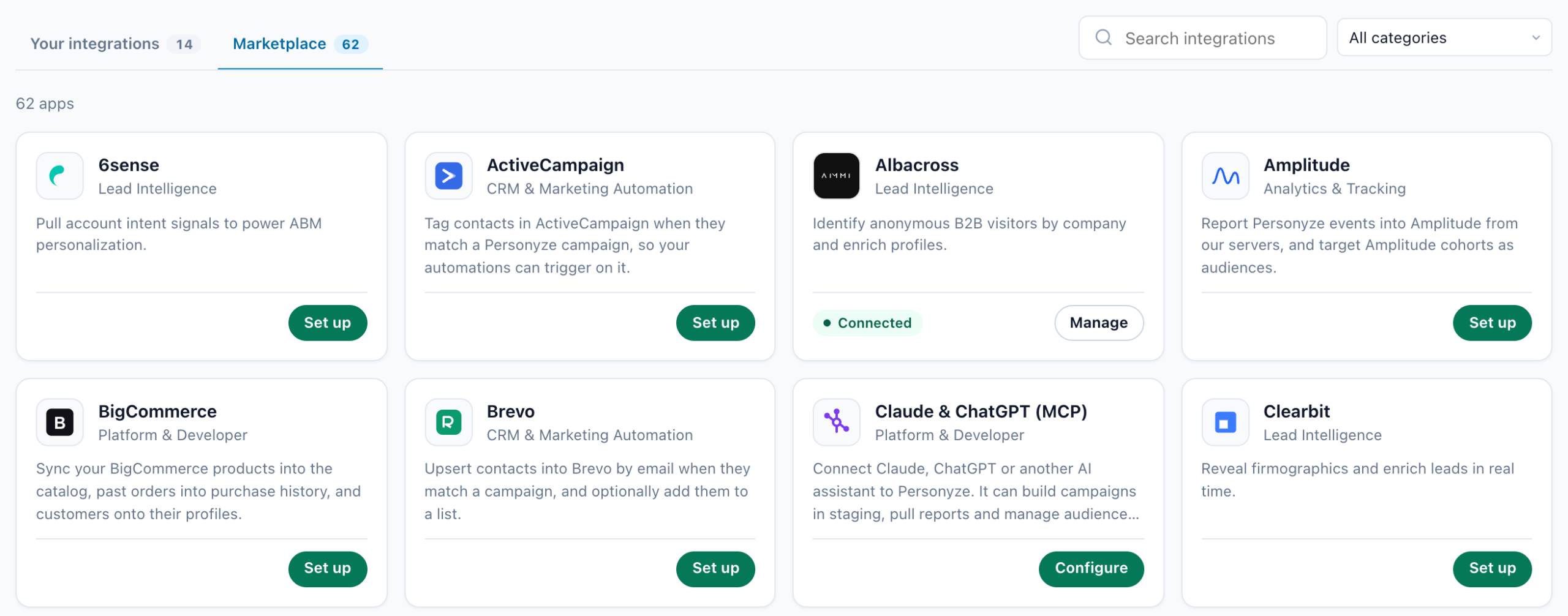
| A card for | Shows | Click |
|---|---|---|
| A Personyze integration | Connected, or nothing yet | Manage, Configure or Set up — opens its settings, as on Your integrations. |
| A partner app | Its price — Free, Free with paid plans or Paid app — or Installed | Install opens the app’s page; Manage goes to Partner apps on this account. |
An app’s page
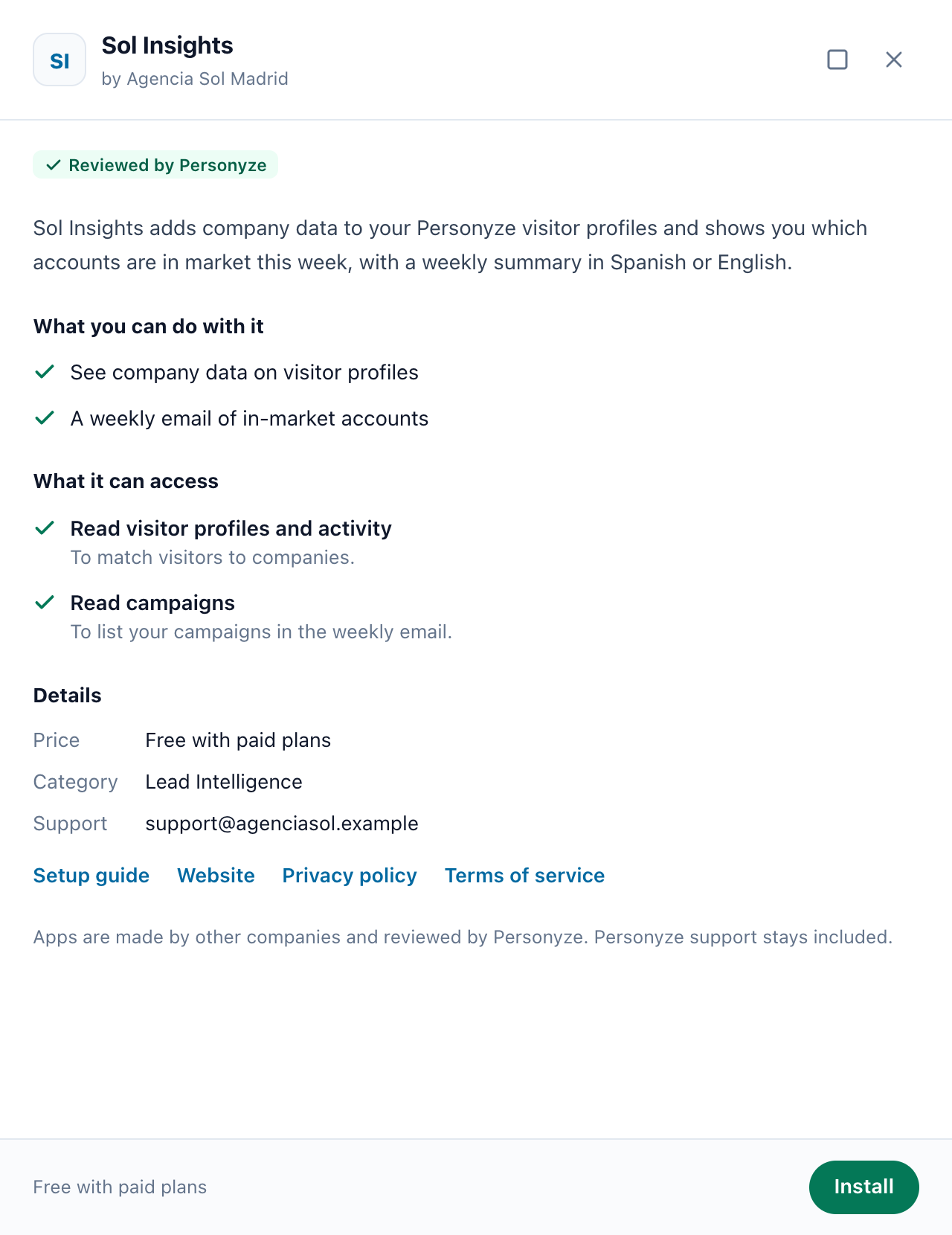
A partner app opens its page in a drawer, with who made it and Reviewed by Personyze:
- what it does, in the developer’s words, and Screenshots;
- What you can do with it — each line was tested by a Personyze reviewer before the app went live;
- What it can access — each kind of access, with the developer’s reason for it (“It asks for no access to your account.” when it asks for none);
- Details — Price, Category and Support, and the links the developer gave: Setup guide, Website, Privacy policy, Terms of service.
Apps are made by other companies and reviewed by Personyze. Personyze support stays included.
Install an app
- On the app’s page, click Install. It opens the developer’s own install page, which sends you to Personyze to sign in.
- Personyze’s screen, Connect …, names the developer and says Reviewed by Personyze. Under Connect it to, pick the account: your own, or one you manage with full access.
- Read what the app will be able to do — each kind of access, with the developer’s reason — and click Connect, or Cancel.
The app also sees your site’s name and when you connected it. You can disconnect it at any time from Integrations; its access stops at once.
What an app can ask for:
| Access | What it covers |
|---|---|
| Read visitor profiles and activity | Profiles, their attributes and interests, visits, events, form submissions, and each visitor’s product views and purchases. |
| Add, change or delete visitor data | Create, update and delete profiles and their attributes. |
| Read audiences | Audience names and who is in them. |
| Change or delete audiences | Create, rename and delete audiences, and add or remove people. |
| Read products and articles | The product and article catalogs. |
| Add, change or delete products and articles | Add, update and delete catalog items. |
| Read campaigns | Campaigns, goals, placeholders and targeting conditions. |
| Create and change goals and placeholders | Conversion goals, and the placeholders campaigns show in. |
| Read reports | Campaign results and A/B test results. |
| Read the account id | Which Personyze account it is connected to. |
An app reaches your account through the REST API, and only within the access you approved. If its developer later asks for more, your account keeps only what you approved; you give the new access by connecting the app again.
Partner apps on this account
On the Your integrations tab, Partner apps on this account lists every app installed on the account (it does not show while there are none). Each row has the app and who made it; Active, or Suspended by Personyze in red — its access has stopped; when it was installed; its calls and errors in the last 7 days; and the access it was given.
- Activity — calls and errors per day, for the last 7 days.
- ⋯ → Settings — the app’s own settings page, on the developer’s site, in a new tab.
- ⋯ → Uninstall — asks first: “Uninstall …? Its access stops now, and … is told to delete this site’s data.” Keep it or Uninstall. Users with Reporting access are not offered it.

The public Marketplace: personyze.com/apps/
personyze.com/apps/ lists the same directory for anyone: the integrations built in to every plan, each linking to its setup guide, and every live partner app, with a page of its own and its Install button. Only live apps are listed — an app that is suspended or no longer listed answers “This app is not listed”.
Build an app (for developers)
Software companies and developers can build an app that works with Personyze and list it in the Marketplace.
1. Apply
Apply at personyze.com/apps/developers/ (Build an app for Personyze) with your company, website and what your app will do. Personyze replies within 2 business days. Once you are approved you get a free sandbox site — every module switched on, never billed — and the Apps tab of your Partner portal (account menu › Partner portal), which your portal opens on. An agency that is already a partner has the Apps tab too.
2. Create the app
On Apps, Create app and name it. It starts as a private Draft (“Private: only your sandbox site can install it”), and has four screens:
| Screen | What you set |
|---|---|
| Credentials & access | The Client ID, and the Client secret — shown once; making a new one replaces the old at once; up to 5 Redirect URLs, https, matched exactly; the Install URL, the page on your site where a customer starts connecting; What your app can access — each access with a reason the customer reads before approving; the Event URL and its Signing secret; and the OAuth endpoints to copy. |
| Listing | App name, Category, Short description (one sentence on the card), Full description, Logo URL, 2 to 6 Screenshots, up to 6 lines of What customers can do with it (the reviewer tests every one: write only what works today), Price, and Website, Setup guide, Support email, Privacy policy and Terms of service. |
| Submit for review | The checklist of what is still missing, each item linking to the screen that fixes it; For the reviewer: a Demo login email and password and How to test each line; and the App Marketplace Developer Terms. |
| Analytics | Once the app is live: active installs, API calls and errors over the last 30 days, and which sites use it. |
3. Connect it to Personyze
- Customers connect with OAuth 2.0 and PKCE (S256): your install page sends them to Personyze’s Authorize address, they approve, and your server trades the code for an access token, which lasts an hour, and a refresh token, which lasts 180 days and is replaced each time it is used.
- Send the access token as
Authorization: Bearer pzat_…to the REST API. A call outside the access the customer approved is refused with403. - When a customer uninstalls the app, its tokens stop working at once, and Personyze sends a signed
app.uninstalledevent to your Event URL — delete that site’s data. No event is sent until you create a signing secret. - Until it is approved, the app can be installed only on your sandbox site.
4. Review and go live
Submit for review sends the app to a Personyze reviewer, who tests every line of What customers can do with it with your demo login; Personyze emails your team when it is reviewed. The app is then Live — listed in the Marketplace and at personyze.com/apps/ — or comes back with Changes requested and what to change, or is Not approved, with why. A live app’s later changes wait for review too: the app stays as it is until they are approved.
Related
- Integrations — the Integrations screen, its goals and its two tabs.
- The Partner Portal — where developers build their apps, under Apps.
- REST API — Overview & Quick Start — what an app calls.
- REST API — Objects Reference — every object an app can call.
- Data & Privacy Settings — answering a person’s request about their data.