
New campaign holds everything you can build. Open it with New on the
campaign list, or with the + at the top of the left menu. It offers two kinds of thing:
- Campaign types open the campaign editor with every setting: targeting, design, schedule and testing,
all in one editor. See Campaigns. - Ideas are ready-made campaigns for your kind of site, set up in a few steps. Each one lands on
staging, so nothing reaches a visitor until you publish it. See Playbooks.
Two views: Explore all and Grouped
The switch at the start of the row of filters picks the view: Grouped or Explore
all. New campaign opens on Explore all, showing the campaign types. Your browser remembers the
view you used last.
- Explore all lists every idea and campaign type as cards, with filters. It suits you when you know
what you want. - Grouped sorts the same cards into about twelve topics, such as A/B testing or Landing
pages. It suits you when you know the goal but not the tool.
Both views have the same cards and the same Start buttons. They differ only in how the cards are
arranged.
Explore all
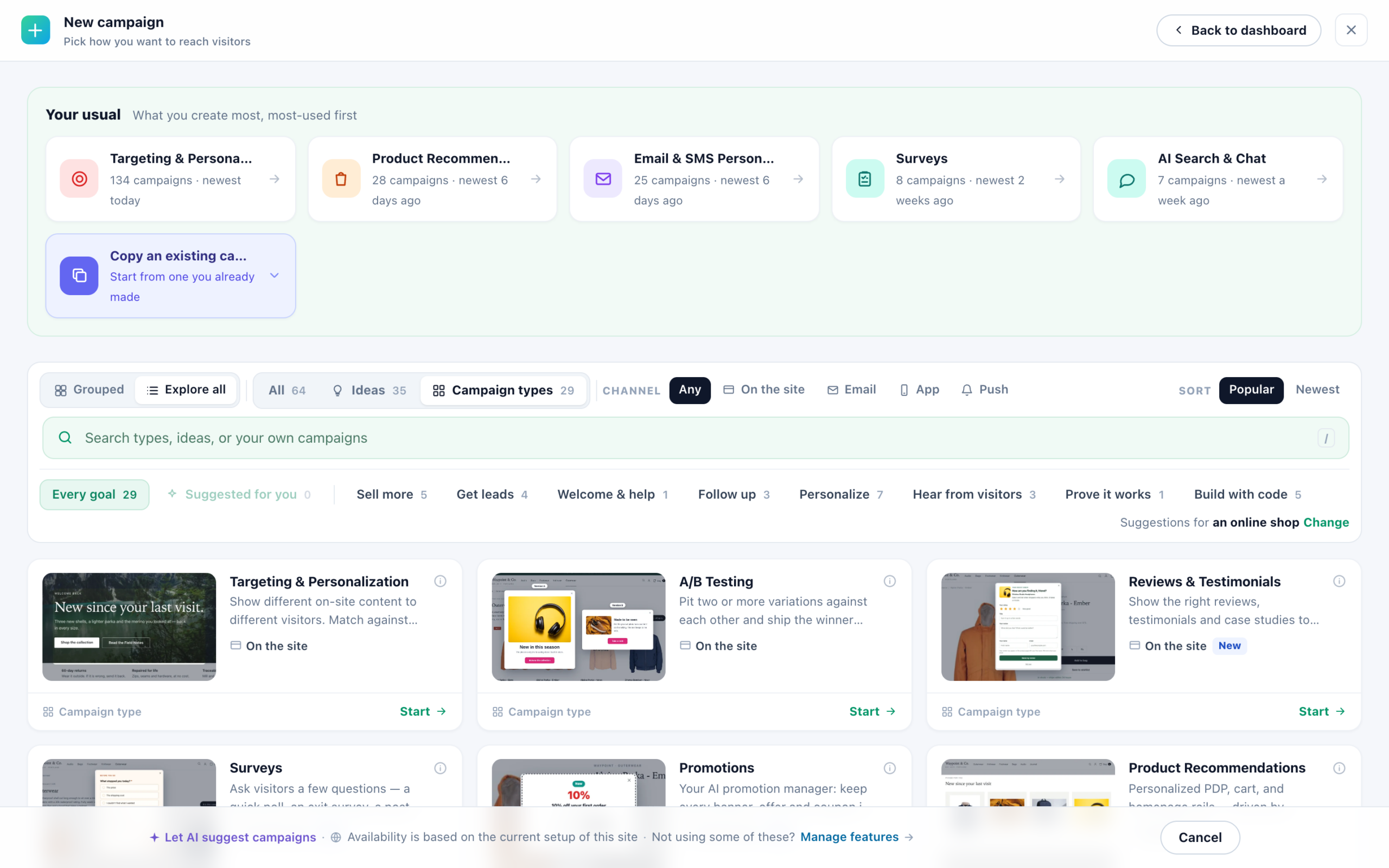
Your usual comes first, on a light green panel. It lists the campaign types you create most, most-used
first, such as 3 campaigns · newest 2 days ago. Copy an existing campaign… opens a
search of your campaigns, each with Copy. An account with no campaign yet sees Start
here instead: four good first campaigns for your kind of site.
The row of filters:
- All, Ideas or Campaign types, each with its count.
- Channel: Any, On the site, Email,
App or Push. - The search box: Search types, ideas, or your own campaigns. Press / to jump to it. It widens as you
type. When your own campaigns match, up to three of them show under the row, under Your campaigns, each
with Copy. - Sort: Popular or Newest.
Under it is a row of goals: Every goal, Suggested for you, then Sell
more, Get leads, Welcome & help, Follow up,
Personalize, Hear from visitors, Prove it works and Build with
code. On its right, Suggestions for your kind of site, with Change to pick another
kind. That kind decides what Suggested for you holds. Ideas that cannot work on your kind of site are
not offered.
What a card says
- A picture of the idea or type in action, the title, and for a type one line on what it does.
- Its channels: On the site, or On the site → Email for an idea that uses both. Marks:
Add-on, Upgrade or New. Suggested for your site on
the ideas that suit it. - At the foot, Idea or Campaign type, or what it still needs (see below), then Start.
- The ⓘ explains it. For an idea, it gives the steps (Set up in 3 steps) and where it lands: Lands on
staging · 10% held back to measure it when it keeps a control group. For a type, it says Opens with every
setting.
Twelve cards show at first, and Show 12 more · 30 left shows more. A search with no result says
Nothing matches “…”, with Clear search and Let AI suggest
campaigns.
Grouped
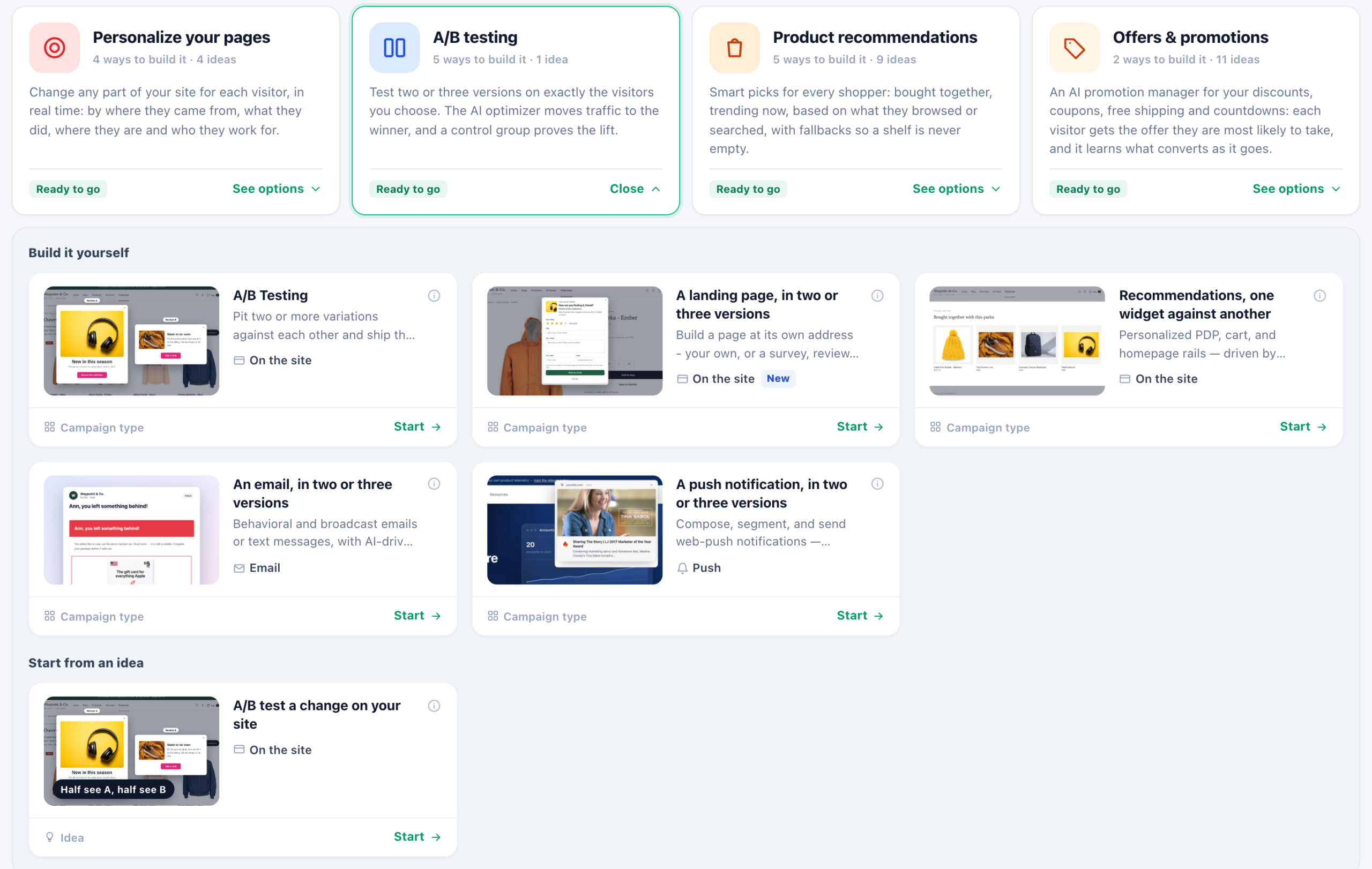
Grouped shows one card per topic: its icon, its title, how many ways to build it and ideas it holds (3 ways to
build it · 9 ideas), a line on what it is for, and a badge. See options opens it. A topic with
one way and nothing to choose has Start instead. Group by sorts the cards by
Topic, Goal or Channel, and the search sits after the channels.
| Topic | What is in it |
|---|---|
| Personalize your pages | Change any part of your site for each visitor: by where they came from, what they did, where they are and who they work for. |
| A/B testing | Two or three versions on the visitors you choose: on your site, a landing page, recommendations, an email or a push notification. |
| Product recommendations | Bought together, trending, based on what they browsed or searched, with fallbacks. |
| Offers & promotions | The AI promotion manager for discounts, coupons, free shipping and countdowns. |
| Content recommendations | The next article, guide or video each reader is most likely to open. |
| AI chat & finders | An AI assistant that answers from your site, and the AI Product Finder and AI Content Finder. |
| Surveys & feedback | Questions on exit, after a purchase or in an email, a survey on a page of its own, and NPS. |
| Reviews & social proof | Reviews, testimonials and logos from customers like each visitor, and a review form. |
| Leads & sign-ups | Sign-up forms and popups, a landing page with a form, and a follow-up email for each new lead. |
| Landing pages | Pages at your own address for ads, emails and QR codes, personalized and A/B tested as a whole. |
| Meetings & booking | The right meeting for each visitor, and your calendar on a page of its own. |
| Email & push | Emails and push notifications triggered by what each person did, and asking visitors to allow push. |
An open topic has two parts:
- Build it yourself: the campaign types that make it, on your site first and email last. A chip beside
the heading says when a setting could improve it (1 setting could improve this). Click it to see which. - Start from an idea: the ready-made ideas about the same thing.
A type or idea can be in several topics. The email that brings back an abandoned cart, for example, is under
Product recommendations and under Email & push.
A/B testing holds five ways to test: a change on your site, a landing page in two or three versions,
recommendations (one widget against another), an email in two or three versions, and a push notification in two or three
versions. Each opens ready to test. A recommendation, an email or a push starts with two test groups, 50/50. A landing
page opens its test on The page itself once its first page is there. See A/B testing.
A page of its own is a hosted landing page started by kind: Surveys & feedback → A survey on a page of its own, Reviews & social proof → A review form on a page of its own, Meetings & booking → Your calendar on a page of its own, Landing pages → A hosted landing page (see Landing page kinds and parts). Survey email (NPS, feedback) and Booking email open a Surveys or Meetings campaign on its Sharing step (see A survey’s own page and survey emails and A booking page of its own).
When your tracking code is not on your site yet, Grouped says so above the cards — Your tracking code is not
on your site yet. — with Install the tracking code.
Badges: ready, needs something, add-on, upgrade
| It says | What it means | What Start does |
|---|---|---|
| Ready to go (Grouped) | Everything it needs is set, the tracking code on your site included. | Opens the editor, or the idea’s steps. |
| Needs your tracking code, Needs a product catalog, Needs your articles, Needs a user list, Needs push subscribers first | Something it needs is missing. You can build and save it now; it runs once that is done. Where there is a fix, its button is beside it: Set up or Upload. | Opens the editor as usual. |
| Add-on, or in Grouped Add-on · 7 days free or the monthly price | A module that is not part of your plan. Hover the badge or the ⓘ for the terms: the free days charge nothing, and the add-on stops when they end. It never becomes a subscription by itself. After that it costs a monthly price on top of your plan, and you can cancel any time. Some plans include it. | Opens the Add-ons page. |
| Upgrade | Not included in your plan. | Opens the plans page. |
The AI Product Finder and the AI Content Finder have cards of their own. They need the
AI Search & Chat add-on. See AI Product Finder and AI Content Finder.
The foot of the screen
- Let AI suggest campaigns opens Inspire me, which reads your site and suggests
campaigns drawn on your own pages. - Availability is based on the current setup of your site, with Manage features to switch
campaign types on or off for the account. When some are off, 2 more campaign types are switched off. ·
Show them.
Your first campaign
An account with no campaign yet lands in New campaign. Close it, and the campaign list shows Here is what is
worth doing next instead of an empty list: questions to ask, what to set up, and campaign ideas for your site. In
it, Start a campaign offers Browse all ideas (New campaign on Ideas)
and Pick a campaign type (on Campaign types). Once the first campaign is saved, the list
is the list again.
Related
- Campaigns — how a campaign is built, tested and launched
- Playbooks — what an idea builds, step by step
- The campaign list — finding your campaigns again
- Inspire me — AI suggestions for your site
- A/B testing
- Testing & QA — before it goes live