
Settings › Imported user data holds the people you bring into Personyze from files, feeds and SFTP drops. An import fills their profile fields, and it can also put them on a list that campaigns target. This is the screen for checking that an import worked, seeing who is on a list, taking someone off it or putting them on, exporting a list, and looking up one person.
Setting up an import — a file, a feed URL or an SFTP drop, and its column mapping — is in Uploading feeds and data files. Targeting a campaign by a list is in CRM / User-List Targeting.
The page
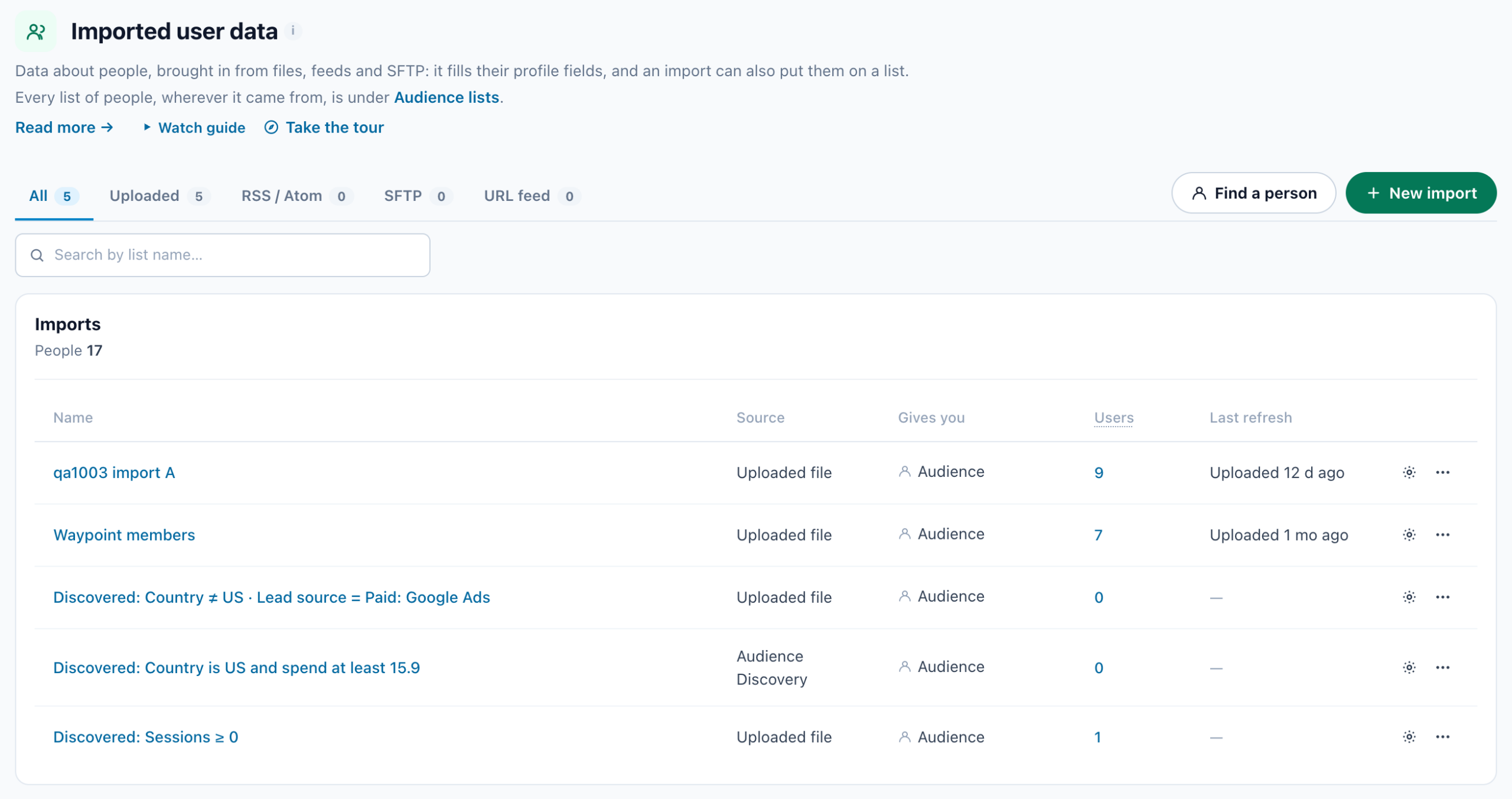
Above the table:
- Feeds — only when a list refreshes itself from a URL feed or an SFTP drop. One card covers all of them: Healthy, or the state of the feed at fault, and it opens by itself while a feed is failing. Open, each feed shows its state, when it last worked and Re-import now; under them is Email me if this feed stops syncing. Uploaded files are not listed: they do not refresh.
- Tabs by source — All, Uploaded, RSS / Atom, SFTP, URL feed, and Connected app when an app keeps lists filled — with Find a person and New import at the end of the row, and Search by list name… under it.
| Column | What it shows |
|---|---|
| Name | Click it to open the list’s own page. A failed import shows its error in red under the name. |
| Source | Uploaded file, RSS / Atom, SFTP or URL feed; Audience Discovery for a list made from a discovered audience; or the app that keeps the list filled — Salesforce, Amplitude, Mixpanel or Tealium. |
| Gives you | Audience — “The people in this import are an audience you can target.” — plus n fields when the import fills profile fields. |
| Users | How many people are on the list. Click the number to open the list’s page at its people. |
| Last refresh | Uploaded and how long ago, for a one-off file; when a feed or an app last worked; a red Never synced for one that never has. |
At the end of each row, the gear edits the list, and More options holds View this import, Export CSV, Upload a file into this list, Re-import now (feeds) and Delete list. A list that a connected app or Audience Discovery fills takes no upload: its next sync or rebuild would undo the file.
A list’s own page
Click a list’s name or its number. Above the list’s name, Imported user data takes you back to every list. The page holds:
- Edit list, Upload a file into this list and, for a feed, Re-import now.
- Three pills: where the list comes from, People with the count, and its last refresh.
- One line on what the list gives you: an audience you can target, profile fields it fills, or both.
- Columns — for a feed or an SFTP drop, each column of the file and the profile field it fills, marked Identity (email or CRM ID) or Visitor profile. A column that fills nothing reads “Not used — this column is imported and discarded”, with Use it to map it; Change remaps a used one. An uploaded file chooses its mapping when it is uploaded, so it has no Columns section.
- People — everyone on the list.
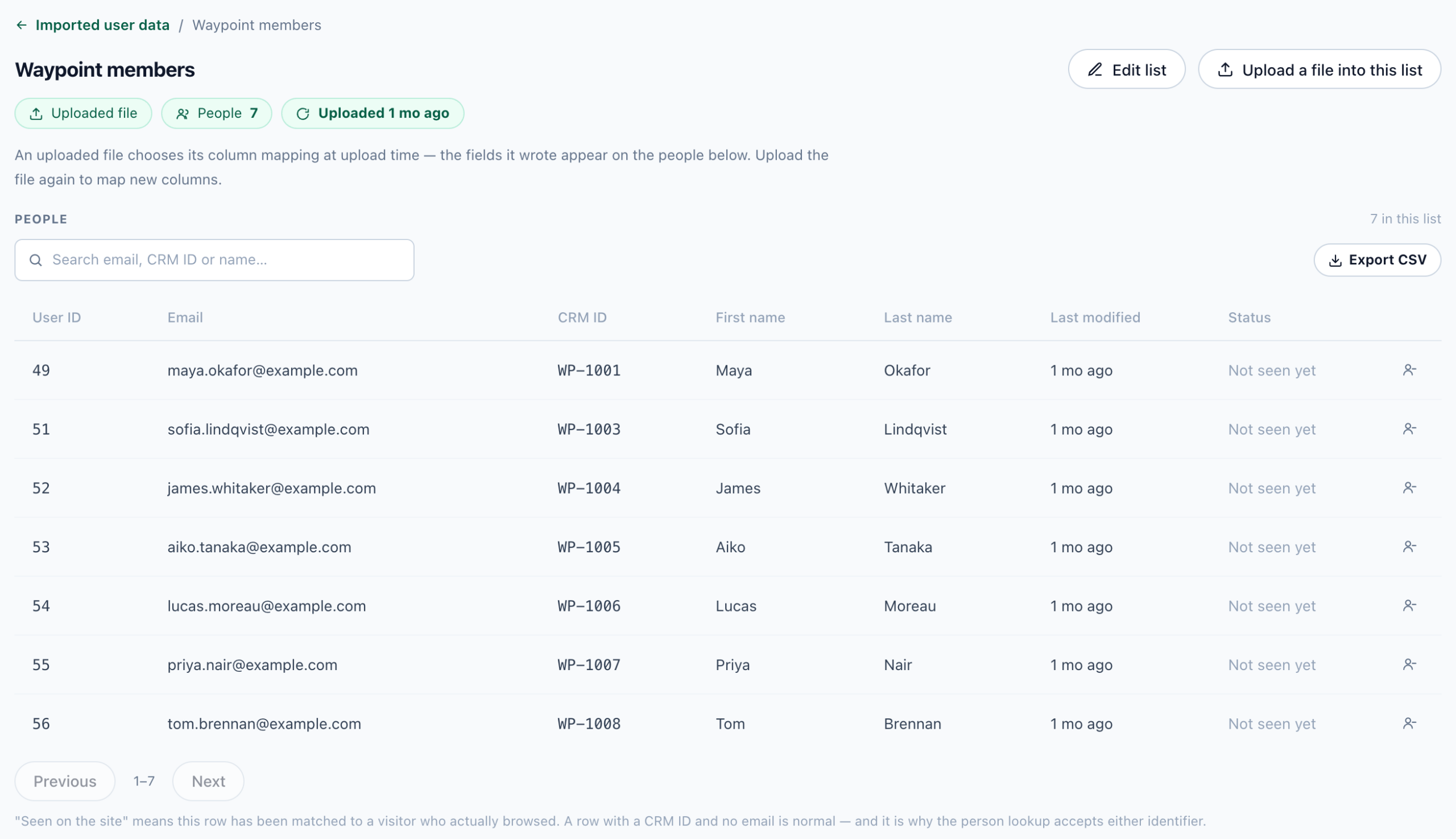
The people
- A search by email, CRM ID or name.
- The table: User ID, Email, CRM ID, the profile fields the people carry, Last modified, and Status — Seen on the site or Not seen yet. When there are more fields than fit, a line under the table says how many are not shown; Find a person shows all of them for one person.
- Remove from this list at the end of each row — see Taking someone off a list.
- Export CSV above the table — see Exporting a list.
- Fifty people a page, with Previous and Next.
A row with a CRM ID and no email is normal: an import can carry people by their CRM ID alone.
Other ways to a list’s page
- An email campaign’s User Base step, and a CRM campaign’s Your people step: View ↗ beside each list under Lists this campaign targets. See The User Base step.
- The User lists rule on a campaign’s Target step: each list after See who is in:.
- Audiences › Audience lists: a list’s name, or See the people in its ⋯ menu.
- Audiences › Discovered audiences: See the people on this list, on an audience you made into a list.
The links on a campaign step open in a new tab, so the campaign stays open.
Taking someone off a list
Remove from this list is on every screen that lists a list’s people:
- the People table of a list’s page;
- the window a list’s number opens on other screens, such as the User Base step;
- the × on a list under In, in Find a person;
- the × on a list under User lists, in a visitor’s drawer.
It asks first, and says what it does: “Only the list membership goes: their visitor profile and its values stay, and so does every other list they are on. Campaigns that target this list stop reaching them.”
When something keeps the list filled, the question adds that the person can come back:
| The list is filled by | What brings them back |
|---|---|
| A URL or RSS feed | The next sync, if the file still lists them. Take them out of the file too. |
| An SFTP drop | The next file that lists them. Take them out of the file too. |
| A connected app | Its next sync, if they are still in the audience there. |
| Audience Discovery | The next daily rebuild, while they still match the rule. |
An uploaded file refills nothing: someone you remove stays off until a file that lists them is uploaded again.
Putting someone on a list
In Find a person, each list under Not in has a +, Add to this list. It asks nothing: the person is on the list at once, and the × takes them off again. A visitor’s drawer can add them too, from Add to a user list… under User lists.
Find a person
Find a person, beside New import, answers “did my import carry this person?” It searches every visitor profile by the exact email or CRM ID — not only your imports — so a person imported with only a CRM ID can only be found by it. Type the email or CRM ID and press Look up.
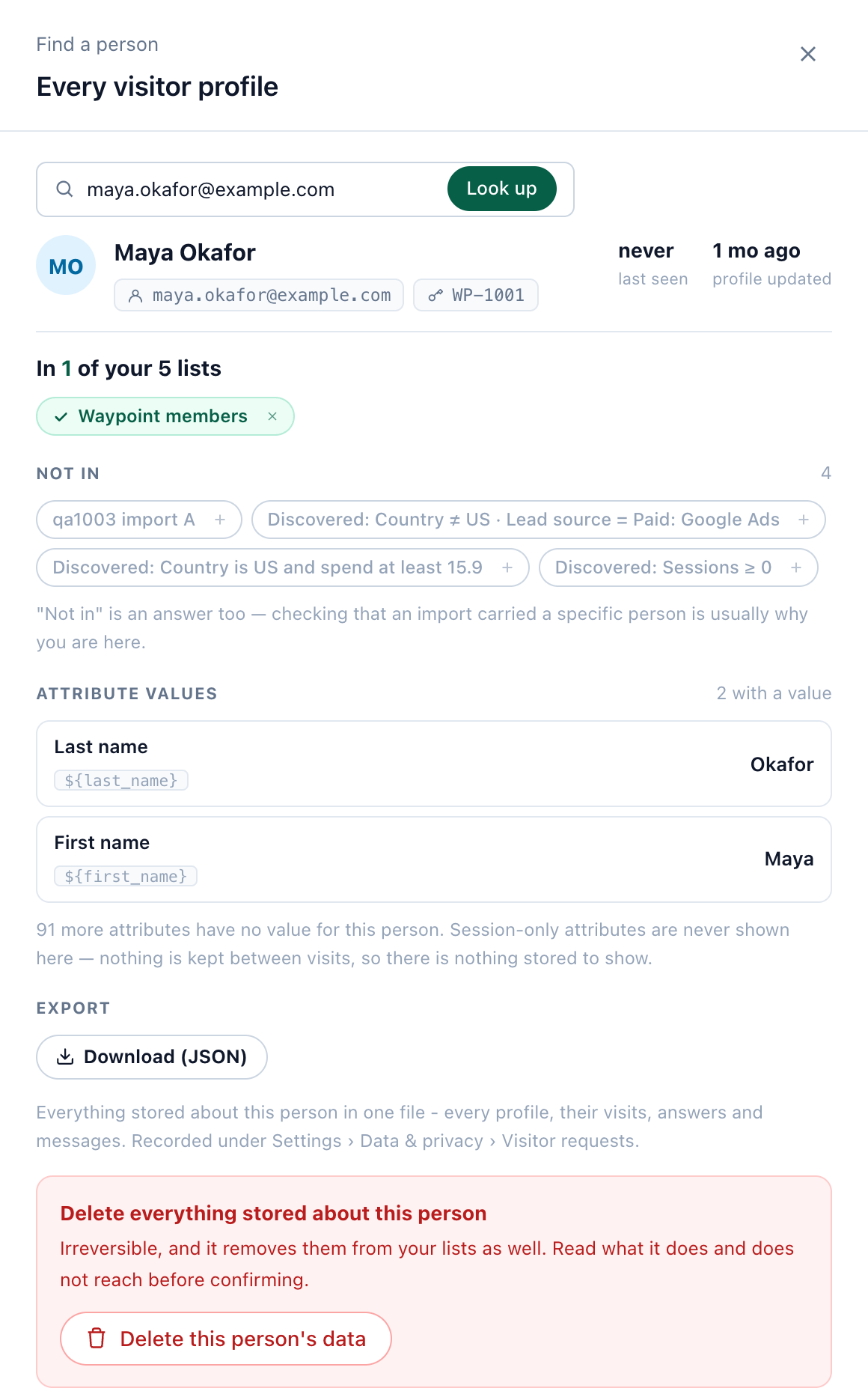
- The person: their name, email and CRM ID, when they were last seen and when their profile was updated.
- In n of your N lists — the lists they are on, each with ×, Remove from this list.
- Not in — every other list, each with +, Add to this list. Twelve show, and +n more opens the rest. “Not in” is an answer too: checking that an import carried someone is usually why you are here.
- Attribute values — every profile field with a value, with the
${field}name it has in content. - Export — Download (JSON): everything stored about the person in one file, every profile, their visits, answers and messages. Each download is recorded under Settings › Data & privacy › Visitor requests.
- Delete this person’s data — the full, logged deletion (below).
One person, two profiles
Signing in on a second device can leave one person on two visitor profiles — one holding the address as its email, the other as its CRM ID. Find a person then shows both: “2 visitor profiles carry this identifier”. The lists are both profiles’ together; adding, removing, downloading and deleting act on both; pick a profile to see its own values.
Deleting a person
Delete this person’s data first lists what will be deleted — the visitor profile and its values, the list memberships, the identifiers — and what it does not reach: your imported files (importing one again puts the person back), data already sent to your own systems, aggregate reporting, and future visits. Type the identifier to confirm, then press Delete permanently. A receipt follows, with Copy: keep it as the evidence that the request was honoured. It is the same deletion as on Data & privacy, and it is logged there.
Nobody found
An identifier no profile carries answers “Nothing is stored under …”. For a privacy request, that is a complete answer. Most misses are a person recorded under the other identifier: if you searched an email, try their CRM ID.
Exporting a list
Export CSV downloads everyone on a list, not just the page on screen. It is:
- under More options on a list’s row — here, and in the sources table of an email campaign’s User Base step and a CRM campaign’s Your people step;
- above the People table of a list’s page;
- beside the count in the window a list’s number opens.
The file has User ID, Email, CRM ID, every built-in field an import can fill, every custom profile field by its title, and Last seen and Last modified as dates. An empty field stays empty. The file is named after the list.
Lists that Audience Discovery or an app keeps filled
- A list made from a discovered audience reads Audience Discovery and Rebuilt daily: “Audience Discovery keeps this list filled from its rule and rebuilds it every day. Someone you remove comes back with the next rebuild while they still match the rule.” Once you stop refreshing it, it is an ordinary list again. See Audience Discovery.
- A list a connected app fills is named by the app — Salesforce, Amplitude, Mixpanel or Tealium — with when it last synced: the app “keeps this list filled from its audience”.
Neither takes an uploaded file.
Why a list gets smaller by itself
The Users column’s tip: “A visitor profile that has been inactive for a year is deleted — two months if it carries no email or CRM ID — and a deleted profile leaves every list it was in. Re-importing a list refreshes everyone it carries and starts their year again, so keeping a list full is just a matter of importing it again — as often as you like, there is no limit.”
Related
- Uploading feeds and data files — setting up an import and its column mapping
- CRM / User-List Targeting — targeting a campaign by a list
- The User Base step — the lists an email campaign targets
- Audience Discovery — lists made from discovered audiences
- Data & privacy settings — visitor requests, downloads and deletions