
Book a meeting puts a working calendar on your site. A visitor picks a time, gives their
details and gets a confirmation — without leaving the page and without a third-party scheduler in the middle.
On personyze.com: Meeting scheduler — appointment booking on your site →
Watch the 2:48 walkthrough: setting up Meetings — a host and their hours, what a visitor can book, a booking button on every page, switching Meetings on, and a visitor booking a time.
It is an action like any other, which is the useful part: the same targeting, the same A/B testing,
the same reporting. You can offer a demo booking only to visitors from companies over 200 people, or only on the pricing
page, or only after somebody has read three case studies.
The screens
| Screen | What it holds |
|---|---|
| Overview | The master switch, what is booked, and what is still missing before anything can be. |
| Set up | The guided run through the four things a booking needs. |
| Meeting types | What can be booked — a 30-minute demo, a 15-minute intro call. |
| Availability | Weekly hours, per person, in their own timezone. |
| Hosts | Everyone a visitor can book. |
| Bookings | Every meeting booked, and the visitor behind it. |
| Appearance | The booker’s look, wording, timezone, the emails, and the goal. |
| Connections | The calendar and meeting-link accounts your hosts have linked. |
| Booking page | The page a visitor lands on to manage a booking they already have. (The booker’s own page, where people book, is a campaign’s Sharing step.) |
Setting it up, in order
The Overview screen refuses to pretend: while something is missing it says “Not ready yet” and
names it — add a host who can be booked, add a meeting type visitors can choose.
1. Add the people
Hosts is everyone a visitor can book. A host is not a Personyze login and costs no
seat, so add the whole team. Each needs a name and an email address — the email is where their copy of
every booking goes.
- Connect Google reads their calendar for conflicts. Busy time from it starts blocking new bookings
within a few minutes. - Connect Zoom is for meeting links only. It does not show us their diary. How it works, what it asks Zoom for and how to remove it: Zoom integration.
- Private link — a page where that host reads their own bookings, with no Personyze login.
Send it to them; anyone holding it can read that host’s bookings, so it can be rolled, and the old link then stops
working.
diary fills up elsewhere will be double-booked. Connect the calendar, or keep their availability narrow.
2. Say when they work
Availability is weekly hours, set per person — availability belongs to a host, not to the
account. Each host’s hours are read in their own timezone, so a team spread across three
countries needs no arithmetic.
3. Say what can be booked
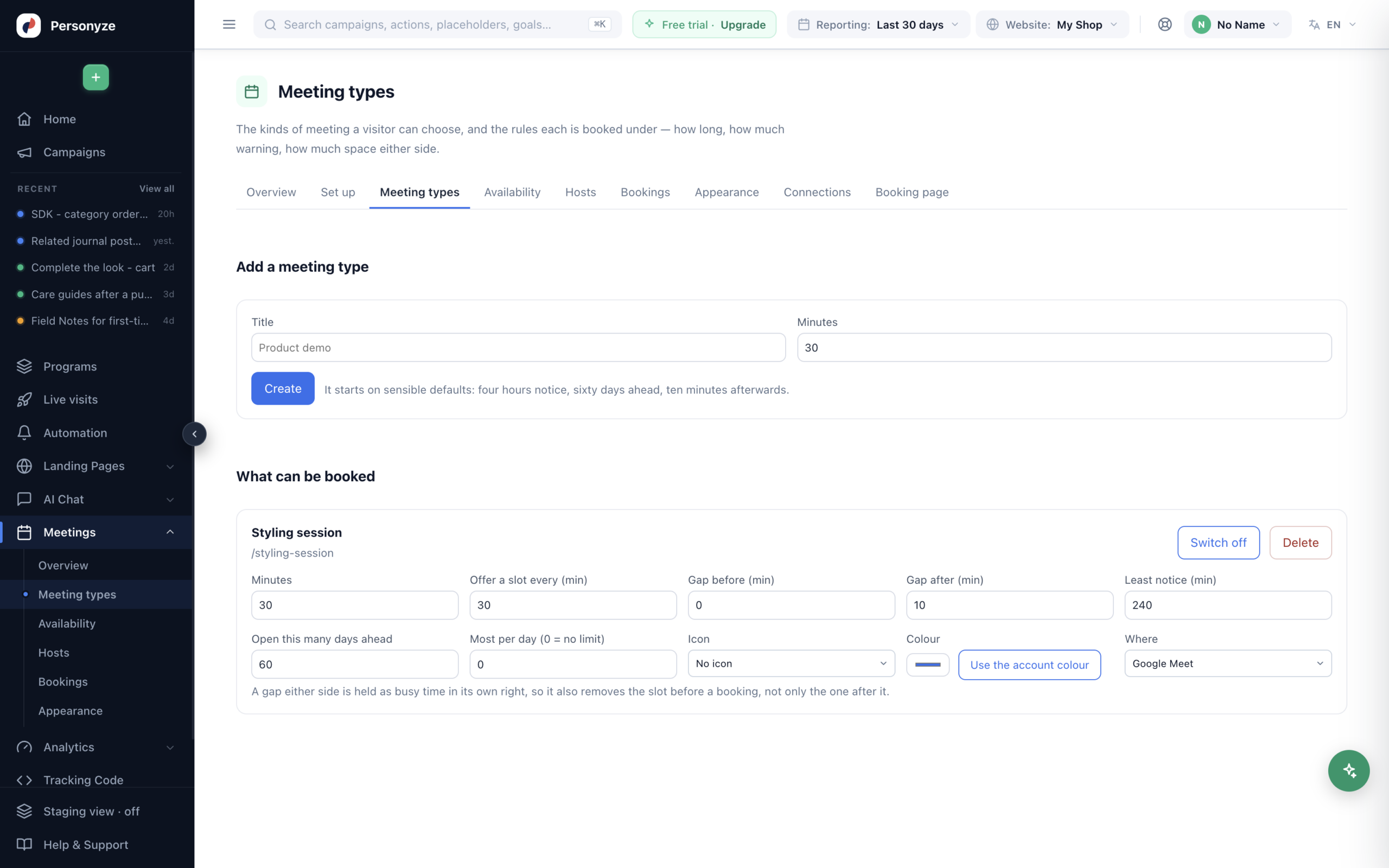
A meeting type is one bookable thing:
- Title — what the visitor sees above the calendar.
- Minutes, and who can take it.
- Where — Google Meet, Zoom, phone, in person, or a link you provide.
- Offer a slot every N minutes — slots on the half hour, or every 15 minutes.
- Least notice — how soon somebody may book. Four hours by default.
- Open this many days ahead — sixty by default.
- Gap before and gap after — ten minutes afterwards by default.
- Most per day — a ceiling, or zero for none.
- Colour.
A meeting type with nobody who can take it offers no times, and the screen says so rather than showing an empty
calendar.
4. Switch it on, then put it somewhere
The master switch is on Overview: “Nothing is served to visitors while this is off,
whatever else is configured.” Then Put it on your site creates the campaign that carries it.
Bookings can also come from a direct link, and Overview separates the two — Where they came from shows
each campaign, and Direct — a link, not a campaign for the rest.
Where the booker sits
A Meetings campaign’s Content step asks Where should it sit? — In the page (the times
right in the page, on a contact, pricing or demo page) or Behind a button (a button that opens the times, on every
page you target). Two more places:
- A page of its own. The campaign’s Sharing step gives the booker its own web address, with a QR code, links that open it on a meeting type, a time or a person’s name, and a booking email — see A booking page of its own.
- A page of your own design. Or put your calendar on a page of its own, under the pictures (with the Hosted Landing Pages add-on), starts a hosted landing page with the calendar in it as a part — see Landing page kinds and parts.
How it looks and what it says
Appearance sets the accent colour, the button label, the heading and the default timezone, with a
live preview. Times are always shown in the visitor’s own zone — you can hide the timezone
picker, which stops them changing it, and you can hide the host’s name. Both are worth doing where
everyone is local and worth leaving alone where they are not.
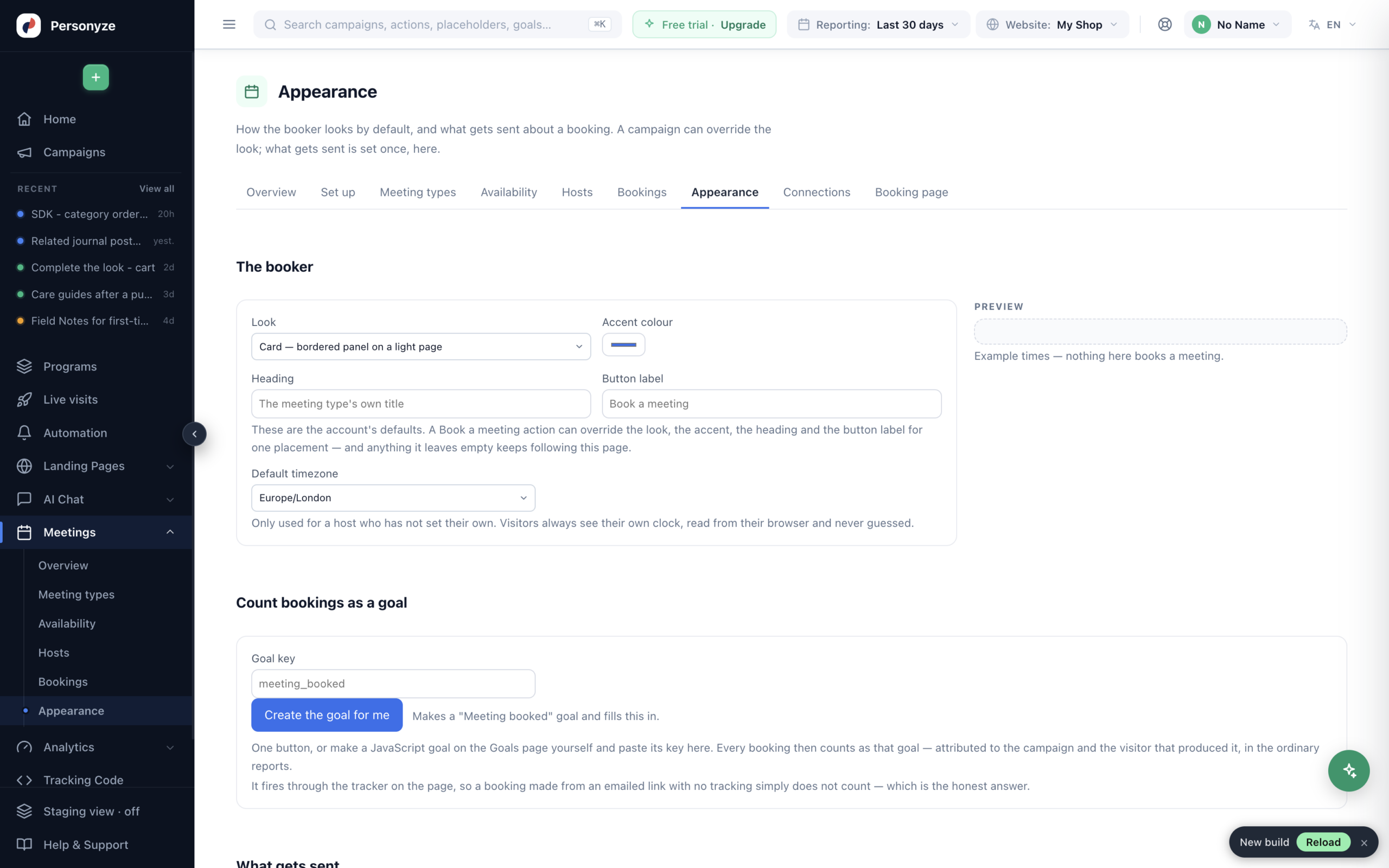
Look chooses the frame — a bordered card on a light page, and the other shapes beside it
— alongside the accent colour, the heading (the meeting type’s own title by default) and the button
label. A campaign can override all four for one placement; anything it leaves empty keeps following
this page. In a campaign’s Book a meeting action, the Looks row sets the ground, the accent colour, the corners and the type
in one click — Midnight, Daylight, Ocean, Sunset, Forest, Lavender, Rose, Graphite, Editorial, Mono or Candy — and any of them can
be changed after; From the account goes back to the look set here.
A booker’s heading can hold ${first_name}, ${name} and ${company}, filled from the link
on its booking page — see A heading made for one person.
Default timezone is only used for a host who has not set their own. Visitors always see their
own clock, read from their browser and never guessed.
Languages, the first card, gives the heading and the launcher’s label, card title and card note a version per language, with Translate with AI. The calendar’s own words — the dates and times, “Confirm booking”, the Name and Email boxes — already follow the visitor’s language. See Languages.
The close button’s looks are Gradient ring, Thin, Squircle and Spin, or words in a soft button — part of the close-button gallery. Switched on, it starts from Thin; switching the booker’s style to Dark switches the picked look to its dark version.
For a page or popup of your own, an empty Meetings & Booking campaign offers Or build a page or popup with the Canvas, the booker inside it: put the Book a meeting element in a Canvas design. A booking made through it is credited to the campaign and the visitor — see The Canvas in Meetings campaigns.
The emails
- Confirmation, as soon as somebody books — always sent. A booking nobody was told about is
not a booking. - Reminder a day before and an hour before, each optional.
screen, make it that one.
Counting it
Count bookings as a goal fills in a goal key — meeting_booked — and Create the goal for me makes the goal to match. Every booking then counts as that goal, attributed to the campaign and the visitor that produced it, in the ordinary reports. An account has twelve goal slots; if they are all taken, free one on the Goals page first.
Where the booking goes
The action carries the same “Where the data goes” step as the
Lead Capture Form, and the same destinations: email, Zapier, Slack,
HubSpot, Klaviyo, or a custom webhook. A booking is a lead, and it lands wherever your leads already land.
The fields are named the way a person would name them — name, email,
meeting, when, host — because those names end up on somebody’s mapping
screen. Whatever the meeting type asked the visitor is flattened in beside them.
line rather than a visitor sitting on a spinner, so a broken Zap never stops a meeting being booked.
The booking page
Separate from the widget: the page somebody lands on from their confirmation email to manage a booking they already
have. You choose what they may do:
- Let them cancel, with a minimum notice, and optionally ask why.
- Let them pick a new time, with its own notice.
- Offer “add to calendar”.
- Offer them another time after they cancel.
- Your cancellation policy, in your words, and a note under the meeting —
“Parking is behind the building.” - Or send them to your own page after cancelling or rescheduling.
The preview draws the real page from these settings over an invented meeting — nothing there books or cancels
anything.
Reading what happened
Bookings lists every meeting on the account with its status — upcoming, confirmed, canceled,
no-show — the host, the meeting type, the time in the visitor’s zone, where the booking came from, and a
link to the visitor’s profile. Overview summarises the same thing by host and by meeting type,
with what is still to happen. A Meetings campaign’s own Performance step shows Where it was booked — its booking
page, a link, a QR code, an email or your site — see A booking page of its own.
Related
- A booking page of its own — the booker at its own address, its QR code, its links and the booking email.
- Landing page kinds and parts — the calendar inside a page of your own design.
- Zoom integration — a Zoom meeting for every booking, in the host’s own Zoom.
- Lead Form action — the same destinations step, explained in full.
- Conversion tracking — the goal a booking counts toward.
- Campaigns — targeting, A/B testing and reporting all apply here.
- AI Personalization: What Changes — a booker’s heading, button and confirmation written for each visitor’s segment