
Get set up is the screen a new account opens on. It holds two lists that look alike and do
different jobs, plus an assistant that will read your site and suggest what to build.
| What it is | Behaviour | |
|---|---|---|
| Setup steps | A route. The same handful for everybody, in the same order. | A finished one stays, with a tick. It is a progress bar. |
| Recommendations | Gaps. Generated because something is wrong, ranked against each other. | A fixed one disappears. Based on what we can see in your account and on your site. |
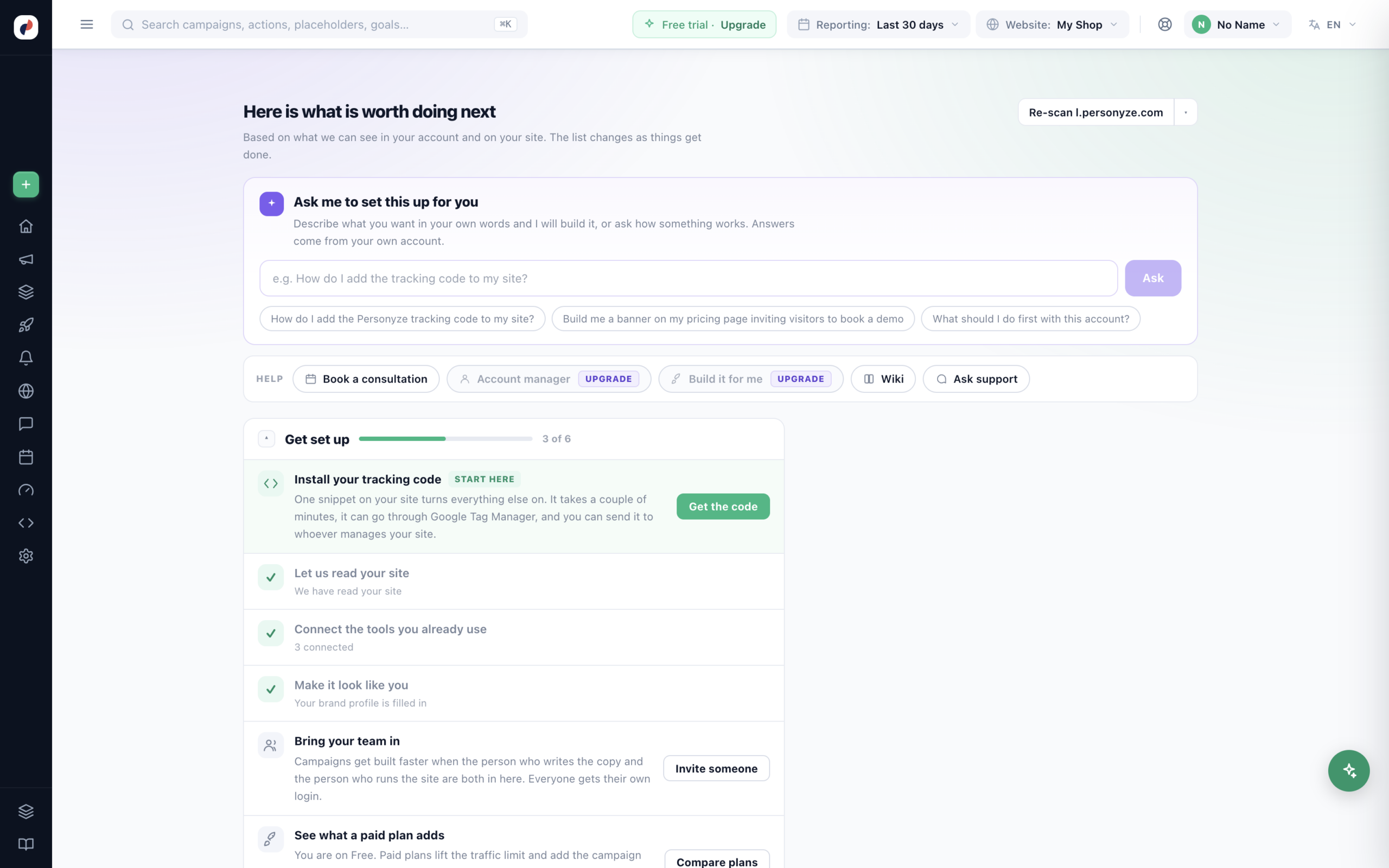
The setup steps
- Install your tracking code — first, because nothing works without it. If Google Tag Manager
is detected on your site, the card offers that route instead of a raw script. - Let us read your site — “We look at your public pages and work out what you sell,
who to, and what your site is built with — so the suggestions here are about your business rather than about
software in general.” - Connect the tools you already use — Klaviyo, HubSpot, Google Analytics, your tag manager.
Connecting one means you can target by what it already knows, and send what happens here back into it. - Make it look like you — Your colours, your font, and which screens your team sees.
Anything generated here then arrives in your styling instead of in stock blue. - Bring your team in.
- See what a paid plan adds — worth a look before you build something you cannot
run.
has to, but it is not the only thing on the screen — so the visit is not wasted for somebody who has to go and ask
a developer.
Letting Personyze read your site
The scan follows the links from your domain to your pricing, product and signup pages — about a
minute. You can also:
- Read more than the home page, or read your whole site, in depth.
- Read a different page instead — reads that one page for colours, fonts and tools. It does not
change which site is on your account. - Re-scan whenever your site changes.
What comes back
“Here is what we understood about your site”:
- Your brand colour and font, used from then on so generated content arrives looking like you. If
nothing is clear enough it says so — generated content stays neutral — rather than guessing. - What it is built with, and which tools Personyze integrates with were found on the page.
- A map of your site.
- Campaign ideas for your site, each of which can be built with one press — including
“builds two versions and shows each visitor one of them”. The arrow beside Build this campaign picks the page its preview opens on once it is built: your site’s pages, or Another page…. Picking one builds nothing.
On an account with no campaign yet, the campaign list opens on New campaign. Close it, and the campaign list shows Here is what is worth doing next, with campaign ideas for your site, instead of an empty list. See New campaign › Your first campaign.
Turning the reading into real things
Some of what a scan finds is not set up yet — content locations and conversions. You can create them straight
from here: page groups, placeholders and goals.
a page group does nothing until a campaign uses it. And anything you set by hand is left alone — the scan
fills gaps, it does not overwrite your work.
a goal made in month three has nothing to say about month one. An account has twelve goal slots.
Asking instead of clicking
The box at the top takes plain words: “Describe what you want in your own words and I will build it, or ask
how something works. Answers come from your own account.” It builds campaigns, and it answers questions about
your own data rather than about software in general.
When you would rather somebody else did it
A row of buttons sits under the ask box — Book a consultation, Account manager, Build it for me, Wiki, Ask support. The two that need a paid plan are marked UPGRADE rather than hidden, so you can see what exists.
Every card has a way out, and they open real requests rather than a contact form:
- Build it for me — tell us what you want and we set the campaign up for you —
targeting, design and all. - Book a consultation — talk through what you are trying to do.
- Schedule a call with your account manager — you say which day and time suit you.
- Ask support — a blank ticket. We answer by email and in the thread here, usually within
24 hours.
To hire a certified agency instead, use Find an expert in the account menu — see Getting an expert to do it for you.
Getting a card out of the way
Remind me later puts a recommendation back on the list next week; Not for us
removes it. Neither is permanent — bring it back now undoes either. New recommendations appear after a
scan, or when something on your site changes.
Related
- Signing up — the steps before this screen: your account, your site, the features and the add-on trials.
- Start Here — the full install and account-setup section.
- Tours and videos — the help built into each screen.
- Setup by site type — the checklist for e-commerce, B2B, publisher or
mixed. - Help & Support — where the “do it for me” buttons
land. - Placeholders and page groups —
what the scan offers to create.