
Help & Support in the panel is where you reach the Personyze team without leaving the
product. “If something is broken, unclear, or missing — open a ticket and our support team will get back
to you.” Replies arrive by email and in the thread itself, so the conversation stays in one
place — and the bell in the top bar lights up when support replies.
The form states the target under Priority: we aim to answer within 24 hours.
Two more kinds of help are below the tickets: a certified agency that builds and runs campaigns for you, and the tours and videos on the panel’s own screens.
Opening a ticket
- Subject — required.
- Category — what it is about (below).
- Priority — Normal, High or Urgent.
- Which campaign — optional, or not campaign-specific.
- The page where you see the issue — optional, and worth filling in for anything visual. It has
to start withhttp://orhttps://. - The message — “Describe the problem or question. The more detail, the faster the
answer.” - Attachments — screenshots, exports, a file that shows the problem. A message too long for the
box is a sign it should be a file.
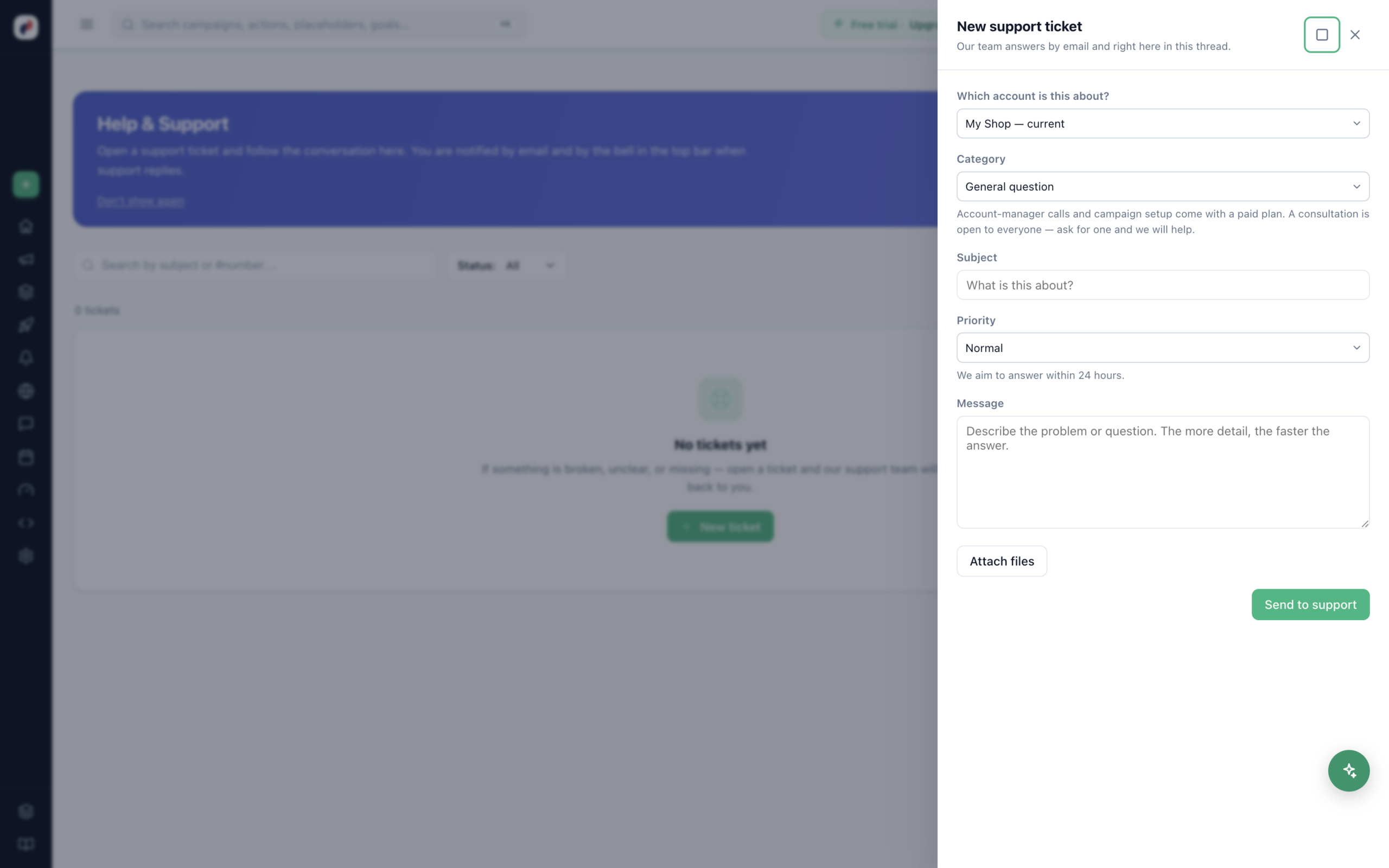
The categories
| Category | Use it for |
|---|---|
| Campaign issue | A campaign not doing what you set it to do. |
| Tracking & data | The tracker, feeds, goals, profile data. |
| Performance & reports | Numbers that do not look right. |
| Billing & payments | Invoices, plan, balance, codes. |
| General question | Anything else about how it works. |
| Set up a campaign for me | Hand the build over. |
| Schedule a consultation | Talk through what you are trying to do. |
| Schedule a call with your account manager | A call with the person who knows your account. |
— ask for one and we will help.
Asking for a call
Pick a preferred day and a slot — morning (09:00–12:00), afternoon
(12:00–17:00), evening (17:00–20:00), or no preference. Times are shown in the timezone your browser
reports; if another one suits you better, say so in the message.
Following it
Each ticket has a number and a status:
- Open — filed.
- Waiting for support — with us.
- Answered — we have replied.
- Reply requested — we need something from you before it can move.
- Closed.
The list is newest activity first, searchable by subject or #number, and filterable by status and
category. Closing a ticket is not final — “This ticket is closed. Writing a message
reopens it.”
filed under one is only visible from that one — the panel says which. The campaign picker has the same limit: it
only sees the account you are standing in, so switch first if you want to reference a campaign from another.
Getting a faster answer
- Name the campaign and paste the page URL. Most of the first reply to a vague
ticket is asking for those two things. - Say what you expected and what happened, in that order.
- Attach a screenshot of the screen you are describing.
- Check the troubleshooting pages first for the four common ones — they resolve most tickets
before they are filed.
Getting an expert to do it for you
Find an expert, in the account menu (your name, top right), lists the agencies Personyze has certified: “Agencies certified by Personyze can set up and run your campaigns in your language. Personyze support stays included either way.” The same directory is public at personyze.com/experts.
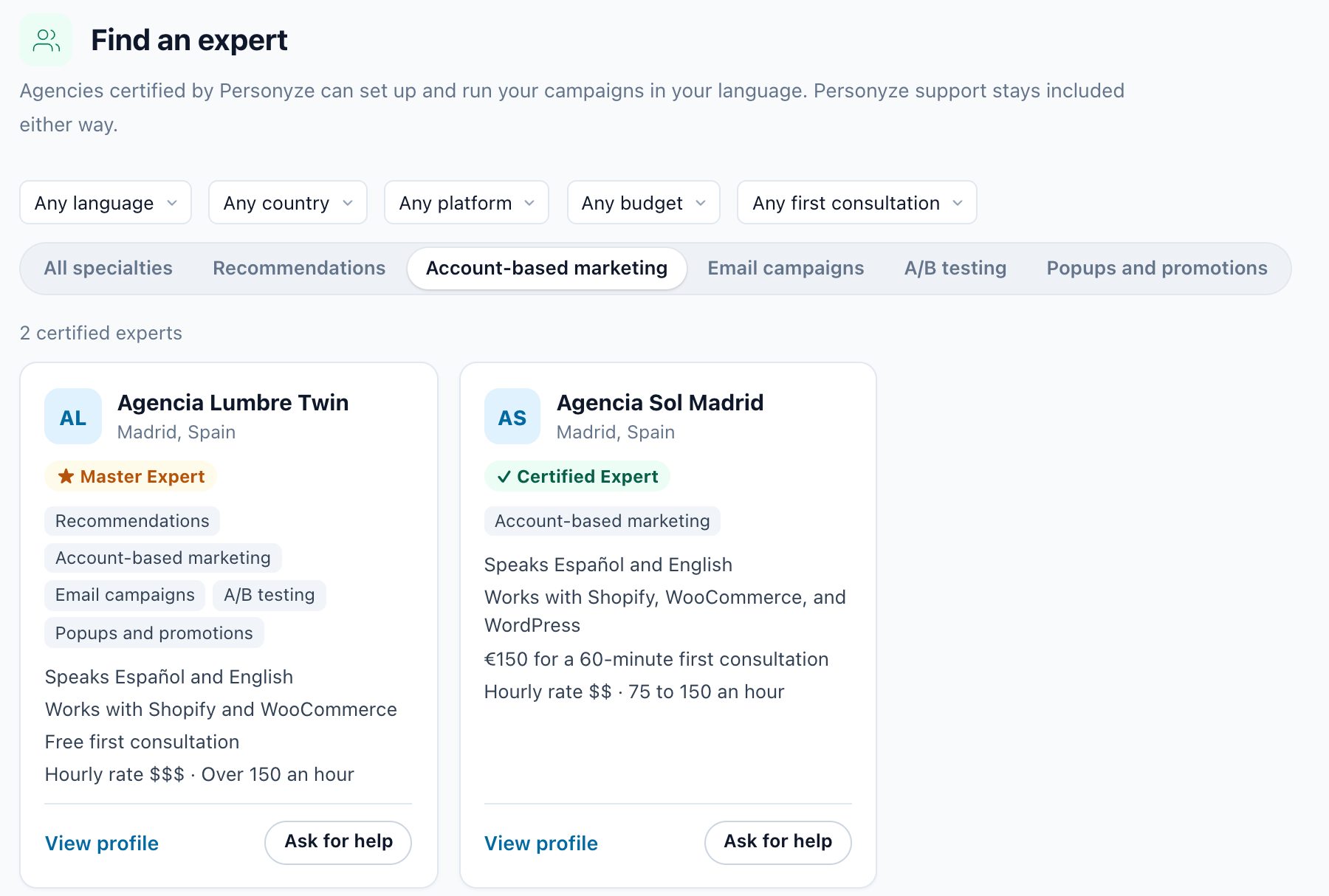
Each expert’s card shows their level — Certified Expert, Master Expert or Experienced Partner — the languages they speak, the platforms they work with, their first consultation and hourly rate (or Hourly rate on request), then View profile and Ask for help.
Narrow the list by language, country, platform, budget and first consultation (each reads Any… until you pick), and by specialty: Recommendations, Account-based marketing, Email campaigns, A/B testing or Popups and promotions. When nobody matches, Show all experts clears the filters.
Asking an expert
- Press Ask for help on their card. “Your request goes to this expert only.”
- Write What do you need help with? and pick the Language.
- Tick Share my name, email and site with expert. The request cannot be sent without it.
- Press Send request. The panel confirms: “Sent to expert. They usually reply within 1 business day.”
The expert’s work and price are agreed between you and them. Personyze support stays included, and tickets work exactly as above. If you are an agency, how these requests reach you is in The Partner Portal.
Help on the screen itself: tours and videos
Many screens explain themselves. On the line of links under a screen’s title:
- Read more opens the wiki page about the screen.
- Watch video or Watch guide plays a short film of it — on each campaign type’s Content step, the Promotions screens, Visitor Attributes, the recommendation setup screens, Integrations, the Email & SMS campaign and more.
- Take the tour walks you through the screen: the page dims, and each stop lights up one part of it with a card saying what it does. Next, Back and End tour move you through it.
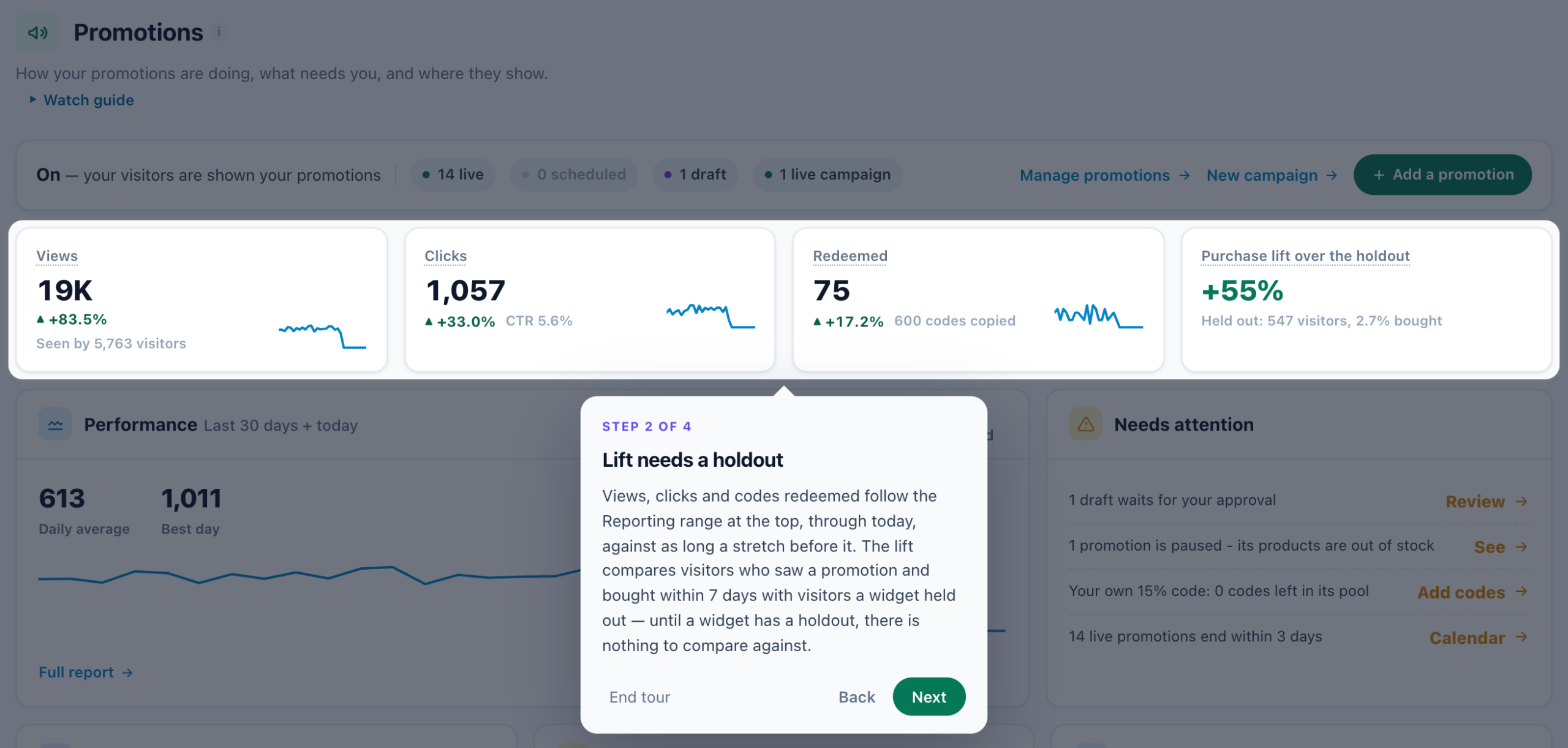
The first time you open some screens, a small card in the corner offers the tour — “New here? A short tour of this page — about a minute.” — with Show me around and Not now. Ignore it and the screen works as usual; Take the tour brings it back any time. Personyze remembers which tours you have taken for your login, in any browser and in every account.
Screens with a tour include the campaign editors of most campaign types — each of the four channel cards in New campaign (Survey page, Survey email, Booking page and Booking email) opens a tour of its own — Promotions (Overview, the promotions list, Calendar and Report), Reviews & Surveys (Overview, Feedback and Surveys), Discovered audiences, Meetings, Imported user data, Integrations and the tracking code.
Related
- A campaign is not showing
- The tracker is not firing
- Recommendations are not appearing
- An integration stopped syncing
- Getting set up — the buttons that hand the work to us