
Content recommendations put the right article, guide or video in front of each reader — a “continue reading” rail under a post, related guides in a sidebar, trending pieces on the homepage. This wizard walks you from catalog to live widget.
Watch the 2:36 walkthrough: a content recommendations campaign on Automatic — the catalog and reads checks, choosing the widget and its design, the look, a placeholder under every article, Target, and publishing to staging.
Another way: one specific recommendation — Watch the 2:30 film: picking one algorithm yourself, Visitors Who Read This Also Read on article pages, and placing it under the article.
Video: Content recommendations in depth: algorithms, boosts, filters, fallbacks and titles (4:16) — it plays at the top of Setting Filters On Recommendations.
In the panel: New campaign › Content Recommendations.
It is the same engine and the same flow as product recommendations, with a content-shaped catalog, its own interaction types, and its own algorithms.
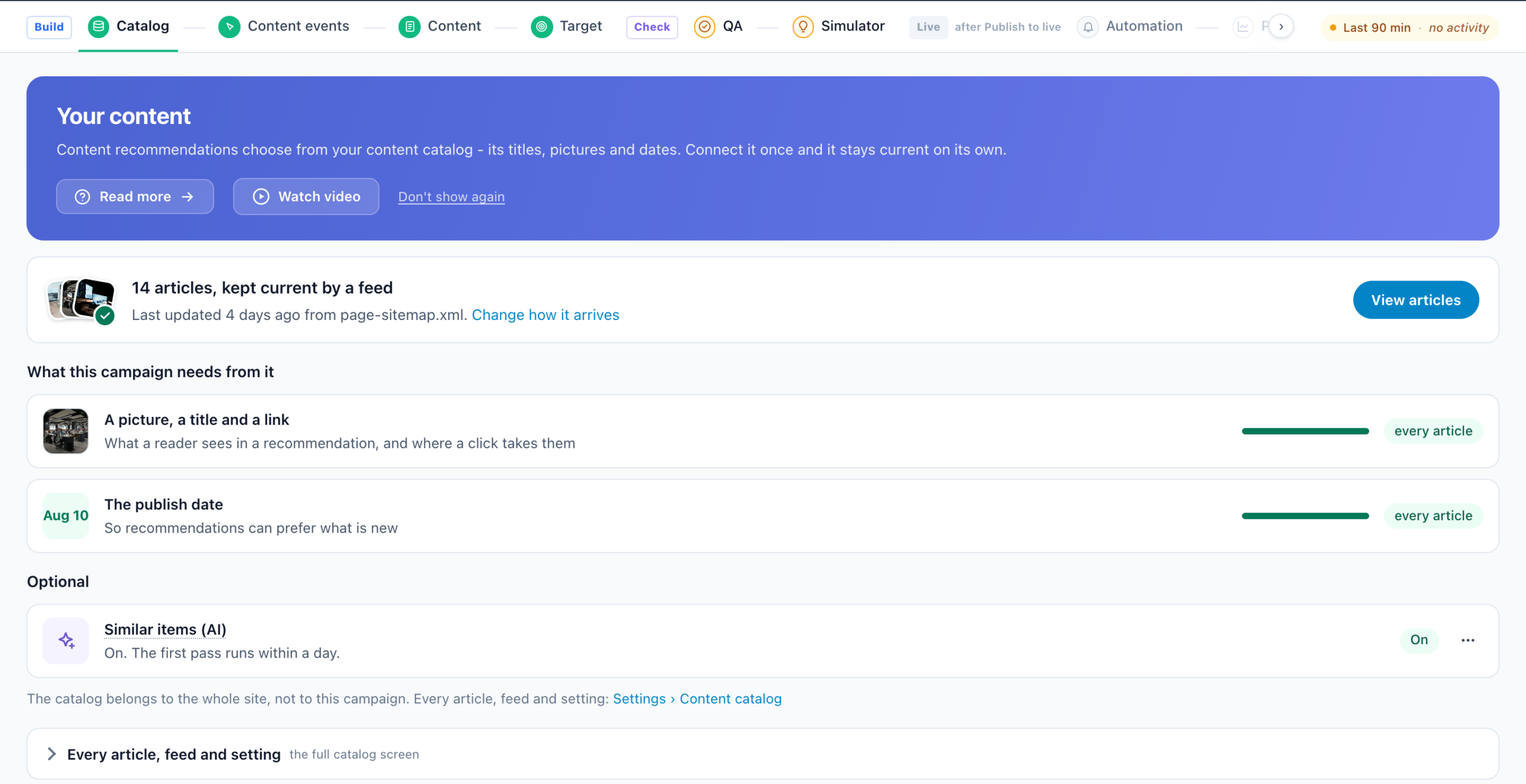
Your content catalog: articles, guides, videos. The step opens on a card: how many items Personyze holds and whether a feed keeps them current. With none yet, Set up your content catalog opens a guided setup.
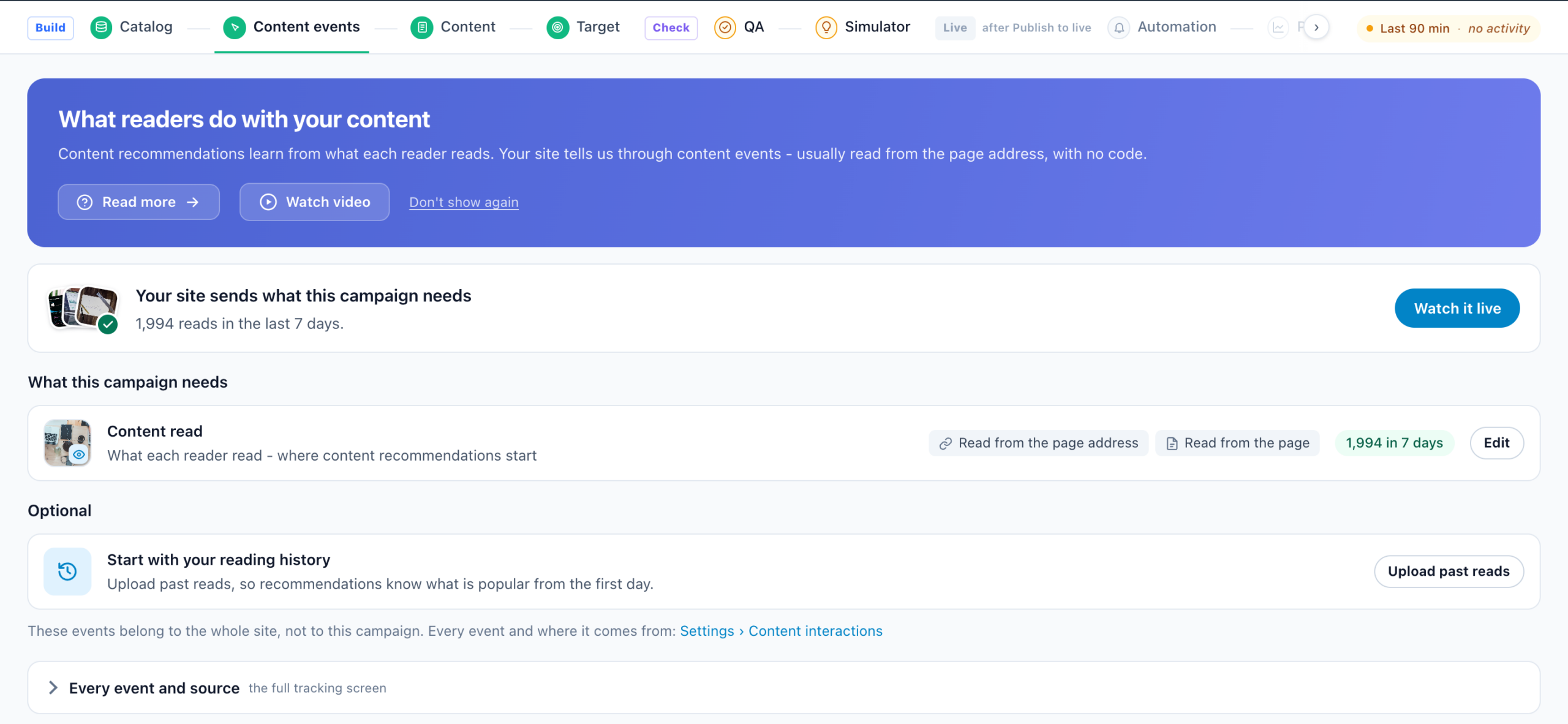
The step opens on what this campaign needs: Content read, with its count for the last seven days. Set up content tracking opens a guided setup; the full tracking screen — Article shown, commented, liked and reached goal — is folded underneath.
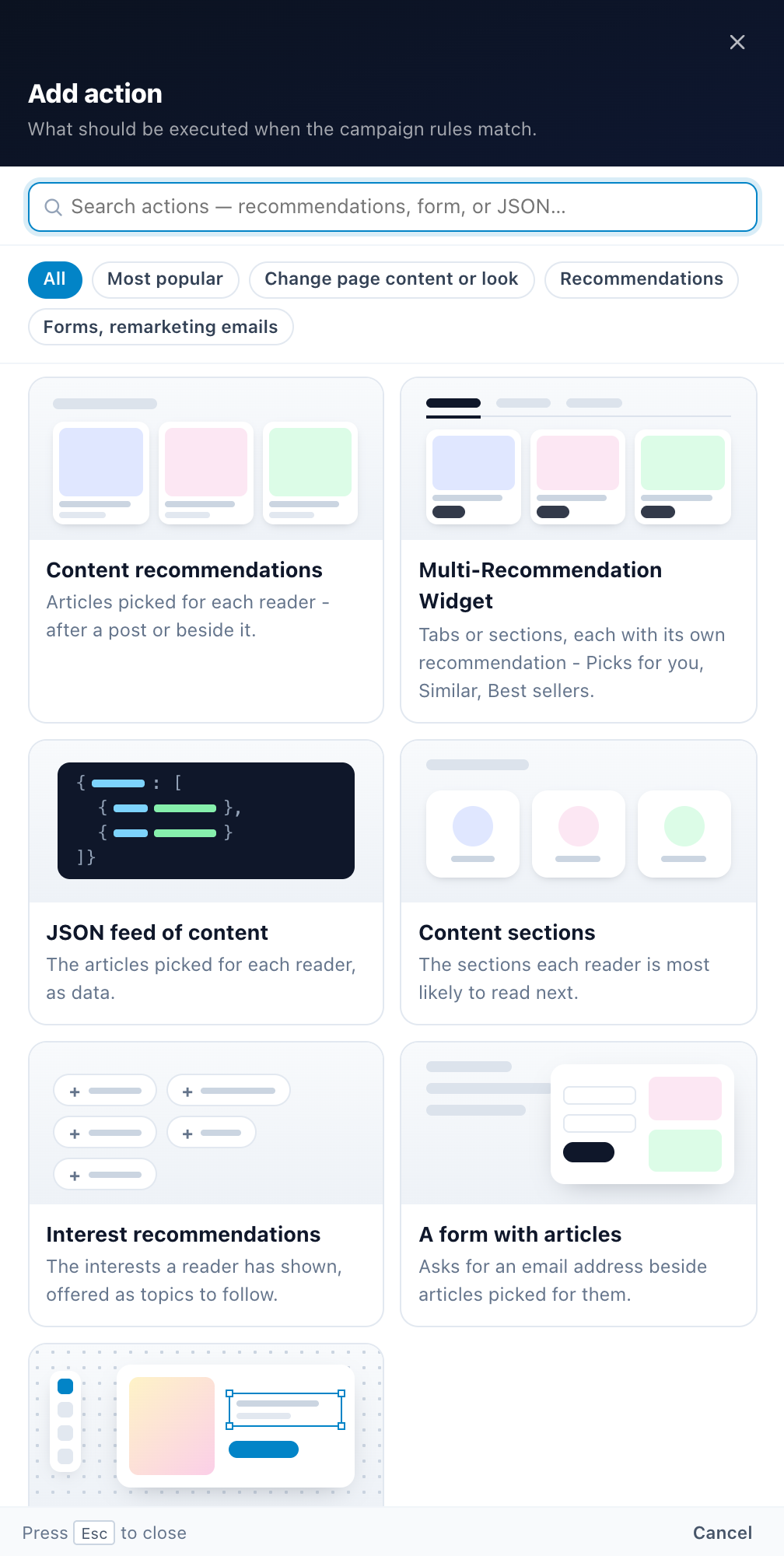
Six action types for content: the Content Recommendation Widget; the Multi-Recommendation Widget; Content Recommendations JSON Feed if you would rather render it yourself; Interest Recommender for Content; Category Recommender for Content; and Lead Form with Content Recommendations — plus the Canvas Builder, offered last.
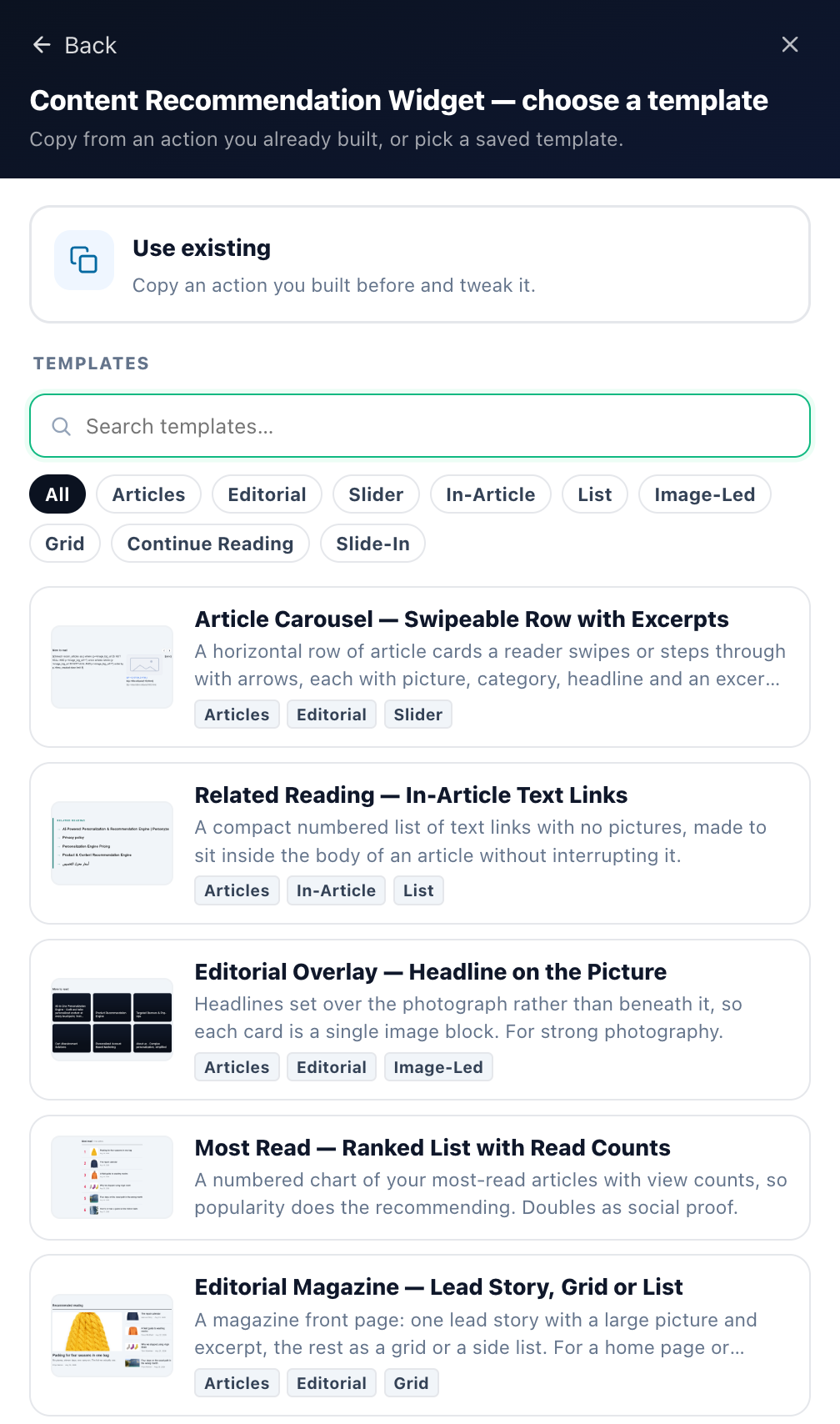
Filter chips (Articles, Editorial, In-Article, Continue Reading, Slide-In…) narrow the list — layouts built for content rather than products.
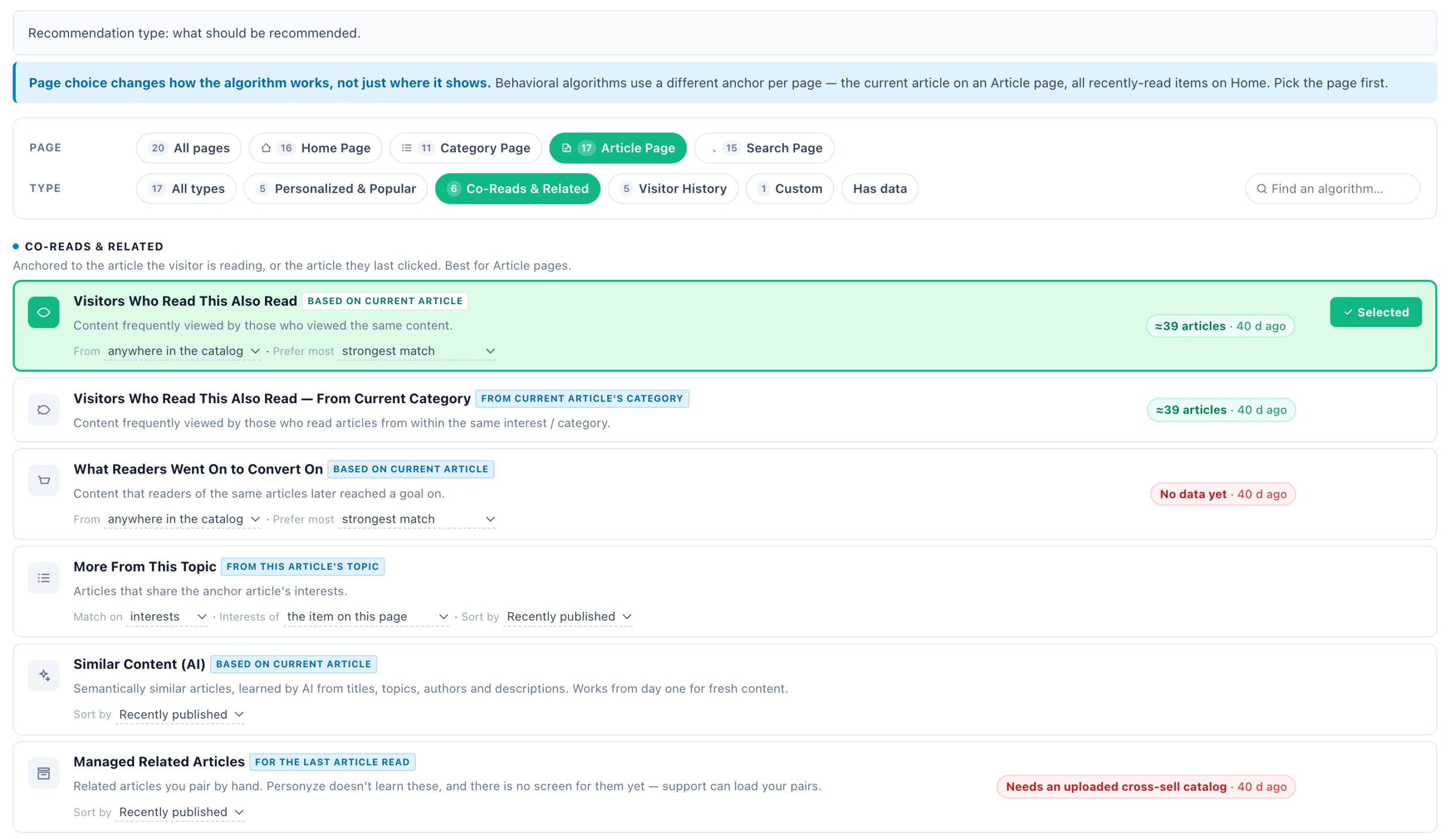
Twenty algorithms in five groups: Personalized & Popular, Co-Reads & Related, Visitor History, Catalog Events and Custom. Filter by page first: Home Page, Category Page, Article Page or Search Page.
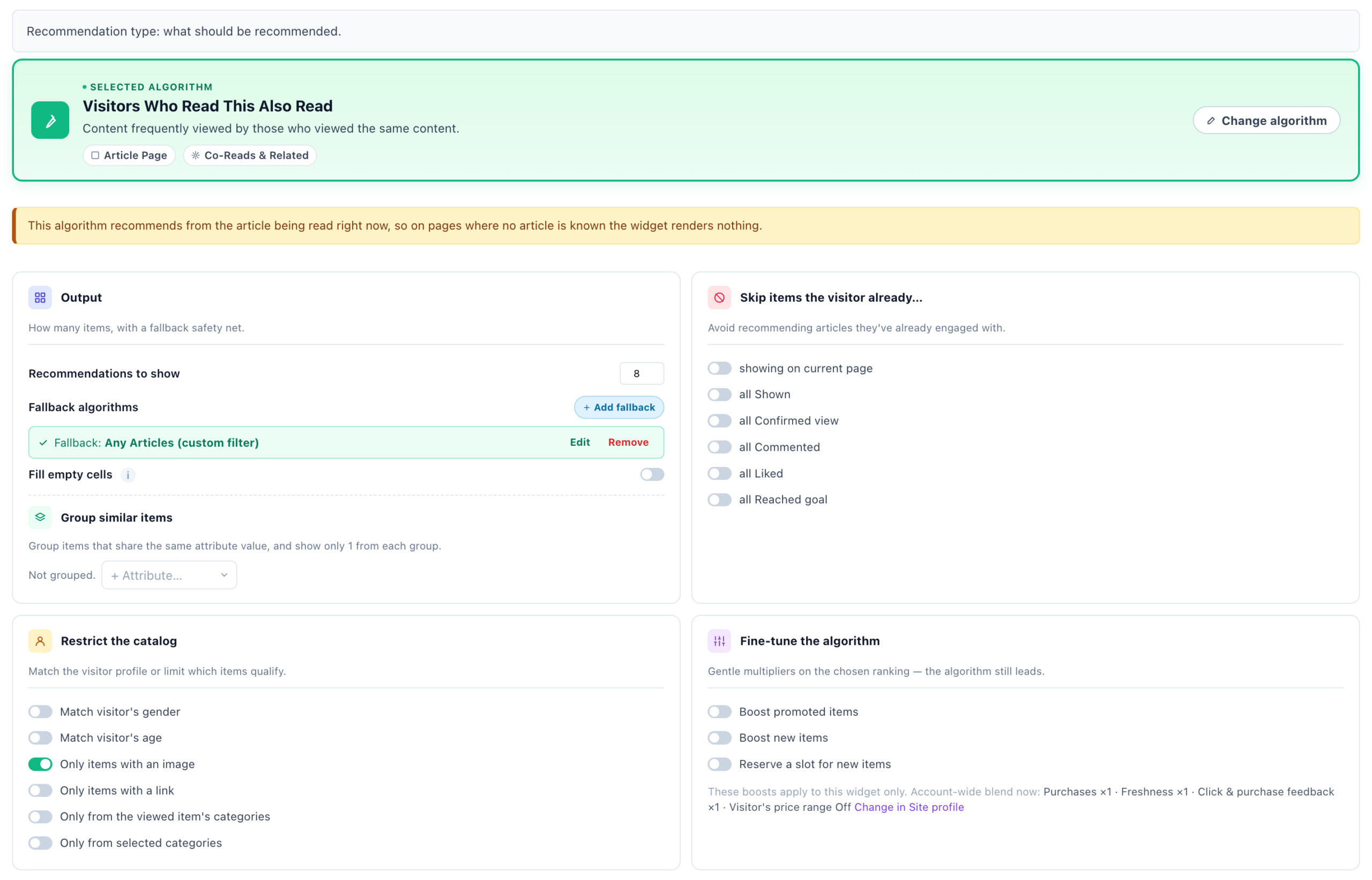
Output count, fallbacks and grouping, articles to skip, catalog restrictions, fine-tune boosts and custom filter rules — the same cards as product recommendations, with content wording.
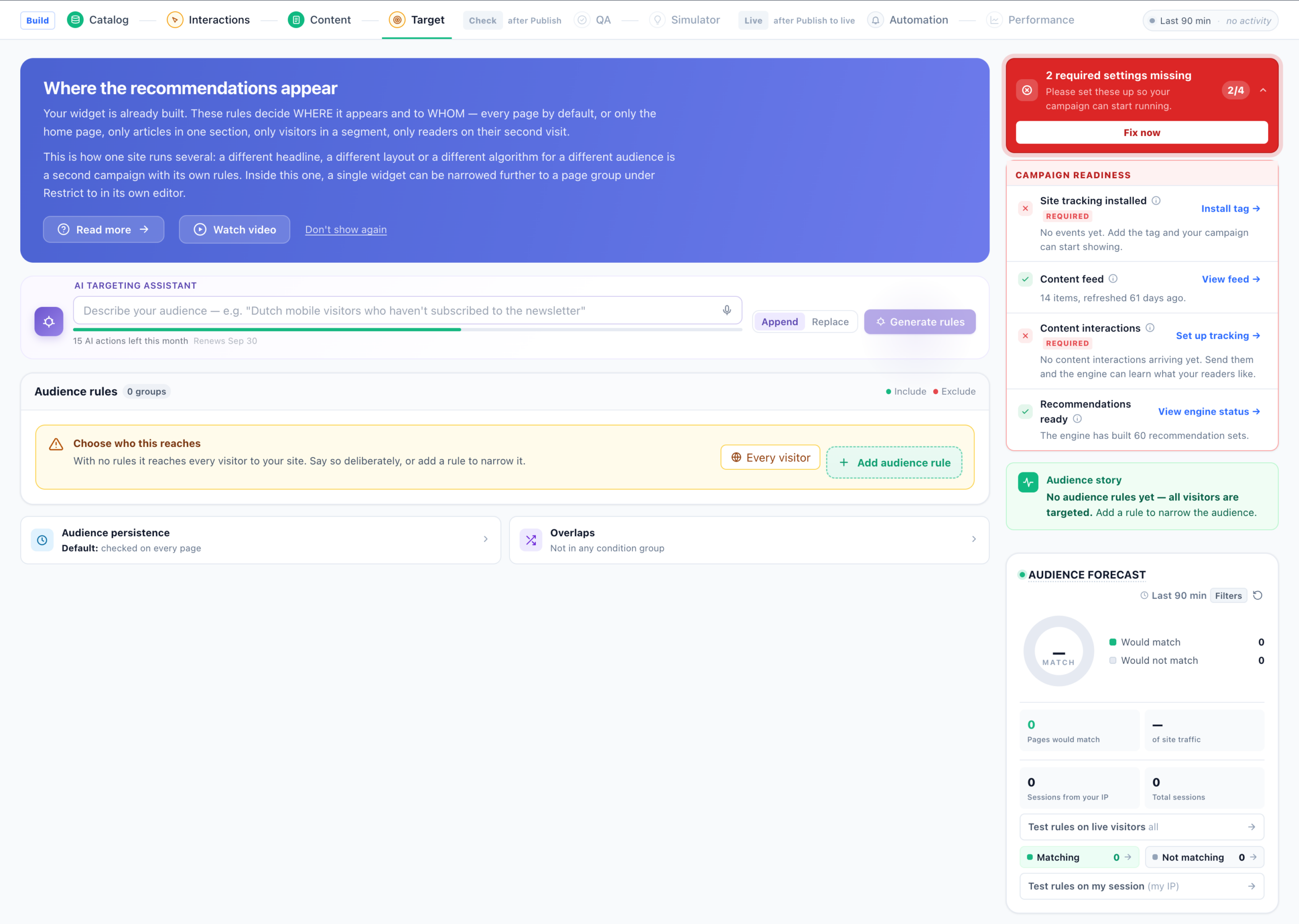
Audience rules joined with and / or / only one, each rule set to Include or Exclude, with campaign readiness and an audience forecast on the right.
Your content catalog: articles, guides, videos. The step opens on a card: how many items Personyze holds and whether a feed keeps them current. With none yet, Set up your content catalog opens a guided setup.
The step opens on what this campaign needs: Content read, with its count for the last seven days. Set up content tracking opens a guided setup; the full tracking screen — Article shown, commented, liked and reached goal — is folded underneath.
Six action types for content: the Content Recommendation Widget; the Multi-Recommendation Widget; Content Recommendations JSON Feed if you would rather render it yourself; Interest Recommender for Content; Category Recommender for Content; and Lead Form with Content Recommendations — plus the Canvas Builder, offered last.
Filter chips (Articles, Editorial, In-Article, Continue Reading, Slide-In…) narrow the list — layouts built for content rather than products.
Twenty algorithms in five groups: Personalized & Popular, Co-Reads & Related, Visitor History, Catalog Events and Custom. Filter by page first: Home Page, Category Page, Article Page or Search Page.
Output count, fallbacks and grouping, articles to skip, catalog restrictions, fine-tune boosts and custom filter rules — the same cards as product recommendations, with content wording.
Audience rules joined with and / or / only one, each rule set to Include or Exclude, with campaign readiness and an audience forecast on the right.
The steps
Eight steps, grouped by the step bar into three bands that open in turn:
- Build — Catalog, Content events, Content, Target.
- Check — QA and Simulator, labelled after Publish until you publish to staging.
- Live — Automation and Performance, labelled after Publish to live.
A closed band keeps its place in the bar and names the control that opens it. Note the order — Content comes before Target: you design the widget first, then decide who sees it.
1. Catalog — the articles to recommend from
Each item needs at least an internal id, a title and a URL, plus an image if your layout shows one. Ingest works the same four ways as the product catalog — file upload, URL feed, SFTP or the REST API; see Setting the Product / Content Feed. On WordPress, the WordPress plugin feeds your posts and pages into the catalog for you.
The step answers first, on one card: how many articles there are and what keeps them current, with Change how it arrives and View articles. Under it, What this campaign needs from it measures A picture, a title and a link and The publish date across the catalog. With no catalog yet, Set up your content catalog opens a guided setup in place: Where is your content? — A content feed, We read your site, Upload a file or Your system sends files (SFTP). Under Optional, Similar items (AI) is switched on from its row.
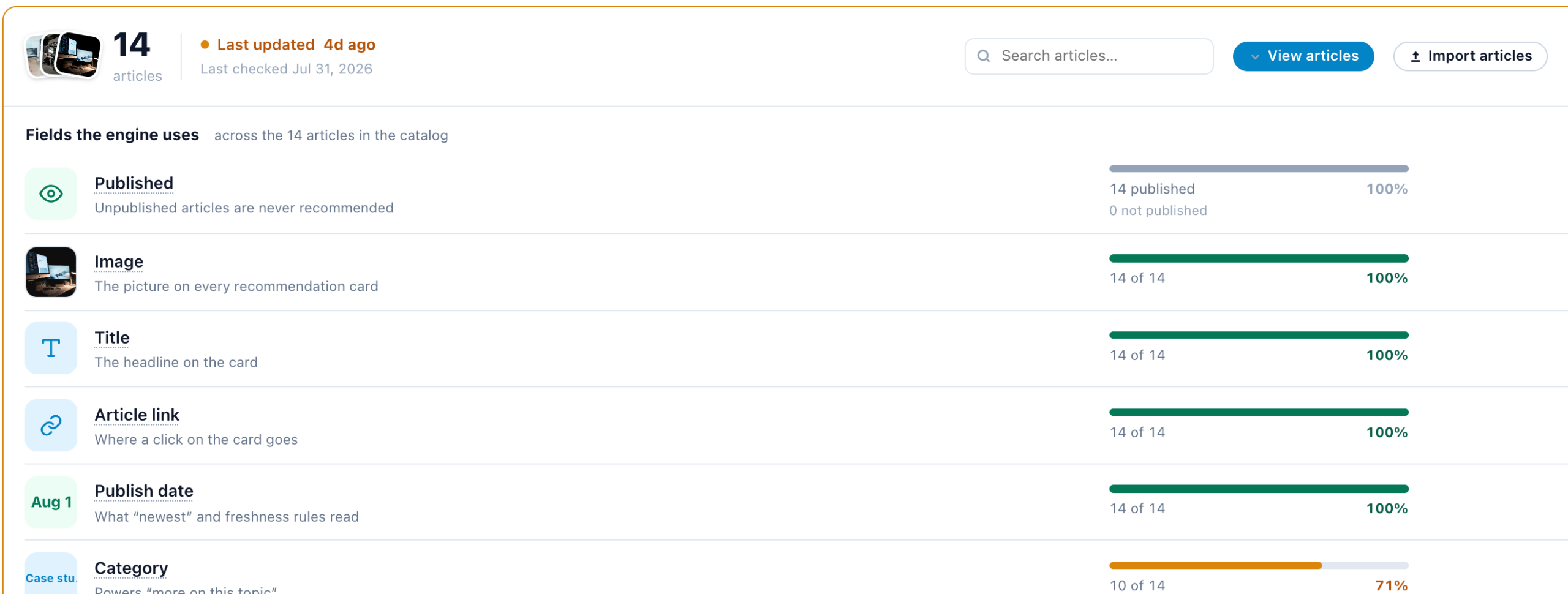
Folded under the card, Every article, feed and setting opens the full catalog screen: the size and freshness of the catalog, the health of each feed keeping it in sync, and then the part worth reading first: fields the engine uses, drawn as coverage bars across the whole catalog — Published, Image, Title, Article link, Publish date, Category and Author. Author is called out because it is what powers “more by this author”. A field at 100% is one every algorithm can rely on; a field at 40% quietly drops most of your catalog out of anything that sorts or filters on it.
Categories and tags earn their keep here. They are what allows a recommendation to follow a topic rather than fall back on raw popularity, and they power the “from current category” and “from visitor’s interests” scopes on almost every algorithm. Use is_published to withdraw a piece without deleting it.
Below that, what else the engine learns from:
- On-site behaviour — article shown, liked, read to the end. The row links to Article tracking.
- Reading history — Upload history loads past article views, so the engine starts from what your readers already read together instead of waiting weeks to learn it live. One row per view: who read, which article, and when.
- Categories and interests — they arrive with the feed and need no setup. See Interests for Recommendations.
- Similar items (AI) — computed nightly: each article paired with its most similar articles by meaning. It is what Similar Content (AI) recommends from, so fresh articles have neighbours before anyone has read them. Switch it on from the step’s Optional row, or from the catalog card’s ⋯ More options → Similar items (AI) — semantic similarity from your catalog text.
Filling the catalog from your own pages
If there is no feed to be had, the ⋯ More options menu on the catalog screen’s card (the crawl is also under Add a source › We read your site) can build one from the pages you already publish — Grab columns from site (read fields off each article page with CSS selectors), Grab interests from site (group articles into topical interests), and Crawl my site, where Personyze finds and reads the article pages itself. Every setting, and what it reads from an article page, is on Crawl Your Site.
2. Content events — what the engine learns from
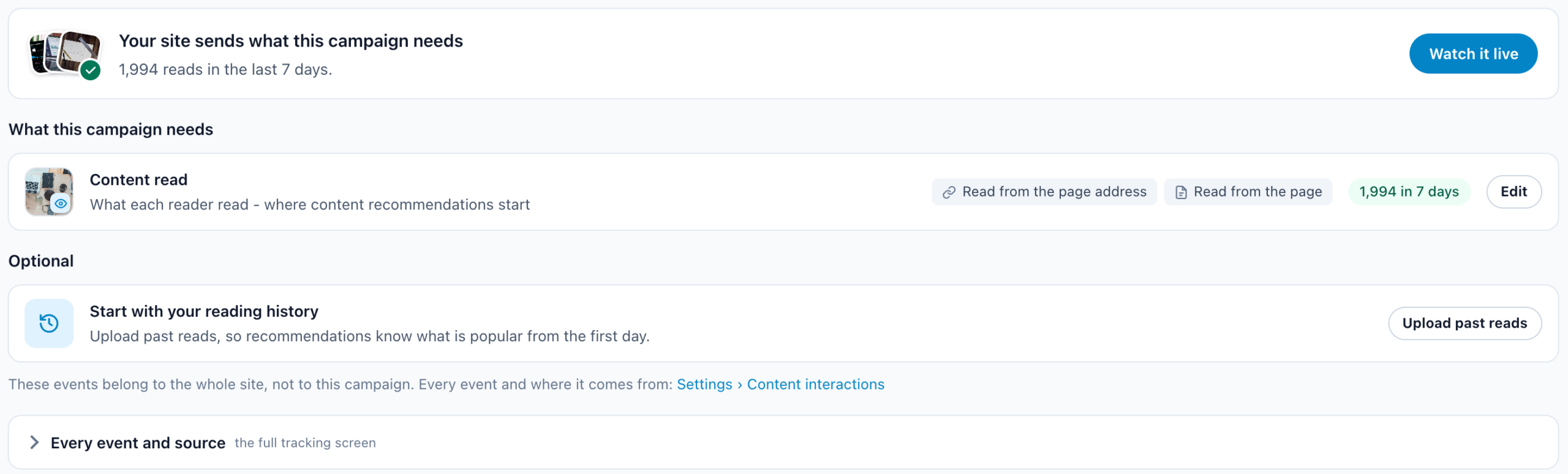
The step answers first, on one card: whether your site tells Personyze what readers read. Content read is what this campaign needs, with its count for the last 7 days. Set up content tracking opens the guided setup in place — How does your site tell us what readers do?: Read it from your pages (the article’s ID from its page address, no code) or Your developer adds it. Under Optional, Start with your reading history → Upload past reads gives the engine what is popular from the first day.
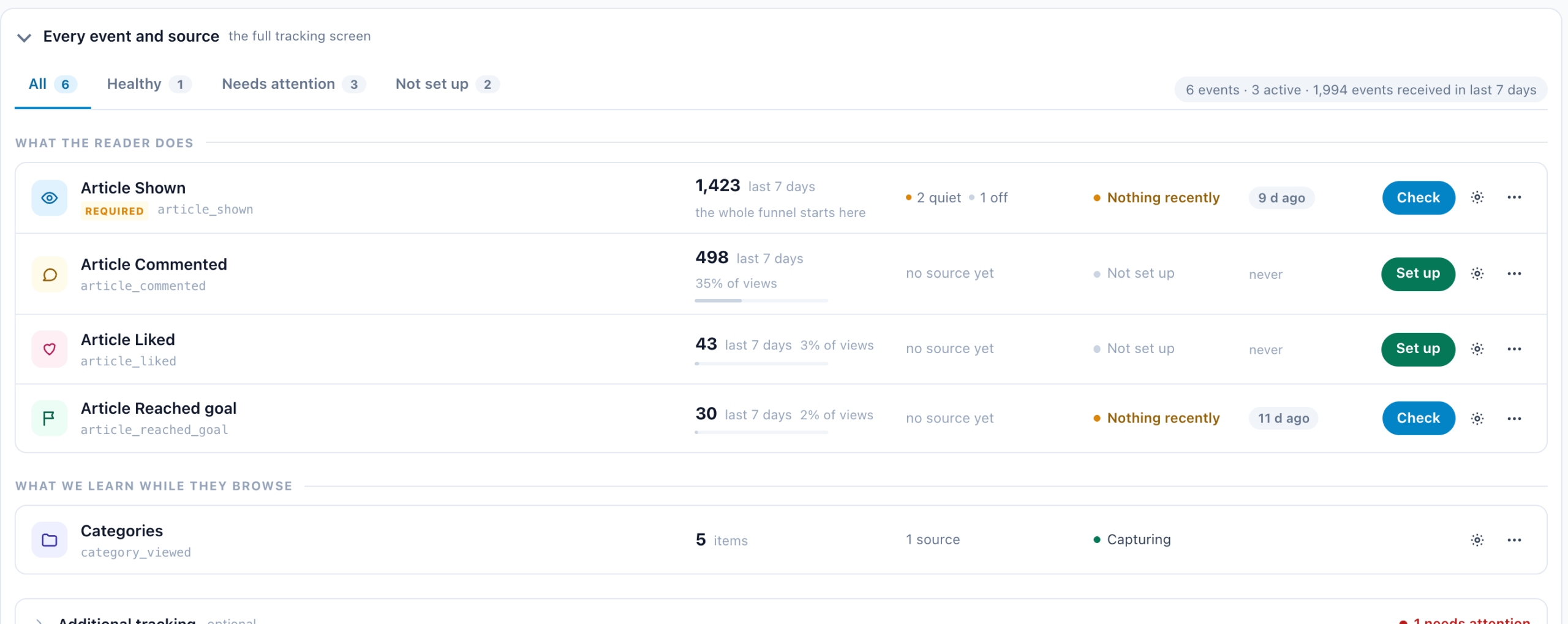
Folded under the card, Every event and source opens the full tracking screen. Content interactions are a different set from products, and it grades each one — how many arrived in the last seven days, whether it has a source configured, and whether it has ever been received. Chips for All, Healthy and Needs attention jump straight to the broken ones.
- Article shown — marked required. The whole funnel starts here.
- Article commented — the engagement signal for editorial content.
- Article liked — saved or favourited.
- Article reached goal — whatever counts as success for that piece: a signup, a download, a click through to a product.
Beneath them, what we learn while they browse — the categories being viewed — and what this data feeds: the recommendation sets and the trending report, both of which cover the whole account rather than this campaign.
These feed interest inference, which is what makes recommendations follow a reader across your site and, if you use the SDK, into your app.
The empty state matters, and nothing warns you at publish time. With no interactions the widget still renders — it just serves the same generic list to everyone, because there is no reading history to personalize against. An event that says Never received or Not set up is the thing to fix before publishing; at minimum confirm Article shown is arriving.
3. Content — the widget itself
An empty campaign’s Content step asks What should it show? and draws its widgets as pictures, each opening its gallery; later, Add action opens the same picker. A Content Recommendations campaign offers six actions built on the article catalog, with the Canvas Builder listed last:
| Action | What it is |
|---|---|
| Content Recommendation Widget | The on-page widget this article is about. |
| Multi-Recommendation Widget | Several recommendations in one widget, as tabs or sections — articles, an AI Promotion or a banner in each. See Multi-Recommendation Widget. |
| Content Recommendations JSON Feed | The same engine, handed to your own code as JSON. See JSON API — Content Recommendations. |
| Interest Recommender for Content | Recommends interests — topics — based on article views, rather than single articles. |
| Category Recommender for Content | Recommends a content category to read next. This and the Interest Recommender are covered in Category & Interest Recommenders. |
| Lead Form with Content Recommendations | Content recommendations shown alongside a form that captures emails or subscriptions. |
| Canvas Builder | A free-form design — popup, banner or inline block — built from elements, one of which is recommendations. See Canvas Builder. |
Pick an action type and you land in the template chooser: copy from an action you already built, or pick a ready-made template.
Filter chips narrow the list — Articles, Editorial, In-Article, List, Grid, Slider, Continue Reading, Slide-In and more. Some patterns exist only for content — for example Article Paging shows the two newest side by side, or steps through up to eight one at a time with arrows and a counter.
Choosing an algorithm
On a new widget the editor opens on the picker: pick the page first, then the algorithm. The pages are All pages, Home Page, Category Page, Article Page, Search Page; pick one and only the algorithms that suit it stay in the grid. The picker’s note says why the page comes first: Page choice changes how the algorithm works, not just where it shows. Behavioral algorithms use a different anchor per page — the current article on an Article page, all recently-read items on Home.
The Type tabs narrow by group, Has data shows only algorithms that already have data for this account, and each card carries an estimate of how many articles it could recommend at the last recommendation build.
The algorithms
Twenty algorithms in five groups. Expand a group to see what is in it; Recommendation Algorithms explains what each one picks, the controls each card carries, and when to use it.
Personalized & Popular — 7 algorithms
Best when the visitor’s intent isn’t yet clear. Good defaults for homepage and category pages.
| Content Recommended for You | Articles the visitor is likely to view or comment on, based on similar visitors’ behavior plus demographics. |
| Content Recommended for You — Published Since Last Visit | Articles published after the visitor’s last session, likely to be read based on similar visitors’ demographics. |
| Most Popular | The most viewed articles in the chosen period. |
| Trending Now | Reads spiking above their weekly average. |
| Most Liked Content (favorite or wishlist) | Articles most often liked or saved. |
| Most Commented | The most commented articles in the chosen period. |
| Inspired by Reached Goals | What people who reached the same goals went on to read — not the visitor’s own goal articles (that is Reached Goal). |
Co-Reads & Related — 6 algorithms
Anchored to the article the visitor is reading, or the article they last clicked. Best for Article pages.
| Visitors Who Read This Also Read | Content frequently viewed by those who viewed the same content. |
| Visitors Who Read This Also Read — From Current Category | Content frequently viewed by those who read articles from within the same interest or category. |
| What Readers Went On to Convert On | Content that readers of the same articles later reached a goal on. |
| More From This Topic | Articles that share the anchor article’s interests. |
| Similar Content (AI) | Semantically similar articles, learned by AI from titles, topics, authors and descriptions. Works from day one for fresh content. |
| Managed Related Articles | Article pairs you upload yourself — Personyze does not learn these. |
Visitor History — 5 algorithms
Surfaces things this specific visitor has touched before. Best for returning visitors.
| Reached Goal | Articles marked “reached goal” by the current visitor. |
| Matches Their Search | Articles matching this visitor’s last search. |
| Recently Viewed | Articles this visitor viewed recently. |
| You Commented | Articles the visitor commented on. |
| Content You Liked | Articles this visitor liked or saved. |
Catalog Events — 1 algorithm
Triggered by changes in your article catalog — newly published items. A strong hook for return-visitor homepages.
| Recently Published | Articles added after the visitor’s last visit. |
Custom — 1 algorithm
When you want full control — define your own filter, Personyze ranks within it.
| Any Articles (custom filter) | Your own filter rules; Personyze ranks within the result set. |
Many cards also take a Period (Recently, Today, In last 2 days, In last 4 days, In last week, In all time) and a scope of their own.
Inside the action editor
The editor has the same three sub-steps as product recommendations — Select Recommendation Algorithm, Customize Look & Feel, Placement, Trigger & Frequency — and the same cards under the selected algorithm, covered in detail on the Product Recommendations Wizard. What is different for content:
- Output — Fill empty cells is off by default, exactly as for products: only what the algorithm returned is shown, and an empty result leaves the block empty. Add a fallback algorithm (Add fallback) for the readers the first choice has nothing for. See Setting Recommendation Fallbacks.
- Skip items the visitor already… — showing on current page, all Shown, all Confirmed view, all Commented, all Liked, all Reached goal.
- Restrict the catalog — no discount or price toggles: Match visitor’s gender, Match visitor’s age, Only items with an image, Only items with a link, the two category filters (Only from the viewed item’s categories, Only from the category on this page) where the page reports one, and Only from selected categories.
- Fine-tune the algorithm — Boost promoted items takes the place of profit margin: it reads the catalog’s rank field (0–1), so populate it on the articles you want pushed. Boost new items and Reserve a slot for new items work as for products.
- Custom filter rules — any article field or a geo location. See Setting Filters on Recommendations.
Anchored algorithms gate themselves
Some content algorithms recommend from something that just happened — the article being read, the article just commented on, or the visitor’s last search. Pick one and a strip under the selected algorithm says so, for example: “This algorithm recommends from the article being read right now, so on pages where no article is known the widget renders nothing.”
On an on-site widget the editor then handles it for you, binding the widget to a shared page group it creates the first time one is needed and every widget on the account reuses:
| Page group | Bound when the algorithm recommends from |
|---|---|
| Article viewed on this page | the article being read |
| Article commented on this page | the article just commented on |
| Searched on this site | the visitor’s last search |
The group appears on the Placement, Trigger & Frequency sub-step, under Where it is allowed to run → Limit to pages / devices, with a note beside it: “Set automatically: the algorithm recommends from the article view that just happened, so the widget only runs on pages where that view exists. Pick another group, or “All pages” to run it everywhere — where there is nothing to recommend from, only its fallbacks fill it.”
- The binding follows the algorithm. Switch between an article-view and a comment anchor and the group switches with it; pick an algorithm with no anchor and the editor clears the group it set.
- It never replaces a group you chose. If the widget already has your own page group, the editor leaves it alone and the note suggests adding a Content interaction rule to that group instead.
- “All pages” stays. Choose it to run the widget everywhere and let its fallbacks fill the pages without the event. The editor binds again only if you move to a different anchor.
- Algorithms anchored to a reached goal are not gated — a goal the reader already reached is history, not an event on this page.
- A widget in an email does not run on a page, so it shows the strip but binds no group.
4. Target — who sees it
With no rules the widget reaches every visitor, which is often right for a content rail. Narrow it by new versus returning readers, by the category they are reading, or by an imported audience.
5. QA — preview it before anyone sees it
The step opens with a campaign summary in plain words — who it targets, how many actions it presents and where each one goes — then offers three ways to look at it, labelled so they cannot be confused:
- On your site (real test) — real rules, real you, with a bar on the page saying what ran and why. The only mode that is evidence.
- On your site, forced (not a test) — rules ignored, content shown regardless. Good for checking the design.
- In the Simulator (sandbox) — a made-up visitor whose attributes, audiences and history you can edit.
Each can be opened on your machine, copied as a link or emailed. Beside them, the audience forecast and the overlaps with your other live campaigns. All of these numbers come from recent preview and staging sessions, not from live traffic.
The content-specific check: does the widget come back populated, and with sensible items? An empty widget points at the catalog or the interactions rather than at your targeting.
6. Simulator — run the algorithm on one reader
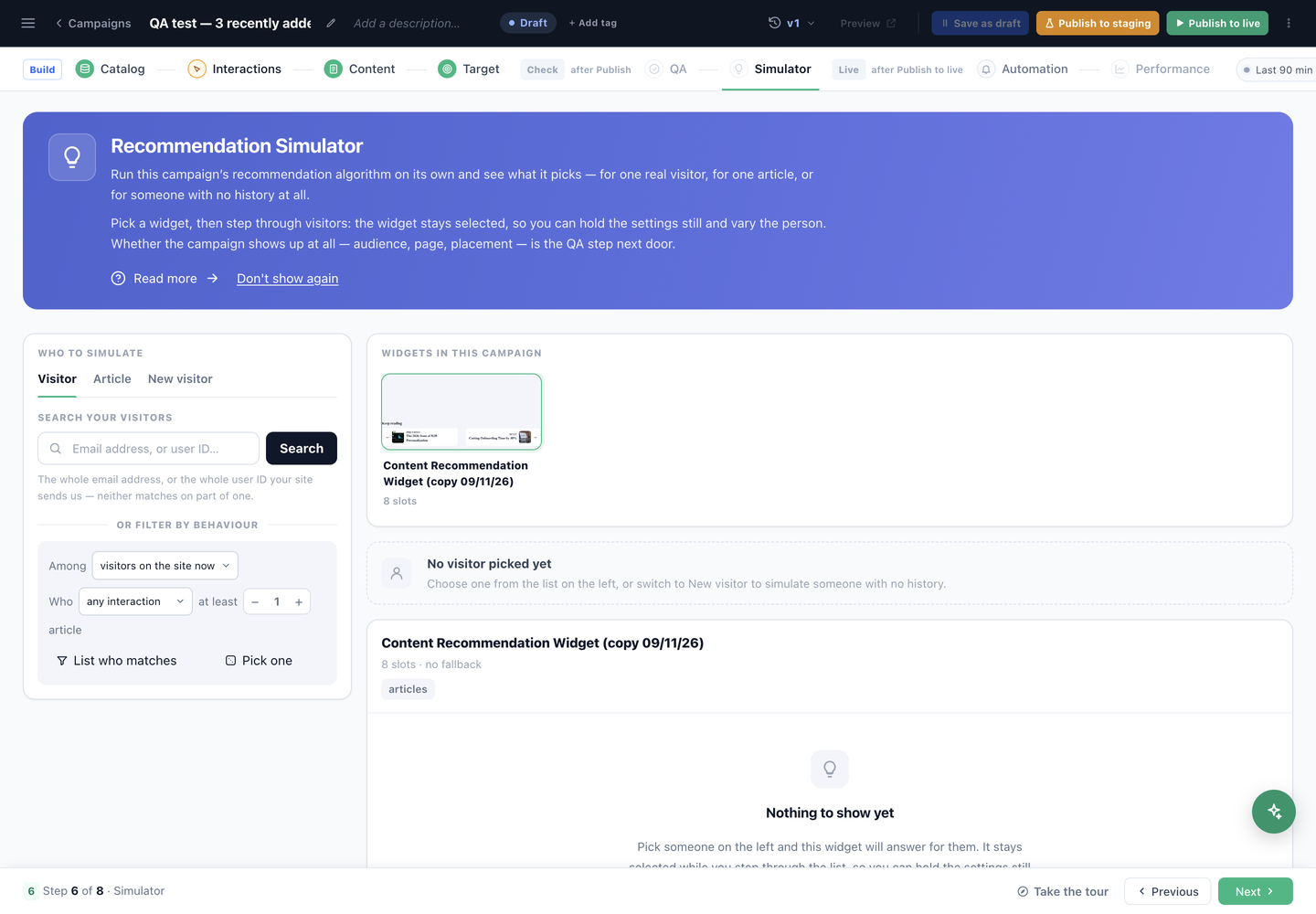
The QA step asks whether the campaign shows up; the Simulator asks what it would recommend. It runs this campaign’s algorithm on its own, with no page and no targeting involved.
Pick a widget, then choose who to simulate: a real visitor (searched by whole email address or whole user ID, or filtered by behaviour), one article — what the engine would put beside that piece — or a new visitor with no history at all.
That last one is the important test for content. Most recommendation setups look fine for a reader with history and serve nothing to a first-time visitor; if New visitor comes back empty, your widget has no fallback.
A Multi-Recommendation Widget is one card here, with its strip of tab names and how many of its tabs show items. Its product and article tabs run like any widget; a promotion or a banner tab says the Simulator covers recommendation tabs only — check it with Preview as instead.
7. Automation — start and stop by rule
Rules that start or stop the campaign on a date, or on measured campaign or site performance. Nothing is on unless you add it, and measured rules are checked once a day against completed days.
8. Performance — once it is live
Impressions, engagement and attributed goals. Reporting can run from the campaign start or from the last edit.
Two clocks apply, as with every campaign: Live Visits shows matching sessions within seconds and is where you confirm a new campaign is working, while the Performance step only fills in after sessions end — about an hour after the first one closes, and 1–3 hours to settle.
Reading the numbers: Content recommendations on the Performance Metrics page explains every figure on this screen and how to read it.
Across all your widgets, Analytics → Content analytics has four reports: Trending Report, Recommendations, Recommended Items and Recommendation Sets — each explained under Content recommendations.
What Performance looks like with data
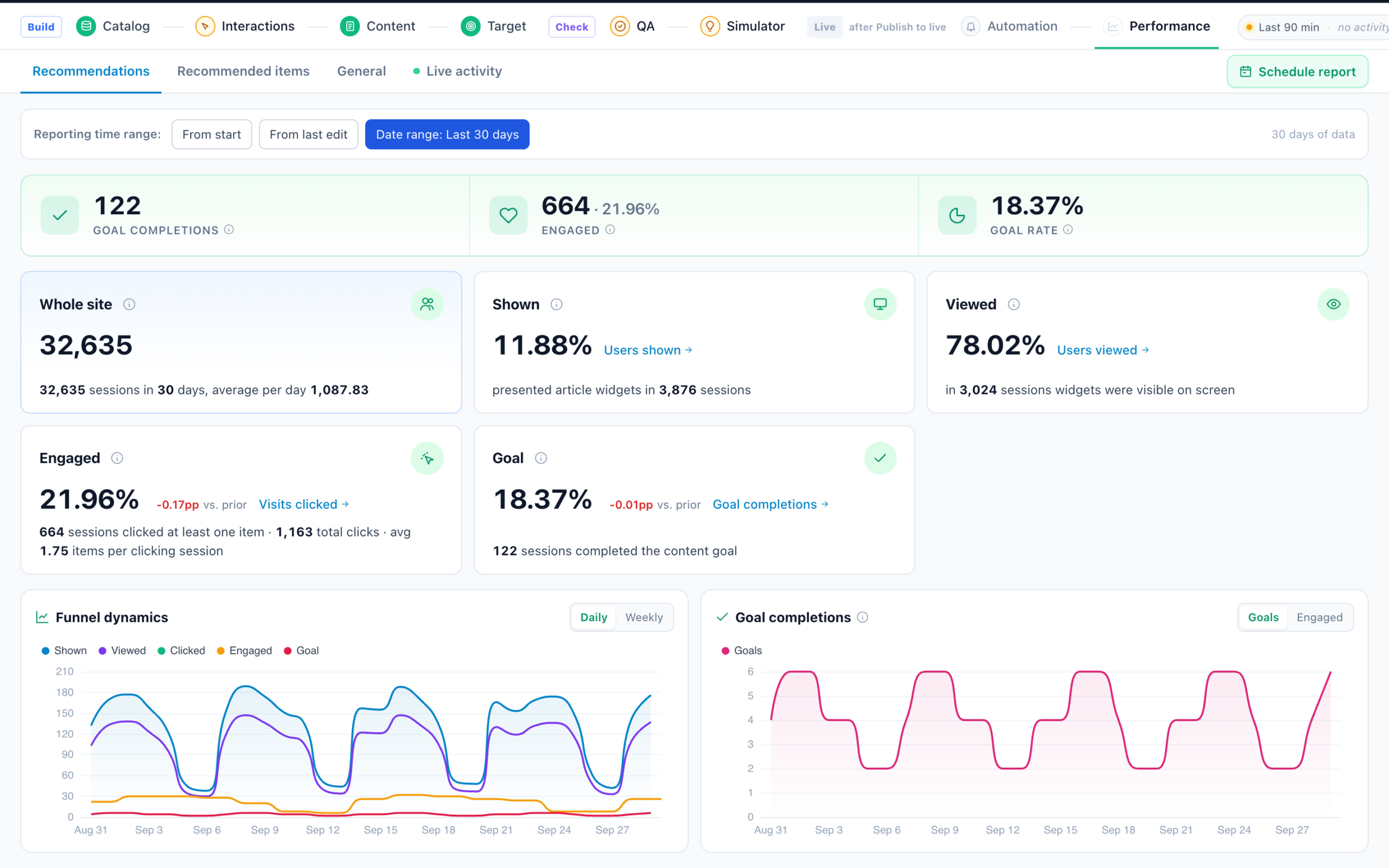
For content, the Performance step trades transactions for engagement: goal completions, engaged readers (comments / likes), the goal rate, and the Shown → Viewed funnel over the whole site’s sessions.
Related
- Recommendations — Where to Start — the whole section in order.
- Recommendation Algorithms — what each algorithm picks.
- Multi-Recommendation Widget — several recommendations in tabs or sections.
- Setting Filters and Setting Fallbacks.
- Product Recommendations Wizard — the same flow for products, with the action editor documented in full.
- JSON API — Content Recommendations — raw JSON instead of a rendered widget.
- Content recommendations in 3rd-party emails and in mobile apps.
- Articles object in the REST API.