
The Partner portal is where a Personyze partner works with us. An agency gets certified in its specialties there, keeps the profile customers see, gets its badge, and answers the customers who ask it for help. Agencies and referral partners alike follow the customers they brought to Personyze, the commission they earn on them, and their monthly payouts.
Who has a portal, and how to open it
Every approved partner has one: an agency (a Certified Expert, a Master Expert or an Experienced Partner) and a referral partner.
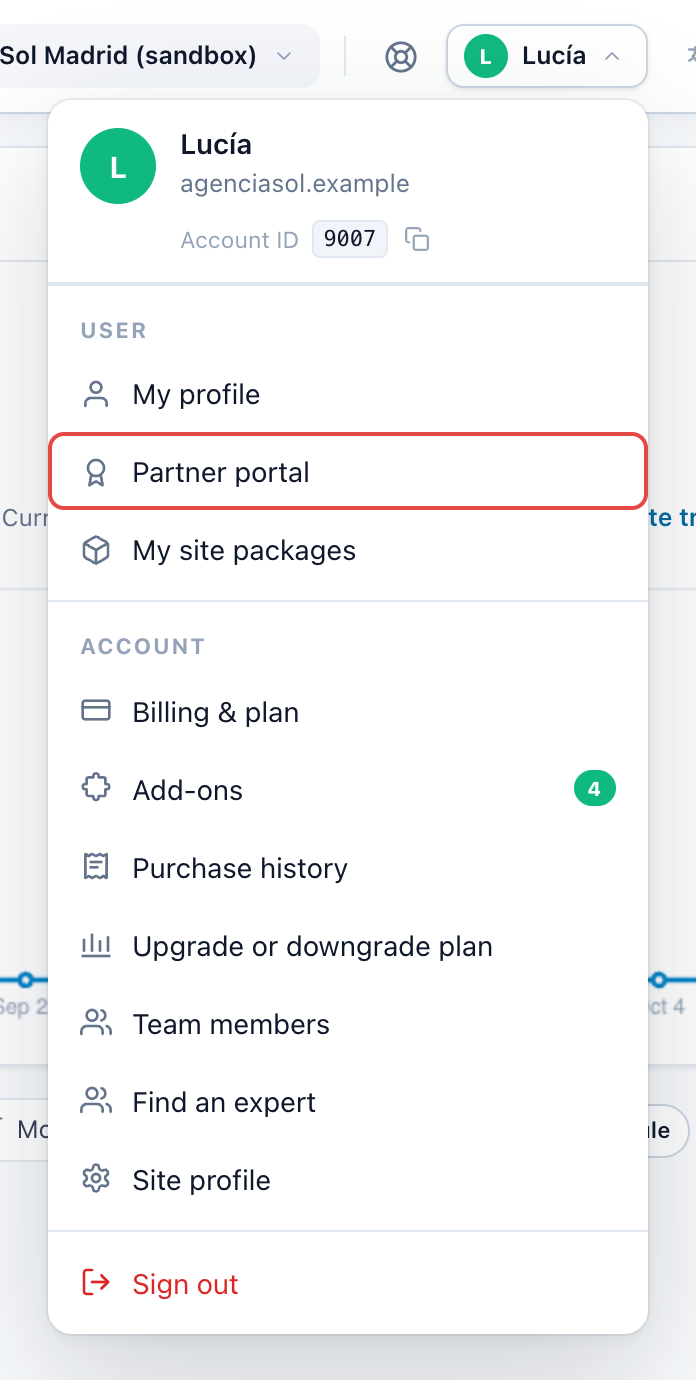
- To open it: the account menu (your name, top right of the panel) › Partner portal. The row shows only for a user who belongs to a partner. The portal is yours, not the site’s, so it is the same whichever site you have open.
- More than one partner: if you belong to several, pick one at the top right of the portal.
- Not approved yet: while your application is in review, the portal shows one sentence: “Your application is being reviewed. We reply within two business days.” A declined application or a suspended partner also sees one sentence, saying so.
The header
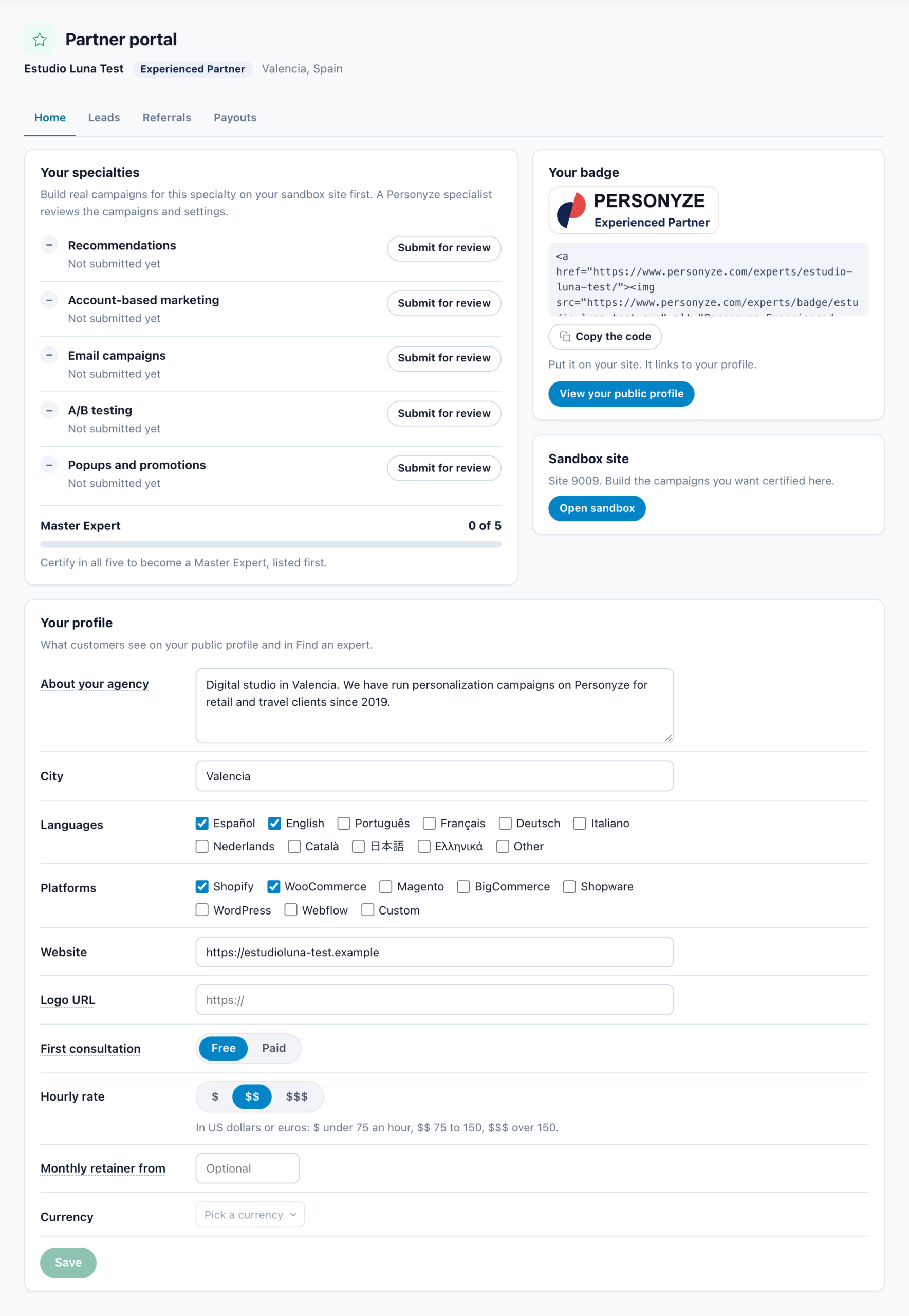
Under the title: your partner name, your level, and your city and country. The level is one of:
| Level | Shown in | Means |
|---|---|---|
| ✓ Certified Expert | Green | At least one specialty is certified. |
| ★ Master Expert | Amber | All five specialties are certified. |
| Experienced Partner | Navy | An agency that has worked with Personyze before, listed before it certifies anything. |
A referral partner’s header shows no level, and neither does an agency with nothing certified yet, unless it is an Experienced Partner.
The tabs
| Partner | Tabs |
|---|---|
| An agency: a Certified Expert, a Master Expert, an Experienced Partner, or one not certified yet | Home · Leads · Referrals · Payouts |
| A referral partner (one that applied at Refer and earn) | Referrals · Payouts. The portal opens on Referrals. |
Home: four cards (agencies)
An agency’s portal opens on Home:
| Card | What it is for |
|---|---|
| Your specialties | The five specialties you can be certified in, where each one stands, and how far you are from Master Expert. See Getting certified. |
| Your badge | The badge for your own website, its code, and View your public profile. See The Personyze Partner Badge. |
| Sandbox site | A free Personyze site of your own, to build the campaigns you want certified. See Sandbox site. |
| Your profile | What customers see on your public profile and in Find an expert. See Your profile. |
Your specialties: getting certified
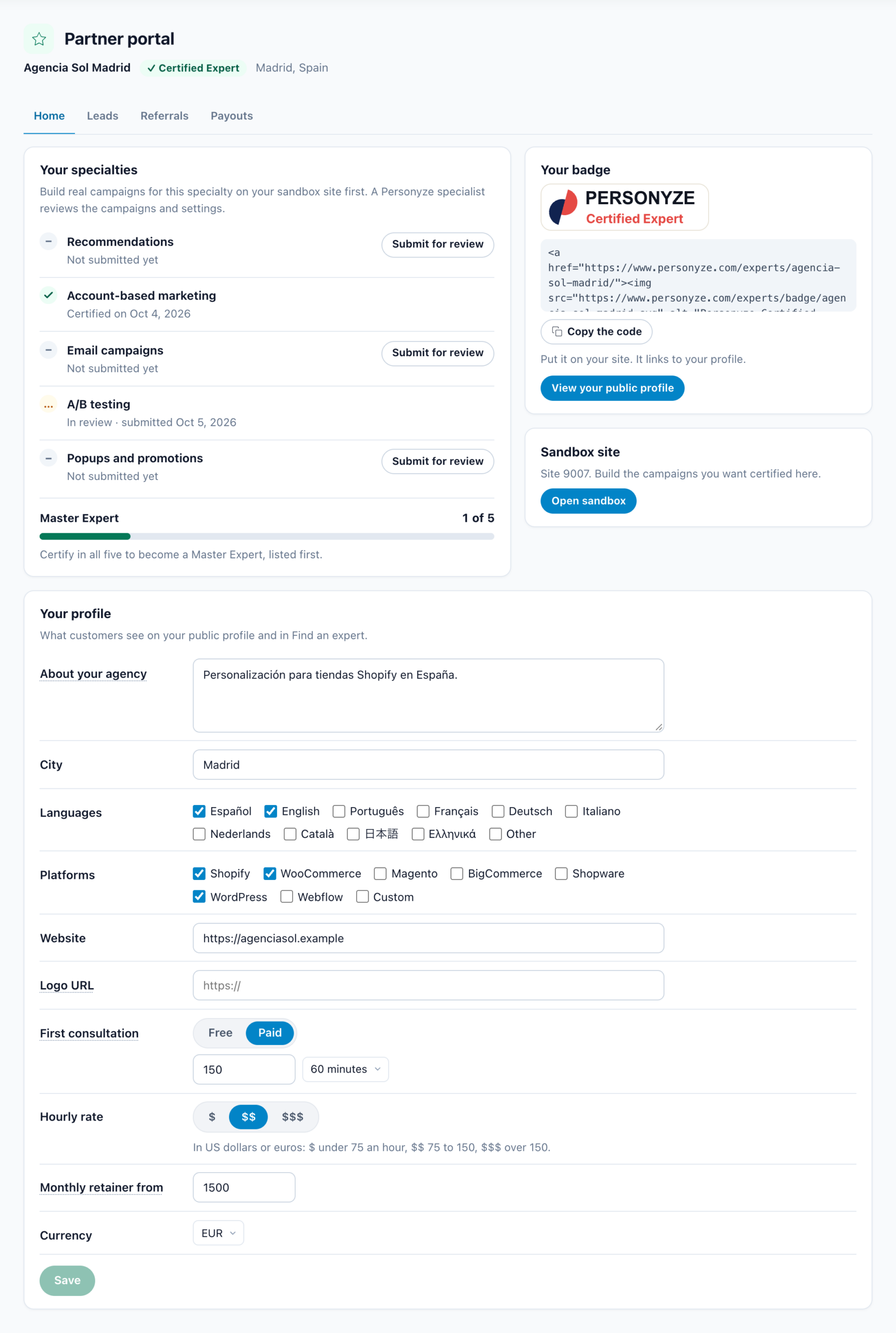
There are five specialties: Recommendations, Account-based marketing, Email campaigns, A/B testing and Popups and promotions. The card says how certification works: “Build real campaigns for this specialty on your sandbox site first. A Personyze specialist reviews the campaigns and settings.”
- Build the campaigns on your sandbox site.
- Click Submit for review beside the specialty. A box opens: Show us the use case for this badge. Write which campaigns to open (on your sandbox, or on a client site with its address), what each one is for, and why you built it that way. The text must be 80 to 4,000 characters.
- Click Submit for review under the box. A Personyze specialist reviews the campaigns, and we email you the decision.
The line under each specialty says where it stands:
| Status | What it means |
|---|---|
| “Not submitted yet” | Nothing sent. Submit for review is beside it. |
| “In review · submitted <date>” | A specialist is reviewing it. |
| “Certified on <date>” | Certified. Your public profile lists it. |
| “Changes requested” | The reviewer’s note is under it. Change the campaigns, then submit it again: the box opens on what you sent. |
| “Certification withdrawn” | Personyze withdrew the certification; the note under it says why. It can be submitted again. |
The Master Expert bar counts your certified specialties, “1 of 5” and so on, and says: “Certify in all five to become a Master Expert, listed first.” At five it reads “You are a Master Expert, listed first.” — first in the expert directory, with the Master Expert badge.
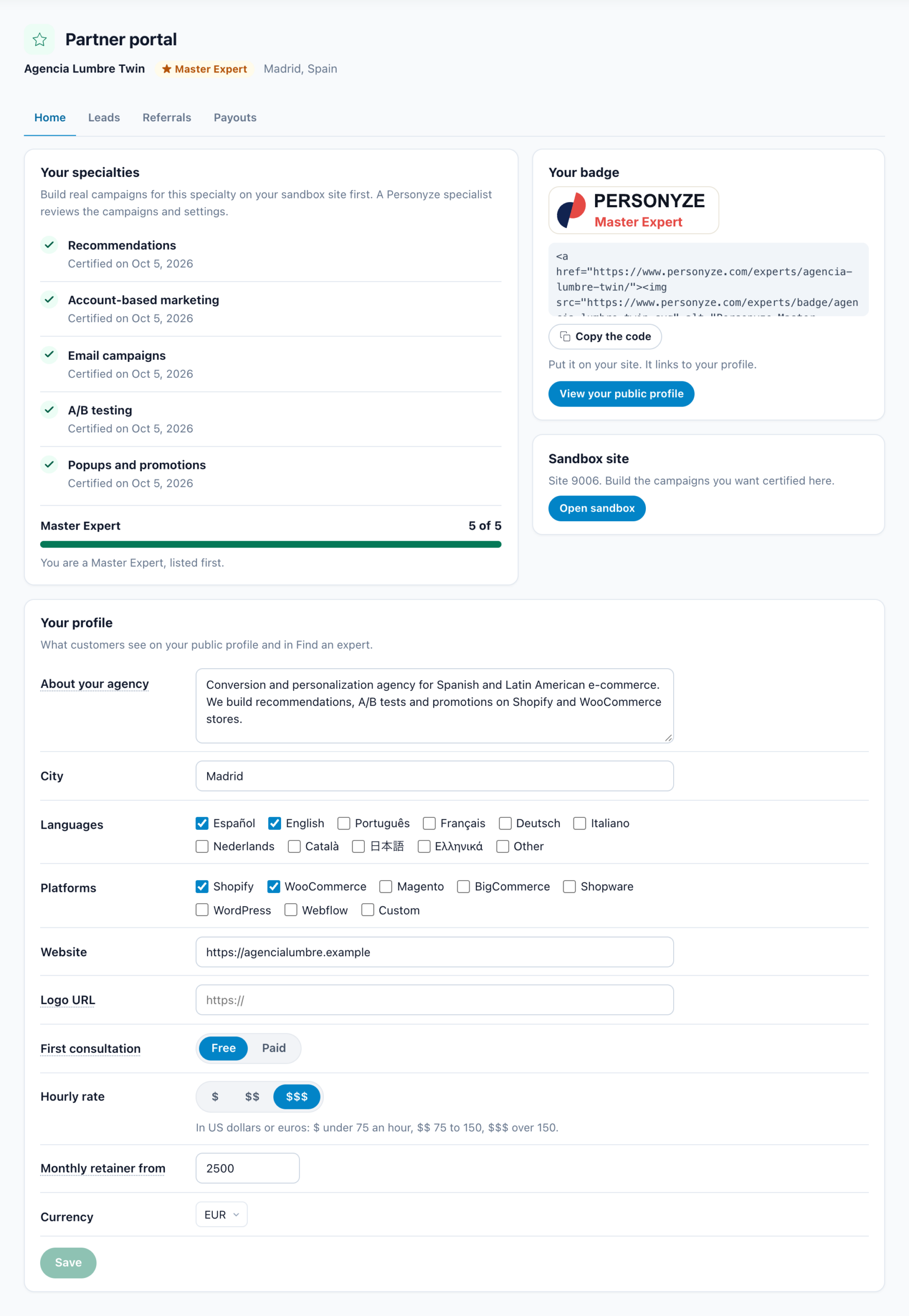
Sandbox site
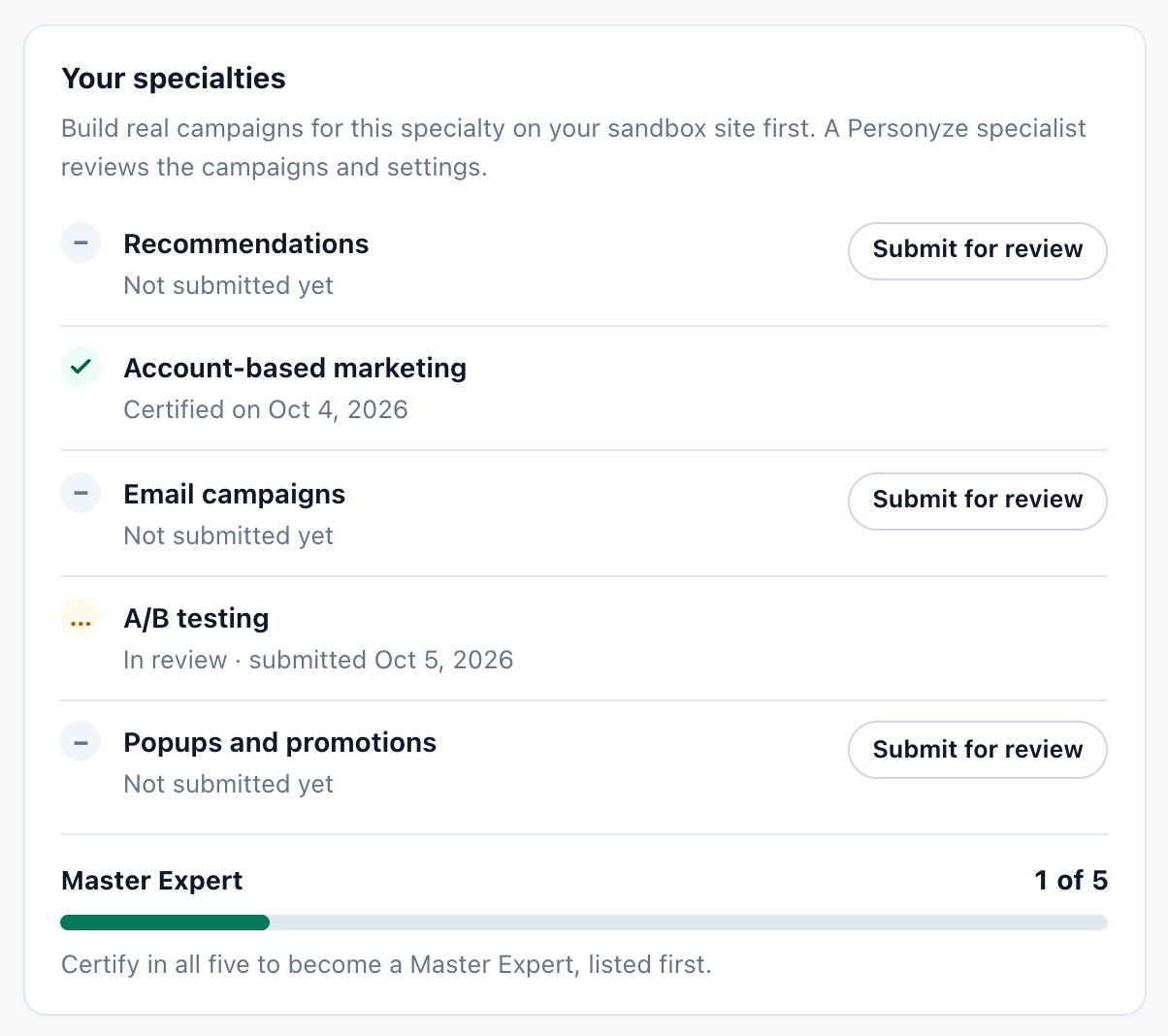
A free Personyze site of your own. The card gives its site number and says “Build the campaigns you want certified here.” Open sandbox opens it in the panel.
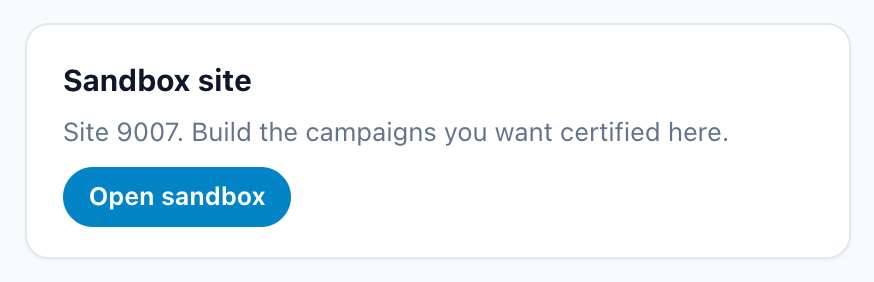
Your profile
“What customers see on your public profile and in Find an expert.” The fields:
| Field | What goes in it |
|---|---|
| About your agency | Who you work with, what you do for them, and why they should choose you. |
| City | Where you are based. |
| Languages | The languages you work in. |
| Platforms | Shopify, WooCommerce, Magento, BigCommerce, Shopware, WordPress, Webflow, Custom. |
| Website | Your agency’s site. |
| Logo URL | The https:// address of your logo image. A square logo looks best. |
| First consultation | Free or Paid. A paid one has a price and a length. |
| Hourly rate | $, $$ or $$$: “In US dollars or euros: $ under 75 an hour, $$ 75 to 150, $$$ over 150.” |
| Monthly retainer from | The least a customer pays you each month for ongoing work. Leave it empty if you do not offer a retainer. |
| Currency | The currency of your prices. |
Then click Save. Your public profile shows what you saved.
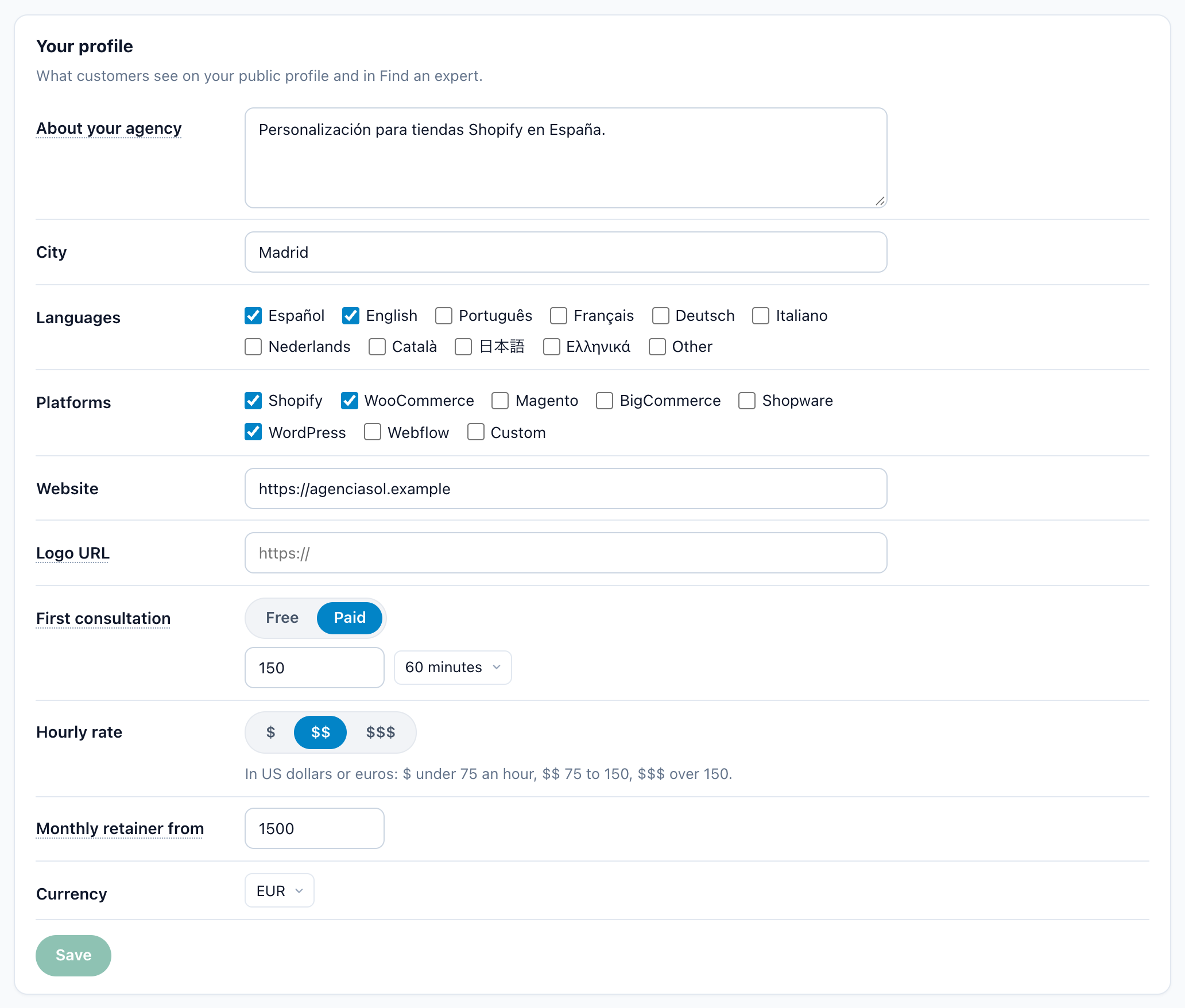
Leads (agencies)
“Customers who picked you in Find an expert. Please answer within two business days.” Find an expert is the panel’s directory of experts, in the account menu, where a Personyze customer asks an expert for help. We also email you each request.
- The columns: Customer, Language, What they need, Received, Status.
- A new request has two buttons: Accept and Decline.
- Once you accept, the customer’s contact name and email appear, with a Became a client button. After you click it, the row reads “Your client”.
Referrals
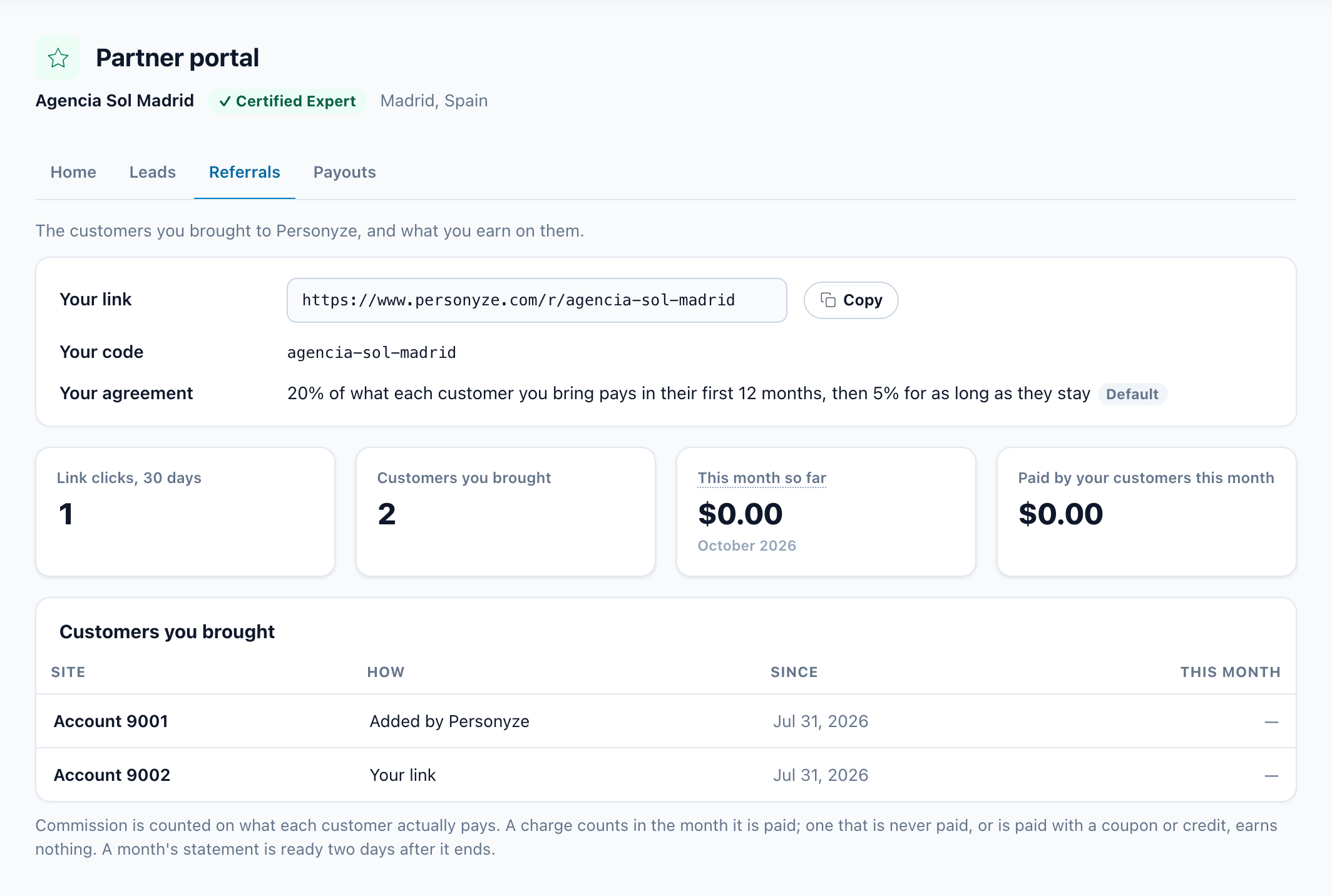
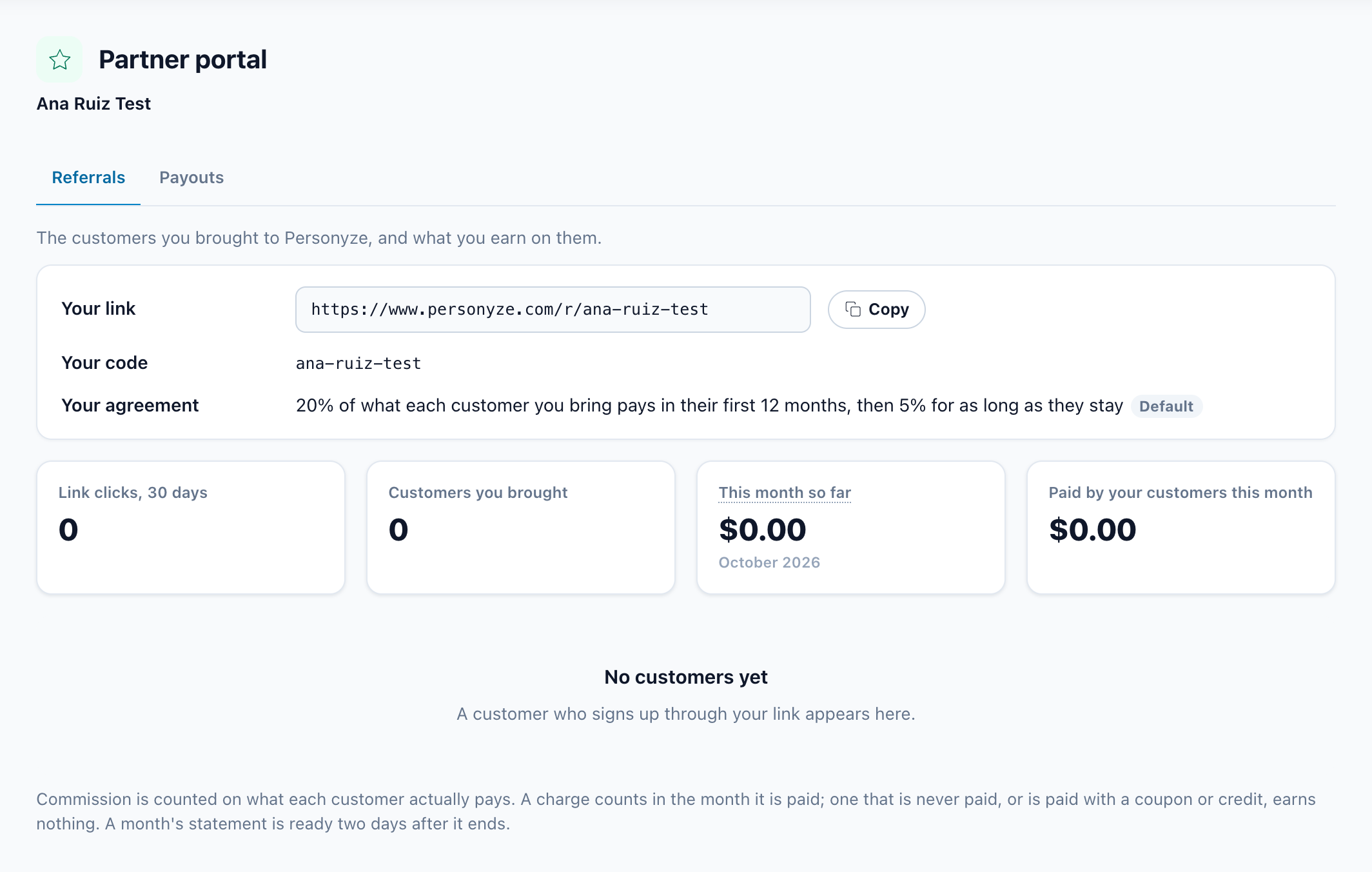
“The customers you brought to Personyze, and what you earn on them.” Agencies and referral partners see the same tab.
| Row | What it shows |
|---|---|
| Your link | https://www.personyze.com/r/<code>, with a Copy button. A customer who signs up through it is credited to you. |
| Your code | The code in your link. |
| Your agreement | By default, “20% of what each customer you bring pays in their first 12 months, then 5% for as long as they stay”, tagged Default. When Personyze agreed different terms with you, the tag reads Custom and the sentence shows your terms. |
Four figures: Link clicks, 30 days; Customers you brought; This month so far, your commission on what your customers paid this month, so far; and Paid by your customers this month.
Customers you brought: a table of Site, How (“Your link” or “Added by Personyze”), Since and This month. With none yet, it reads “No customers yet. A customer who signs up through your link appears here.”
Payouts
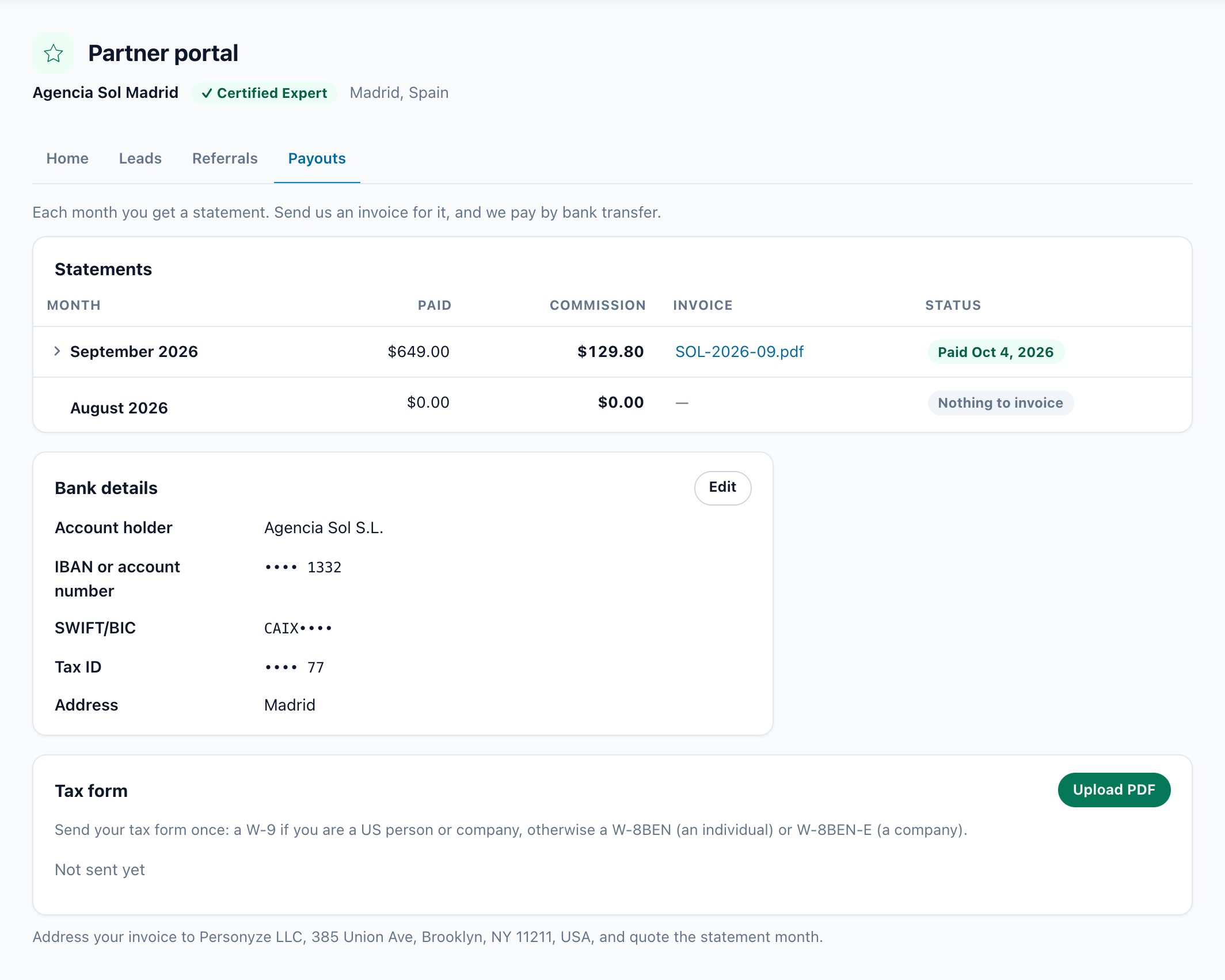
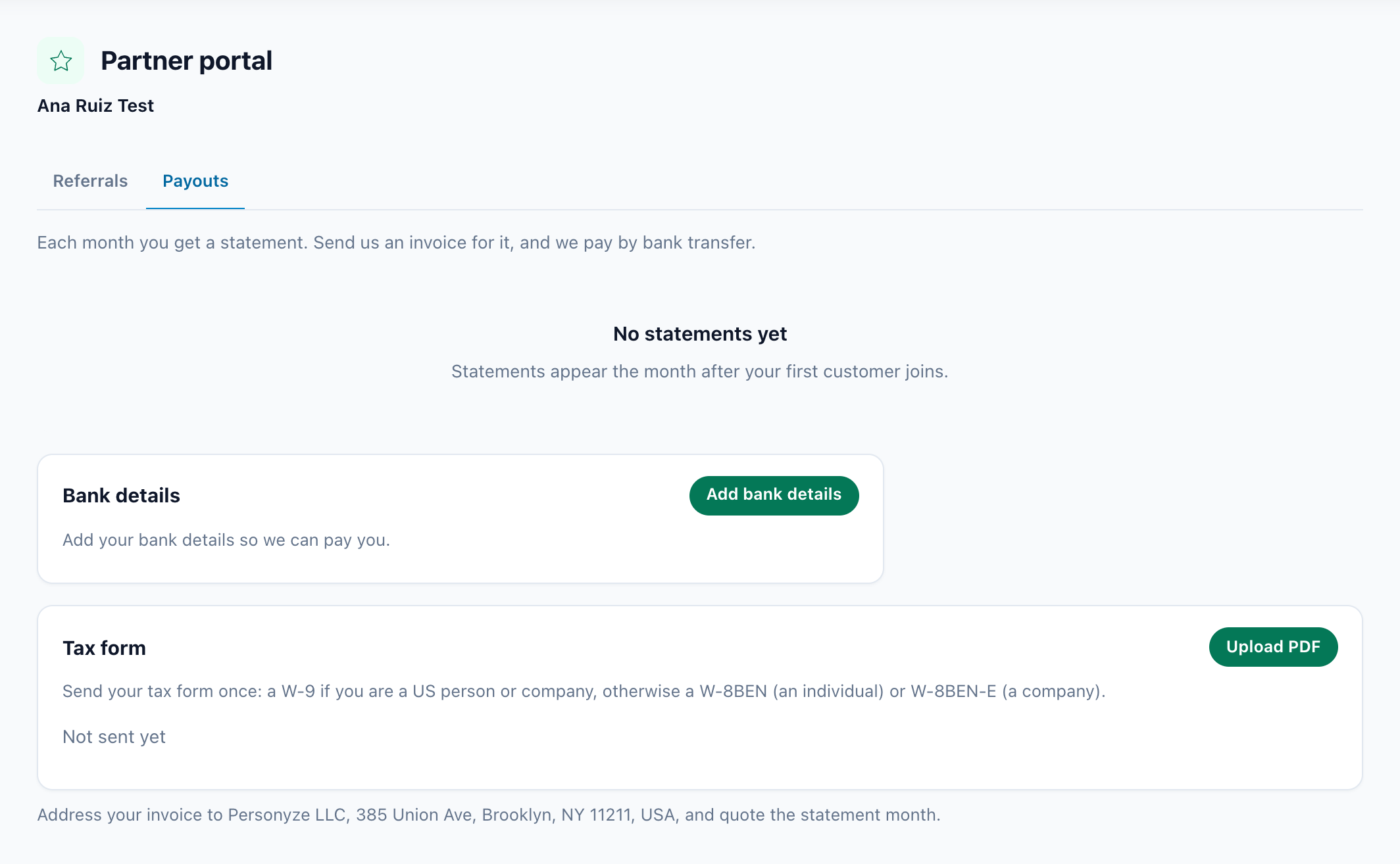
“Each month you get a statement. Send us an invoice for it, and we pay by bank transfer.”
Statements
The columns: Month, Paid (what your customers paid), Commission, Invoice and Status. Click a month with › beside it to see the sites its commission was counted from. When a statement waits for your invoice, upload it as a PDF with Upload invoice in its Invoice column. The status is one of:
| Status | What it means |
|---|---|
| “Nothing to invoice” | The month earned no commission. |
| “Waiting for your invoice” | Upload your invoice for that month. |
| “Invoice sent · waiting for approval” | Personyze is checking your invoice. One that cannot be approved comes back to you by email with the reason, and the month waits for a corrected invoice. |
| “Approved · payment on its way” | The bank transfer is on its way. |
| “Paid <date>” | Paid. We email you when we pay. |
Before the first statement: “Statements appear the month after your first customer joins.”
Bank details
Account holder, IBAN or account number, SWIFT/BIC, Tax ID and Address. They are shown masked, with an Edit button. Without them, the card reads “Add your bank details so we can pay you.” Click Add bank details before you send your first invoice.
Tax form
“Send your tax form once: a W-9 if you are a US person or company, otherwise a W-8BEN (an individual) or W-8BEN-E (a company).” Send it with Upload PDF. Until you do, the card reads “Not sent yet”.
Referral partners
A referral partner is a person or company that sends customers to Personyze but does not do the work, so it is not an agency. It applies at Refer and earn. Its portal is the two tabs above, Referrals and Payouts, and nothing else: no specialties, badge, profile or leads. It opens on Referrals.
Related
- The Personyze Partner Badge — the badge for your own website, and your public profile
- Account & Billing — the account itself: who can get in, your plan, billing
- Help & Support — reach the Personyze team from inside the panel