
The Personyze module adds the Personyze tag to every page of a Drupal site, configured from one screen in the Drupal admin. No theme edits, no pasting code into templates, and nothing that a theme update can undo.
Supports Drupal 10 and Drupal 11. Get it from drupal.org.
Installing
With Composer (recommended):
composer require drupal/personyze
drush en personyze
Without Composer: download the module from drupal.org/project/personyze, extract it into modules/contrib/, then enable Personyze at Extend (/admin/modules).
Configuring
- In Drupal, go to Configuration → Web services → Personyze (
/admin/config/services/personyze). - Enter your Personyze account ID and save.
Your account ID is in Personyze under Settings → Tracking Code — it is the number that appears in the snippet there (see Activating Personyze on your site).
That is the whole setup. The tag is live on the next page load.
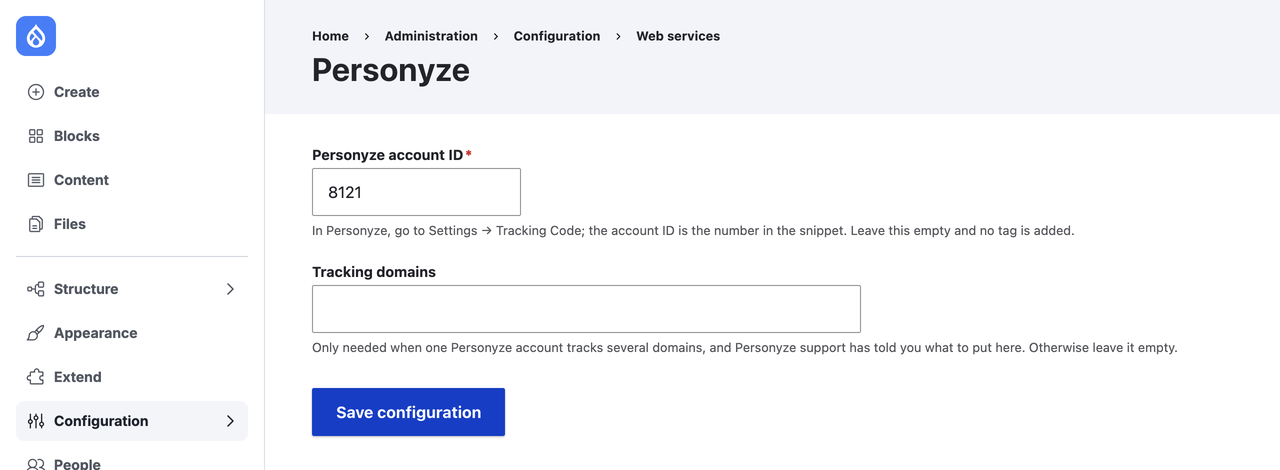
There is a second field, Tracking domains. Leave it empty. It is only needed when one Personyze account tracks several domains, and only with the value Personyze support gives you.
What gets tagged, and what does not
- The tag is added to every front-end page of the site.
- The tag is not added to Drupal administration pages. This is deliberate: personalizing the Drupal back end is never wanted, and it would otherwise report your own editors’ clicks as site traffic.
- Until an account ID is saved, no tag is added at all.
Verifying
Open any front-end page of the site and view source. You are looking for one script block containing stat-track-lib.js and a _S_T.setup( call with your account ID in it. The module marks its own block with data-personyze="tag", which is the quickest thing to search for.
Then check Personyze itself — the site should start reporting traffic within a few minutes.
Troubleshooting
I saved the account ID and pages still have no tag. Saving the ID clears the affected caches for you, so this should not happen. If it does, rebuild caches (drush cr, or Configuration → Development → Performance → Clear all caches) and re-check. Remember that a reverse proxy, CDN or Varnish in front of Drupal has its own cache that Drupal cannot clear.
The tag is missing on admin pages. That is intended — see above. Note that the login and “access denied” pages are front-end pages, so they do carry the tag even though their address starts with /admin.
The tag is there but Personyze reports no traffic. Check the account ID matches the one in Settings → Tracking Code, and that you are looking at the same account in Personyze.
Permissions
Changing the setting requires the Administer Personyze permission, granted at People → Permissions.
Related
- WordPress plugin — connect, feed and personalize a WordPress site
- Installing Personyze — any website, Shopify, WordPress, GTM & more
- Activating Personyze on your site — the tracking code and how to tell it is working