
Snitcher identifies the company behind an anonymous B2B visit. With the integration on, Personyze records that company on the visitor’s profile — its name, industry, size, country and city, and website — along with your own Snitcher data: the ICP tier, the tags you put on companies (“Target Account”), your segments, and any custom company fields you share with Spotter.
You can then target, segment and report on any of these like any other visitor attribute: a different hero for visitors from software companies, a demo form for companies tagged “Target Account”, or a message naming the account owner.
Before you start
- The Snitcher tracking script must be installed on your site.
- Personyze uses Snitcher’s Spotter API, which is included in every Snitcher plan. There is no API key to copy into Personyze.
Turning it on
- Allow your site in Snitcher. In Snitcher, go to Settings → Integrations → Spotter and add your website’s domain, for example
*.example.com. Spotter only answers on the domains listed there. - Add the Personyze snippet. In Personyze, go to Settings → Integrations, open Snitcher, and click Copy snippet. Put it on every page, right after the Snitcher tracking script. If Snitcher is installed through Google Tag Manager, add the snippet as a second Custom HTML tag on All Pages instead.
- Turn it on. Click Turn on Snitcher. This creates the visitor attributes and the containers that fill them: company, industry, company size, country, city, website, ICP tier, tags and segments.
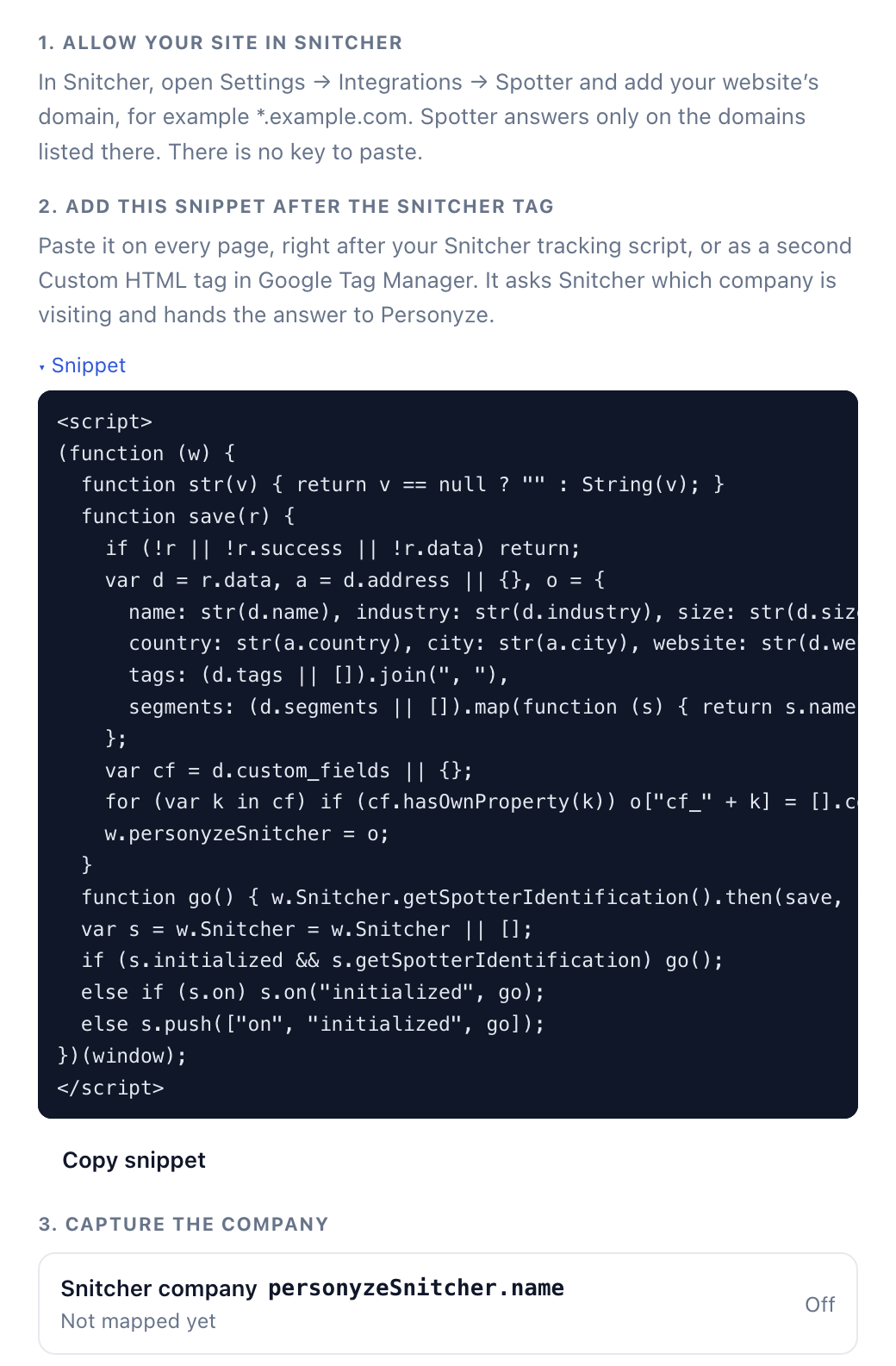
The setup is closest to Leadinfo’s — read in the visitor’s browser, no API key — with one extra step, the snippet.
Why there is a snippet
Snitcher’s Spotter API answers a question the page has to ask — “which company is this?” — and the Snitcher tracker doesn’t ask it on its own. The snippet asks once per page and passes the answer to Personyze. It is a few lines, sends nothing anywhere itself, and does nothing on a visit Snitcher can’t identify.
Your own Snitcher fields
Company fields you share with Spotter in Snitcher (Settings → Company fields) come through too. In the Snitcher box in Personyze, under Your own Snitcher fields, type the field’s key — for example account_owner — and click Add. It becomes a visitor attribute named snitcher_cf_account_owner. Keys are letters, digits and underscores, no dots.
When the company appears
Snitcher looks the company up while the page loads. Personyze records it as soon as the answer arrives — normally during the first page view, but not in its very first moment.
A visitor Snitcher can’t identify records nothing; home and mobile connections usually aren’t companies. When a rule excludes visitors by company, switch on Only match after a value is recorded on that rule — otherwise “we don’t know yet” is treated as “doesn’t match”.
Troubleshooting
- Nothing is recorded for anyone. Check the domain in Snitcher → Settings → Integrations → Spotter — a page on an unlisted domain gets no answer. Then check the snippet is on the page, after the Snitcher script (or firing after it in Google Tag Manager).
- A field stays empty. Not every company has every field. Tags, segments and ICP tier are empty until you set them up in Snitcher.
- You’re testing from home. A home connection usually doesn’t resolve to a company. Try from an office network.