
Connect Claude, ChatGPT or any other AI assistant to your Personyze account and work with it in plain conversation — ask how campaigns are doing, find where you are losing traffic, build a campaign, pause an action, get a how-to answer.
What this is
MCP (Model Context Protocol) is the open standard AI assistants use to work with outside services. Personyze runs an MCP server, so an assistant can reach your account directly: no code, no copying data between tabs, no export files.
It runs on the same external API as the Full-featured API, under the same permissions.
Install it in one click
Personyze is listed in both directories. Open the listing, add it, and sign in to your Personyze account when asked — there is nothing to copy or paste.
Add Personyze to Claude →
Add Personyze to ChatGPT →
Using a different assistant, or a tool that cannot open a browser? See connecting any other assistant.
Server URL: https://personyze.com/mcp/
Getting started, step by step
1. Connect it
From the directory listings above it is one click. If you would rather add it by hand, or you use an assistant that is not listed:
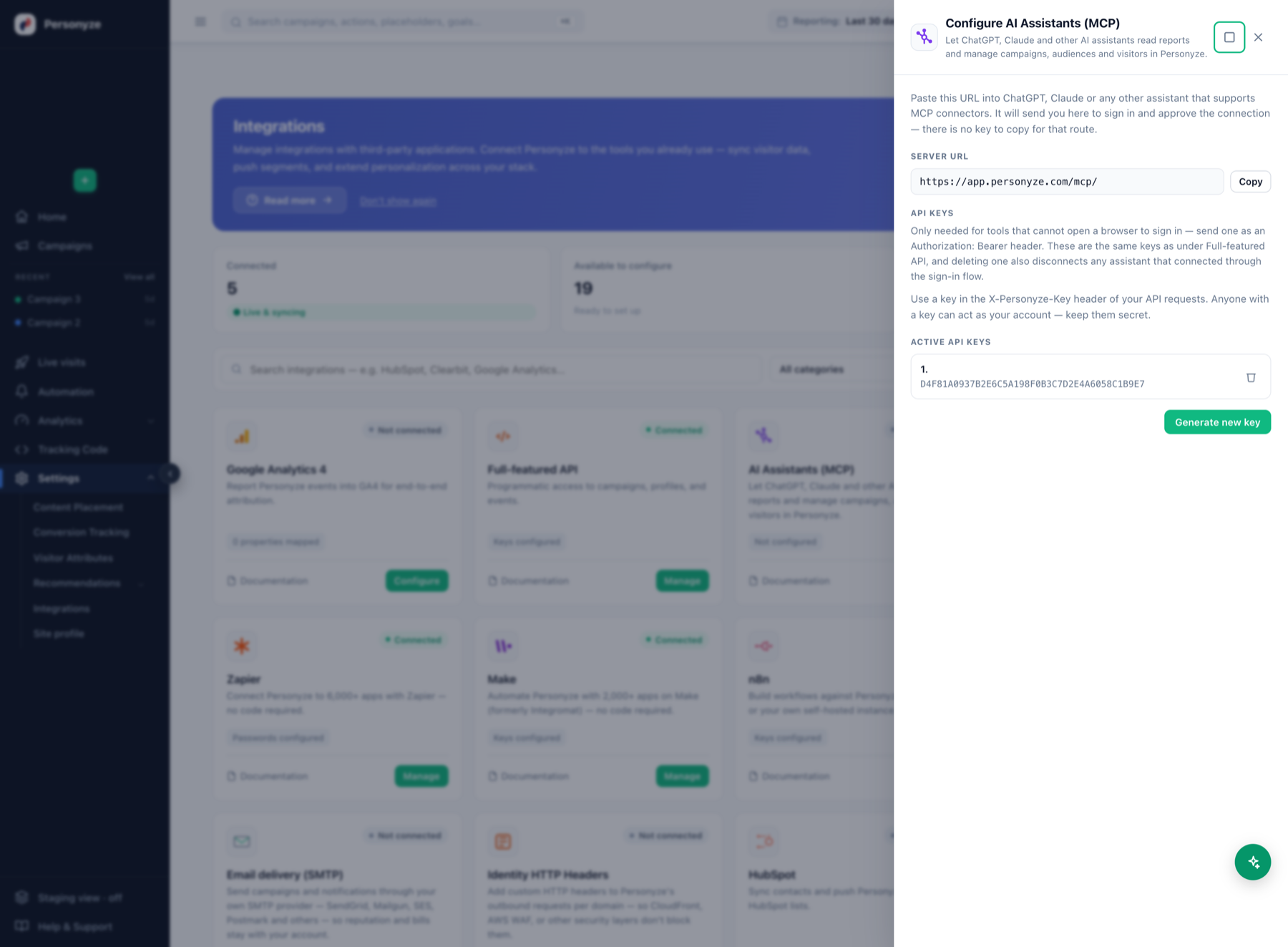
- In Personyze, open Integrations → Claude & ChatGPT (MCP) and copy the Server URL.
- In the assistant, add a custom connector and paste it — in Claude, Settings → Connectors → Add custom connector; in ChatGPT, Settings → Connectors.
- Approve the connection on the Personyze screen that opens.
The assistant receives its own credential during that approval. There is no key to copy and paste, and the credential belongs to the assistant rather than to you personally, so revoking it later does not touch your login.
2. Check it can see your account
Ask it something small and factual first — “which Personyze account am I connected to?” or “list my live campaigns”. If it answers with your own campaign names, everything downstream will work. If it says it cannot reach Personyze, the connection did not complete; reconnect rather than debugging the question.
3. Ask in plain words, not in tool names
You never name a tool. Say what you want — “why did conversions drop last week?”, “build me a popup for cart abandoners” — and the assistant picks the tools it needs, often several in a row. The full tool list further down is there so you know the boundaries, not so you can recite them.
4. Know what it will and will not do on its own
- Anything it builds lands in staging, never live. You review it in Personyze and publish yourself — the assistant cannot put content in front of your visitors.
- It works inside your permissions. It can reach exactly what your own user can reach, and nothing else.
- It reads real data — campaigns, reports, audiences, visitor profiles — so treat a shared chat the way you would treat a shared report.
5. A good first hour
- “Summarise how my campaigns performed in the last 30 days.” — gets you oriented, and proves reporting works.
- “Which campaign has the worst click-through, and what would you change?” — analysis rather than lookup.
- “Draft a banner for visitors who viewed a product but did not add to cart, and put it in staging.” — the build path, end to end, with nothing at risk.
- Open Personyze, look at what it made, and publish it or throw it away.
What you can ask it to do
Everything below works today. The wording is yours — these are examples of the kind of question, not commands with a fixed syntax.
Understand how your campaigns are performing
- “Which campaigns performed best in the last 30 days?”
- “Which action got the most clicks last month?”
- “How is the pricing-page banner doing compared to April?”
- “Which campaigns had no activity at all in the last 30 days?”
- “Did the checkout popup actually get shown, or just executed?”
It reads the daily performance summary per action: impressions, deliveries, clicks, dismissals, failures, your own configured goals, and revenue-style totals. It will decline to quote a click-through rate on a sample too small to mean anything, and say so rather than quoting it anyway.
Find where you are losing traffic
- “Which landing pages lose the most sessions?”
- “What are my most-visited pages this week?”
- “Where is my traffic coming from?”
- “Which traffic sources convert worst?”
- “What devices and browsers do my visitors use?”
- “Which countries and cities do my visitors come from?”
- “What organic search terms bring people in?”
Site-wide traffic for any date range, broken down by page, landing page, referrer, search term, device, city or country — with sessions, visits, users, bounces, goals, goal value, time on page, and the personalization impressions and clicks on those pages. Rates (bounce, goal, click-through, new-user, mobile) are computed after grouping, and low-traffic rows are excluded when ranking by a rate, so a 100% bounce rate over three sessions does not outrank a real problem.
Look at products
- “What are my best-selling products?”
- “Which products get viewed a lot but rarely bought?”
- “What is being recommended most often?”
See what is running, and why
- “List my campaigns.”
- “Which campaigns run on my home page?”
- “Why isn’t the welcome banner showing?”
- “What is the targeting on campaign 1834?”
- “Which campaigns target mobile visitors?”
- “Show me the HTML of the banner in this campaign.”
- “Which of my actions are live and which are still in testing?”
Targeting comes back as readable rule text — “Include on current page: Contains /pricing and not Full URL contains login” — not as raw configuration.
Build and change campaigns
- “Create a campaign targeting returning mobile visitors.”
- “Build me a campaign for visitors on the pricing page who have not bought.”
- “Rename it to Summer Promo and change the targeting to visitors from paid search.”
- “Switch that draft on so I can test it.”
- “Pause the popup on the checkout page.”
- “Resume the exit-intent banner.”
Two things worth knowing about how this behaves:
New campaigns are created in staging mode. They are shown only to visitors arriving from a staging IP. Real traffic keeps seeing whatever is live now, and you publish it yourself in the panel. The assistant gives you a direct link to the campaign so you can open it. Describe targeting in plain words and it is compiled into real rules — the assistant reads the compiled result back to you, because a rule that says something slightly different from what you asked for looks identical from the outside.
Pausing or resuming an action is live. It takes effect for real visitors as soon as your account’s JavaScript rebuilds. The assistant confirms before doing it, and confirms in concrete terms — naming the action, the campaign it sits in, and what your visitors stop or start seeing. It is fully reversible. One action at a time: “pause the campaign” is not taken as licence to switch everything in it off without telling you.
Work with audiences and visitor profiles
- “How many audiences do I have, and how big is each one?”
- “Create an audience called Enterprise Prospects.”
- “Add everyone in this list to it.”
- “Add john@example.com to the Enterprise Prospects audience.”
- “Remove visitor 48213 from that audience.”
- “Find the profile for CRM id crm-123.”
- “Which visitors have visited more than five times?”
- “Update Ann’s profile with her new phone number.”
Visitors can be identified by Personyze’s numeric profile id, by your own CRM/site id, or by email.
Manage placeholders
- “What placeholders do I have?”
- “Create a placeholder for the element with id hero-banner.”
Ask how the product works
- “How do I import my product catalog?“
- “How do I set up conversion tracking?“
- “How do I install Personyze on Shopify?“
- “What is the difference between a campaign and an action?”
- “How do web push notifications work?”
The assistant searches this knowledge base and answers from what it finds, linking the articles it used so you can check them. If the documentation does not cover your question, it says so and offers to open a support ticket rather than guessing.
Get help from a human
- “Open a support ticket — recommendations are not showing on mobile.”
It asks first, writes up what you were doing and what it already checked so support does not start from nothing, and gives you the ticket number. Replies arrive in the panel under Support Tickets.
Anything else
For requests the dedicated tools do not cover, the assistant can call the Personyze REST API directly — the same objects available to any API client.
Full tool list
| Tool | What it does |
|---|---|
list_campaigns |
List the account’s campaigns |
get_campaign_targeting |
The rules deciding who a campaign is shown to |
create_campaign_draft |
Create a campaign in staging mode |
update_campaign_draft |
Rename, re-target or switch a staging campaign |
list_actions |
List personalization actions |
get_action_content |
One action with its editable HTML and presenting rules |
set_action_active |
Pause or resume one live action |
list_placeholders |
Named page locations actions render into |
create_placeholder |
Create one |
get_campaign_performance |
Per-action daily performance over a date range |
get_traffic_analytics |
Site-wide traffic by page, source, device, geography |
get_product_stats |
Per-product views, recommendations, purchases |
list_audiences |
List audiences (visitor segments) |
create_audience |
Create one |
delete_audience |
Delete one (visitor profiles are not deleted) |
list_audience_members |
Who is in an audience |
add_audience_member |
Add a visitor to an audience |
remove_audience_member |
Remove one |
get_visitors |
Search visitor profiles |
save_visitor |
Create or update a visitor profile |
search_docs |
Search this knowledge base |
open_support_ticket |
Open a ticket with the support team |
personyze_api |
Any Personyze REST API call, for the rest |
Authentication, in detail
For developers building a client rather than using a ready-made assistant:
- OAuth 2.1, authorization code with PKCE (S256). Public clients — no client secret.
- Dynamic client registration (RFC 7591) at the advertised
registration_endpoint, so a client can register itself. - Discovery per RFC 9728 (protected resource) and RFC 8414 (authorization server), served at the host root: –
https://personyze.com/.well-known/oauth-protected-resource–https://personyze.com/.well-known/oauth-authorization-server - Scope:
personyze:full - An unauthenticated request to
/mcp/answers401with aWWW-Authenticateheader carryingresource_metadata, which is the discovery entry point.
Permissions and revoking access
Every connected assistant rides on an API key belonging to your account, and acts with that account’s permissions — it can see and change only what that account can.
To disconnect an assistant, delete its key under Integrations → Claude & ChatGPT (MCP) (or Full-featured API — they share one set of keys). Revocation is immediate.
Troubleshooting
The assistant says it cannot reach the server. Check that you pasted the URL with the trailing slash: https://personyze.com/mcp/.
The connection screen never appears. Your assistant may be blocking custom connectors on your plan — both Claude and ChatGPT gate this by tier.
A tool returns no data. Confirm you approved the connection for the intended Personyze account; the panel’s account switcher and the assistant’s connection are independent.
It says a campaign cannot be edited. Only staging-mode campaigns can be renamed or re-targeted by an assistant. A live campaign is edited in the panel.