The Social Proof Widget shows visitors what everyone else is doing — “27 people viewed this today” — turning real-time activity into a nudge. It reads live interaction data, so the numbers are true, and it hides itself whenever the truth wouldn’t help.
Watch the 1:51 walkthrough: the four social-proof designs, what they say about the product this visitor last looked at, and a countdown beside them.
Adding it
Content step → Add action → Social Proof Widget, pick a template, and walk its three steps.
Step 1 — what the badge counts
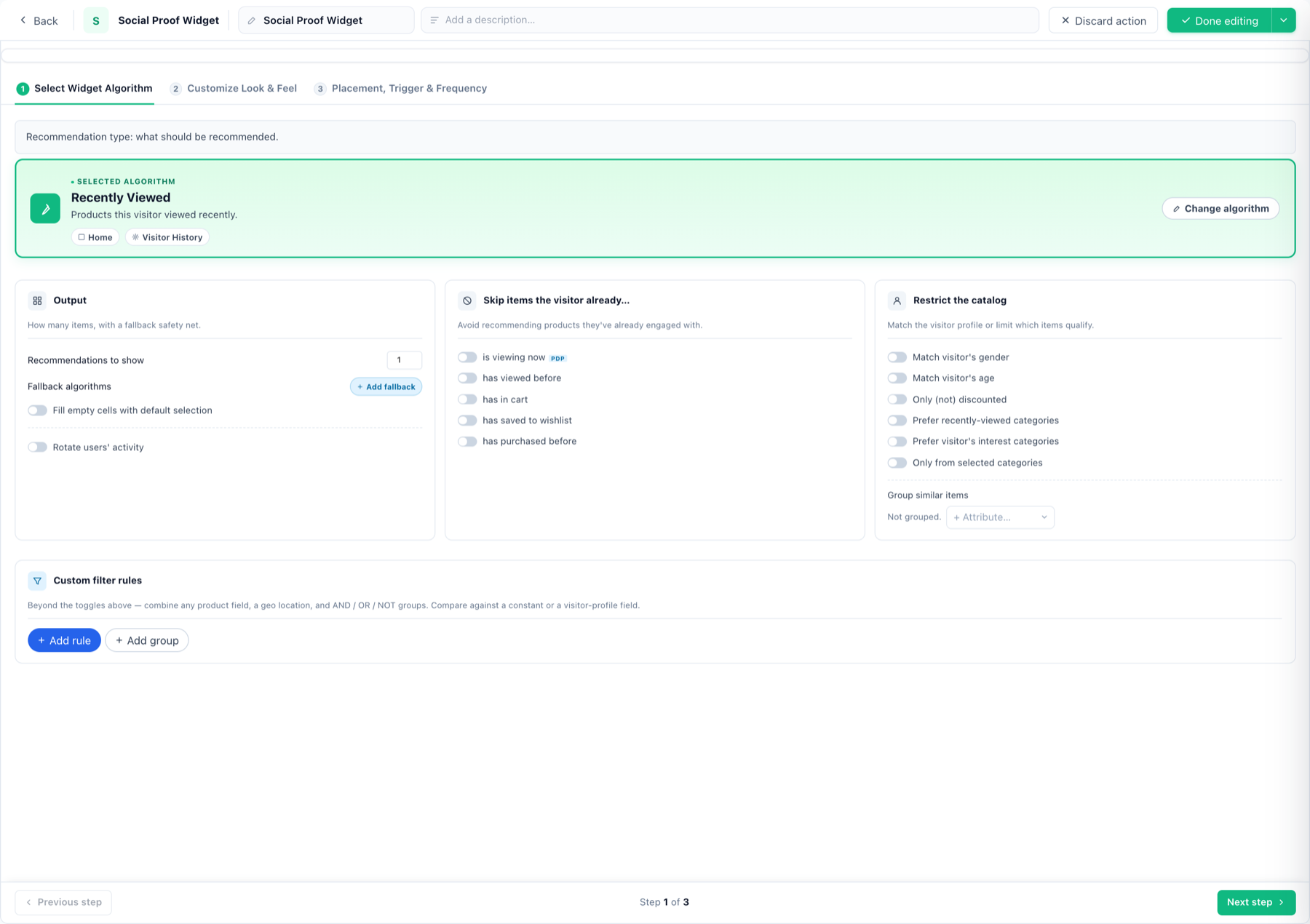
- Algorithm — which activity to surface (views, purchases, recent activity), switchable via Change algorithm.
- Output — how many items, fallback algorithms for thin data, and Rotate users’ activity, which names a different one of the last few buyers each time instead of always the latest (see Prerequisite).
- Skip items the visitor already… — is viewing now, viewed before, has in cart, wishlisted, purchased.
- Restrict the catalog — match the visitor’s gender/age, only (non-)discounted, prefer recently-viewed or interest categories, or selected categories only; plus Group similar items by an attribute.
- Custom filter rules — any product field, geo, AND/OR/NOT groups, compared against constants or visitor-profile fields.
Step 2 — the badge itself
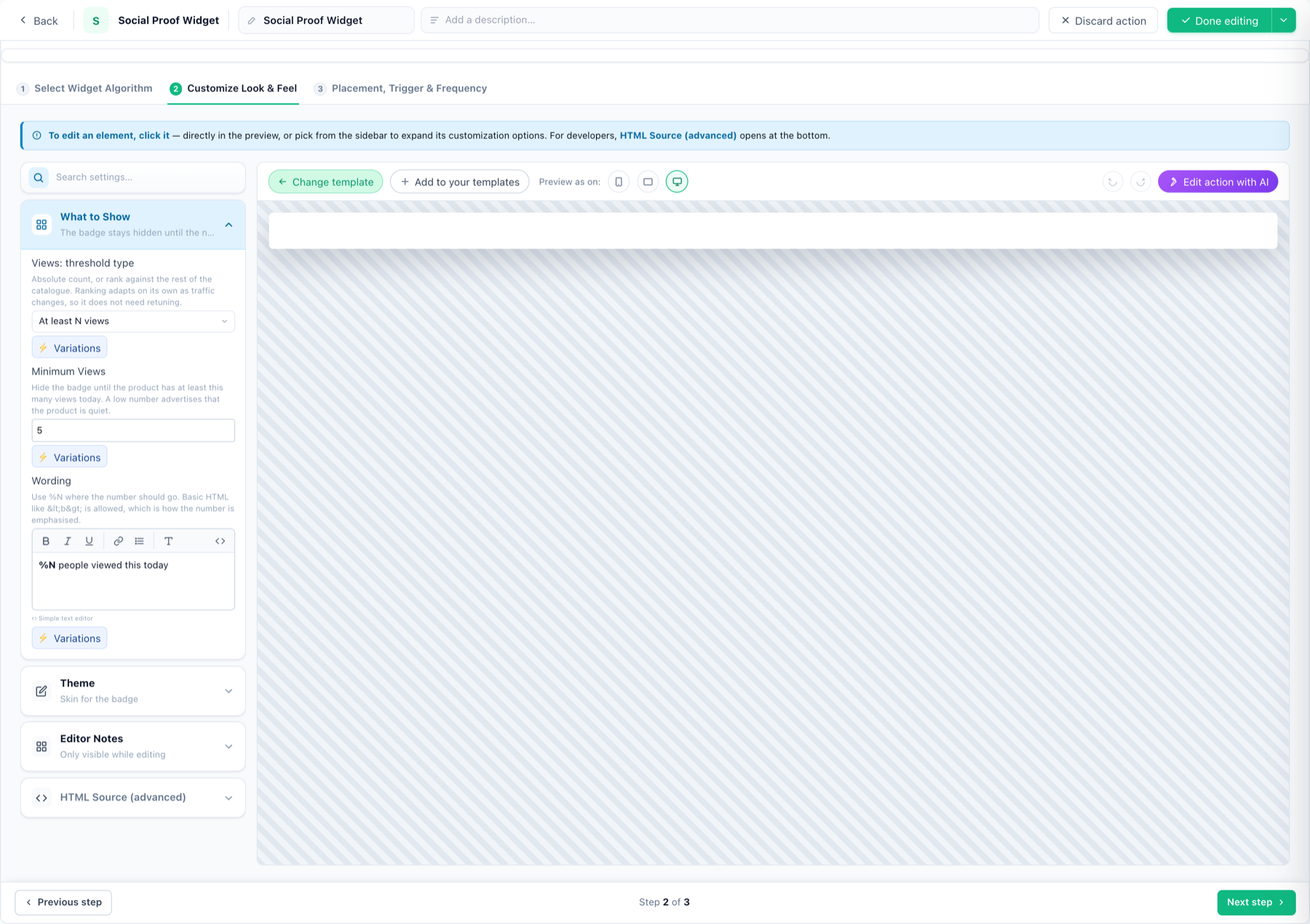
- Views threshold — absolute (at least N views) or rank against the rest of the catalogue, which adapts as traffic changes and never needs retuning.
- Minimum views — the badge stays hidden until the number is worth showing. A low threshold advertises that a product is quiet — the setting exists so it never does.
- Wording — your text with
%Nwhere the number goes; basic HTML like<b>for emphasis. Per-language wording via the setting’s ⚡ Variations. - Theme — the badge’s skin; Edit action with AI restyles it from a prompt.
Step 3 — placement, trigger & frequency
The standard delivery machinery: inline in a placeholder (product pages are the natural home) or floating, with triggers and plain-language frequency caps — see the popup guide for the full tour.
Prerequisite
The numbers come from product interaction tracking — wire views (and purchases if you count those) first, or the badge will rightly stay hidden.
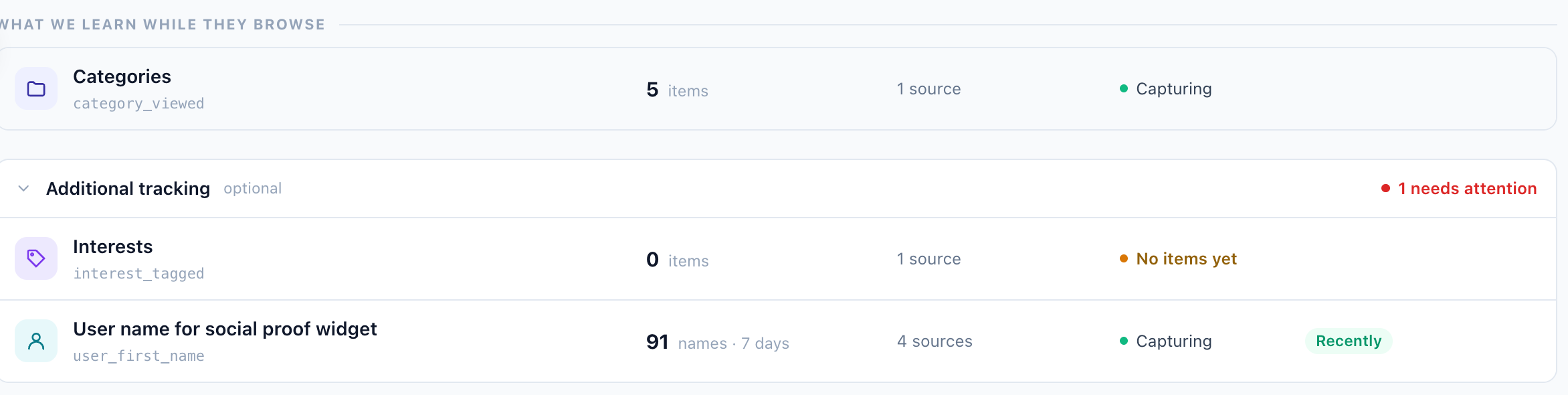
Recent-buyer names. A design that names a recent buyer — “Sarah just bought this” — takes the first name from the User name for social proof widget row: Settings → Recommendation setup → Product Tracking → Additional tracking. Capture the buyer’s first name there from your checkout page, account profile or order confirmation; until it has names, there is no name to show. In the design the name is the column Last bought user: first_name (or Random bought user (last 3): first_name). The four gallery designs count views, purchases and stock and need no names.