Uploading Feeds & Data Files (Catalog, Interests, Content, Users)
How to feed data into Personyze — product catalogs, content catalogs, interests, and user lists — via file upload, URL feed, SFTP, or API, with the CSV format rules that make it work.
26 min readUpdated 4 weeks ago
Feeding Data into Personyze
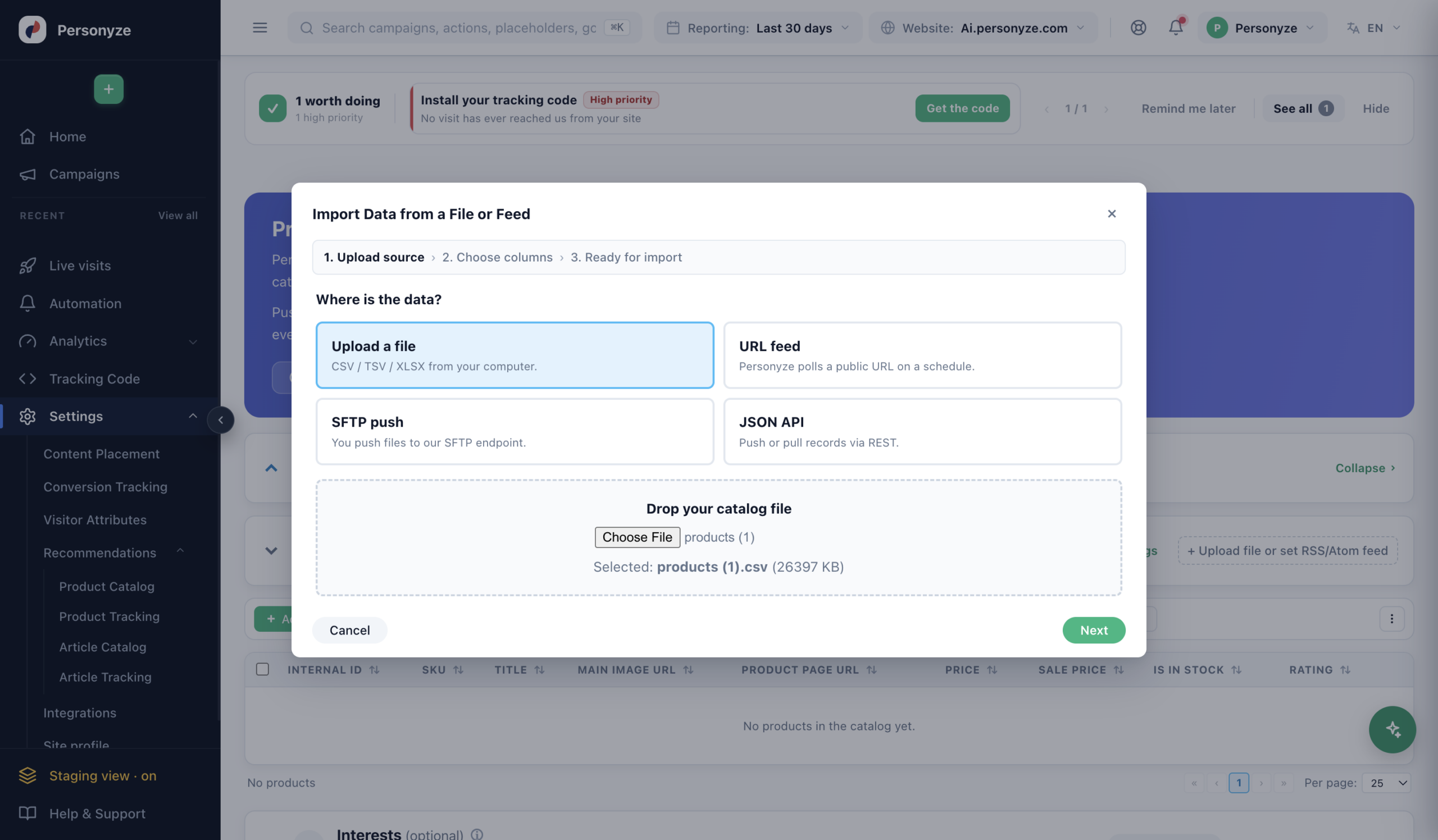
Where data lives now. Each kind of data has its own screen in the panel, and every one of them opens the same Import Data from a File or Feed wizard (the catalog screens show it as an Inbound pipelines section). Go to the screen for what you’re loading:
User lists / CRM records, profile fields, session attributes
Settings → Visitor Attributes
The Recommendations screens appear once your account has products or articles enabled. The wizard, the delivery methods, and the format rules are identical on every screen — this page is the shared reference; only the columns differ.
The Import Data from a File or Feed wizard (step 1, Upload source): choose a file, a URL feed, SFTP, or the JSON API. This is the same wizard on every data screen. Click to enlarge.
Almost everything Personyze personalizes on can be fed to it as a data file — a product catalog for recommendations, a content catalog for article recommendations, product interests for cross-sell and affinity targeting, user lists from your CRM, and more. They all travel the same Import Data from a File or Feed wizard; only the columns differ.
This page covers how to get the file in — the delivery methods, the format rules that trip people up, and the mapping step — using real, field-tested examples.
Download a Template Feed
Start from a ready-made file rather than a blank page. Each template has the correct headers, the right quoting, and a few example rows in the exact format the importer expects — replace the sample rows with your own data and upload. All use placeholder example.com URLs and generic demo products.
Feed
Columns
Download
Product catalog For product recommendations — the core columns.
Internal ID, SKU, Title, Product Page URL, Main Image URL, Price, Sale Price, Is in Stock, Rating, Category, Brand
The .tsv template downloads as .txt (tabs preserved) — rename to .tsv if your tools expect it, or upload as-is.
Prefer to click through it? Here’s the whole flow — choose a source, format the file, map the columns, import. Detailed reference below.
Upload a feed
Choose how the data arrives
Go to the screen for what you’re loading — Settings → Recommendations → Product Catalog / Article Catalog / Product Tracking, or Settings → Visitor Attributes — and open Import Data from a File or Feed. Pick a source: upload a file (one-off), a URL / RSS / Atom feed or SFTP (kept in sync), or the JSON API (real-time). Same wizard everywhere — only the fields differ.
💡 A file is a snapshot; a URL/SFTP/API feed keeps re-syncing on a schedule.
Format the file
The importer is comma-delimited. Any cell that itself contains a comma — a list of interests, multiple categories — must be wrapped in double quotes, or it splits into extra columns. Everything else is plain CSV.
💡 The “Detected N columns” count on the next step is your parse check — trust it over how the file looks in Excel.
Map the columns
Match each detected column to a Personyze field. One key is mandatory — an Internal ID (or SKU / Product Page URL). Map the rest to their fields; add optional Preprocessing or a Mask to clean a value on the way in.
💡 The key must match how your catalog is keyed. “Imports fine but matches nothing” is almost always a key mismatch.
Review & import
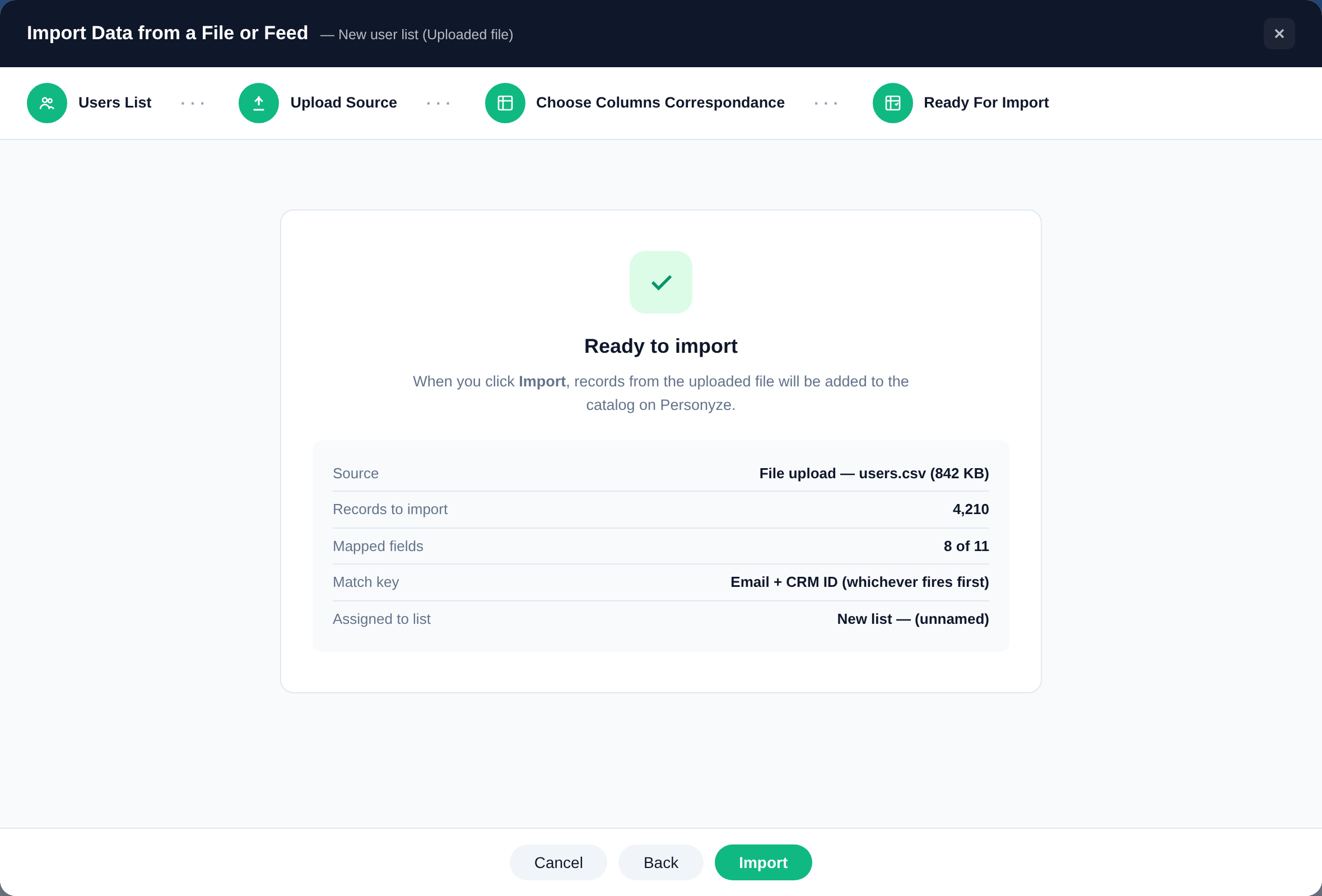
Confirm the mapping and start the import. A file loads once; a URL, SFTP, or API feed keeps syncing from here — re-reading roughly every few minutes so stock, prices, and new records stay current.
Done ✓
Choose how the data arrives
Go to the screen for what you’re loading — Settings → Recommendations → Product Catalog / Article Catalog / Product Tracking, or Settings → Visitor Attributes — and open Import Data from a File or Feed. Pick a source: upload a file (one-off), a URL / RSS / Atom feed or SFTP (kept in sync), or the JSON API (real-time). Same wizard everywhere — only the fields differ.
💡 A file is a snapshot; a URL/SFTP/API feed keeps re-syncing on a schedule.
Format the file
The importer is comma-delimited. Any cell that itself contains a comma — a list of interests, multiple categories — must be wrapped in double quotes, or it splits into extra columns. Everything else is plain CSV.
💡 The “Detected N columns” count on the next step is your parse check — trust it over how the file looks in Excel.
Map the columns
Match each detected column to a Personyze field. One key is mandatory — an Internal ID (or SKU / Product Page URL). Map the rest to their fields; add optional Preprocessing or a Mask to clean a value on the way in.
💡 The key must match how your catalog is keyed. “Imports fine but matches nothing” is almost always a key mismatch.
Review & import
Confirm the mapping and start the import. A file loads once; a URL, SFTP, or API feed keeps syncing from here — re-reading roughly every few minutes so stock, prices, and new records stay current.
Done ✓
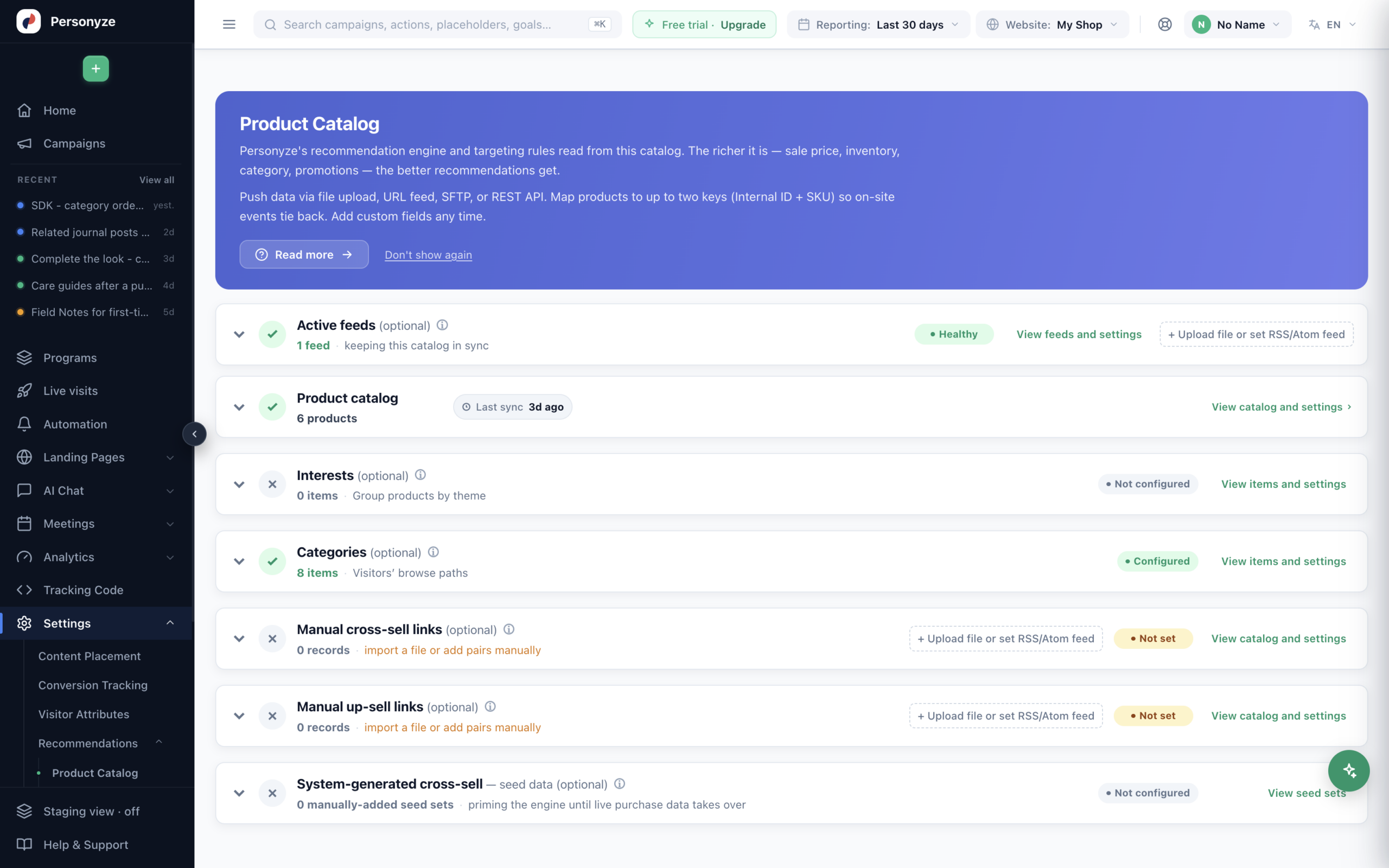
Every catalog on one screen, each with its own status, its own last sync, and its own way in. Optional ones say so. Click to enlarge.
The catalog screen, and what it tells you
Settings → Recommendations → Product Catalog (and Article Catalog for
content) is no longer a single upload form. It is a board of every catalog that feeds the engine, each with its own
state, so “is my data in?” is answered by looking rather than by importing again:
Row
What it holds
Active feeds
What is keeping the catalog in sync, and whether it is Healthy.
Product catalog
The items themselves, with Last sync.
Interests
Grouping products by theme.
Categories
The browse paths visitors take.
Manual cross-sell / up-sell links
Pairs you state yourself, by file or by hand.
System-generated cross-sell
Seed data, priming the engine until live purchase data takes over.
Every row carries its own status — Healthy, Configured, Not set, Not
configured — and everything except the catalog itself is marked optional, so a first-time
setup can see what is genuinely required.
Data reaches any of them the same four ways: a file upload, a URL feed, SFTP, or the REST API. Each
row offers its own Upload file or set RSS/Atom feed, so you do not have to work out which screen a particular
catalog belongs to.
Two keys, not one
Products can be mapped to up to two keys — Internal ID and SKU — so on-site events tie
back whichever identifier your site happens to emit. Custom fields can be added at any time; nothing has to be declared
up front.
Which column is your Internal ID?
Getting this wrong is the single most expensive mistake in a feed: the catalog fills, the recommendations render,
and nothing matches what visitors actually viewed. So the importer answers it with evidence rather than a guess.
It compares each candidate column against the ids your site is already sending and reports what it
measured — “matches 96% of the ids your site already sends”, “none of these values
appear in what your site sends”, “checked across the first 500 rows”. Columns that cannot
be a key at all — empty in every sampled row, missing from some rows, identical to another column — are
marked as such.
Where no events have arrived yet it falls back, and says which rung it is standing on:
Measured against real events — the answer you can trust.
Found on the item page — “no events have arrived yet, so we read one of your item
pages instead”.
Best guess from the shape of the file alone — and it says so: “check it against
what your site sends”.
{W}Map the URL as well as the id. The advisor recommends both — “Map both: this as
Internal ID and that as Product Page URL” — because they do different jobs. The id is what
cart and purchase events carry; the URL is what lets a landing page be recognised as a product page at all.
Map only the id and product-page targeting has nothing to match on.
Preview before you import
The Ready to import summary carries Preview changes — a dry run that writes nothing
and tells you what the real run would do:
How many rows are new, changed and unchanged. These counts ride on every run, not just the
preview.
Which columns would change — so a mapping mistake shows up as “every row’s price
would change” rather than as a silent overwrite.
Up to five before-and-after examples, and up to five of the new keys. Capped
deliberately: previewing a whole catalog should not ship a megabyte of values back to the browser.
{I}A high “new” count on a re-import is the warning. Re-importing a catalog you already
have should be almost entirely unchanged. If nearly every row is new, the key column is wrong, and the preview
is where that becomes obvious instead of after the catalog has doubled.
Four Ways to Deliver a Feed
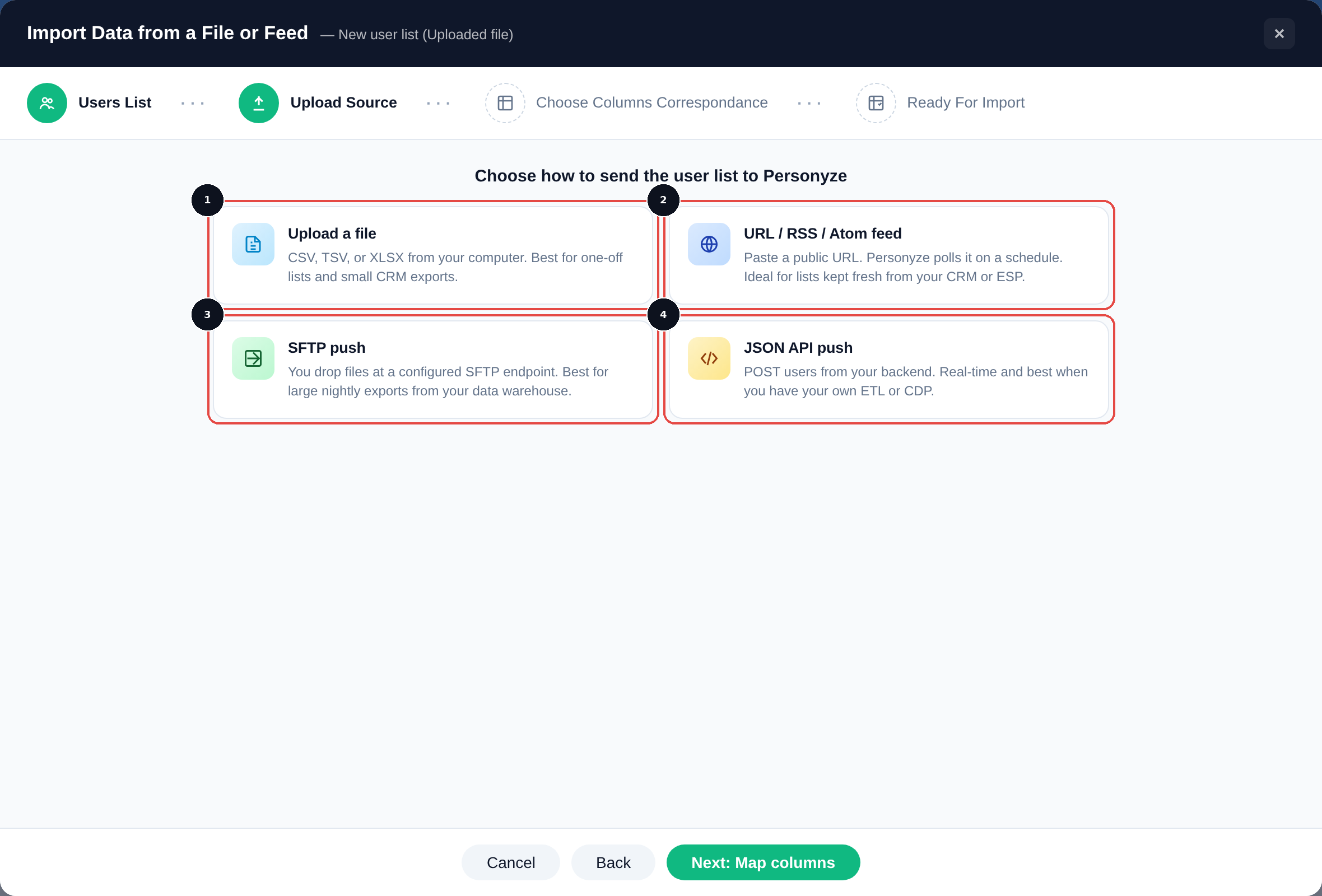
On the first step of the wizard (Upload source) you pick how the data reaches Personyze. The choice is really about how often it changes.
1 Upload a file — CSV, TSV, or XLSX from your computer. A snapshot; best for one-off lists and small exports. 2 URL / RSS / Atom feed — paste a public URL; Personyze polls it on a schedule (about every 10 minutes). Best for a catalog or list kept fresh by your platform or a feed service. 3 SFTP push — you drop files at a configured SFTP endpoint. Best for large nightly exports from a data warehouse. 4 JSON API push — POST records from your backend in real time.
One-off or small → upload a file. Fastest way to load a list once.
Kept fresh automatically → URL feed. Point Personyze at a live feed URL — a Google Shopping feed, a feed-service export, your platform’s product feed — and it re-reads it on a schedule, so stock, prices, and new products stay current without you re-uploading. This is the usual choice for a product catalog.
Large & scheduled → SFTP. For big nightly dumps where a public URL isn’t appropriate. You can set your own SFTP account up in a couple of clicks — no need to ask anyone.
Real-time & you own the backend → API push. POST records as they change.
A live URL, SFTP, or API feed keeps syncing after the first import; a file upload is a point-in-time snapshot you re-upload to refresh.
SFTP File Drop — Push Files and Forget
SFTP is the hands-off option. You get a private upload account, your export script drops files into its /upload folder, and every new upload is imported automatically a few minutes after it finishes. No one clicks anything in the panel.
Where to find it: your SFTP credentials live under Settings → Site profile, in the SFTP file drop section — that is the page to open whenever you need the host, the username, or a fresh password. The same credentials card also appears wherever the import wizard offers SFTP as a source: Product and Article Tracking, the Product and Article catalog screens, and Visitor Attributes.
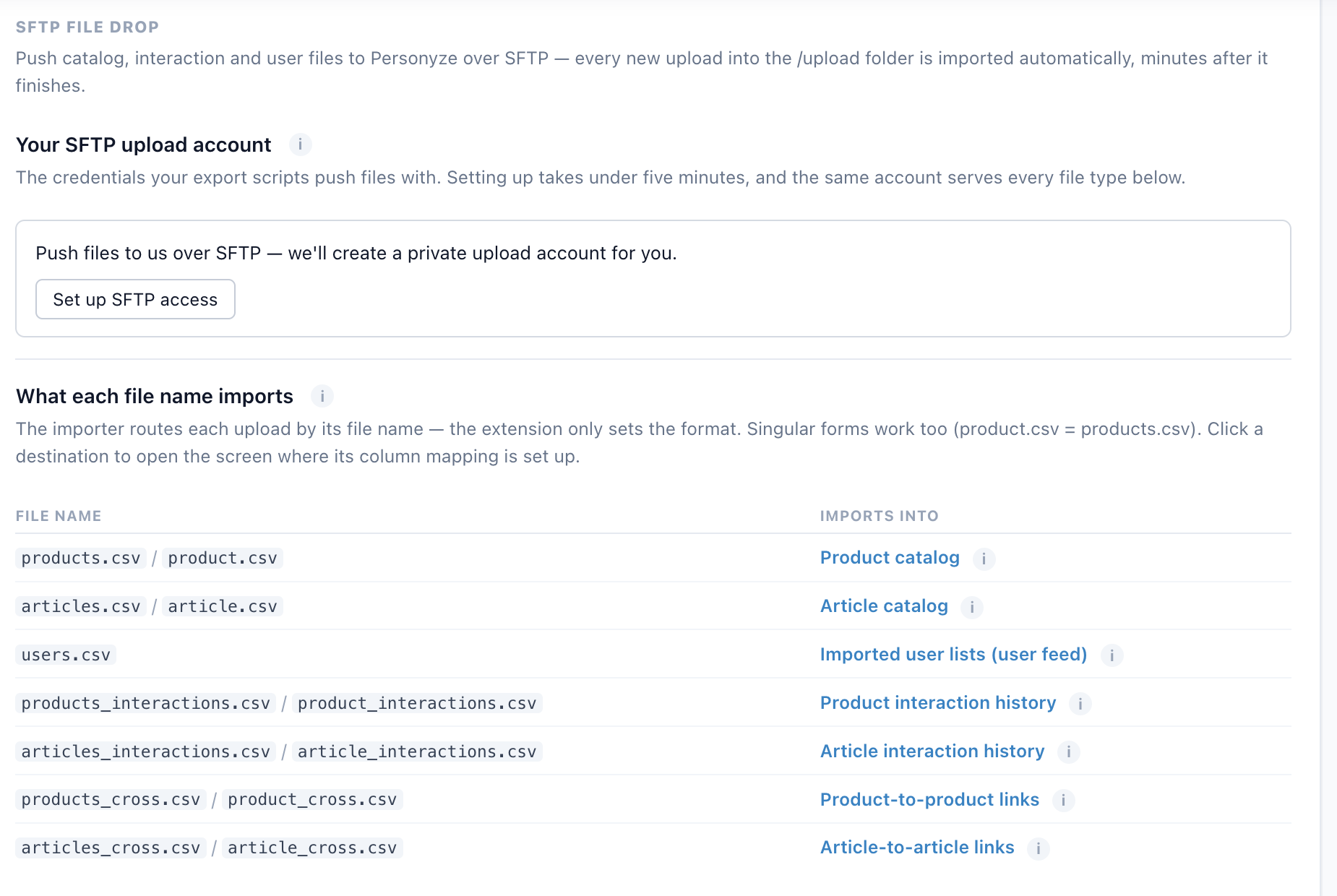
Settings → Site profile → SFTP file drop. One button sets the account up; the table below it is the whole routing rule — the file name decides what an upload becomes. Click to enlarge.
Setting up the account
Click Set up SFTP access.
Personyze creates a private account for you. It says “Setting up your SFTP account — usually under 5 minutes” while it works, and fills itself in when ready. You can leave the page and come back.
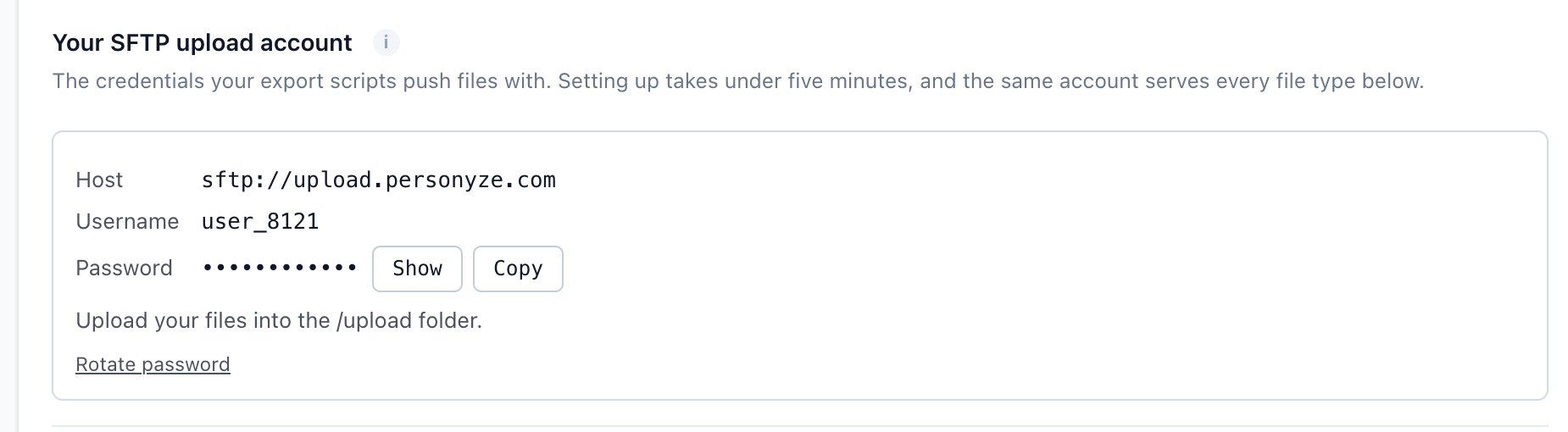
The card then shows your Host (sftp://upload.personyze.com), Username, and Password — with Show and Copy buttons.
One account serves every file type below, and it belongs to this site profile. Put all files in the /upload folder — nothing elsewhere is picked up.
Once the account exists the card shows everything you need to connect. The password stays masked until you press Show or Copy. Click to enlarge.
The password is fetched only when you press Show or Copy, never with the page itself — it stays out of page sources and logs. Rotate password issues a new one and the old stops working within a few minutes, so change it in your export job at the same time. If your account was set up manually by support in the past there is no stored password to show; rotate once and you will have one you can see.
The file name decides what an upload is
There is no per-upload configuration. The importer routes each file by its name; the extension only tells it the format. Singular and plural both work — product.csv is the same as products.csv.
Accepted extensions: .csv, .json, .xml, .xls, .xlsx. Re-uploading a newer file re-imports it — the newest matching file wins — so a nightly job can simply overwrite the same name every time.
The first upload: map it once
A file has to be mapped before anything is imported from it — Personyze has to be told which column holds what. You do not set this up in advance: drop the file first, and the panel comes to you.
Within a few minutes of the upload finishing, a banner appears on the destination screen — for users.csv that is Settings → Visitor Attributes, under Imported user lists:
In your SFTP folder: users.csv 1 KB · uploaded 36 min ago Not mapped yet, so nothing is being imported from it: Personyze has not been told which column of the file holds what.
Two buttons sit beside it: Check again, which re-scans the folder, and Map this file, which opens the mapping.
The mapping dialog
Map “users.csv” from your SFTP folder shows everything it worked out from the file itself:
List name (user feeds only) — everyone in the file joins this list, and the list is what your campaigns target. You do not have to create it beforehand; naming it here creates it.
A row per column, with the column in file, the profile field it maps to, and sample values read from your actual file — so you can see at a glance that CRM ID really did land on SFTP-TEST-1 and not on something else.
A summary line: how many columns were found, how many are mapped, and how many rows the file holds. Anything left on Ignore is not imported.
Click Save the mapping and the file imports. That is a one-time step per file name — from then on, every upload of users.csv imports by itself with the same mapping.
Until a file is mapped, nothing happens — and nothing tells your script. The upload itself succeeded, so an export job sees success while the data sits unread. If you have pushed a file and the numbers have not moved, open the destination screen and look for the banner above.
Once a feed is running you can switch on Email me if this feed stops syncing on the same screen — the cheapest way to find out that last night’s export never arrived. The list of sources can also be filtered by where each one came from: Uploaded, RSS / Atom, SFTP or API push.
The Format Rule That Matters Most
Personyze’s file importer is comma-delimited, and that can’t be changed on the upload step. That one fact drives every formatting decision:
Columns are separated by commas. Not semicolons, not pipes, not tabs (for a genuine tab-separated feed, see the TSV note below).
If a value inside a cell contains a comma, that cell must be wrapped in double quotes, or the importer splits it into extra columns.
This is standard CSV, but it’s the single most common reason an import misbehaves, so it’s worth stating plainly.
Worked Example: Product Interests
Interests are a list of tags per product — used for cross-sell, affinity segments, and interest-based recommendations. The format that works is two columns, Id and Interest, with the interests comma-separated inside a quoted cell:
Each product’s Interest cell holds a different set of tags. The quotes are what let the interior commas survive. Without them, NW-1001,"Sneakers,Footwear,Casual,Running" becomes five columns instead of two, and the import breaks.
📥 Download the sample interests file — open it in a plain text editor (not a spreadsheet) to see the quoting exactly as the importer needs it.
Separators — What Works and What Doesn’t
Goal
Works?
How
Interests comma-separated in one cell
Yes
Quote the cell: "Sneakers,Footwear,Running"
Interests split into one column each
Yes
Map every interest column to the same Interests field
Pipe / slash / semicolon between interests
No
The Interests field accepts commas only
Semicolon as the column delimiter
No
The upload step is locked to comma
Unquoted commas inside a cell
No
The importer splits them into new columns
TSV note: the wizard accepts .tsv, and a genuine tab-separated feed (like a Google Shopping feed) imports cleanly — tabs are the delimiter, so commas inside descriptions are just text. The comma rule above is about comma-separated files specifically.
The Same Idea for a Category Field
The comma-in-a-quoted-cell pattern isn’t only for interests — any field that holds more than one value works the same way. A category field is the common second case. Two ways to represent it, both valid:
A hierarchical path in one cell — the Google-feed convention, using > between levels. No commas, so no quoting needed:
Multiple categories in one cell — if a product belongs to several, comma-separate them inside quotes, exactly like interests:
Category
"Sneakers,Footwear,Running"
The rule is always the same: a comma inside a value means the cell must be quoted. A >-delimited path or a /-delimited one has no commas, so it rides along unquoted.
Carrying Extra Fields in the Same File
You don’t need a separate file per attribute. One row can carry the key plus interests plus category plus anything else you want on the record — brand, availability, a custom tag — and you map each column on the Choose columns step:
Only the quoted Interest cells contain commas, so only they are quoted; the rest ride along as plain columns. Map Id → Internal ID, Interest → Interests, and each remaining column to its Personyze field.
Every import needs one key column, or Next stays disabled with a red “Missing required mapping”:
Internal ID — the record’s key (product ID, user ID).
Product Page URL — the full page URL, as an alternative key.
The key must match what the catalog is already keyed on. If your catalog is keyed on SKU, the file’s Id column must contain that same SKU. An import that completes but “matches no products” is almost always a key mismatch — the IDs loaded fine, they just don’t line up.
Mapping the Columns
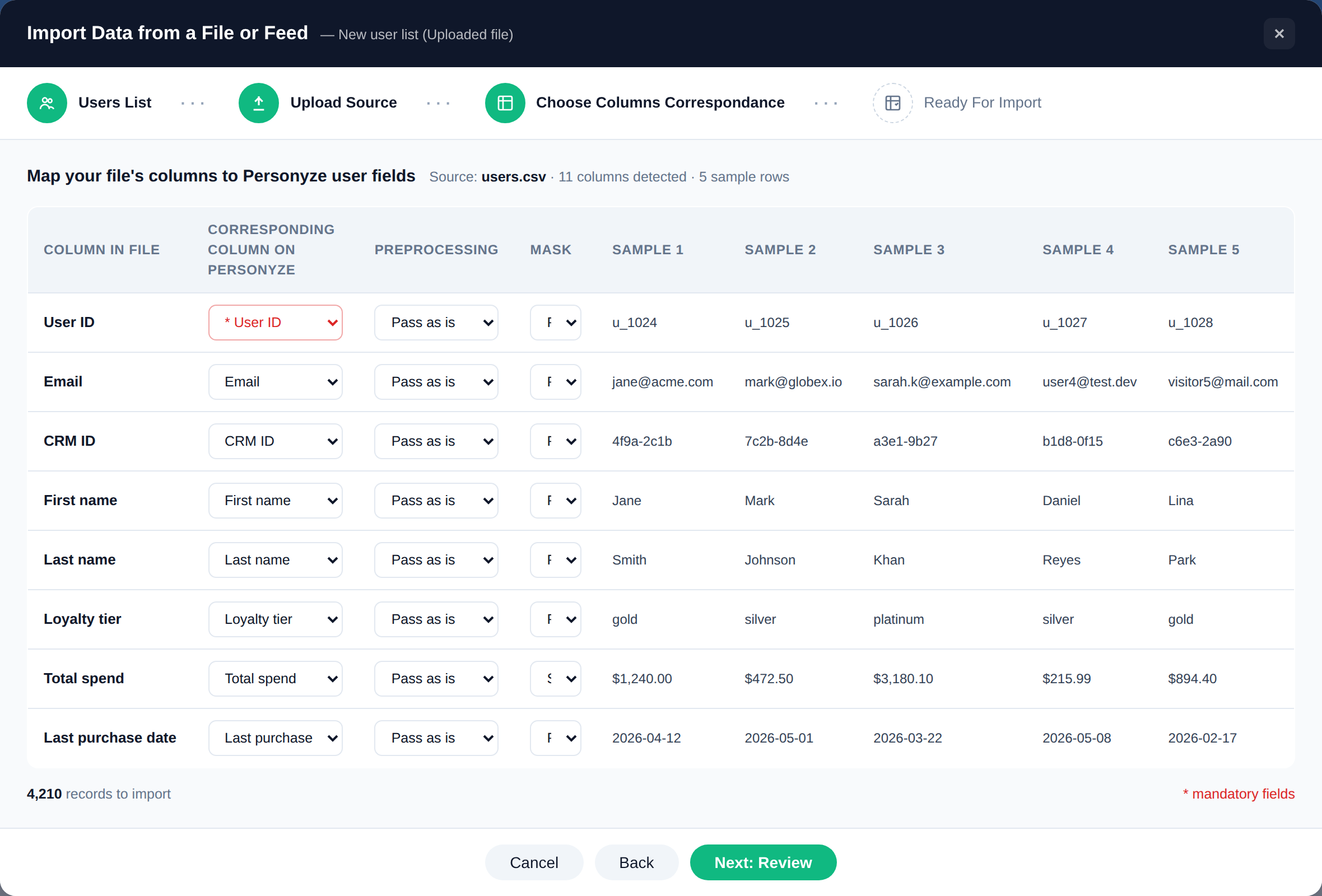
On the Choose columns step, Personyze shows each detected column and lets you map it to a Personyze field, with optional per-column Preprocessing and Mask.
The column-mapping step. Personyze reports how many columns it detected and shows sample rows, so you can confirm the file parsed correctly before mapping.
The column count on this step is your parse check. For the two-column interests file it must read Detected 2 source columns. If it says 6, the quoting was lost in export — fix and re-upload. Judge by what this step reports, not by how the file looks in Excel or Numbers.
For interests: map Id → Internal ID (clears the red error), map Interest → Interests, leave Preprocessing = Pass as is and Mask = Pass everything, then continue to Ready for import.
Building the File (Repeatable Recipe)
If you have a source export with one comma-joined interests column, emit the two-column quoted file with a few lines of Python — csv.writer adds the quotes around any field containing a comma automatically:
import csv
rows = list(csv.DictReader(open('source.csv', encoding='utf-8-sig')))
with open('Id_Interest.csv', 'w', newline='', encoding='utf-8-sig') as f:
    w = csv.writer(f)                 # quotes cells with commas automatically
    w.writerow(['Id', 'Interest'])
    for r in rows:
        ints = ','.join(x.strip() for x in r['Interests'].split(',') if x.strip())
        w.writerow([r['Product ID'], ints])
Product Catalog Feeds
A product catalog is keyed on a product identifier — and you can supply Internal ID, SKU, or both. Only one key is mandatory.
When You Don’t Have a Product ID
If your catalog has no stable ID, Personyze can auto-generate one from a hash of the product-page URL. That’s enough to recognize a product for page views and add-to-cart — the URL is the same each time, so the hash is stable.
Purchase tracking is where a URL hash gets awkward. A thank-you or order-confirmation page usually doesn’t carry the product URLs of what was bought, so there’s nothing to hash. Tracking purchases against hashed IDs is possible but the setup is fiddly. It’s far simpler when you have a real product ID that Personyze can pick up automatically from a page variable — a data-layer value, a tag-manager variable, or a field in the DOM — because the same ID then ties the catalog, the on-site behavior, and the purchase together. If you sell, use a real ID. The URL-hash fallback is for view/click personalization when no ID exists.
The Catalog File
A product catalog uses more columns but the same rules. A typical layout:
Internal ID, SKU, Title, Product Page URL, Main Image URL,
Price, Sale Price, Is in Stock, Rating
Map Internal ID as the key, Main Image URL and Product Page URL so cards render and link, and Price / Sale Price / Is in Stock so widgets can show pricing, discounts, and stock badges. Empty cells are fine — a blank Sale Price just means no discount.
📥 Download the sample product-catalog file — the real column layout used by a live store.
For a live catalog, the practical setup is a URL feed: point Personyze at a feed your platform or a feed service already produces. A standard Google Shopping / Merchant feed (TSV, with id, title, link, price, availability, image_link, product_type, etc.) works directly — Personyze reads those columns and re-polls the URL so stock and prices stay current. If you don’t have a feed yet, tools like Feedoptimise, DataFeedWatch, or your platform’s native export produce one.
Each product needs one main image so recommendation cards can render. You can add more image columns beyond that — the extra images feed widgets that rotate or swap the photo on mouse-hover. Map the first to Main Image URL and the rest to the additional image fields.
Carry as Many Custom Fields as You Want
Beyond the standard columns, a feed row can hold any extra data you have — shipping price, quantity-break pricing, per-customer-type prices, tags, brand, color, anything. Three things you can do with a custom field:
Print it — show it on the recommendation card (a “Free shipping” flag, a member price).
Filter on it — restrict a recommendation to a brand, color, or category.
Train the AI on it — give the recommendation model more signal about each product so it ranks better.
Most of the time it’s simple attributes like brand or color; there’s no limit, and unmapped columns are simply ignored.
Buy-Together / Conditional Pricing
You can also carry a per-combination price in the feed — a discounted price that applies when specific products are bought together — so a bundle’s price comes straight from the catalog rather than being calculated. The concept and setup are in Buy-Together Discount for E-commerce Recommendations. (The exact column layout for combination pricing will be added here.)
Content Catalog Feeds
A content catalog (articles, videos, guides) drives content recommendations. The lightest version is just the content URL — Personyze auto-generates an ID and tracks engagement by the URL or URL path, so views and reads attribute correctly without you supplying a key. You can also provide your own Internal ID if you have one.
Everything else works like the product catalog: one main image (more optional for hover widgets), plus any custom columns you want to print, filter, or train on — content type, category, author, publish date, tags.
A user list attaches CRM data to your visitors. The minimum is a key plus one attribute:
Email (or an Internal / CRM ID) as the key, and
at least one additional column — first name, account type, anything.
You can add as many attribute columns as you like. The important part: whatever you populate here becomes available in targeting, not only inside the action that uses the list. Load a visitor’s first name or account type and you can later build an audience that targets on it — “Account Type is VIP”, “Industry is Retail” — exactly like any other profile field. Deliver it as a file, or keep it in sync via SFTP or a feed URL.
Cross-Sell & Up-Sell Pairs (on the Product Catalog)
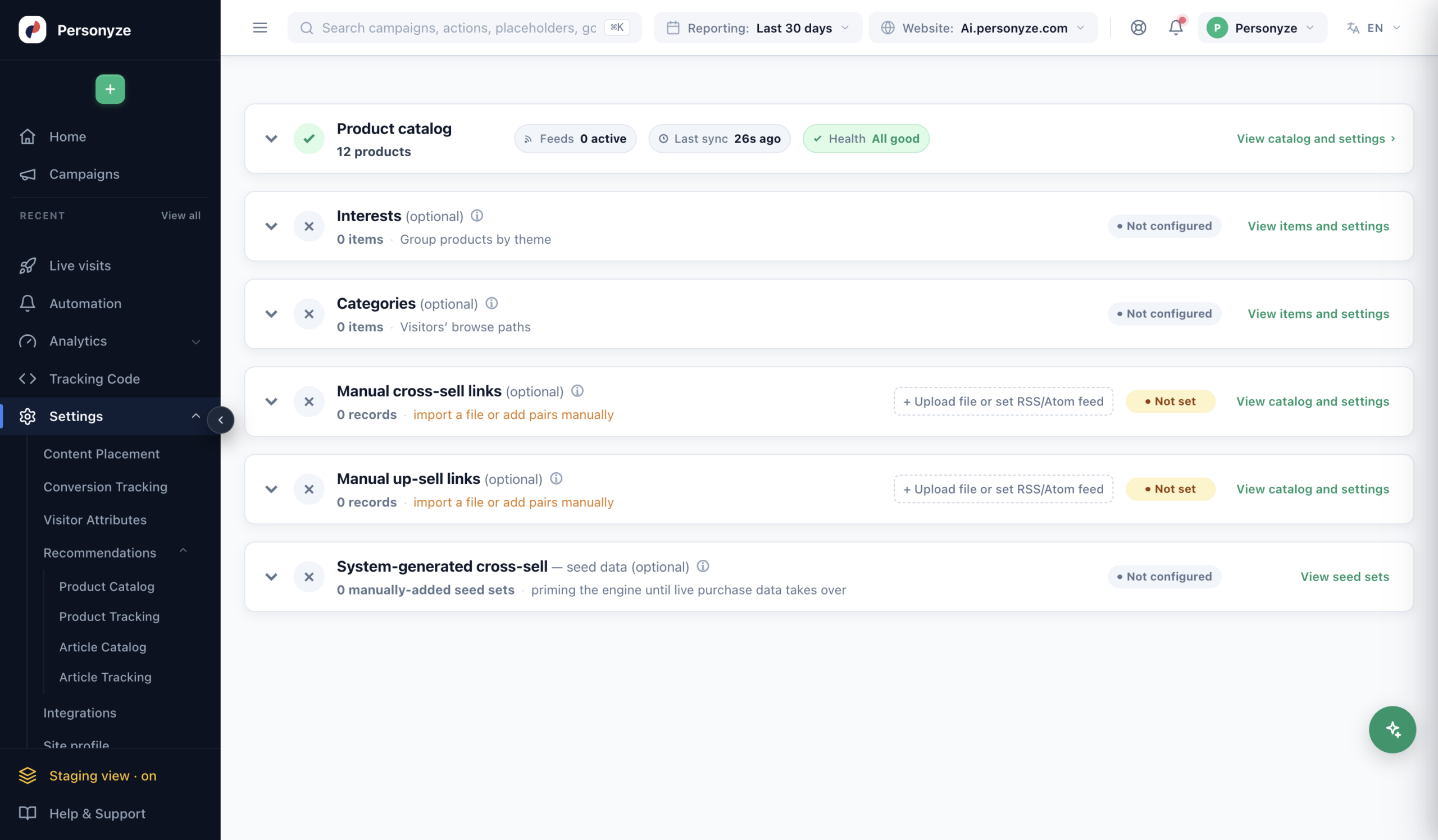
Where:Settings → Recommendations → Product Catalog. Below the feeds and fields, the catalog screen has two optional sections for telling Personyze which products go together. Both are optional — the engine also learns pairings on its own from live behaviour — but they are useful for launching before you have data, or for pairings you want to control by hand.
The Product Catalog screen (Settings → Recommendations → Product Catalog): your catalog, plus the optional Manual cross-sell links, Manual up-sell links, and System-generated cross-sell (seed data) sections. Click to enlarge.
Manual cross-sell / up-sell links (optional)
Explicit pairings you define yourself — the “frequently bought together” or “you might also want” links. They are used when a recommendation campaign’s algorithm is set to “Cross-sell (manual)” or “Up-sell (manual)”:
Cross-sell pairs a base product with a recommended item.
Up-sell pairs a base product with a higher-value item.
Add pairs by hand, or import a file — one link per row, subject and linked product both by internal ID. Links are directional, so to recommend both ways add both rows:
Subject Internal ID,Linked Internal ID
AQB14X,AQB15X
AQB15X,AQB14X
BARR4FJ3,LABAR4114
System-generated cross-sell — seed data (optional)
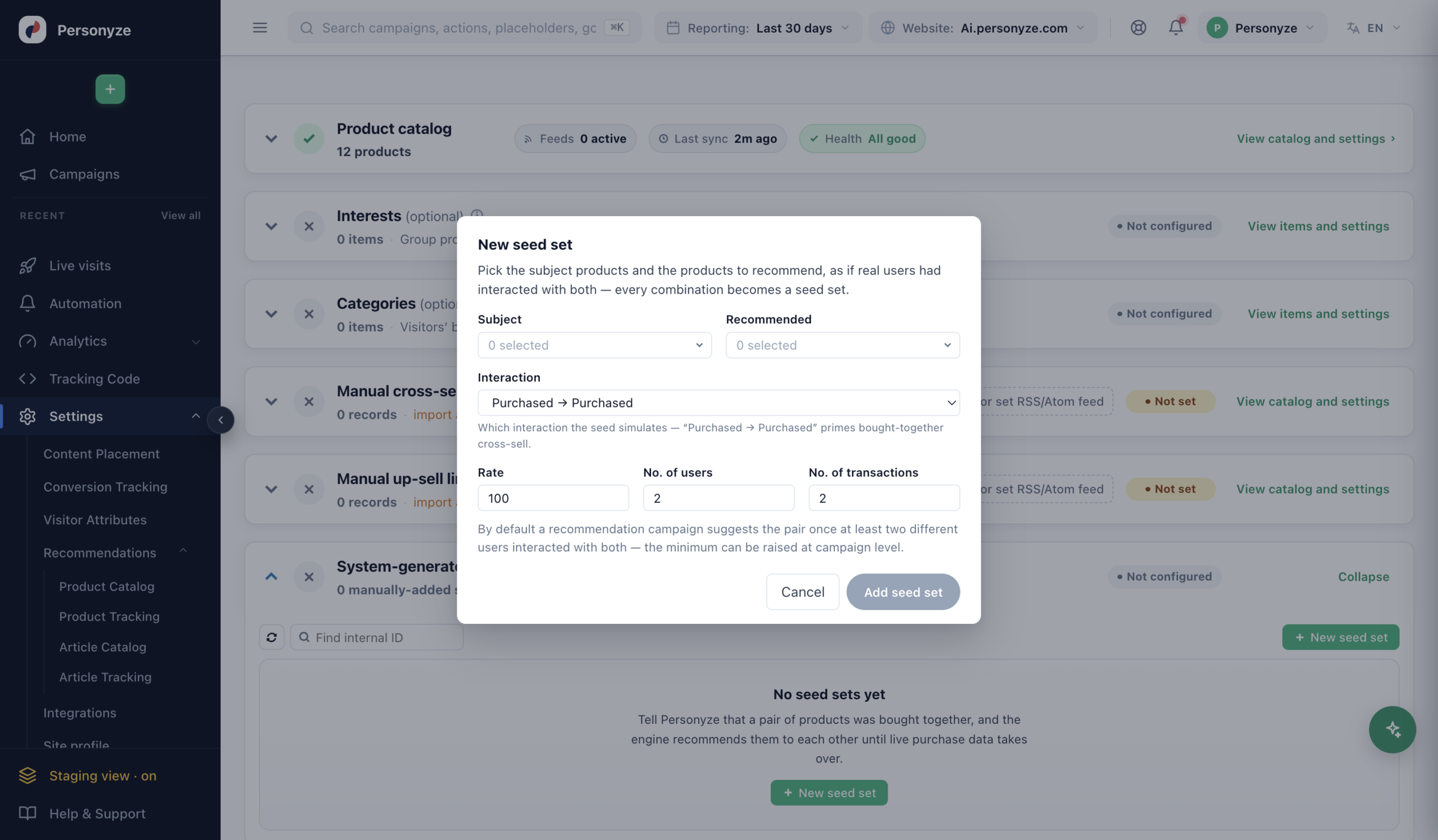
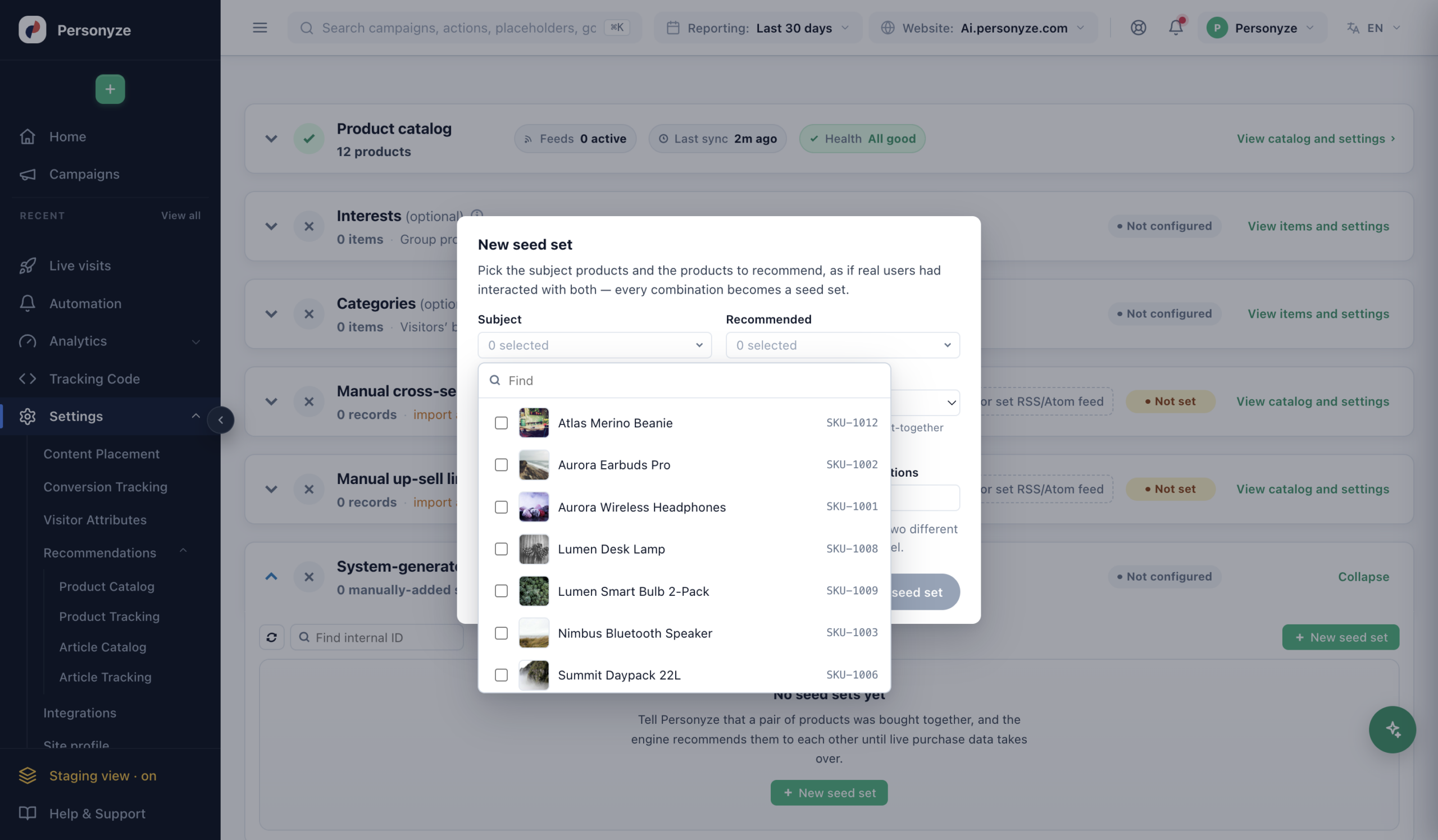
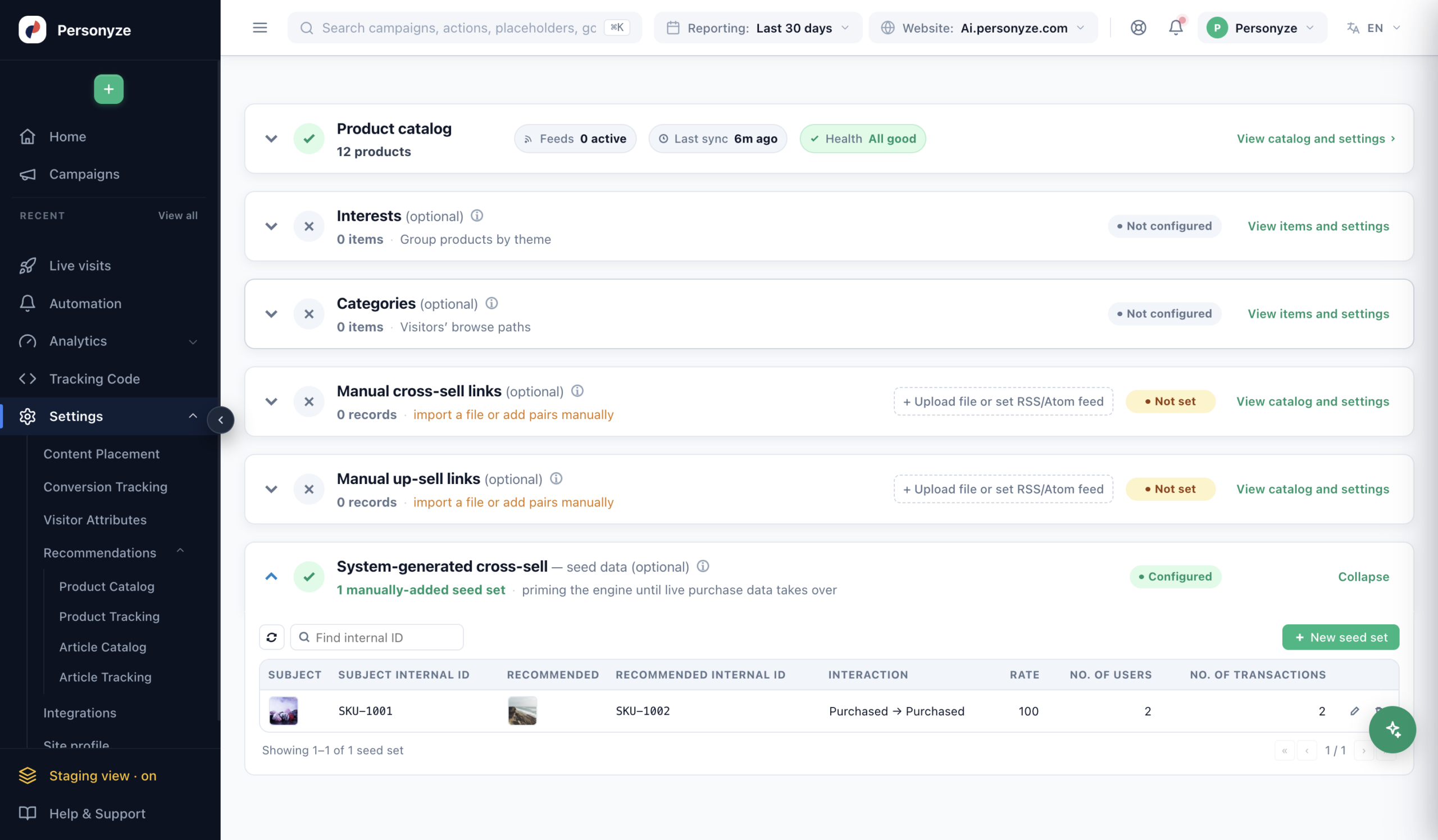
A way to prime the recommendation engine before it has seen real purchases. You add seed sets: tell Personyze that a pair of products was bought together, and it recommends them to each other until live purchase data takes over. Each seed set is a Subject item, a Recommended item, and which interaction it simulates — “Purchased → Purchased” primes bought-together cross-sell. Ideal for a brand-new catalog with no behavioural data yet; once real purchases arrive they naturally outweigh the seeds.
1. Create a seed set. On the System-generated cross-sell card, click New seed set. Each seed pairs a Subject product with a Recommended product, choose which Interaction it simulates (“Purchased → Purchased” primes bought-together cross-sell), and optionally set the Rate, number of users, and transactions. Click to enlarge.2. Pick the products. Choose the Subject and Recommended products from the searchable list (both must already be in the catalog) — every combination becomes a seed set — then click Add seed set. Click to enlarge.3. It is reflected in the list — the card flips to Configured and each seed set shows its pair (with thumbnails), interaction, rate, and the user / transaction counts. The engine now recommends the pair until live purchase data takes over. Click to enlarge.
Uploading past purchases lets Personyze train recommendations on real buying behavior and target on purchase history from day one, before it has observed those purchases live. Each row is lean — just enough to say who bought what, when:
a customer key — email or CRM ID;
the product ID or SKU that was purchased;
the transaction time.
No title, quantity, price, or currency is needed — Personyze reads those from the catalog. For the timestamp, use a standard date-time such as 2026-07-21 14:30:00 or a Unix epoch like 1751389200. (Confirm the exact accepted format with your account manager if in doubt.)
Beyond the types above, the same wizard loads any tabular data — affinity tables, segment lists, custom attribute sets. Choose the delivery method, get the format right, map a key, map the rest.
A content catalog (articles, videos, guides) works identically — the key columns become the content ID and URL, with title, image, and any attributes you want to recommend or target on. The same holds for cross-sell tables, affinity data, and CRM user lists: choose the delivery method, get the format right, map a key, map the rest.
Finishing the Import
The final step: review the mapping and start the import. A file is a one-time load; a URL, SFTP, or API feed keeps syncing on its schedule from here.
Troubleshooting
Symptom
Cause
Fix
“Detected 6 source columns” (expected 2)
The interests cell wasn’t quoted, or quotes were stripped on export
Re-export with the cell quoted; confirm the raw file shows "Sneakers,Footwear,..."
The whole row lands in one column
You’re judging by a spreadsheet, not the importer
Go by what step 2/3 reports, not by Excel or Numbers
“Missing required mapping” (red)
No Internal ID / Product Page URL is mapped
Map your key column to Internal ID (or Product Page URL)
Interests import as one long string
The separator isn’t a comma
Use commas between interests, nothing else
Imports fine but matches no products
The Id doesn’t match the catalog key
Use the identifier the catalog is keyed on (often SKU)
Reading a Value Live from the Page Instead
Separate from file import: Personyze can also read a value live from a product page as visitors browse — useful when the data isn’t in a feed. That path uses a CSS selector or JavaScript rather than a file, covered in Grab Data from Your Site. Two field notes worth carrying over:
Meta tags can’t be clicked with the on-page picker — they live in <head> and aren’t rendered. Type the selector by hand, e.g. meta[property="og:type"].
On JS-rendered stores (VTEX, React), meta/og tags may be empty at page load and only fill in after hydration, or are served only to search-engine bots via prerender. A selector returning nothing is usually this timing/prerender gap, not a wrong selector. A server-rendered element is more reliable. The GTM dataLayer also carries the reference — but on single-page stores read it carefully, since the dataLayer accumulates across products and an early entry can be the previously-viewed item.
The Short Version
Comma-delimited file; quote any cell containing a comma; map one key column (Internal ID or Product Page URL) that matches how your catalog is keyed; map the rest. Upload a file for a one-off, or point Personyze at a URL / SFTP / API feed to keep it syncing.