
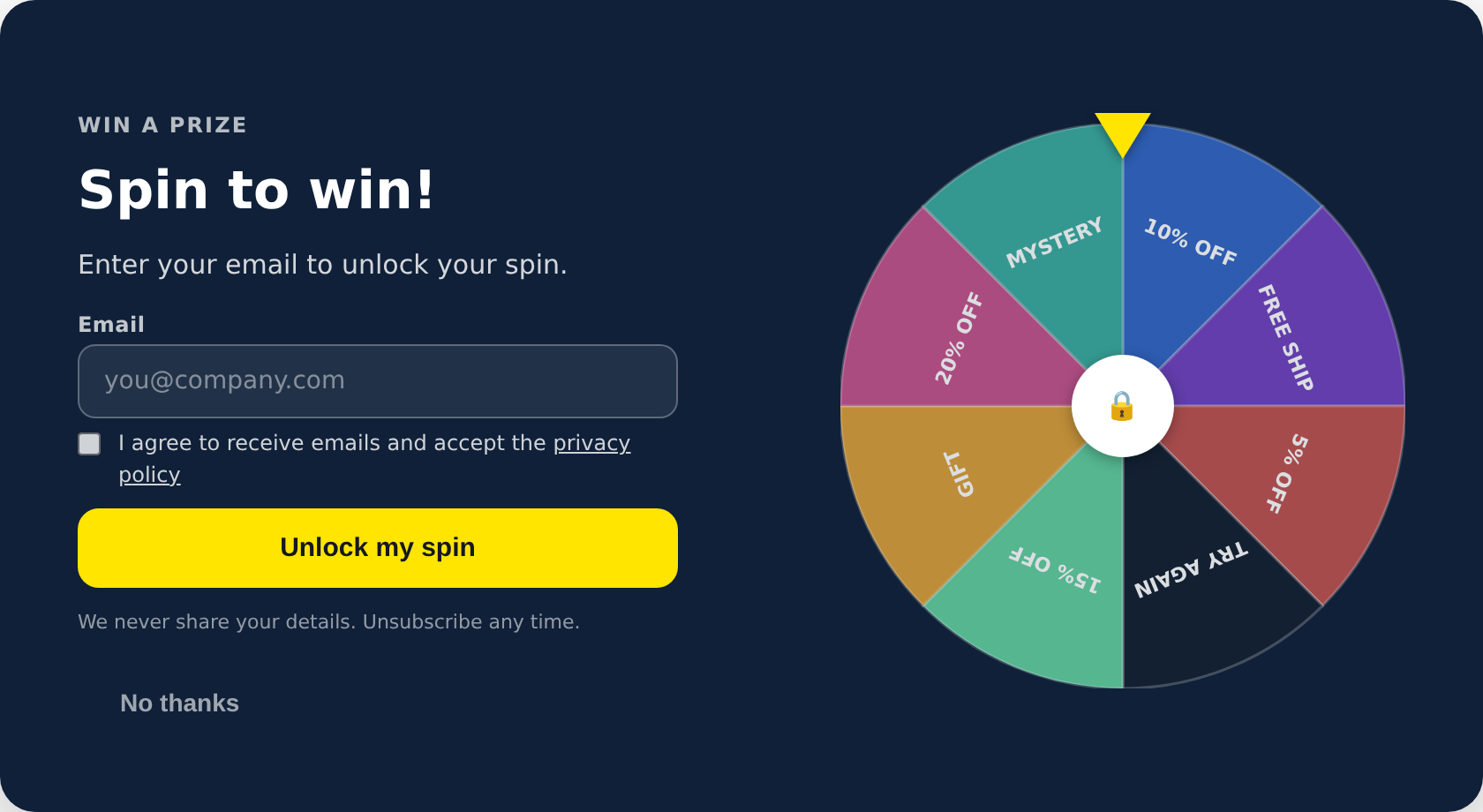
The gated spin wheel is a prize wheel that will not turn until the visitor gives you their email address. The wheel is visible from the start, greyed out with a padlock in the middle, so the reward is obvious before anything is asked for. It is the ordinary Spin Wheel with a form in front of it: everything about segments, odds, coupons, and prizes works exactly the same way.
Use it when the lead matters more than the game. A plain spin wheel entertains and hands out a coupon; this one turns the coupon into the reason someone hands over an address.
How it works for the visitor
There are three stages, and the visitor moves through them in order.
Locked. The form sits next to the wheel. The wheel is dimmed and the hub shows a padlock instead of the spin label. Clicking the wheel or the padlock at this point does not spin it — the form shakes and the cursor jumps to the email field.
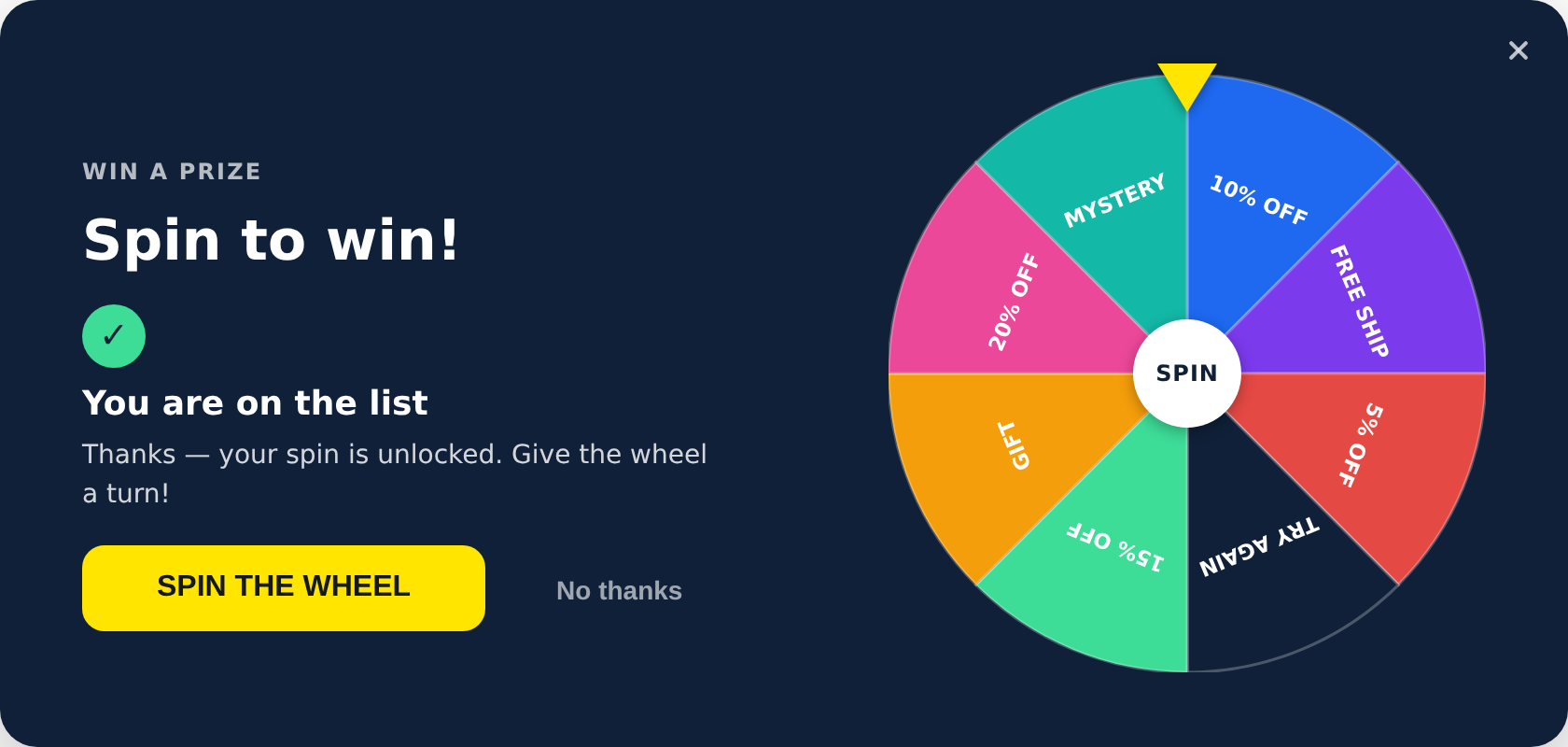
Unlocked. The moment the form is submitted, the lead is saved, the form is replaced by a short thank-you message, and the wheel comes to life. The padlock becomes the spin label and the Spin button appears.
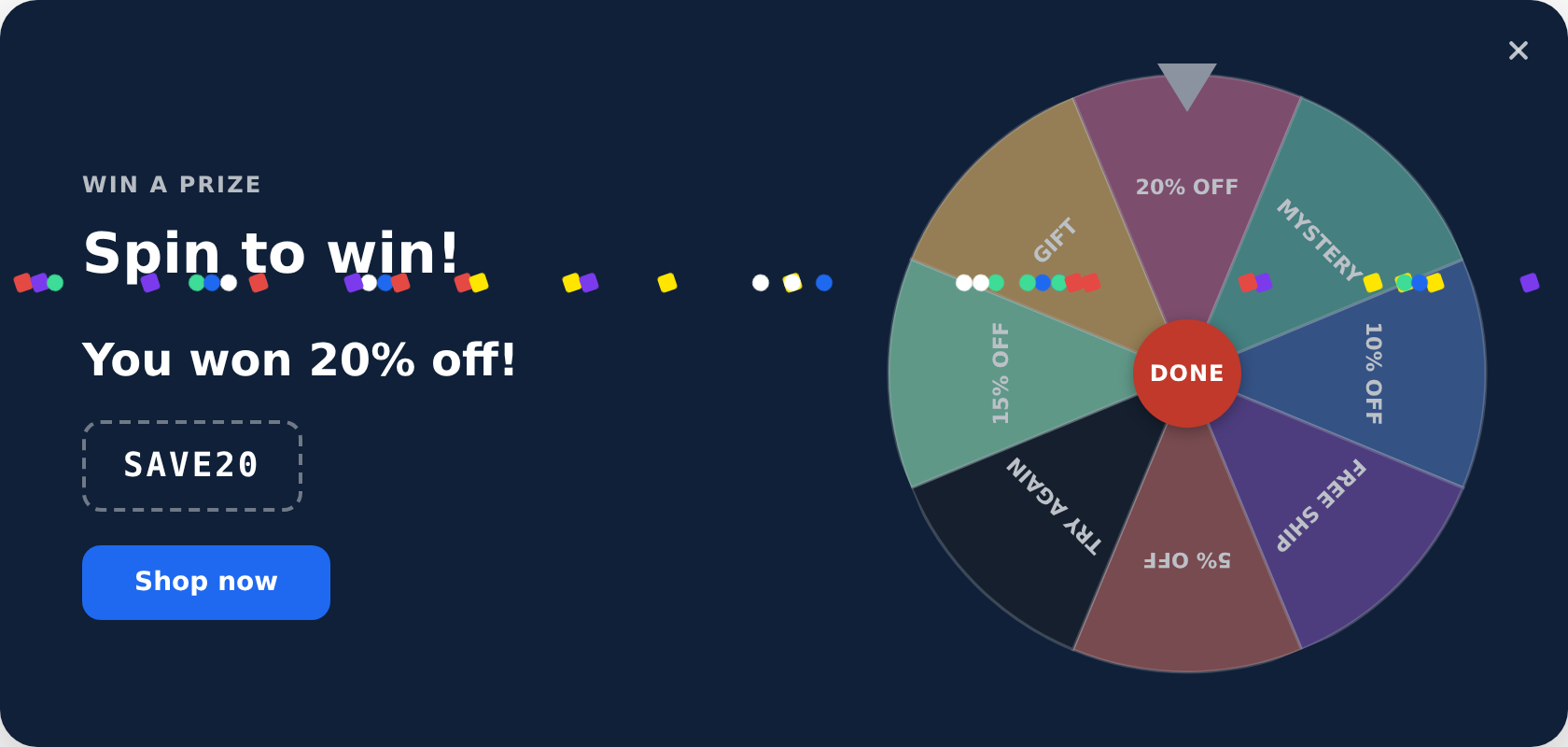
Result. The wheel spins, lands, and reveals the prize and the coupon code, which the visitor can click to copy.
Setting up the form
Everything lives under Form.
- Email is always shown and always required. It is the reason the gate exists, so it cannot be switched off.
- First name is off by default. Turn it on only if you will use it. Every extra field costs completions, and this form is competing with a spinning wheel for attention.
- Consent checkbox is on by default, with editable text, link text, and link address. Use Consent required to make ticking it mandatory rather than optional.
Each field has a profile attribute setting. That is where the answer is stored on the visitor’s profile, and it is what makes the lead usable for targeting later. A field with no attribute chosen is collected but not saved anywhere useful.
The lead and the prize land on the same profile
This is the part that makes the gated wheel worth the extra step. The form writes the email to the visitor’s profile, and the wheel writes the result to the same profile, because it is the same visitor in the same session. Set Prize Field and Coupon Field under Save Result to Profile, and afterwards you have one record holding the address and the code you promised.
That record is what lets you send the coupon by email, remind whoever did not redeem it, or exclude winners from the next campaign. Without those two attributes set, you still capture the lead, but nothing on the profile says what they won.
Tagging leads without asking
Under Form, Hidden value stores a fixed value on every submission from this wheel. Pick an attribute such as source and type something like spin-wheel-summer. The visitor sees nothing, and afterwards you can tell these leads apart from every other form on the site.
What happens after they submit
Under After Submit:
- Thank-you Title and Thank-you Text replace the form once the lead is saved. Keep them short and point at the wheel — the visitor still has something to do.
- Spin Automatically on Submit turns submitting and spinning into a single action. The thank-you message still appears first, then the wheel starts on its own. Wait Before Auto-spin controls the pause, and 1.2 seconds is about the shortest that still lets the message register.
- Button Text While Sending and the three message settings control the wording while the form is in flight and when something is wrong.
There is no redirect or close option here on purpose. Sending the visitor somewhere on submit would take away the spin they were just promised.
Not showing the wheel again
Do Not Show This Wheel Again stops the wheel appearing for that visitor once they have submitted. It fires on submit, not on the spin, because the lead is the goal: someone who gave you their address has done the thing you wanted, whether or not they went on to spin.
Leave it off while you are testing, or the wheel will vanish after your first test submission. How many sessions the suppression lasts is set on the action, under Placement and Trigger, not in the template.
Segments, odds and coupons
Identical to the standard spin wheel. Between four and eight segments, each with a label, a win chance, a colour, a prize message, and an optional coupon code. A segment with no coupon code counts as a losing slice. Full detail is on the Spin Wheel page.
One thing worth adjusting for a gated wheel: losing slices read differently once someone has paid with their email address. Either keep them few, or make sure every slice gives something, even if it is small.
Style and display
Three presets — dark, light, and brand — and three display modes. Inline embeds the wheel in the page, fullpage floats the card on a dimmed overlay, and fullscreen turns the whole screen into the background with the card centred.
On phones the layout stacks: text and form first, then the wheel below. The image above the title can be hidden on mobile with Image on Mobile, which lifts the form and the wheel considerably higher on a small screen. It is worth testing both ways.
Buttons
The No thanks button shows while the wheel is still locked, so a visitor who does not want to give an address can dismiss the whole thing in one click. It disappears once the result is showing.
The Show Button (after win) option adds a call to action alongside the prize, which is normally where you send the visitor to spend the coupon.
Running your own code
Under Custom Code there are two hooks. On Submit runs before the data is sent and receives the submitted values; returning false cancels the submission, which is how you add your own validation. After Submit runs once the lead is saved and the wheel has unlocked, and is the right place to fire your own analytics event or forward the lead elsewhere.
If something does not seem to work
- Nothing happens when the form is submitted. Check that the email field has a profile attribute chosen, and that you are not looking at the editor preview, where submissions are not sent.
- The wheel disappeared and will not come back. Do Not Show This Wheel Again is on and you have already submitted the form. Clear your cookies or test in a private window.
- The wheel will not spin. That is the gate doing its job. The wheel only turns after a successful submission.
- You only see the form in the editor. Expected. The thank-you message and the result appear after a real submission.
Technical notes
- The three stages are stages of one template, not separate actions. Nothing is loaded or navigated between them.
- The form is submitted through Personyze, so the lead is stored on the visitor profile and available for targeting straight away.
- If a submission does not come back within twelve seconds the button is restored and a message shown, so it never sits stuck on its sending text.
- A hidden field in the form catches automated submissions without a captcha; real visitors never see it.
- Who sees the wheel, where, and how often is set on the action, not in the template.
Further reading
- Spin Wheel templates — the ungated versions, and full detail on segments and odds.
- Lead capture form templates — the same form fields without the game.
- Website popup templates — all the popup formats, and how to pick one.